

In this article, we will learn about the View component in React Native. The View component is one of the most fundamental components for building UIs in React Native. A View container supports layout with Flexbox, styling, touch handling, and accessibility control. It is similar to the <div> element in HTML used for web development, but it is optimized for mobile applications.
Let’s create a new React Native project with a blank template using the command below.

Once the project is ready, run the npm start command in the terminal. Since I already have Android Studio installed on my system, I will run the application on the Android Virtual Machine.
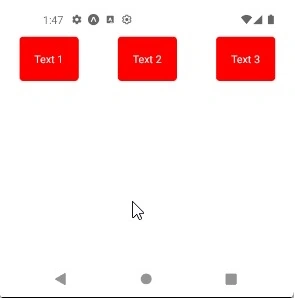
In the first example, let’s arrange the three child Views in horizontal rows. For that, I have created container and box styles. The container style has flexDirection set to row, which arranges the child elements in a horizontal row. The box style sets a red background with white text color and rounded corners.
import { StyleSheet, Text, View } from 'react-native';

export default function App() {
  return (
    <View style={styles.container}>
      <View>
        <Text style={styles.box}>Text 1</Text>
      </View>
      <View>
        <Text style={styles.box}>Text 2</Text>
      </View>
      <View>
        <Text style={styles.box}>Text 3</Text>
      </View>
    </View>
  );
}

const styles = StyleSheet.create({
  container: {
    flexDirection: 'row',
    justifyContent: 'space-around',
    paddingTop: 50
  },
  box: {
    backgroundColor: 'red',
    padding: 20,
    borderRadius: 5,
    color: 'white'
  }
});
Preview
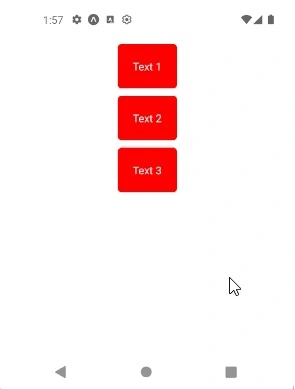
Let’s change the container’s flexDirection to column, which will arrange the child View component in a vertical column.
import { StyleSheet, Text, View } from 'react-native';

export default function App() {
  return (
    <View style={styles.container}>
      <View>
        <Text style={styles.box}>Text 1</Text>
      </View>
      <View>
        <Text style={styles.box}>Text 2</Text>
      </View>
      <View>
        <Text style={styles.box}>Text 3</Text>
      </View>
    </View>
  );
}

const styles = StyleSheet.create({
  container: {
    flexDirection: 'column',
    alignItems: 'center',
    paddingTop: 50,
    paddingLeft: 10,
    paddingRight: 10,
  },
  box: {
    backgroundColor: 'red',
    padding: 20,
    borderRadius: 5,
    color: 'white',
    marginTop: 10,
  },
});
Preview
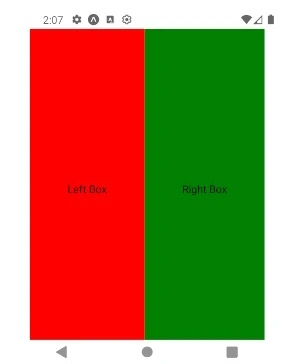
Let’s try another example in which we will see how to create a two-column layout. For that, we will set flexDirection to row, which will arrange the child views side by side. In box style, the flex property with a value of 1 ensures that each box takes equal space. I have also added leftBox and rightBox styles with backgroundColor set to red and green, respectively, to distinguish between the left and right views easily.
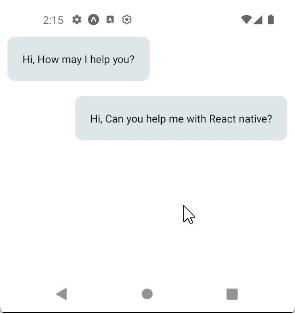
We can also create a small chat-application-like interface. Here, we use alignSelf as “flex-start”, which aligns a message to the left (like a message received from a user), and “flex-end” aligns a message to the right (like a sent message). The maxWidth property is used to control the maximum width of the View component.
import { StyleSheet, Text, View } from 'react-native';

export default function App() {
  return (
    <View style={{ paddingTop: 40 }}>
      <View
        style={{
          backgroundColor: '#dfe6e9',
          padding: 20,
          margin: 10,
          maxWidth: '75%',
          borderRadius: 10,
          alignSelf: 'flex-start',
        }}
      >
        <Text>Hi, How may I help you?</Text>
      </View>

      <View
        style={{
          backgroundColor: '#dfe6e9',
          padding: 20,
          margin: 10,
          maxWidth: '75%',
          borderRadius: 10,
          alignSelf: 'flex-end',
        }}
      >
        <Text>Hi, Can you help me with React native?</Text>
      </View>
    </View>
  );
}
Preview
The View component is just the starting point for experimenting with styling, nesting, and layouts to unlock the full potential of React Native UI.
Join the conversation! Your thoughts help the community grow.