

In this article I have explained how to work with GitHub and integration with UiPath.
What is a Version Control and Git

If you are old enough remember working on projects in a group/team , you know that many people trying to edit the project leads to multiple copies of an original project. The result is many duplicate project folders. If two people made some changes at the same time then someone has to combine those edits together manually.
Git solves this problem.
The core functionality of Git is to create save points, or you could say checkpoints, in your files. Even if you forget or screw up after some point, you can always come back and try again without having to start over.
After each major step you can commit your code/project to git. It will save it with its respective comments and who added /modified it. You can always take the project up to this date or the full committed final project.
I'm not going into detail about Git, as this article is not on Git but is about using Git /GitHub in UiPath.
GitHub
GitHub is a third party online web service that allows you to back up the code you are saving with Git to the cloud.
- Git is local
- GitHub is a cloud-based application
Common actions are,
- Commit: Commits current changes to local git repository.
- Push: Pushes the current version to remote repository.
- Commit and push: committing to local and then pushing the current version to remote repository like GitHub Cloud.
GitHub Integration in UiPath
First open UiPath studio and create one simple Hello World project:
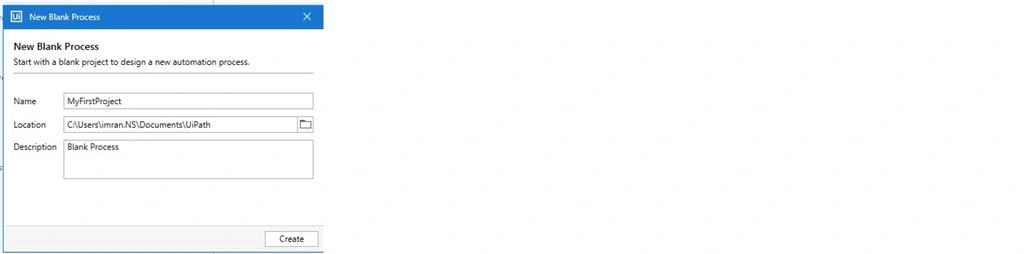
Click on create.
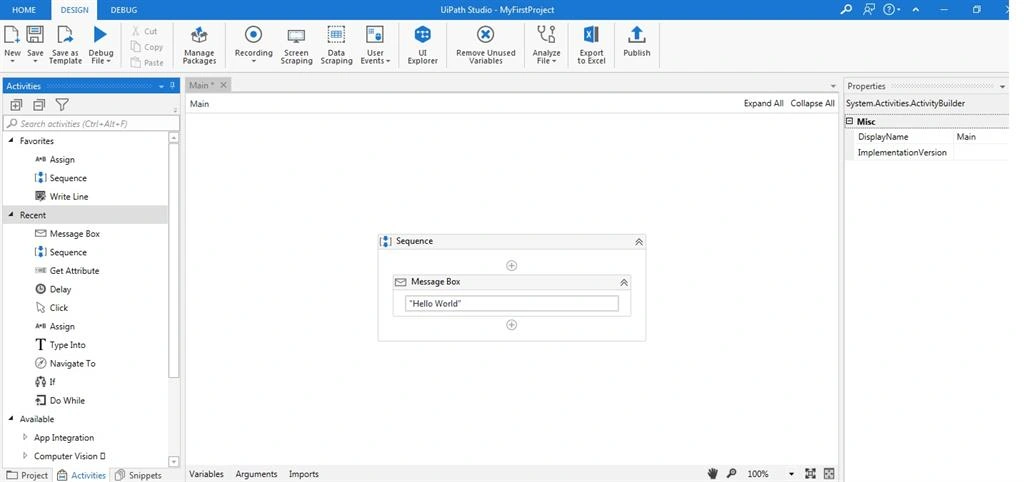
Take one sequence activity and within that one message box activity to display the message “Hello World”.
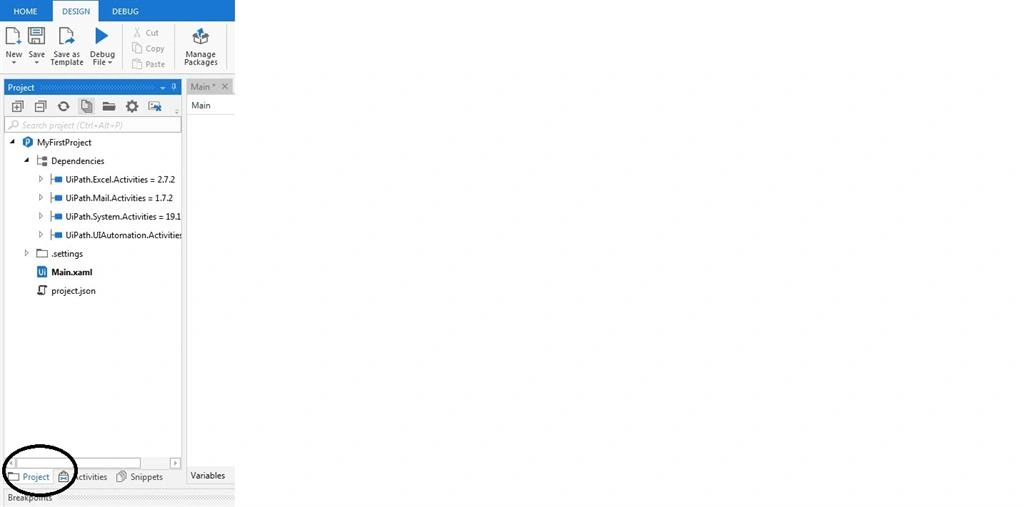
Now select Project in Project Explorer window.
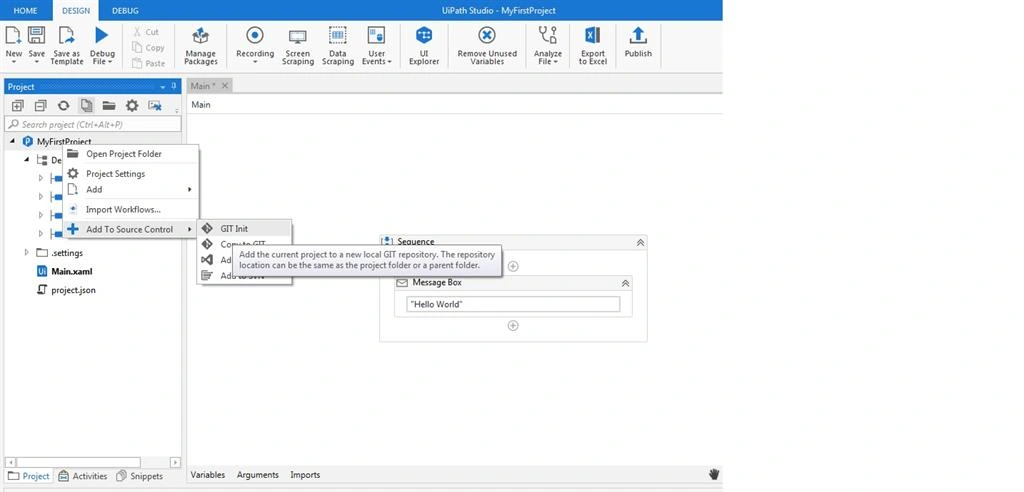
Now right click on project and goto Add To Source Control.
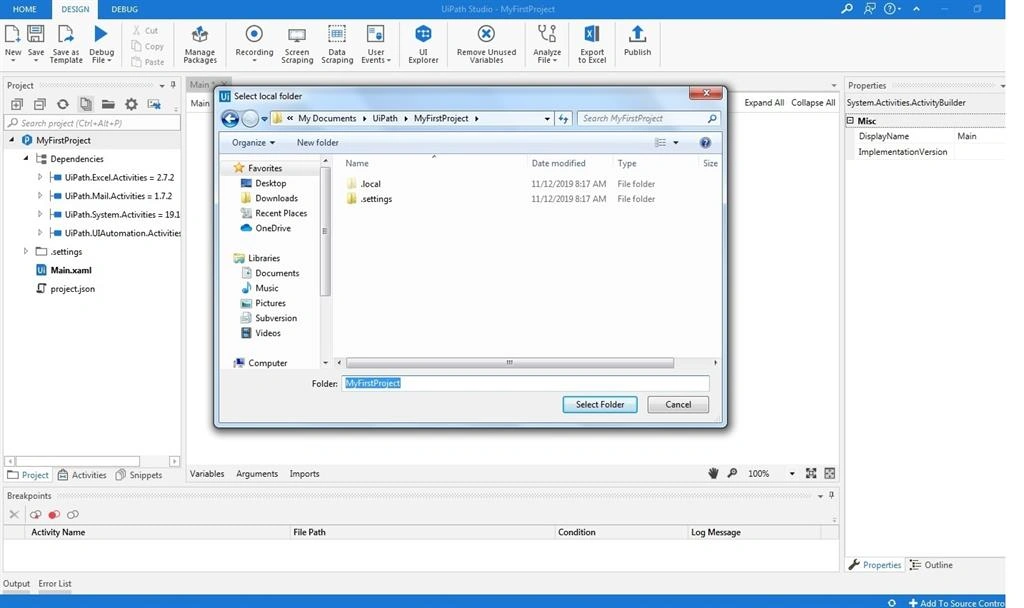
Then select or browse to parent folder of your project.
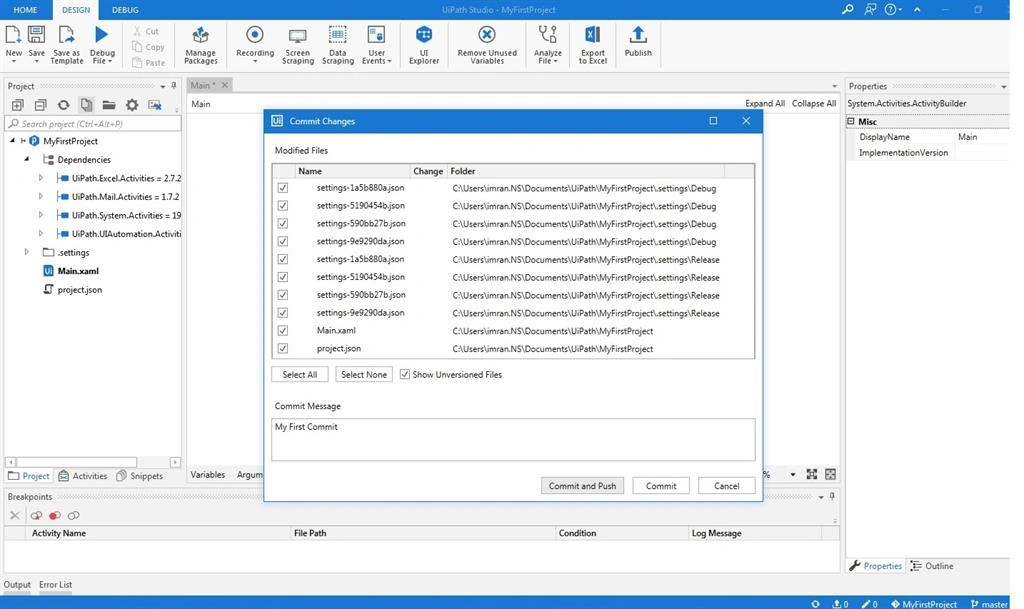
It will ask for Commit Comment -- write your own comment for current commit.
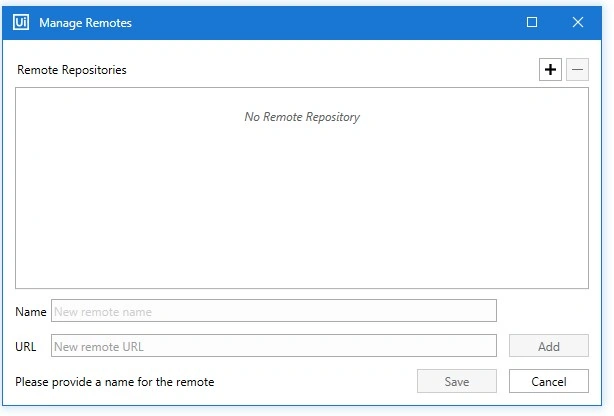
Now it will ask for Remote Repository Path and Name etc.
Now goto Github.com and if don’t have an account then create one.
Then click on + sign at the extreme right for New Repository.

Enter the Respective fields.
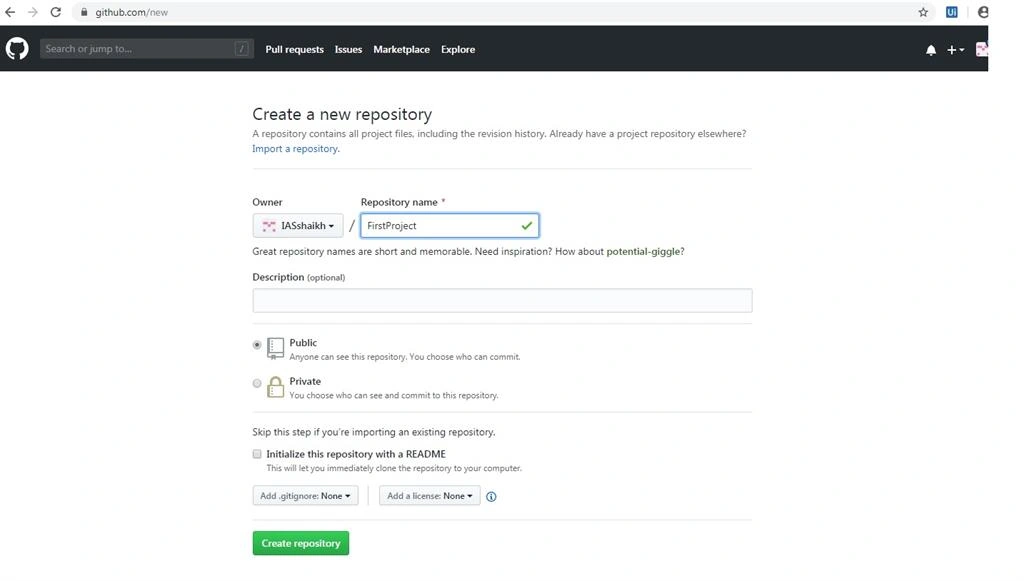
It will give you a repository path like this.
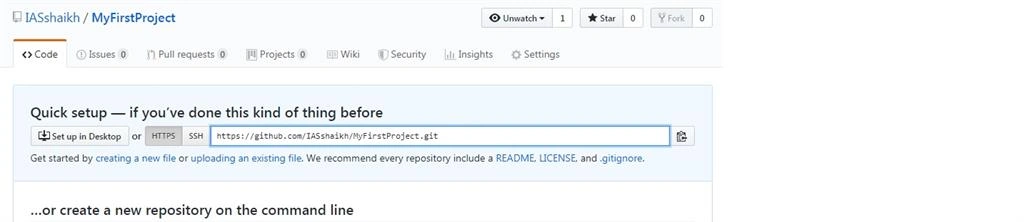
Copy this and fill in here.
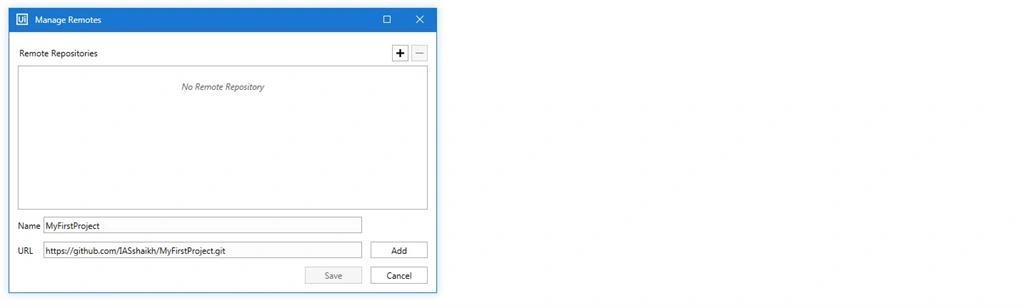
Click on Add and then Save.
It may ask for user credentials for your GitHub account.

Enter the details and click on OK.
Now go to your GitHub Account and you can find the commited project files there.
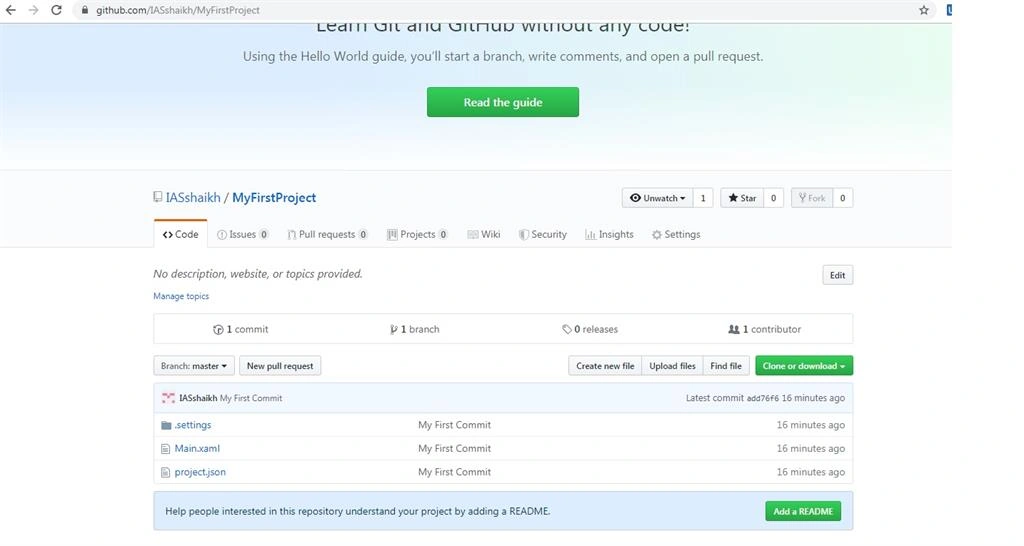
Now commiting a project to GitHub Cloud is done.
Second Scenario
Now suppose you have a repository by someone else or a remote repository of your own, and you want to clone the project from that repository to your local then follow the steps:
First Open UiPath
Go to Team and Click on Clone Repository.
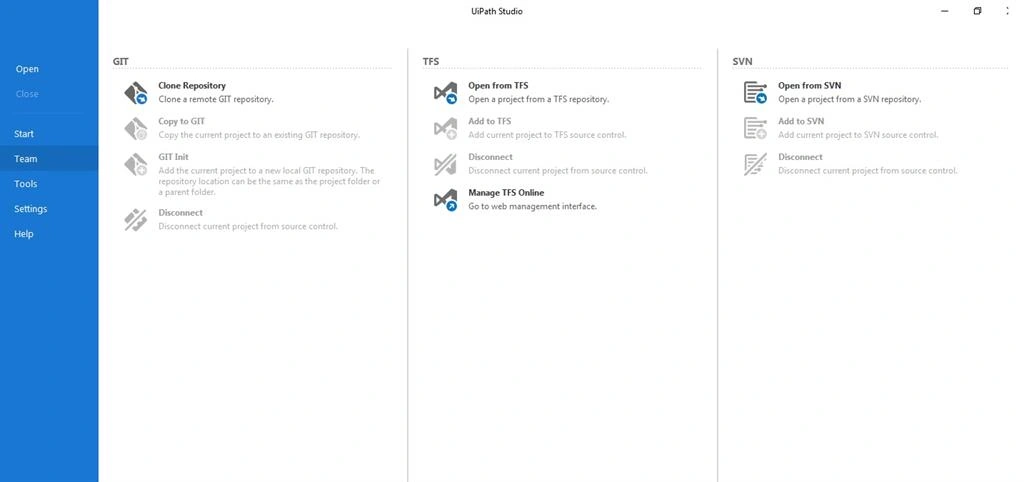
Fill in the info.
Your Project GiT/GitHub URL
CheckOut Folder Path which you want to clone.
User Credentials.

And click open with Clone the Project from GitHub and open it in your studio.
Conclusion
Here we have seen how to Integerate GitHub with RPA UiPath Studio, now you can easily version control your work in UiPath.
Bill RichardsonPosted Mar 23, 2021, 5:17 PM
Nice article showing how to add one project. Question: Does UIPath expect each project is stored in its own Repository in GIT? Can I have one repository for many projects and have each one in a folder within the repository?