
- Open Visual studio 2008
- Create new project from File --> New --> Project
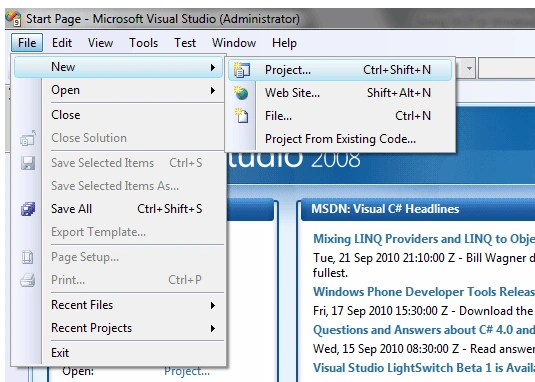
- Create WCF service Application
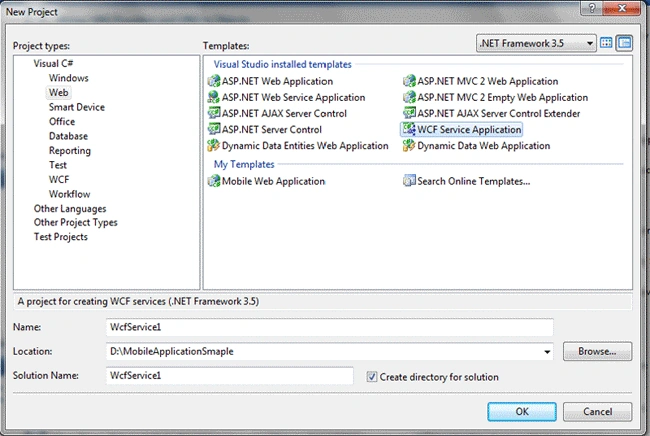
- Select Web project types under project type section
- Select WCF Service Application to create the WCF service project
- Save the application in your local drive
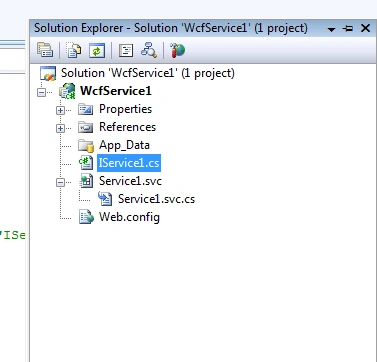
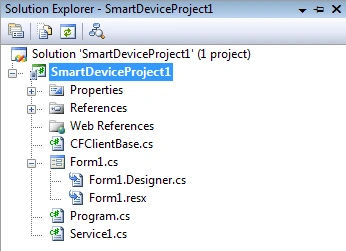
- After creating the project the following files will be created in the solution.
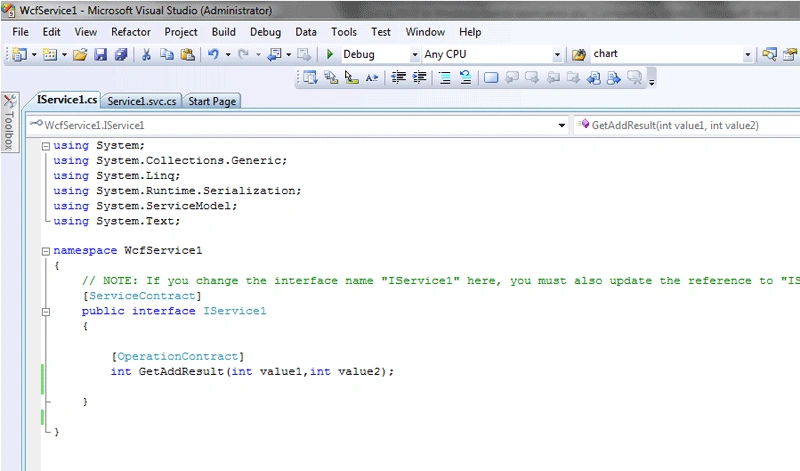
- Open service interface file (IService1) and delete the automatically created code.
- Copy below mentioned code in IService1 file.
namespace WcfService1
{
[ServiceContract]
public interface IService1
{
[OperationContract]
int GetAddResult(int value1,int value2);
}
}
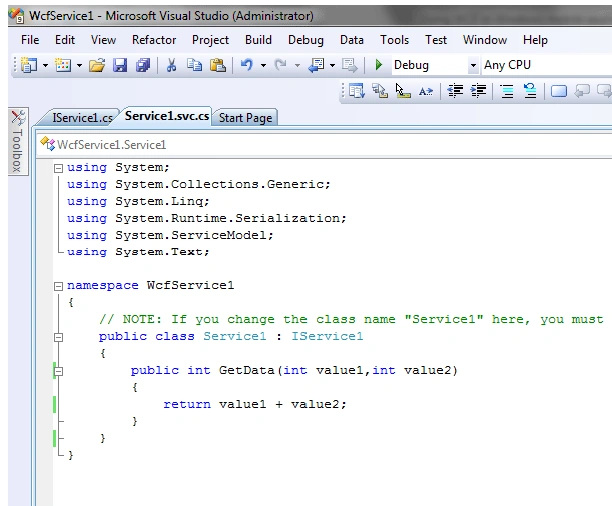
- Open service svc file (Service1.svc.cs) and delete the automatically created code.
- Copy below mentioned code in Service1.svc.cs file.
namespace WcfService1
{
public class Service1 : IService1
{
public int GetData(int value1,int value2)
{
return value1 + value2;
}
}
}
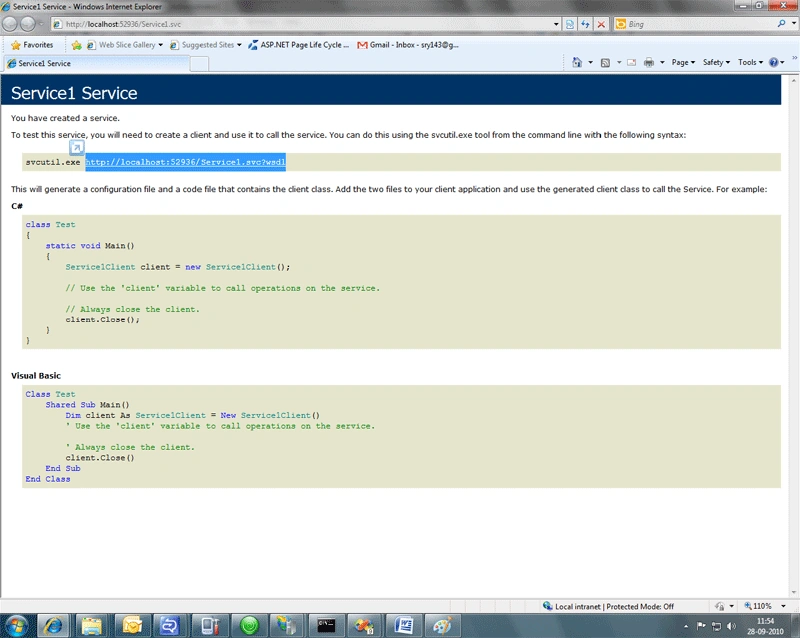
- Browse the WCF service application in internet explore
- Create service methods will appear in the internet explorer as shown in the below screen capture
- Note down the WCF service URL to add the web reference in mobile application.
Create Sample Mobile application
- Open Visual studio 2008
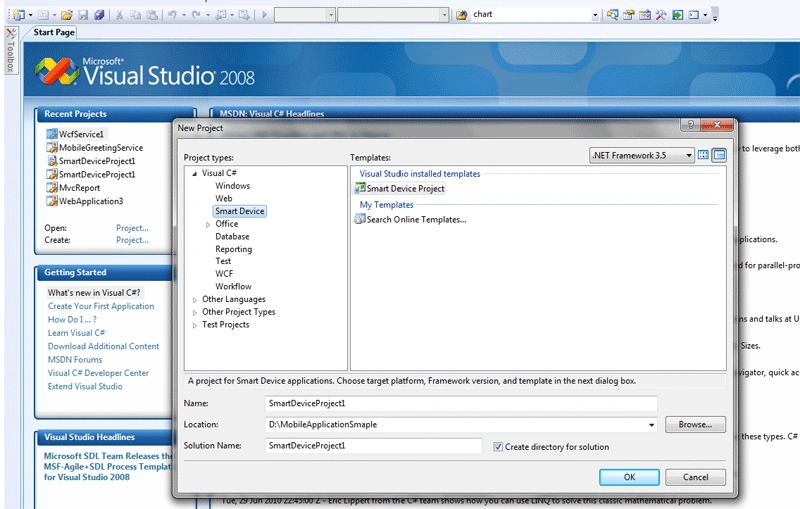
- Create new project from File --> New --> Project
- Select Smart Device project type and Template is Smart Device Project
- Select Target platform as per requirement. In the target platform dropdown select suitable mobile platform.
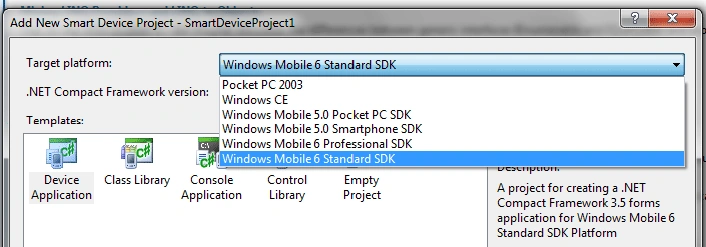
- Select Device Application Template and click ok.
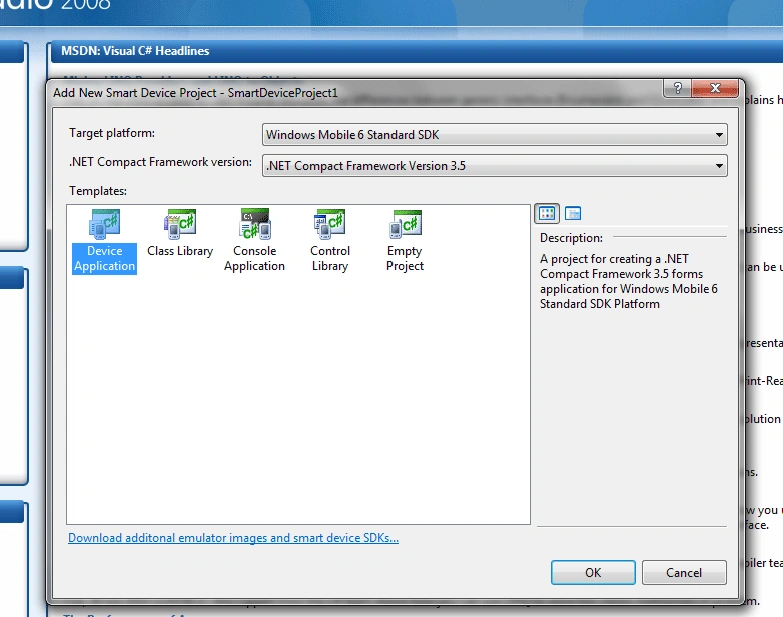
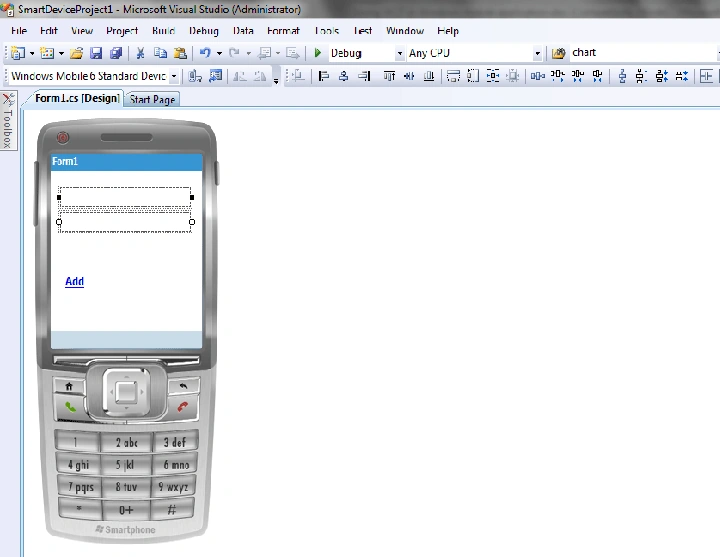
- Creates the mobile window form to develop the mobile application
- Add two text boxes and one button controls to test the service as shown in the below screen shot.
To Consume WCF service in Windows 7 Mobile application
- Download NETCv35PowerToys.msi from following link.
http://www.microsoft.com/downloads/en/details.aspx?FamilyID=c8174c14-a27d-4148-bf01-86c2e0953eab&displaylang=en
- After installing above msi file it will copy the NetCFSvcUtil.exe, but this will work for Windows 7.
- To work in windows 7 we need to down load updated NetCFSvcUtil.exe file from following link.
http://blogs.msdn.com/b/habibh/archive/2009/06/26/netcfsvcutil-exe-and-windows-7.aspx
- Copy the downloaded file to the following location
C:\Program Files\Microsoft.NET\SDK\CompactFramework\v3.5\bin\
- Open WCF service web.conig file and change the binding mode in endpoint section as mentioned below
<endpoint address="" binding="wsHttpBinding" contract="WcfService1.IService1">
To
<endpoint address="" binding="basicHttpBinding" contract="WcfService1.IService1">
- Open command prompt and run the following command



- It generates two files as shown in the above screen shot (Service1.cs and CFClientBase.cs).
- Add he created two files into mobile application project.
- Add following code in link event
private void linkLabel1_Click(object sender, EventArgs e)
{
Service1Client proxy = new Service1Client();
int resutl = proxy.GetAddResult(Convert.ToInt32(textBox1.Text), Convert.ToInt32(textBox2.Text));
MessageBox.Show(resutl.ToString());
}
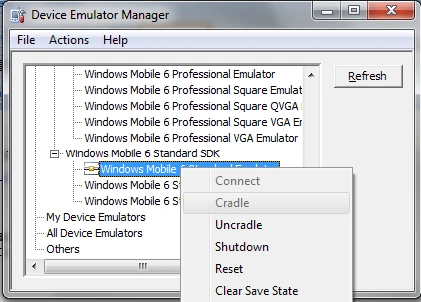
- Open Device Emulator Manager and Windows Mobile Device Center.
- Select the Emulator which is our running application.
- Click on Cradle to connect to the Windows Mobile Device Center.
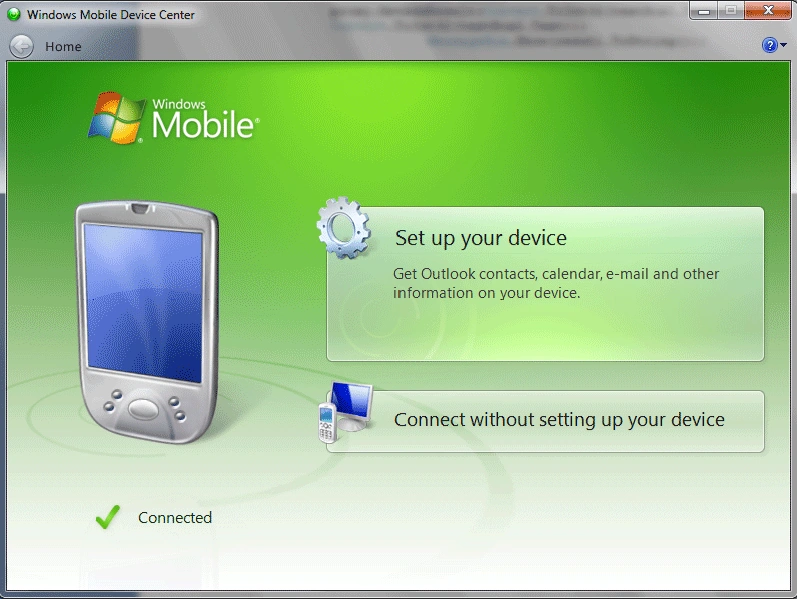
- Once connected to the Windows Mobile Device Center Run the out mobile application.
- Once started the application will open Deploy SmartDeviceProject1 dialog box to chose the Emulator
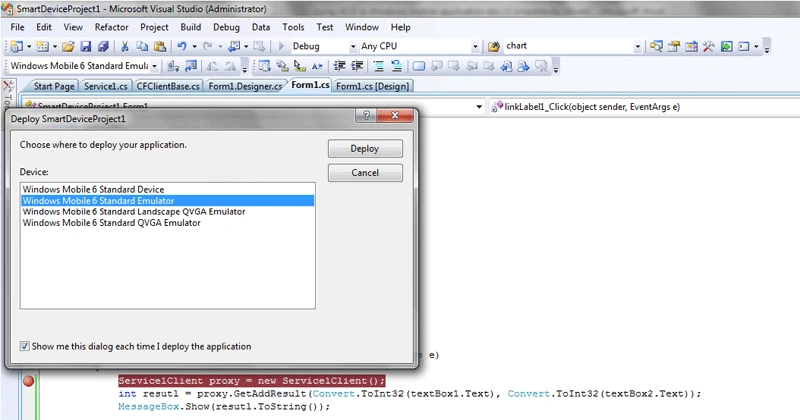
- Click on Deploy button in the dialog box.
- After deploying it will open the mobile window with our added controls.
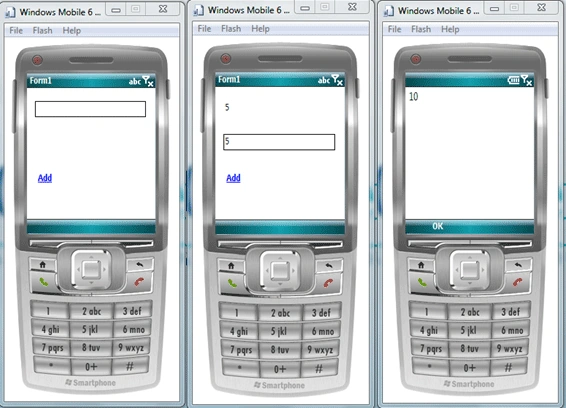
Note: - Before running the application
- Check properly Cradle.
- Check Windows Mobile Device Center connected or not.
- Check our service is running or not.
Contributors
Kalyan Yerranagu
Indra Bushan Prasad
Gohil JayendrasinhPosted May 5, 2012, 9:06 AM
Good one
Fatima DiarraPosted Apr 4, 2011, 9:38 AM
After deployment when clicked add it displays the following error: "There was no endpoint listening at http://localhost:51914/Service1.svc that could accept the message. This is often caused by an incorrect address or SOAP action. See InnerException, if present, for more details."
Srihari ChinnaPosted Jan 22, 2011, 9:05 AM
Sriram, Nice artical -Chinna