

In this article you will learn how to use SlideShow WebPart to display images from a Picture Library.
Let's create a Picture Library first (Site Settings>More Options):
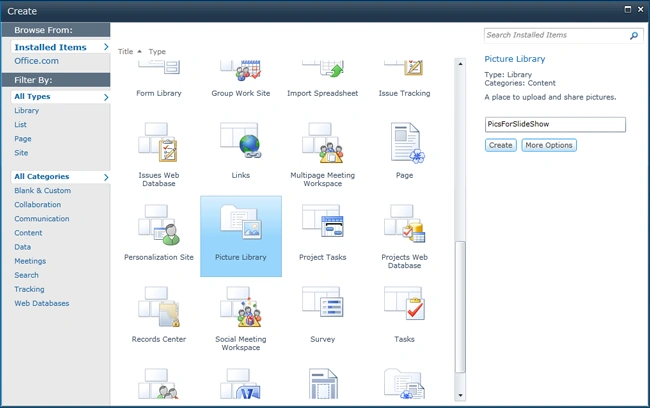
Create a Picture Library named "PicsForSlideShow".
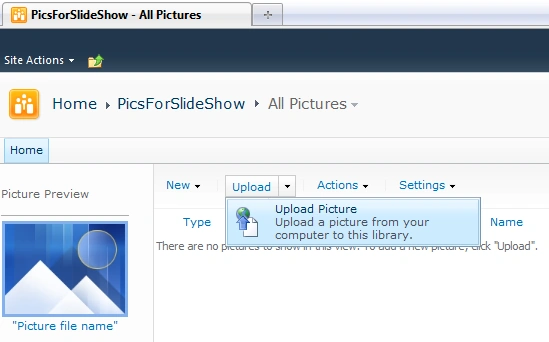
Upload Pictures using Upload Menu.
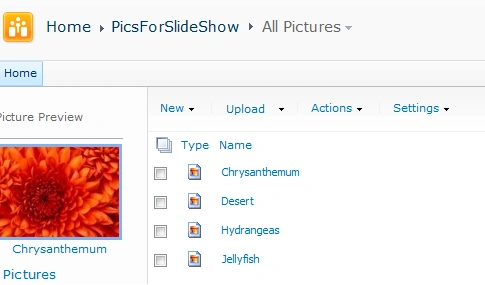
The pictures used here are "Windows 7 Pictures" that can be found at: C:\Users\Public\Pictures\Sample Pictures
Ok. Now that we have created our Picture Library.
Let's go back to the Home Page.
Edit the Page using Page Tab -> Edit Page
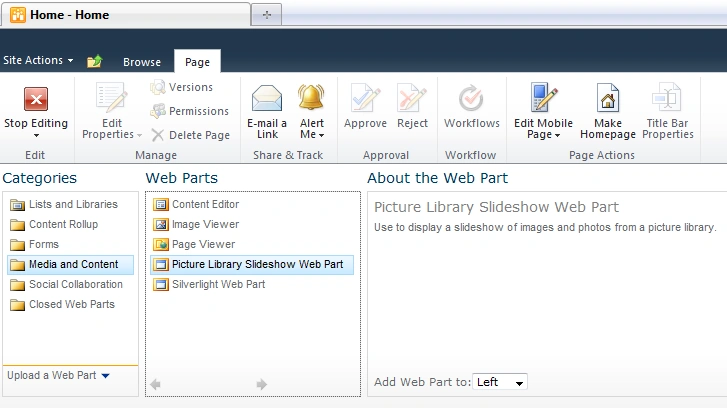
Click Add a Web Part and there choose Category "Media and Content" and Choose "Picture Library Slideshow Web Part"
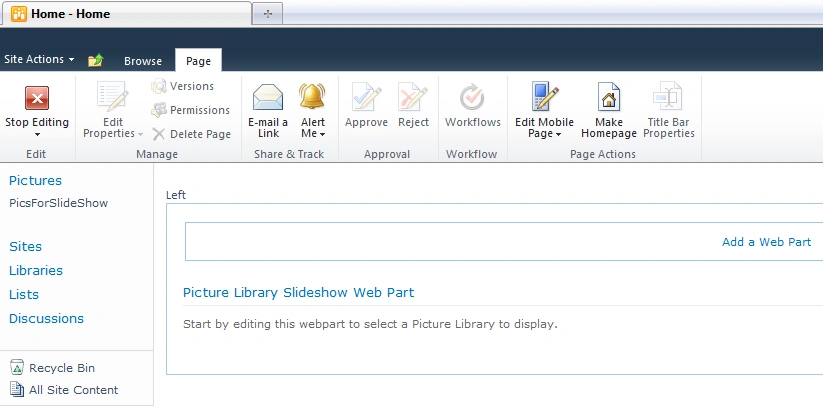
Click Add. It is empty initially because we need to configure it first.
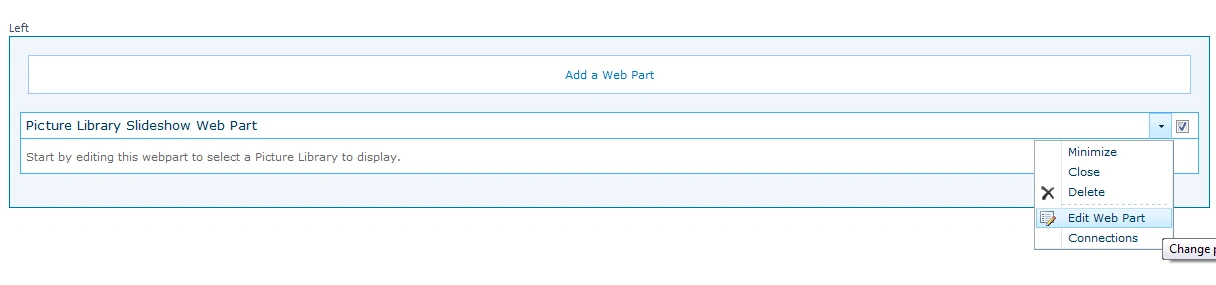
Choose the Web Part:
Then Choose Edit Web Part.
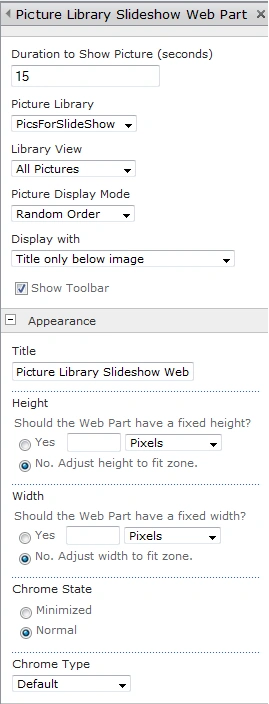
A new Panel will open in the right corner showing us all the properties that can modified for this WebPart.
Look at the "Picture Library" labelled Combobox; there you will see "PicsForSlideShow". So that's everything we need. We just need to Click Apply and then click OK.
Then Click Stop Editing and see your Pictures in SlideShow:
That's it. You've added SlideShow in your Sharepoint Portal successfully.
Hope it helps!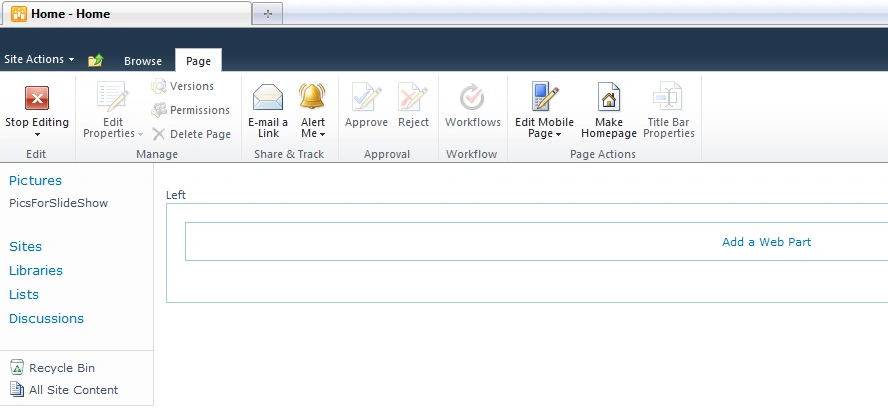

Tarun DPosted Oct 19, 2012, 7:03 AM
very nice article. Thanku..
Jane WhiteakerPosted Sep 23, 2012, 2:19 AM
Hi Is it possible to change to View of the Slideshow web part so that the buttons underneath the web part do not show please? eg the back, play, stop and forward buttons Thanks Jane
susan angelesPosted Jul 30, 2012, 6:54 PM
I need the slide show in the principal page, but I only can see it when i go to the image folder. What can I do?
NANCY ODERAPosted Jul 19, 2012, 4:49 PM
How can you make the images or web part click able to different url? Right now when clicked they go to the image.
Sathish Kumar KPosted Dec 14, 2011, 6:25 AM
Customization <table> <tr><td> desription with 250 chars</td><td>Image</td></tr> <tr><td colspna="2">1 2 3 4 5 6</td></tr> </table> with onclick on numbers respective image should be shown. we don't want to use JQUERY