

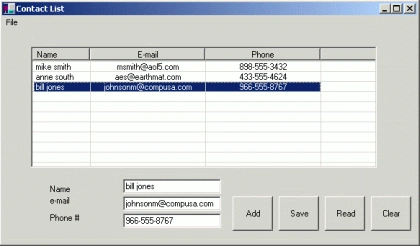
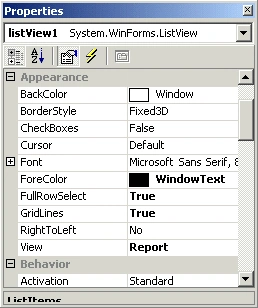
As a Visual C++ user for 10 years I can say that Microsoft deserves praise for their new ListView class. The MFC ListView class was, well, unpleasant to use. C# makes life a bit easier with a richer property and method set for ListViews. Also, you can now, set the ListView to select an entire row in report mode, something that in Visual C++ you had to write a whole custom ListView control to do. Note also the nice grid lines.
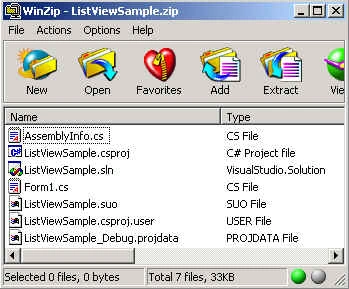
Below are the files included for the Visual.NET Project. Form1.cs contains all the code in this article:
The above mini application shows you how to create a ListView in report mode and make it persistent with streams. The ListView's columns are initialized with the following code:
- public void InitializeListView()
- {
- ColumnHeader header1 =this.listView1.InsertColumn(0, "Name", 10*listView1.Font.SizeInPoints.ToInt32() , HorizontalAlignment.Center);
- ColumnHeader header2 =this.listView1.InsertColumn(1, "E-mail", 20*listView1.Font.SizeInPoints.ToInt32(), HorizontalAlignment.Center);
- ColumnHeader header3 =this.listView1.InsertColumn(2, "Phone", 20*listView1.Font.SizeInPoints.ToInt32(), HorizontalAlignment.Center );
- }
In this example, we use the edit box fields to populate the rows in our listview. Below is the routine for inserting rows into our contact list:
- protected void addbutton_Click (object sender, System.EventArgs e)
- {
- // create the subitems to add to the list
- string[] myItems = new string[]{textBox2.Text, textBox3.Text};
- // insert all the items into the listview at the last available row
- listView1.InsertItem(listView1.ListItems.Count, textBox1.Text, 0, myItems);
- }
Another function of this ListView Example is the ability to delete rows. In this example we trap the KeyDown event and look for the delete key. If the delete key is pressed, the program will remove the selected rows:
- protected void Form1_KeyDown(object sender, System.WinForms.KeyEventArgs e)
- {
- // determine the value of the key pressed. If the value is delete (46), remove all selected rows
- int nKeyValue = e.KeyData.ToInt32();
- if (nKeyValue == 46)
- {
- for (int i = listView1.SelectedItems.Count - 1; i >= 0; i--)
- {
- ListItem li = listView1.SelectedItems[i];
- listView1.ListItems.Remove(li);
- }
- }
- }
Several articles on this site already cover streams, so I'll only talk briefly about them here.
The FileStream allows you to read or write to a file. You can use the StreamWriter class to manipulate this stream for writing. In this example we use the SaveFileDialog component to prompt the user for the file we want to save too. The programmer can set this component for the extensions, defaults, Title and other specifics for the appearance of this dialog:
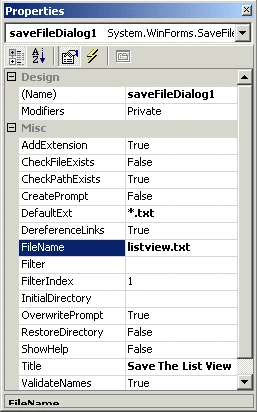
The code for writing the ListView out to a tab-delimited text file is shown below:
- protected void savebutton_Click(object sender, System.EventArgs e)
- {
- try
- {
- // get the file name to save the list view information in from the standard save dialog
- if (this.saveFileDialog1.ShowDialog() == DialogResult.OK)
- {
- // open a stream for writing and create a StreamWriter to use to implement the stream
- FileStream fs = new FileStream(@saveFileDialog1.FileName, FileMode.OpenOrCreate, FileAccess.Write);
- StreamWriter m_streamWriter = new StreamWriter(fs);
- m_streamWriter.Flush();
- // Write to the file using StreamWriter class
- m_streamWriter.BaseStream.Seek(0, SeekOrigin.Begin);
- // write each row of the ListView out to a tab-delimited line in a file
- for (int i = 0; i < this.listView1.ListItems.Count; i++)
- {
- m_streamWriter.WriteLine(listView1.ListItems[i].Text + "\t" + listView1.ListItems[i].SubItems[0].ToString() + "\t" + listView1.ListItems[i].SubItems[1].ToString());
- }
- // Close the file
- m_streamWriter.Flush();
- m_streamWriter.Close();
- }
- }
- catch (Exception em)
- {
- }
- }
- protected void readbutton_Click(object sender, System.EventArgs e)
- {
- try
- {
- if (this.openFileDialog1.ShowDialog() == DialogResult.OK)
- {
- FileStream fs = new FileStream(openFileDialog1.FileName, FileMode.Open, FileAccess.Read);
- StreamReader m_streamReader = new StreamReader(fs);
- // Read to the file using StreamReader class
- m_streamReader.BaseStream.Seek(0, SeekOrigin.Begin);
- string strLine = m_streamReader.ReadLine();
- int nStart = 0;
- int count = 0;
- // Read each line of the stream and parse until last line is reached
- while (strLine != null)
- {
- int nPos1 = strLine.IndexOf("\t", nStart);
- string str1 = strLine.Substring(0, nPos1); // get first column string
- nStart = nPos1 + 1;
- int nPos2 = strLine.IndexOf("\t", nStart);
- string str2 = strLine.Substring(nStart, nPos2 - nStart); // get second column string
- nStart = nPos2 + 1;
- string str3 = strLine.Substring(nStart); // get last column string
- listView1.InsertItem(count, str1, 0, new string[] { str2, str3 }); // Add the row to the ListView
- count++; // increment row
- nStart = 0; // reset
- strLine = m_streamReader.ReadLine(); // get next line from the stream
- }
- // Close the stream
- m_streamReader.Close();
- }
- }
- catch (Exception em)
- {
- System.Console.WriteLine(em.Message.ToString());
- }
- }
kalu singh raoPosted Jul 9, 2016, 10:42 AM
Nice...
SharadPosted Jul 17, 2015, 3:41 AM
good one...
Grabsi AminePosted Dec 13, 2012, 11:03 AM
Nice Work
Abdurrahman GayretliPosted Aug 21, 2012, 9:43 AM
How to items enabled or non clickable in listView?
Filipe CaloiraPosted Jun 8, 2011, 4:59 AM
thx for help. nice and simples. GooD Joob man ^^
Abhay ChavanPosted Apr 24, 2011, 4:58 AM
Very Nice
Rohit MorePosted Mar 20, 2011, 4:45 AM
I am very glad to say, just becouse of yours ListView Samples... i am accomplish ma project ..... thank u very much sir.... n m sure , if i get any problem in ma project u ll definately help me ... m i right sir???? anyway have a great day ahead. :)
Nur EllyPosted Jan 28, 2011, 7:10 AM
Thanks for share , good for noob like me
Anna SkrzypinskaPosted Jan 24, 2011, 7:19 PM
Hello I used this code in Visual C# 2008. After conversion "savebutton and readbutton" application dont' work properly. I tried debugging code. When I call the button code jumps to exception. I'd be very grateful if you'd like to help me.
santosh shresthaPosted Jan 13, 2011, 1:45 AM
#region Form Load private void Manage_Another_Account_frm_Load(object sender, EventArgs e) { int count_reslut = BLL_Admin.Count_Total_Account_Type_And_Load_Data(); Admin_Details.ACCOUNTTYPE = "Administrator"; #region For Loop i = count_reslut; for (count = 0; count < i; ) { #region Defining Panel Location int a = sx + 5; int b = count; Admin_Details.ROWS = count; Administrator_Details Admin_Data = BLL_Admin.Get_Data_Load_Data(Admin_Details); if (count == 0) { y = 15; } else if (count % 3 == 0) { count_row++; a = 0; b = count - count; y = 15 + ((x + sy) * count_row); reserve_count_row = count_row; reserve_count = count; } else if (count > 0 && count <= 2 && count % 3 > 0) { a = sx + 5; b = count; } else if (count > 2 && count % 3 > 0) { b = count - reserve_count; y = 15 + ((x + sy) * reserve_count_row); } #endregion #region Drawing Panel In GroupBox Panel pnl = new Panel(); pnl.Location = new Point(x + (a * b), y); pnl.Size = new Size(sx, sy); pnl.BackColor = Color.LightGray; pnl.Cursor = System.Windows.Forms.Cursors.Hand; pnl.Name = "pnl_" + count.ToString(); pnl.MouseLeave += new EventHandler(pnl_MouseLeave); pnl.MouseHover += new System.EventHandler(pnl_MouseHover); pnl.Click+=new EventHandler(pnl_Click); pnl_new_[count] = pnl; grp_account.Controls.Add(pnl_new_[count]); #endregion #region Drawing PictureBox In Panel PictureBox pic = new PictureBox(); pic.Location = new Point(12, 12); pic.Size = new Size(70, 74); pic.BackColor = Color.Green; pic.BackgroundImageLayout = ImageLayout.Stretch; pic.SizeMode = PictureBoxSizeMode.StretchImage; byte[] ImageData = Admin_Data.IMAGE; Image NewImage; using (MemoryStream Marine_MS = new MemoryStream(ImageData, 0, ImageData.Length)) { Marine_MS.Write(ImageData, 0, ImageData.Length); NewImage = Image.FromStream(Marine_MS, true); } pic.Image = NewImage; pic.Name = "usr_pic_" + count.ToString(); usr_pic_[count] = pic; pnl_new_[count].Controls.Add(usr_pic_[count]); #endregion #region Drawing Label Name In Panel Label lbl_name = new Label(); lbl_name.Location = new Point(94, 21); lbl_name.Size = new Size(122, 18); lbl_name.ForeColor = Color.Green; lbl_name.Name = "lbl_name_" + count.ToString(); lbl_name.Text = Admin_Data.USERNAME; lbl_name.Font = new Font("Tahoma", 11.25F, System.Drawing.FontStyle.Regular, System.Drawing.GraphicsUnit.Point, ((byte)(0))); lbl_username_[count] = lbl_name; pnl_new_[count].Controls.Add(lbl_username_[count]); #endregion #region Drawing Label Account Type In Panel Label lbl_actype = new Label(); lbl_actype.Location = new Point(94, 47); lbl_actype.Size = new Size(122, 18); lbl_actype.Text = Admin_Details.ACCOUNTTYPE; lbl_actype.ForeColor = Color.Black; lbl_actype.Name = "lbl_account_type_" + count.ToString(); lbl_actype.Font = new Font("Tohama", 9F, System.Drawing.FontStyle.Regular, System.Drawing.GraphicsUnit.Point, ((byte)(0))); lbl_account_type_[count] = lbl_actype; pnl_new_[count].Controls.Add(lbl_account_type_[count]); #endregion #region Drawing Label Password In Panel Label lbl_pwd = new Label(); lbl_pwd.Location = new Point(94, 67); lbl_pwd.Size = new Size(122, 18); if (Admin_Details.PASSWORD == string.Empty) { lbl_pwd.Visible = false; } else { lbl_pwd.Text = "Password protected"; } lbl_pwd.ForeColor = Color.Black; lbl_pwd.Name = "lbl_pwd_" + count.ToString(); lbl_pwd.Font = new Font("Tohama", 9F, System.Drawing.FontStyle.Regular, System.Drawing.GraphicsUnit.Point, ((byte)(0))); lbl_password_[count] = lbl_pwd; pnl_new_[count].Controls.Add(lbl_password_[count]); #endregion count++; } #endregion } #endregion public void pnl_MouseHover(object sender, System.EventArgs e) { Panel pnl_New = (Panel)sender; switch (pnl_New.Name) { case "pnl_0": pnl_New.BackColor = Color.MintCream; break; case "pnl_1": pnl_New.BackColor = Color.MintCream; break; case "pnl_2": pnl_New.BackColor = Color.MintCream; break; case "pnl_3": pnl_New.BackColor = Color.MintCream; break; case "pnl_4": pnl_New.BackColor = Color.MintCream; break; case "pnl_5": pnl_New.BackColor = Color.MintCream; break; case "pnl_6": pnl_New.BackColor = Color.MintCream; break; case "pnl_7": pnl_New.BackColor = Color.MintCream; break; case "pnl_8": pnl_New.BackColor = Color.MintCream; break; case "pnl_9": pnl_New.BackColor = Color.MintCream; break; case "pnl_10": pnl_New.BackColor = Color.MintCream; break; case "pnl_11": pnl_New.BackColor = Color.MintCream; break; case "pnl_12": pnl_New.BackColor = Color.MintCream; break; case "pnl_13": pnl_New.BackColor = Color.MintCream; break; case "pnl_14": pnl_New.BackColor = Color.MintCream; break; default: pnl_New.BackColor = Color.LightGray; break; } } public void pnl_MouseLeave(object sender, System.EventArgs e) { Panel pnl_New = (Panel)sender; switch (pnl_New.Name) { default: pnl_New.BackColor = Color.LightGray; break; } }
Sam HobbsPosted Dec 21, 2010, 10:27 AM
You say "you can now, set the ListView to select an entire row in report mode, something that in Visual C++ you had to write a whole custom ListView control to do". See the ListView extended style LVS_EX_FULLROWSELECT. Yes, .Net does make things easier compared to the Windows SDK and even MFC, but there are better examples than full row select.
mhedz abzPosted Dec 13, 2010, 4:17 AM
i'd like to have a sample of adding searched data from listview transfered to another listview..
sumaira manzoor hussain khanPosted Aug 6, 2010, 4:51 AM
you didinot use any type of data base.
peejayPosted Apr 13, 2010, 12:47 AM
nice and simple! great for beginners.... =)
GeraldPosted Nov 13, 2009, 11:52 AM
Looking at the downloaded code, I find that it is much different from waht was presented in the article. Instead of using InsertItem with 4 paramters, it constructs a ListViewItem and adds that to the Items of the ListView!
jyuejyue jyuejyuePosted Oct 5, 2009, 8:19 AM
please help me with my project., its about cpu scheduling im down to fcfs, srtf and rr i dont know how to generate random values and place it on a list view please beating the dealine
sundas anwarPosted Jun 23, 2009, 2:33 AM
hi i have a problem i want to know how to delete and update row from database through listview in C# n database in Sql server.
ChampPosted Jan 22, 2009, 2:53 PM
I am using Visual Studio 2005 and do not have the Report view as an option for the view property? What should I use then? Thanks
jasonPosted Mar 5, 2008, 6:30 PM
Thanks for the good write-up. I am struggling to get this working in VS2005, specifically I cannot figure out how to write in a specific row and column of the listview control. Any help greatly appreciated.
jasonPosted Mar 5, 2008, 5:52 PM
Thanks for the good write-up. I am struggling to get this working in VS2005, specifically I cannot figure out how to write in a specific row and column of the listview control. Any help greatly appreciated.
daniel rudiyantoPosted Apr 11, 2007, 9:47 PM
Nice article Mike, and at this time being I'm working with listview to insert and update data directly into that listview (so you can imagine that user wants to fill data just like using MS.Excel). Oh ya, actually it's a simple purchasing and sales program and I'm using listview to input, update the records of every Item that has been purchased or sold. Also, below the listview, I add one textbox to count the total of purchasing or sales. I'd be very grateful if you'd like to share with me. Thanx
McGeekPosted Mar 5, 2007, 3:16 AM
Hello, I need GUI that may display items like XP control panel displays and user may perform certain functionalities on it. How can i do that in c#. Thanks