

Before reading this article, please go through the article links, mentioned below.
- Quick Start On Apache Cordova Using Visual Studio 2015
- Getting Started With Ionic Blank App Using Visual Studio 2015
- Getting Started With Ionic Side Menu App Using Visual Studio 2015
- Getting Started With Ionic Tabs App Using Visual Studio 2015
- Getting Started With Onsen UI Apps In Visual Studio 2015
- Working With Onsen UI Navigation Apps In Visual Studio 2015
- Working With Onsen UI Splitter Apps In Visual Studio 2015
- Create "Hello World" App In Onsen UI Using Visual Studio 2015
- Using Rating Control In Microsoft PowerApps
Apache Cordova
Apache Cordova is an open-source project, which aims at allowing mobile developers to build applications for all the major mobile platforms, using HTML, CSS, and JavaScript technologies.
Monaca
- Monaca is a software tool and Services solution to build and deploy HTML5 mobile hybrid apps and is built on top of an open-source Apache Cordova. Monaca provides a full suite of resources including Cloud IDE, local development tools, debugger, and back-end support.
- Monaca's Cloud-based IDE builds HTML5 hybrid mobile apps for iOS, Android, Windows, and Chrome apps, using HTML, CSS, and JavaScript.
- Monaca CLI provides Onsen UI templates, device debugger, remote building, and any Service, which you might need directly from your terminal.
Onsen UI Framework
- Onsen UI is a front-end UI framework to develop cross-platform mobile apps, using Apache Cordova and PhoneGap. It’s fully independent of the frameworks and you can easily plug these components into any project, regardless of the JavaScript framework.
- Onsen UI templates can be used with Visual Studio 2015. All the templates are compatible with Visual Studio Tools for Apache Cordova. It works pretty well with Windows Universal, iOS, and Android apps.
Templates Included in Onsen UI Framework
It is packed with the following four templates. Each template has JavaScript and TypeScript variants.
- Onsen UI Blank Contains the Blank App
- Onsen UI Navigation Contains a navigator with a master and detail page.
- Onsen UI Splitter Contains a side menu navigation.
- Onsen UI Tab Bar Tab bar style navigation.
Building List Control with Onsen UI Framework
Let’s see how to start building the App using List Control in Onsen UI Framework using Visual Studio 2015.
Prerequisites
- Visual Studio 2015.
- Visual Studio Tools for Apache Cordova.
Follow the steps, mentioned below, to build an Onsen UI with List Control using Onsen UI Framework using Visual Studio 2015.
Step 1. Create an Onsen UI App.
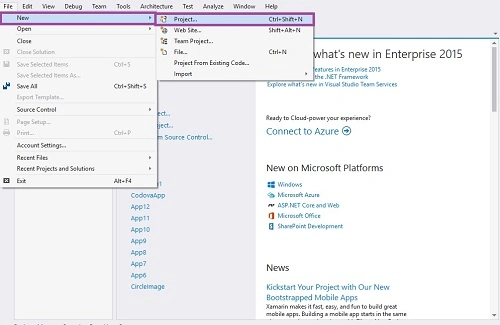
Let’s be ready to create a new project. Open Visual Studio 2015 and click File -> New -> Project Option for New Apache Cordova App, using Onsen UI Framework.
Step 2. Give the Project Name.
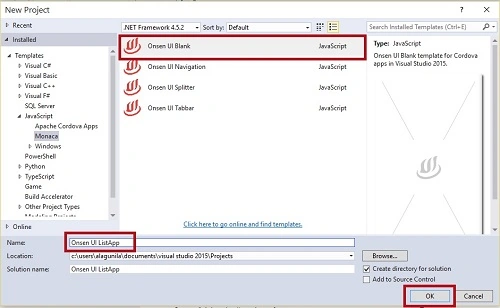
A New Project Window will open. Subsequently, you can select an Installed -> Template -> Java Script -> Manoca ->Onsen UI Blank App.
Type the Project name Onsen UI ListApp and click the OK button.
Step 3. Main Screen.
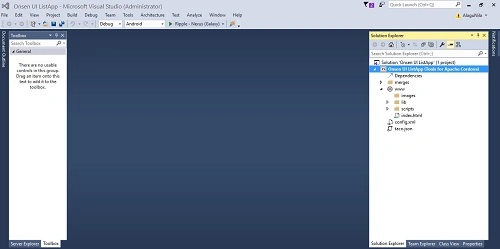
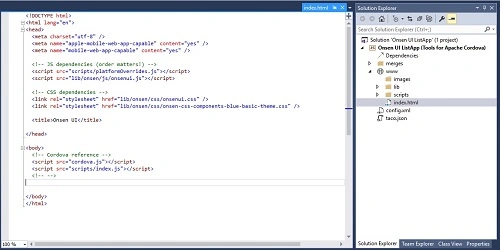
Step 4. Afterwards, we will create the project. Our solution should resemble what is shown below.
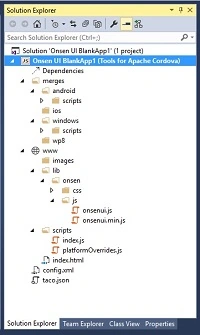
This table gives the basic idea of how we might use each one.
| File | Why is it in your project? |
| Merge Folder | It contains the package for Android, iOS, and Windows apps. |
| www | This file contains the images, library, and js files |
| config.xml | Contains the settings of our app. |
| taco.json | Defines which version of the Cordova CLI Visual Studio is used to build the project. |
Step 5. Adding the Coding.
Go to the index.html in the solution bar and add the html coding. We can add our own html coding in between <body> tags.
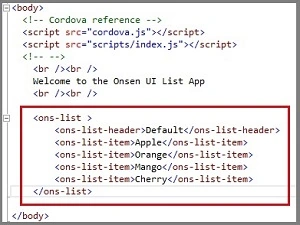
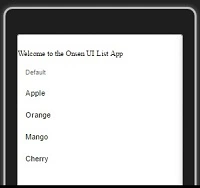
Adding the List Control
Go to the index.html in the solution bar and add the HTML coding.
Explanation
| Coding | Explanation |
| <ons-list> | Create a list |
| <ons-list-header> | Add the header to the list |
| <ons-list-item> | Add the items to the list |
Coding
<ons-list>
  <ons-list-header>Default</ons-list-header>
  <ons-list-item>Apple</ons-list-item>
  <ons-list-item>Orange</ons-list-item>
  <ons-list-item>Mango</ons-list-item>
  <ons-list-item>Cherry</ons-list-item>
</ons-list>
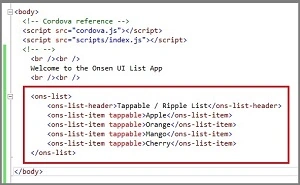
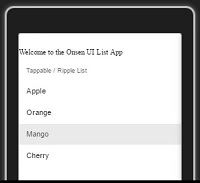
Adding the Tappable List
Now, add the Tappable list to the List of items
Explanation
| Coding | Explanation |
| <ons-list-item Tappable> | Adding the Tappable list |
Coding
<ons-list>
  <ons-list-header>Tappable / Ripple List</ons-list-header>
  <ons-list-item tappable>Apple</ons-list-item>
  <ons-list-item tappable>Orange</ons-list-item>
  <ons-list-item tappable>Mango</ons-list-item>
  <ons-list-item tappable>Cherry</ons-list-item>
</ons-list>
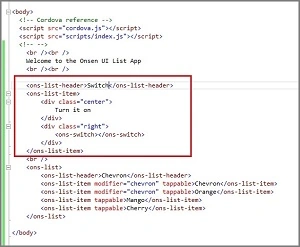
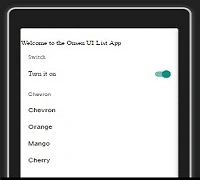
Adding the switch button to the list.
Now, add the switch button.
Coding
<ons-list-header>Switch</ons-list-header>
<ons-list-item>
  <div class="center">
    Turn it on
  </div>

  <div class="right">
    <ons-switch></ons-switch>
  </div>
</ons-list-item>
Step 8. Run the Application.
Now, we are ready to run our project. Thus, click the Ripple – Nexus (Galaxy) to run the application. (Apache Ripple is a free mobile simulator).

Output
Main Screen - Timeline.
Output 1. Tappable list.
Output 2. with switch button.
Conclusion
I hope you understand how to start the list control in Onsen UI using Visual Studio 2015 and how to run it.
Anu VPosted Dec 12, 2016, 11:09 PM
Nice article thanks for sharing..