

We use edit operation on our Template field to check our Validation.
Initial chamber
Step 1: Open Visual Studio 2010 and create an empty website, Give a suitable name [gridview_demo].
Step 2: In Solution Explorer you get your empty website. Add a web form, SQL Database. Follow these steps:
For Web Form:
gridview_demo (Your Empty Website) - Right Click, Add New Item, then Web Form. Name it - gridview_demo.aspx.
For SQL Server Database:
gridview_demo (Your Empty Website) - Right Click, Add New Item, then SQL Server Database. Add Database inside the App_Data_folder.
Database chamber
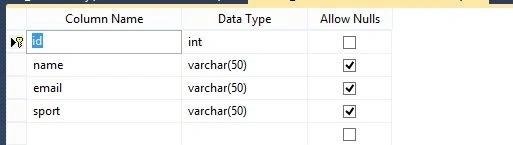
Step 3: Go to your Database [Database.mdf], we will create a table - tbl_Data. Go to the database.mdf - Table and Add New table. Design your table like the following:
Table - tbl_data [Don’t forget to make ID, Identity Specification as Yes]
Design chamber
Step 4: Now open your gridview_demo.aspx file, where we create our design for binding and making edit operation and place our validation control.
Gridview_demo.aspx
- <%@ Page Language="C#" AutoEventWireup="true" CodeFile="Default.aspx.cs" Inherits="_Default" %>
- <!DOCTYPE html PUBLIC "-//W3C//DTD XHTML 1.0 Transitional//EN" "http://www.w3.org/TR/xhtml1/DTD/xhtml1-transitional.dtd">
- <html xmlns="http://www.w3.org/1999/xhtml">
- <head runat="server">
- <title></title>
- <style type="text/css">
- .style1 {
- text-decoration: underline;
- }
- </style>
- </head>
- <body>
- <form id="form1" runat="server">
- <div>
- <span class="style1"><strong>Gridview Demo with DropDownlist<br />
- </strong></span><br />
- <asp:GridView ID="GridView1" runat="server" AutoGenerateColumns="False"
- AutoGenerateDeleteButton="True" AutoGenerateEditButton="True" DataKeyNames="id"
- onrowcancelingedit="GridView1_RowCancelingEdit"
- onrowdeleting="GridView1_RowDeleting" onrowediting="GridView1_RowEditing"
- onrowupdating="GridView1_RowUpdating" BackColor="White"
- BorderColor="White" BorderStyle="Ridge" BorderWidth="2px" CellPadding="3"
- CellSpacing="1" GridLines="None">
- <Columns>
- <asp:TemplateField HeaderText="Name">
- <EditItemTemplate>
- <asp:TextBox ID="TextBox2" runat="server" Text='<%# Bind("name") %>'></asp:TextBox>
- <asp:RequiredFieldValidator ID="RequiredFieldValidator1" runat="server" ControlToValidate="TextBox2" ForeColor="Red" ErrorMessage="Name Field can't be blanked"></asp:RequiredFieldValidator>
- </EditItemTemplate>
- <ItemTemplate>
- <asp:Label ID="Label2" runat="server" Text='<%# Bind("name") %>'></asp:Label>
- </ItemTemplate>
- </asp:TemplateField>
- <asp:TemplateField HeaderText="Email">
- <EditItemTemplate>
- <asp:TextBox ID="TextBox3" runat="server" Text='<%# Bind("email") %>'></asp:TextBox>
- <asp:RequiredFieldValidator ID="RequiredFieldValidator2" runat="server" ControlToValidate="TextBox3" ForeColor="Red" ErrorMessage="Email Field can't be blanked"></asp:RequiredFieldValidator>
- </EditItemTemplate>
- <ItemTemplate>
- <asp:Label ID="Label3" runat="server" Text='<%# Bind("email") %>'></asp:Label>
- </ItemTemplate>
- </asp:TemplateField>
- <asp:TemplateField HeaderText="Sport">
- <EditItemTemplate>
- <asp:DropDownList ID="DropDownList2" DataTextField="sport" DataValueField="sport" AppendDataBoundItems="True" runat="server"
- SelectedValue='<%# Bind("sport") %>'>
- <asp:ListItem>--Select Sport--</asp:ListItem>
- <asp:ListItem Value="Volleyball"></asp:ListItem>
- <asp:ListItem Value="Basketball"></asp:ListItem>
- <asp:ListItem Value="Cricket"></asp:ListItem>
- </asp:DropDownList>
- <asp:RequiredFieldValidator ID="RequiredFieldValidator3" runat="server" InitialValue="--Select Sport--" ControlToValidate="DropDownList2" ForeColor="Red" ErrorMessage=" Sport field is required
- "></asp:RequiredFieldValidator>
- </EditItemTemplate>
- <ItemTemplate>
- <asp:Label ID="Label4" runat="server" Text='<%# Bind("sport") %>'></asp:Label>
- </ItemTemplate>
- </asp:TemplateField>
- </Columns>
- <FooterStyle BackColor="#C6C3C6" ForeColor="Black" />
- <HeaderStyle BackColor="#4A3C8C" Font-Bold="True" ForeColor="#E7E7FF" />
- <PagerStyle BackColor="#C6C3C6" ForeColor="Black" HorizontalAlign="Right" />
- <RowStyle BackColor="#DEDFDE" ForeColor="Black" />
- <SelectedRowStyle BackColor="#9471DE" Font-Bold="True" ForeColor="White" />
- <SortedAscendingCellStyle BackColor="#F1F1F1" />
- <SortedAscendingHeaderStyle BackColor="#594B9C" />
- <SortedDescendingCellStyle BackColor="#CAC9C9" />
- <SortedDescendingHeaderStyle BackColor="#33276A" />
- </asp:GridView>
- <asp:ValidationSummary ID="ValidationSummary1" ForeColor="Red" runat="server" />
- </div>
- </form>
- </body>
- </html>
Step 5: Open your gridview_demo.aspx.cs and write some code so that our application starts working.
- using System;
- using System.Collections.Generic;
- using System.Linq;
- using System.Web;
- using System.Web.UI;
- using System.Web.UI.WebControls;
- using System.Data.SqlClient;
- using System.Data;
- public partial class _Default : System.Web.UI.Page
- {
- SqlConnection con = new SqlConnection(@"Data Source=.\SQLEXPRESS;AttachDbFilename=|DataDirectory|\Database.mdf;Integrated Security=True;User Instance=True");
- protected void Page_Load(object sender, EventArgs e)
- {
- if (!Page.IsPostBack)
- {
- refreshdata();
- }
- }
- public void refreshdata()
- {
- SqlCommand cmd = new SqlCommand("select * from tbl_data", con);
- SqlDataAdapter sda = new SqlDataAdapter(cmd);
- DataTable dt = new DataTable();
- sda.Fill(dt);
- GridView1.DataSource = dt;
- GridView1.DataBind();
- }
- protected void GridView1_RowEditing(object sender, GridViewEditEventArgs e)
- {
- GridView1.EditIndex = e.NewEditIndex;
- refreshdata();
- }
- protected void GridView1_RowDeleting(object sender, GridViewDeleteEventArgs e)
- {
- int id = Convert.ToInt16(GridView1.DataKeys[e.RowIndex].Values["id"].ToString());
- SqlCommand cmd = new SqlCommand("delete from tbl_data where id = @id", con);
- cmd.Parameters.AddWithValue("@id", id);
- con.Open();
- cmd.ExecuteNonQuery();
- con.Close();
- refreshdata();
- }
- protected void GridView1_RowCancelingEdit(object sender, GridViewCancelEditEventArgs e)
- {
- GridView1.EditIndex = -1;
- refreshdata();
- }
- protected void GridView1_RowUpdating(object sender, GridViewUpdateEventArgs e)
- {
- int id = Convert.ToInt16(GridView1.DataKeys[e.RowIndex].Values["id"].ToString());
- TextBox txtname = GridView1.Rows[e.RowIndex].FindControl("TextBox2") as TextBox;
- TextBox txtemail = GridView1.Rows[e.RowIndex].FindControl("TextBox3") as TextBox;
- DropDownList drpsport = GridView1.Rows[e.RowIndex].FindControl("DropDownList2") as DropDownList;
- SqlCommand cmd = new SqlCommand("update tbl_data set name=@name, email=@email,sport=@sport where id =@id", con);
- cmd.Parameters.AddWithValue("@name", txtname.Text);
- cmd.Parameters.AddWithValue("@email", txtemail.Text);
- cmd.Parameters.AddWithValue("@sport", drpsport.SelectedItem.Text);
- cmd.Parameters.AddWithValue("@id", id);
- con.Open();
- cmd.ExecuteNonQuery();
- con.Close();
- refreshdata();
- }
- }

Validation With TextBox

Validation With Dropdownlist

Hope you liked it. Thank you for reading. Have a good day.
Arul RPosted Oct 28, 2015, 5:28 AM
Good one !!!
Arul RPosted Oct 28, 2015, 5:28 AM
Good one !!!
Ekrem TapanPosted Oct 21, 2015, 12:17 PM
nice article
Humayun Kabir MamunPosted Oct 20, 2015, 12:24 AM
Nice...
Mohammed IbrahimPosted Oct 19, 2015, 10:01 PM
nice
Priyaranjan K SPosted Oct 19, 2015, 12:41 PM
Nice Share
Gowtham KPosted Oct 19, 2015, 12:12 PM
Good one
Rajeesh MenothPosted Oct 19, 2015, 11:44 AM
Nice Share :)