

Introduction
In my previous article you have learned about the Aggregate functions. I will now describe how to use Scalar functions in a Windows Forms application.
Scalar Functions
Scalar functions perform calculations on a single value and returns a single value for the specified column.
- RightTrim( )
- LeftTrim( )
- UPPER( )
- LOWER )
- SUBSTRING( )
- CONVERT( )
- ABSOLUTE( )
- ROUND( )
RightTrim ( )
Retruns a string after removing all the spaces from the right side of the string.
syntax: Select RTRIM(char-expression) from tablename
LeftTrim ( )
Retruns a string after removing all the spaces from the left side of the string.
syntax: Select Ltrim(char-expression) from tablename
UPPER ( )
The Upper function returns the upper case of a given string. You can use this function to maintain the data integrity of text columns in your tables.
syntax: Select UPPER('string')
LOWER ( )
The Lower function converts the string passed to the function into all lower case characters.
syntax: Select Lower('string')
SUBSTRING ( )
String manipulation can be done by the substrring function; this function returns a portion of the String.
syntax: Select substring(char-exprssion,startpos,length) from tablename
CONVERT ( )
The Convert function converts the one data type to another type; you just specify the data type in which the expression is to be converted to.
syntax: Select convert(datatype,value)
ABSOLUTE ( )
The Absolute function returns an absolute number of the given number. This function gives the positive value of the argument. The argument can be int, float, double, short or byte.
syntax: Select abs('-value')
ROUND ( )
The Round function rounds a numeric field to the number of decimals specified.
syntax: Select Round(decimalnumber,decimals)
Use the following procedure to create the database and table in SQL Server:
Create Database Employee
use Employee
create table EmployeeSalary
(
EmpId int primary key,
EmpName varchar(max),
Salary money
)
Use the following procedure to insert the values in the database table in SQL Server:
insert into EmployeeSalary values(101,'Pankaj',20000)
insert into EmployeeSalary values(102,'Nimit',15000)
insert into EmployeeSalary values(103,'Pravesh',16000)
insert into EmployeeSalary values(104,'Amit',12000)
insert into EmployeeSalary values(105,'Ravi',25000)
insert into EmployeeSalary values(106,'Ainul',30000)
Use the following procedure to execute the query in the database table in SQL Server:
select * from EmployeeSalary
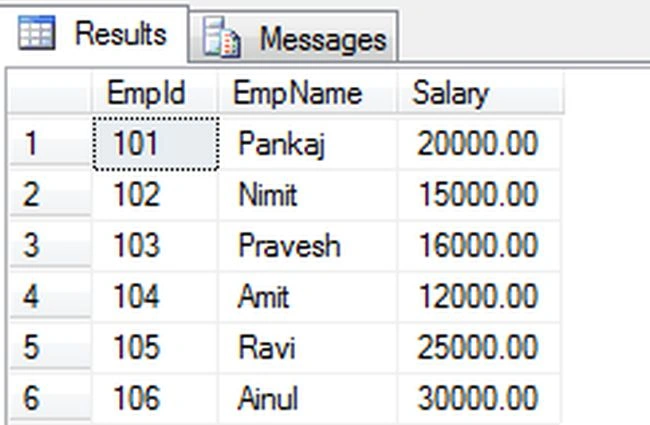
Now I will show you how to use aggregate functions in a Windows Forms application. Let's use the following procedure.
Step 1:
Open Visual Studio then select "Create New Project" --> "F# Console Application".
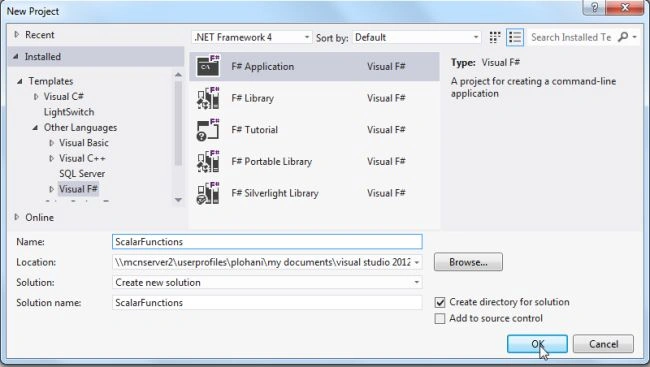
Step 2:
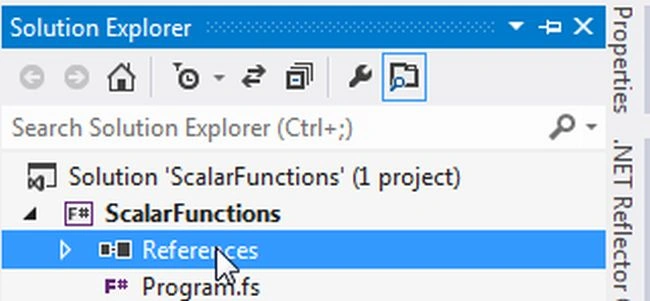
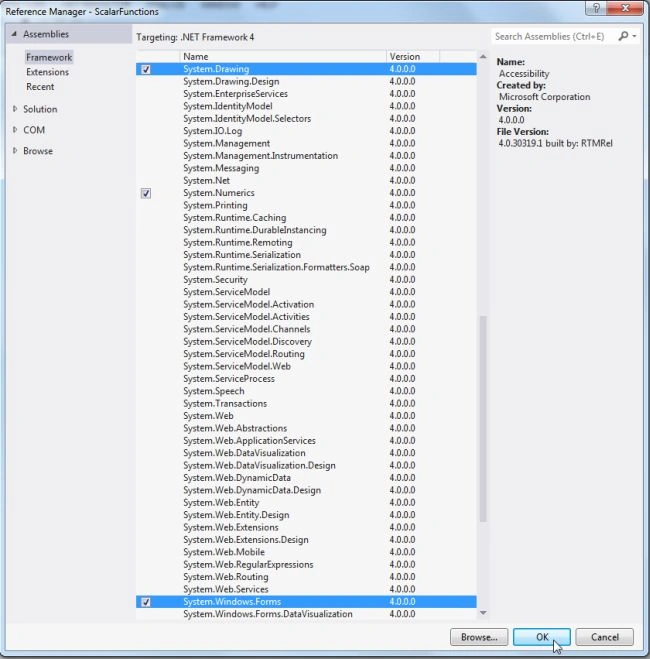
Now go the Solution Explorer, on the right side of the application. Right-click on "References" and select "Add references".
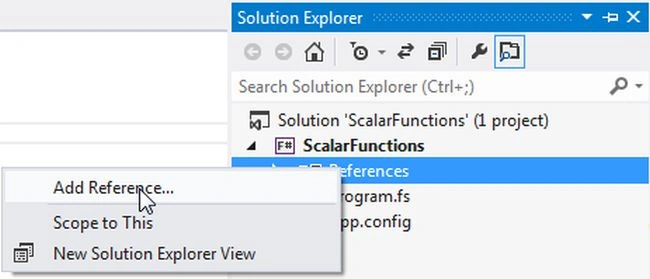
Step 3:
After selecting "Add References", in the framework template you need to select "System.Windows.Forms", "System.Drawing" and "System.Data" while holding down the Ctrl key and click on "Ok."
Step 4:
Write the following code that shows how to use scalar functions in a Windows Forms application.
open System
open System.Windows.Forms
open System.Data
open System.Data.SqlClient
open System.Drawing
let scalfform=new Form(Text="Scalar Functions")
scalfform.BackColor<-Color.Lavender
let ffont=new Font("Arial", 9.75F,FontStyle.Regular, GraphicsUnit.Point)
let constring = @"Data Source=MCNDESKTOP34;Initial Catalog=Employee;User ID=; Password="
let adap=new SqlDataAdapter("select * from EmployeeSalary",constring)
let dt=new DataTable()
adap.Fill(dt) |>ignore
let datagrid=new DataGridView(Top=20,Left=40,Width=330,Height=180)
datagrid.DataSource<-dt
let rtrimbtn=new Button(Text="RightTrim()",Top=260,Left=0,Width=100)
let ltrimbtn=new Button(Text="LeftTrim()",Top=300,Left=0,Width=100)
let upperbtn=new Button(Text="UPPER()",Top=340,Left=0,Width=100)
let lowerbtn=new Button(Text="LOWER()",Top=380,Left=0,Width=100)
let substringbtn=new Button(Text="SUBSTRING()",Top=420,Left=0,Width=100)
let convertbtn=new Button(Text="CONVVERT()",Top=460,Left=0,Width=100)
let absbtn=new Button(Text="ABSOLUTE()",Top=500,Left=0,Width=100)
let roundbtn=new Button(Text="ROUND()",Top=540,Left=0,Width=100)
rtrimbtn.BackColor<-Color.Ivory
ltrimbtn.BackColor<-Color.Ivory
upperbtn.BackColor<-Color.Ivory
lowerbtn.BackColor<-Color.Ivory
substringbtn.BackColor<-Color.Ivory
convertbtn.BackColor<-Color.Ivory
absbtn.BackColor<-Color.Ivory
roundbtn.BackColor<-Color.Ivory
scalfform.Controls.Add(datagrid)
let valuertrim=new Label(Top=260,Left=140,Height=20,BorderStyle=BorderStyle.FixedSingle)
let valueltrim=new Label(Top=300,Left=140,Height=20,BorderStyle=BorderStyle.FixedSingle)
let valueupper=new Label(Top=340,Left=140,Height=20,BorderStyle=BorderStyle.FixedSingle)
let valuelower=new Label(Top=380,Left=140,Height=20,BorderStyle=BorderStyle.FixedSingle)
let valuesubstring=new Label(Top=420,Left=140,Height=20,BorderStyle=BorderStyle.FixedSingle)
let valueconvert=new Label(Top=460,Left=140,Height=20,BorderStyle=BorderStyle.FixedSingle)
let valueabs=new Label(Top=500,Left=140,Height=20,BorderStyle=BorderStyle.FixedSingle)
let valueround=new Label(Top=540,Left=140,Height=20,BorderStyle=BorderStyle.FixedSingle)
scalfform.Controls.Add(valuertrim)
scalfform.Controls.Add(valueltrim)
scalfform.Controls.Add(valueupper)
scalfform.Controls.Add(valuelower)
scalfform.Controls.Add(valueconvert)
scalfform.Controls.Add(valuesubstring)
scalfform.Controls.Add(valueabs)
scalfform.Controls.Add(valueround)
scalfform.Controls.Add(convertbtn)
scalfform.Controls.Add(rtrimbtn)
scalfform.Controls.Add(ltrimbtn)
scalfform.Controls.Add(upperbtn)
scalfform.Controls.Add(lowerbtn)
scalfform.Controls.Add(substringbtn)
scalfform.Controls.Add(absbtn)
scalfform.Controls.Add(roundbtn)
//RightTrim FUNCTION
rtrimbtn.Click.Add(fun _->
let con = new SqlConnection(constring)
con.Open()
let com = new SqlCommand("Select rtrim('Pravesh ')",con)
com.Connection <- con
valuertrim.Text<-com.ExecuteScalar().ToString()
)
//LeftTrim FUNCTION
ltrimbtn.Click.Add(fun _->
let con = new SqlConnection(constring)
con.Open()
let com = new SqlCommand("Select ltrim( ' Amit')",con)
com.Connection <- con
valueltrim.Text<-com.ExecuteScalar().ToString()
)
//UPPER FUNCTION
upperbtn.Click.Add(fun _->
let con = new SqlConnection(constring)
con.Open()
let com = new SqlCommand("Select UPPER('Pankaj')",con)
com.Connection <- con
valueupper.Text<-com.ExecuteScalar().ToString()
)
//LOWER FUNCTION
lowerbtn.Click.Add(fun _->
let con = new SqlConnection(constring)
con.Open()
let com = new SqlCommand("Select LOWER('Pankaj')",con)
com.Connection <- con
valuelower.Text<-com.ExecuteScalar().ToString()
)
//SUBSTRING FUNCTION
substringbtn.Click.Add(fun _->
let con = new SqlConnection(constring)
con.Open()
let com = new SqlCommand("select SUBSTRING('Pankaj',3,3)",con)
com.Connection <- con
valuesubstring.Text<-com.ExecuteScalar().ToString()
)
//CONVERT FUNCTION
convertbtn.Click.Add(fun _->
let con = new SqlConnection(constring)
con.Open()
let com = new SqlCommand("Select CONVERT(int,30000.89)",con)
com.Connection <- con
valueconvert.Text<-com.ExecuteScalar().ToString()
)
//ABSOLUTE FUNCTION
absbtn.Click.Add(fun _->
let con = new SqlConnection(constring)
con.Open()
let com = new SqlCommand("Select ABS(-10)",con)
com.Connection <- con
valueabs.Text<-com.ExecuteScalar().ToString()
)
//ROUND FUNCTION
roundbtn.Click.Add(fun _->
let con = new SqlConnection(constring)
con.Open()
let com = new SqlCommand("Select ROUND(18.5619,3)",con)
com.Connection <- con
valueround.Text<-com.ExecuteScalar().ToString()
)
Application.Run(scalfform)
Step 5 :
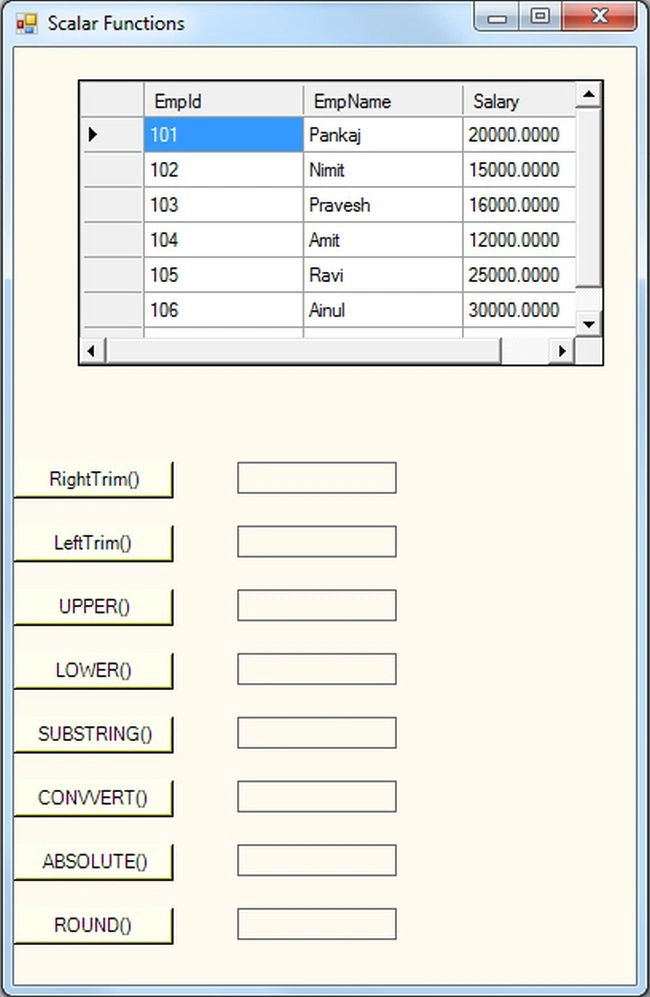
Debug the application by pressing F5 to execute the Windows Forms application. After debugging the application the output will be as in the following figure:
Step 6 :
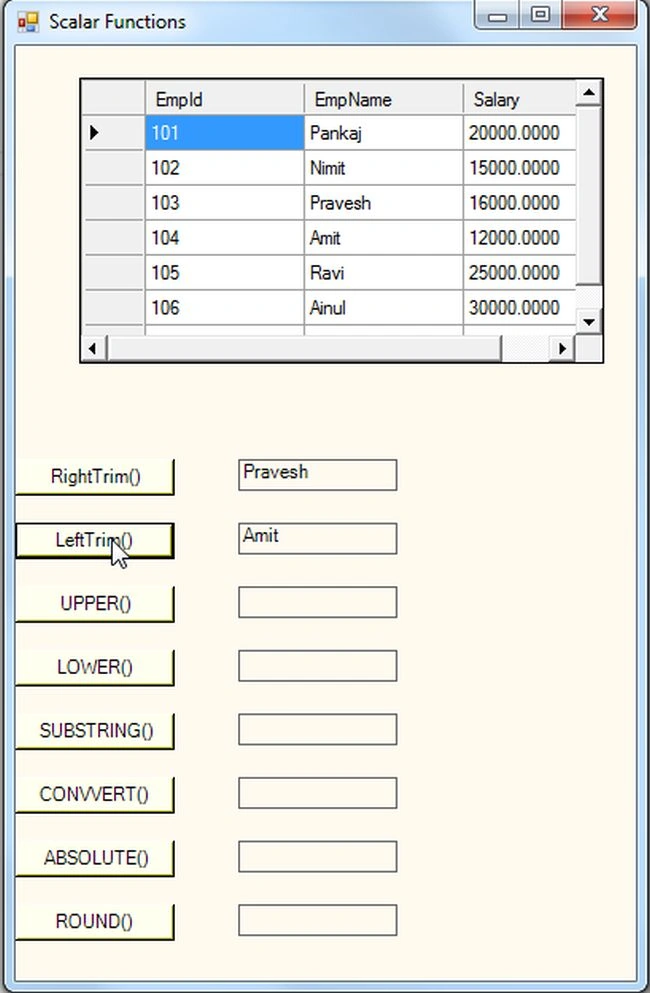
Now click on the LeftTrim and RightTrim buttons as in the following figure:
Step 7 :
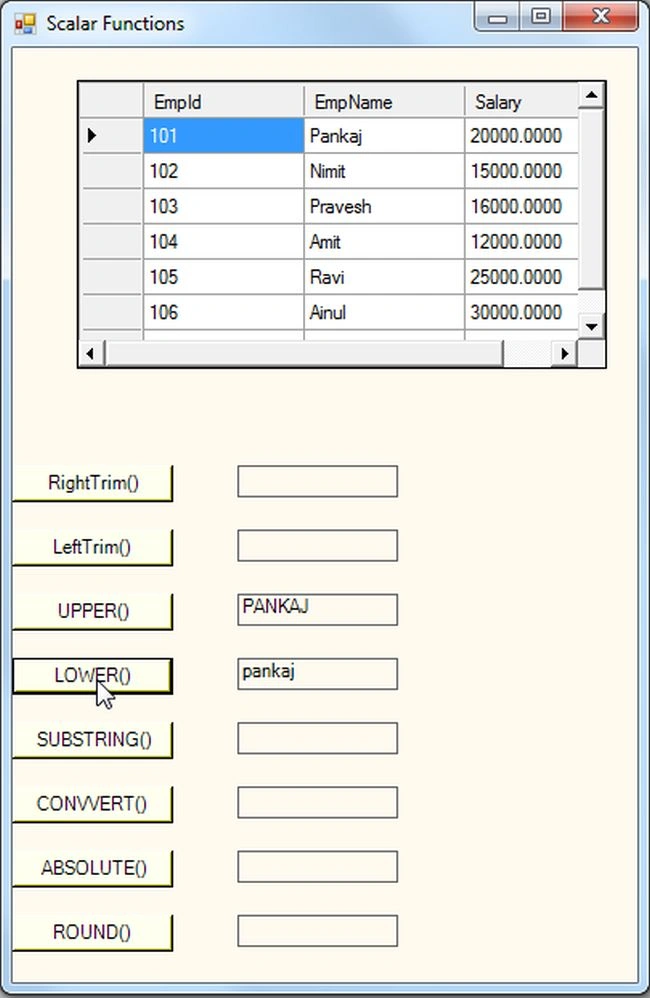
Now click on the Upper and Lower buttons as in the following figure:
Step 8 :
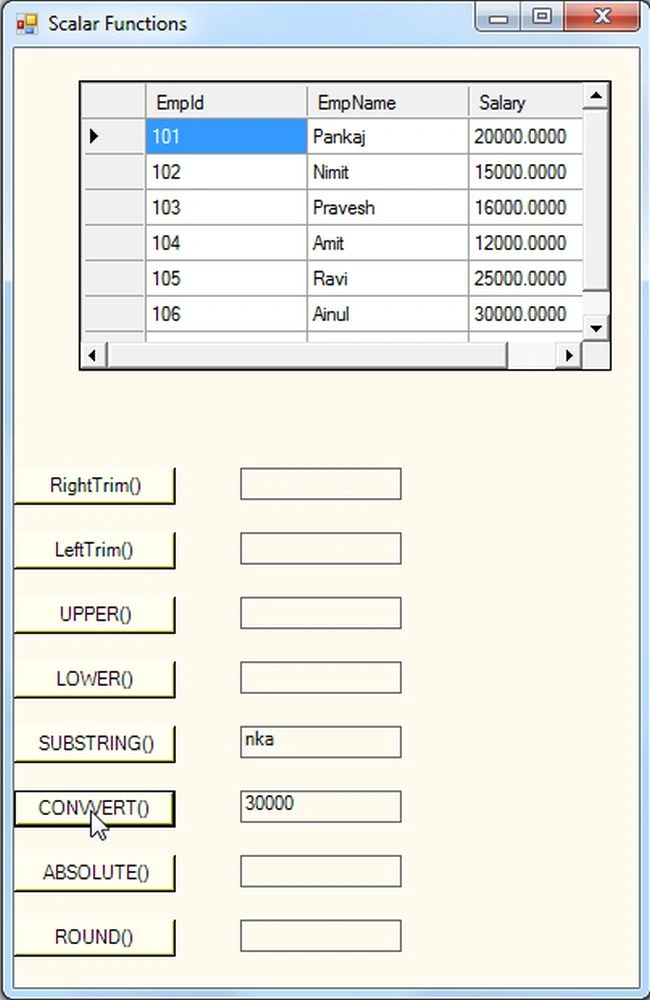
Now click on the Substring and the Convert buttons as in the following figure:
Step 9 :
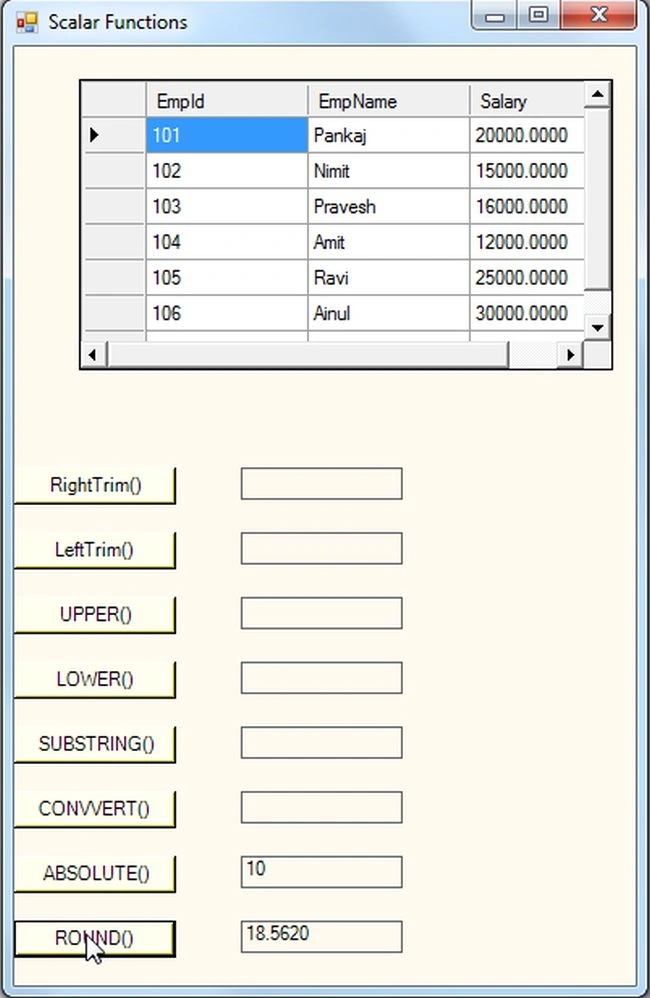
Click on the ABSOLUTE AND ROUND button as in the following figure:
Summary
This article explained the Scalar functions and saw how to use the Scalar functions in a Windows Forms application as well as you can see the Aggregate Functions in my previous article.
Join the conversation! Your thoughts help the community grow.