

Introduction
Navigation Framework comes with Silverlight 3 RIA Services. Using this framework we can easily navigate between User Controls in a Silverlight Application. We can enable the Browser History capabilities and URI mappings can also be done.
To start with, we will build a simple Silverlight Application which will be easy to catch up.
Create Silverlight Navigation Application
Create a Navigation Application and name it NavigationFrameworkSample. The following screenshots will guide you through the process.
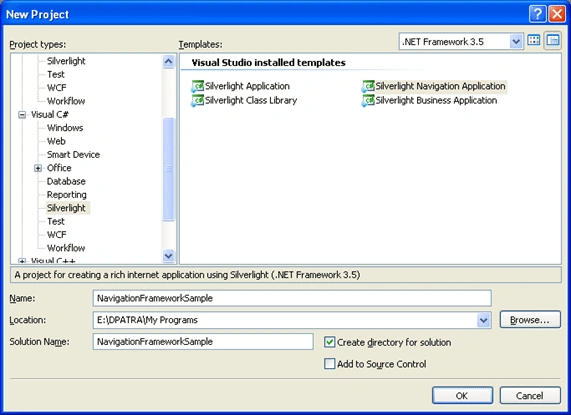
Figure 1.1 Creating a Silverlight Navigation Application
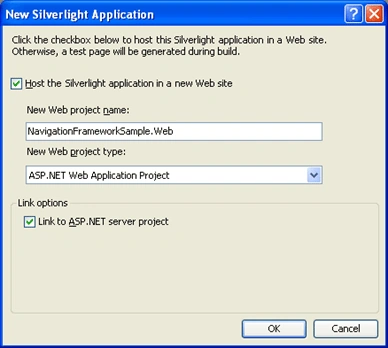
Figure 1.2 Enabling the RIA Features by Linking the web page
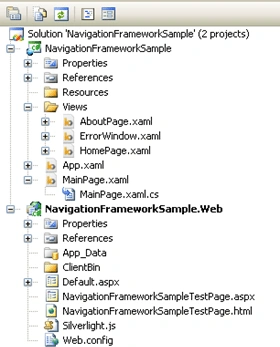
Figure 1.3 Solution explorer
Here MainPage.xaml will work as our master page, which will carry the common elements for the whole projects. Now we will redesign the template to our simple use. It will look like the following. Using Blend 3 I have tried to change the template a bit; you can explore your own creativity.
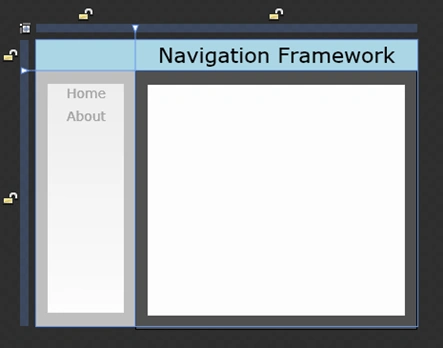
Figure 1.4 Changed MainPage.xaml in Blend 3
Xaml Code
- <UserControl x:Class="NavigationFrameworkSample.MainPage"
- xmlns="http://schemas.microsoft.com/winfx/2006/xaml/presentation"
- xmlns:x="http://schemas.microsoft.com/winfx/2006/xaml"
- xmlns:navigation="clr-namespace:System.Windows.Controls;assembly=System.Windows.Controls.Navigation"
- Width="400" Height="300">
- <Grid x:Name="LayoutRoot" Background="LightBlue">
- <Grid.RowDefinitions>
- <RowDefinition Height="0.107*"/>
- <RowDefinition Height="0.893*"/>
- </Grid.RowDefinitions>
- <Grid.ColumnDefinitions>
- <ColumnDefinition Width="0.26*"/>
- <ColumnDefinition Width="0.74*"/>
- </Grid.ColumnDefinitions>
- <Border Grid.Row="1" Style="{StaticResource FrameInnerBorderStyle}">
- <StackPanel >
- <Button Click="NavButton_Click" Tag="/Views/HomePage.xaml" Content="Home"
- Style="{StaticResource PageLinkStyle}"/>
- <Button Click="NavButton_Click" Tag="/Views/AboutPage.xaml" Content="About"
- Style="{StaticResource PageLinkStyle}"/>
- </StackPanel>
- </Border>
- <Border Grid.Column="1" Grid.Row="1" BorderBrush="#FF000000" Style="{StaticResource FrameContainerStyle}" Margin="0,0,0,-4">
- <navigation:Frame x:Name="Frame" Source="/Views/HomePage.xaml"
- HorizontalContentAlignment="Stretch"
- VerticalContentAlignment="Stretch"
- Padding="15,10,15,10"
- Background="White"/>
- </Border>
- <TextBlock Grid.Column="1" FontSize="22" VerticalAlignment="Center" HorizontalAlignment="Center" Text="Navigation Framework" TextWrapping="Wrap"/>
- </Grid>
- </UserControl>
Navigation Framework has its own Page that is called navigation Page. Which we will see further. Navigation Framework's Views Folder consists of the Xaml Pages that are related to the project. In this sample application we have two Xaml Pages, Home.xaml and About.Xaml.

Figure 1.5 Other Pages in Views Folder
Xaml Code for Home Page
- <navigation:Page x:Class="NavigationFrameworkSample.HomePage"
- xmlns="http://schemas.microsoft.com/winfx/2006/xaml/presentation"
- xmlns:x="http://schemas.microsoft.com/winfx/2006/xaml"
- xmlns:navigation="clr-namespace:System.Windows.Controls;assembly=System.Windows.Controls.Navigation"
- Title="HomePage ">
- <Grid x:Name="LayoutRoot" Background="White">
- <StackPanel>
- <TextBlock Text="Home" FontSize="20"/>
- <StackPanel>
- <TextBlock Text="Navigation Framework in Silverlight 3" />
- </StackPanel>
- </StackPanel>
- </Grid>
- </navigation:Page>
Xaml Code for About Page
- <navigation:Page x:Class="NavigationFrameworkSample.AboutPage"
- xmlns="http://schemas.microsoft.com/winfx/2006/xaml/presentation"
- xmlns:x="http://schemas.microsoft.com/winfx/2006/xaml"
- xmlns:navigation="clr-namespace:System.Windows.Controls;assembly=System.Windows.Controls.Navigation"
- Title="AboutPage ">
- <Grid x:Name="LayoutRoot" Background="White">
- <StackPanel>
- <TextBlock Text="About" FontSize="20"/>
- <TextBlock Text="Navigation Framework is all about Navigating between User Controls"/>
- </StackPanel>
- </Grid>
- </navigation:Page>
In Navigation framework we have a control called Frame, which can load a Page into this. It has the same concept as Frame in ASP.NET.
To navigate through the pages we will use the following default logic of the framework.
- private void NavButton_Click(object sender, RoutedEventArgs e)
- {
- Button navigationButton = sender as Button;
- String goToPage = navigationButton.Tag.ToString();
- this.Frame.Navigate(new Uri(goToPage, UriKind.Relative));
- }
This concept is new in Silverlight 3 Navigation Framework. Using this concept we can hide our Xaml page's location and we can achieve security.
To achieve the above said, we need to do a trick in our App.xaml. We need to add the System.Windows.Controls.Navigation.dll to the xaml and change as follows: Change the default namespace.
Before
- xmlns:navigationCore="clr-namespace:System.Windows.Controls;assembly=System.Windows.Controls.Navigation"
- xmlns:navigationCore="clr-namespace:System.Windows.Navigation;assembly=System.Windows.Controls.Navigation"
- <navigationCore:UriMapper x:Key="uriMapper">
- <navigationCore:UriMapping Uri="Home" MappedUri="/Views/HomePage.xaml"/>
- <navigationCore:UriMapping Uri="About" MappedUri="/Views/AboutPage.xaml"/>
- </navigationCore:UriMapper>
- <Button Click="NavButton_Click" Tag="Home" Content="Home" Style="{StaticResource PageLinkStyle}"/>
- <Button Click="NavButton_Click" Tag="About" Content="About" Style="{StaticResource PageLinkStyle}"/>
- Source="Home"
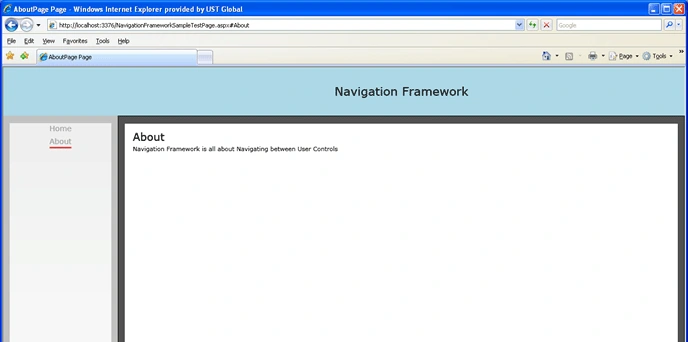
Figure 1.6 Running the Application

Figure 1.7 Typing the URI after # and getting the page
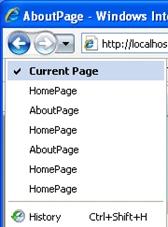
Figure 1.8 Browser Histories in IE.
Aravind BsPosted Dec 6, 2011, 4:35 AM
I was searching article for uri mapping.. and its so nice.. thanks.
shahbaz sajjadPosted Jul 31, 2009, 2:54 AM
Please help me out its urgent when i run this sample on my machine it give me runtime script error that "Navigation is only supported to relative URIs that are fargment, or begin with '/', or which contain, component/"