

Introduction
Sending large files to an MVC/Web-API Server can be problematic. This article is about an alternative. The approach used is to break a large file up into small chunks, upload them, then merge them back together on the Server via file transfer by partitioning. The article shows how to send files to an MVC Server from both a webpage using JavaScript, and a Web-form httpClient, and can be implemented using either MVC or Web API.
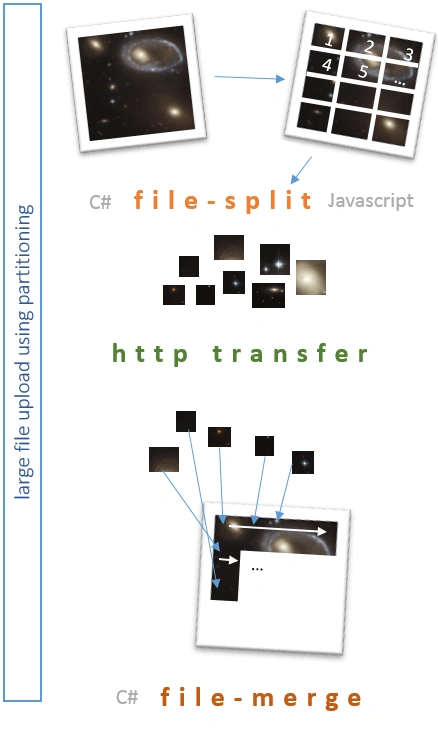
In my experience, the larger the file you need to upload to a website/API, the bigger the potential problems you encounter. Even when you put the right settings in place, adjust your web.config, make certain you use the right multiplier for maxRequestLength and maxAllowedContentLength and of course don't forget about executionTimeout (eek!), things can still go wrong. Connections can fail when the file is *almost* transferred, servers unexpectedly (Murphy's law) run out of space, etc., the list goes on. The diagram below demonstrates the basic concept discussed in this article.
Background
The concept for this solution is very simple. The attached code works (I have it started in production), and can be improved by you in many ways. For example, for the purposes of this article the original large file is broken into app. 1mb chunks, and uploaded to the server sequentially, one chunk at a time. This could, for example, be made more efficient by threading, and sending chunks in parallel. It could also be made more robust by adding fault tolerance, auto-resume into a rest-api architecture etc. I leave you to implement these features yourself if you need them.
The code consists of two parts - the initial file-split/partitioning into chunks, and the final merge of the chunks back into the original file. I will demonstrate the file-split using both C# in a web-form, and JavaScript, and the file-merge using C# server-side.
File split
The concept of splitting a file is very basic. We transverse the file in a binary stream, from position zero, up to the last byte in the file, copying out chunks of binary data along the way and transferring these. Generally we set an arbitrary (or carefully thought out!) chunk size to extract, and use this as the amount of data to take at a time. Anything left over at the end is the final chunk.
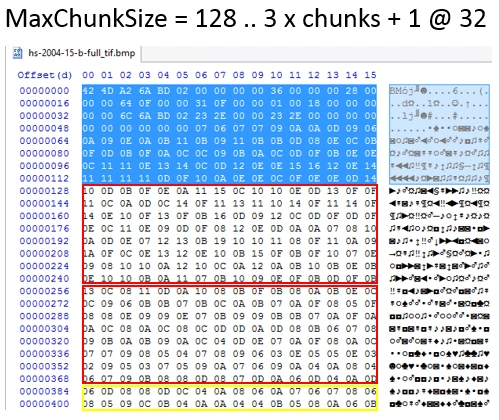
In the example below, a chunk size of 128b is set. For the file shown, this gives us 3 x 128b chunks, and 1 x 32b. In this example there are four file chunks resulting from the split and to transfer to the server.
C# File Split
The accompanying demo "WinFileUpload" is a simple Windows forms application. Its sole function is to demonstrate splitting a sample large file (50 MB) in C#, and using a HTTPClient to post the file to a web-server (in this case, an MVC Server).
For this C# example, I have a class called Utils that takes some input variables such as maximum file chunk size, temporary folder location, and the name of the file to split. To split the file into chunks, we call the method "SplitFile". SplitFile works its way through the input file and breaks it into separate file chunks. We then upload each file chunk it using "UploadFile".
- Utils ut = new Utils();
- ut.FileName = "hs-2004-15-b-full_tif.bmp"; // hard coded for demo
- ut.TempFolder = Path.Combine(CurrentFolder, "Temp");
- ut.MaxFileSizeMB = 1;
- ut.SplitFile();
- foreach (string File in ut.FileParts)
- {
- UploadFile(File);
- }
- MessageBox.Show("Upload complete!");
- public bool UploadFile(string FileName)
- {
- bool rslt = false;
- using (var client = new HttpClient())
- {
- using (var content = new MultipartFormDataContent())
- {
- var fileContent = new ByteArrayContent(System.IO.File.ReadAllBytes(FileName));
- fileContent.Headers.ContentDisposition = new
- ContentDispositionHeaderValue("attachment")
- {
- FileName = Path.GetFileName(FileName)
- };
- content.Add(fileContent);
- var requestUri = "http://localhost:8170/Home/UploadFile/";
- try
- {
- var result = client.PostAsync(requestUri, content).Result;
- rslt = true;
- }
- catch (Exception ex)
- {
- // log error
- rslt = false;
- }
- }
- }
- return rslt;
- }
So, that's the supporting code out of the way. One of the critical things to be aware of next is the file naming convention that is being used. It consists of the original file-name, plus a code-parsable tail "_part." that will be used server-side to merge the different file chunks back into a single contiguous file again. This is simply the convention I put together - you can change it to your own requirements, just be sure you are consistent with it.
The convention for this example is,
Name = original name + ".part_N.X" (N = file part number, X = total files).
Here is an example of a picture file split into three parts.
- MyPictureFile.jpg.part_1.3
- MyPictureFile.jpg.part_2.3
- MyPictureFile.jpg.part_3.3
It doesn't matter what order the file chunks are sent to the Server. The important thing is that some convention, like the above is used, so that the Server knows (a) what file part it is dealing with and (b) when all parts have been received and can be merged back into one large original file again.
Next, here is the meat of the C# code that scans the file, creating multiple chunk files ready to transfer.
- public bool SplitFile()
- {
- bool rslt = false;
- string BaseFileName = Path.GetFileName(FileName);
- // set the size of file chunk we are going to split into
- int BufferChunkSize = MaxFileSizeMB * (1024 * 1024);
- // set a buffer size and an array to store the buffer data as we read it
- const int READBUFFER_SIZE = 1024;
- byte[] FSBuffer = new byte[READBUFFER_SIZE];
- // open the file to read it into chunks
- using (FileStream FS = new FileStream(FileName, FileMode.Open, FileAccess.Read, FileShare.Read))
- {
- // calculate the number of files that will be created
- int TotalFileParts = 0;
- if (FS.Length < BufferChunkSize)
- {
- TotalFileParts = 1;
- }
- else
- {
- float PreciseFileParts = ((float)FS.Length / (float)BufferChunkSize);
- TotalFileParts = (int)Math.Ceiling(PreciseFileParts);
- }
- int FilePartCount = 0;
- // scan through the file, and each time we get enough data to fill a chunk, write out that file
- while (FS.Position < FS.Length)
- {
- string FilePartName = String.Format("{0}.part_{1}.{2}",
- BaseFileName, (FilePartCount + 1).ToString(), TotalFileParts.ToString());
- FilePartName = Path.Combine(TempFolder, FilePartName);
- FileParts.Add(FilePartName);
- using (FileStream FilePart = new FileStream(FilePartName, FileMode.Create))
- {
- int bytesRemaining = BufferChunkSize;
- int bytesRead = 0;
- while (bytesRemaining > 0 && (bytesRead = FS.Read(FSBuffer, 0,
- Math.Min(bytesRemaining, READBUFFER_SIZE))) > 0)
- {
- FilePart.Write(FSBuffer, 0, bytesRead);
- bytesRemaining -= bytesRead;
- }
- }
- // file written, loop for next chunk
- FilePartCount++;
- }
- }
- return rslt;
- }
That's it for the C# client-side - we will see the result and how to handle things server-side later in the article. Next, let's look at how to do the same thing in Javascript, from a web-browser.
JavaScript File Split
NB - The JavaScript code, and the C# Merge code are contained in the attached demo file "MVCServer"
In our browser, we have an input control of type "file", and a button to call a method that initiates the file-split and data transfer.
- <input type="file" id="uploadFile" name="file" /> <a class="btn btn-primary" href="#" id="btnUpload">Upload file</a>
- $(document).ready(function () {
- $('#btnUpload').click(function () {
- UploadFile($('#uploadFile')[0].files);
- }
- )
- });
- function UploadFile(TargetFile)
- {
- // create array to store the buffer chunks
- var FileChunk = [];
- // the file object itself that we will work with
- var file = TargetFile[0];
- // set up other initial vars
- var MaxFileSizeMB = 1;
- var BufferChunkSize = MaxFileSizeMB * (1024 * 1024);
- var ReadBuffer_Size = 1024;
- var FileStreamPos = 0;
- // set the initial chunk length
- var EndPos = BufferChunkSize;
- var Size = file.size;
- // add to the FileChunk array until we get to the end of the file
- while (FileStreamPos < Size)
- {
- // "slice" the file from the starting position/offset, to the required length
- FileChunk.push(file.slice(FileStreamPos, EndPos));
- FileStreamPos = EndPos; // jump by the amount read
- EndPos = FileStreamPos + BufferChunkSize; // set next chunk length
- }
- // get total number of "files" we will be sending
- var TotalParts = FileChunk.length;
- var PartCount = 0;
- // loop through, pulling the first item from the array each time and sending it
- while (chunk = FileChunk.shift())
- {
- PartCount++;
- // file name convention
- var FilePartName = file.name + ".part_" + PartCount + "." + TotalParts;
- // send the file
- UploadFileChunk(chunk, FilePartName);
- }
- }
- function UploadFileChunk(Chunk, FileName)
- {
- var FD = new FormData();
- FD.append('file', Chunk, FileName);
- $.ajax({
- type: "POST",
- url: 'http://localhost:8170/Home/UploadFile/',
- contentType: false,
- processData: false,
- data: FD
- });
- }
File merge
NB - The JavaScript code, and the C# Merge code are contained in the attached demo file "MVCServer"
Over on the Server, be that MVC or Web-API, we receive the individual file chunks and need to merge them back together again into the original file.
The first thing we do is put a standard POST handler in place to receive the file chunks being posted up to the Server. This code takes the input stream, and saves it to a temp folder using the file-name created by the client (C# or JavaScript). Once the file is saved, the code then calls the "MergeFile" method which checks if it has enough file chunks available yet to merge the file together. Note that this is simply the method I have used for this article. You may decide to handle the merge trigger differently, for example, running a job on a timer every few minutes, passing off to another process, etc. It should be changed depending on your own required implementation.
- [HttpPost]
- public HttpResponseMessage UploadFile()
- {
- foreach (string file in Request.Files)
- {
- var FileDataContent = Request.Files[file];
- if (FileDataContent != null && FileDataContent.ContentLength > 0)
- {
- // take the input stream, and save it to a temp folder using
- // the original file.part name posted
- var stream = FileDataContent.InputStream;
- var fileName = Path.GetFileName(FileDataContent.FileName);
- var UploadPath = Server.MapPath("~/App_Data/uploads");
- Directory.CreateDirectory(UploadPath);
- string path = Path.Combine(UploadPath, fileName);
- try
- {
- if (System.IO.File.Exists(path))
- System.IO.File.Delete(path);
- using (var fileStream = System.IO.File.Create(path))
- {
- stream.CopyTo(fileStream);
- }
- // Once the file part is saved, see if we have enough to merge it
- Shared.Utils UT = new Shared.Utils();
- UT.MergeFile(path);
- }
- catch (IOException ex)
- {
- // handle
- }
- }
- }
- return new HttpResponseMessage()
- {
- StatusCode = System.Net.HttpStatusCode.OK,
- Content = new StringContent("File uploaded.")
- };
- }
- /// <summary>
- /// original name + ".part_N.X" (N = file part number, X = total files)
- /// Objective = enumerate files in folder, look for all matching parts of
- /// split file. If found, merge and return true.
- /// </summary>
- /// <param name="FileName"></param>
- /// <returns></returns>
- public bool MergeFile(string FileName)
- {
- bool rslt = false;
- // parse out the different tokens from the filename according to the convention
- string partToken = ".part_";
- string baseFileName = FileName.Substring(0, FileName.IndexOf(partToken));
- string trailingTokens = FileName.Substring(FileName.IndexOf(partToken) + partToken.Length);
- int FileIndex = 0;
- int FileCount = 0;
- int.TryParse(trailingTokens.Substring(0, trailingTokens.IndexOf(".")), out FileIndex);
- int.TryParse(trailingTokens.Substring(trailingTokens.IndexOf(".") + 1), out FileCount);
- // get a list of all file parts in the temp folder
- string Searchpattern = Path.GetFileName(baseFileName) + partToken + "*";
- string[] FilesList = Directory.GetFiles(Path.GetDirectoryName(FileName), Searchpattern);
- // merge .. improvement would be to confirm individual parts are there / correctly in
- // sequence, a security check would also be important
- // only proceed if we have received all the file chunks
- if (FilesList.Count() == FileCount)
- {
- // use a singleton to stop overlapping processes
- if (!MergeFileManager.Instance.InUse(baseFileName))
- {
- MergeFileManager.Instance.AddFile(baseFileName);
- if (File.Exists(baseFileName))
- File.Delete(baseFileName);
- // add each file located to a list so we can get them into
- // the correct order for rebuilding the file
- List<SortedFile> MergeList = new List<SortedFile>();
- foreach (string File in FilesList)
- {
- SortedFile sFile = new SortedFile();
- sFile.FileName = File;
- baseFileName = File.Substring(0, File.IndexOf(partToken));
- trailingTokens = File.Substring(File.IndexOf(partToken) + partToken.Length);
- int.TryParse(trailingTokens.
- Substring(0, trailingTokens.IndexOf(".")), out FileIndex);
- sFile.FileOrder = FileIndex;
- MergeList.Add(sFile);
- }
- // sort by the file-part number to ensure we merge back in the correct order
- var MergeOrder = MergeList.OrderBy(s => s.FileOrder).ToList();
- using (FileStream FS = new FileStream(baseFileName, FileMode.Create))
- {
- // merge each file chunk back into one contiguous file stream
- foreach (var chunk in MergeOrder)
- {
- try
- {
- using (FileStream fileChunk =
- new FileStream(chunk.FileName, FileMode.Open))
- {
- fileChunk.CopyTo(FS);
- }
- }
- catch (IOException ex)
- {
- // handle
- }
- }
- }
- rslt = true;
- // unlock the file from singleton
- MergeFileManager.Instance.RemoveFile(baseFileName);
- }
- }
- return rslt;
- }
Laurence DonnerPosted Dec 31, 2021, 4:40 PM
Is it possible to convert this to MVC Core 5 using a MVC Core 5 API?
test testPosted Sep 14, 2021, 10:37 AM
It's not uploading more than 1.3gb
Vamshi JangitiPosted Jun 23, 2021, 9:32 AM
Hi, where is FileParts is defined
Jack SmithPosted Mar 2, 2021, 9:29 PM
Chunk is not defined
sardar patilPosted Feb 10, 2021, 5:37 AM
Good article ! Applied in my current project :
nacro cheickPosted Sep 5, 2019, 4:53 PM
Thank for all ... Very helpfull
pannerPosted Jul 9, 2019, 3:46 AM
Hi, this is baskar , if network is disconnect what shoud happen?
mahendra vishwakarmaPosted Apr 5, 2019, 12:46 PM
How to use in php for upload large files...using ajax
Mekki AhmediPosted Mar 31, 2018, 4:48 AM
Thank you soooo lots, you are a great man
Yording CalaPosted Dec 4, 2017, 2:59 PM
Hi, how i can remove chunks, after merge file?
Sanjay GuptaPosted Dec 14, 2016, 8:35 AM
Nice Work! I used the same logic in my previous project.
Dr.Ajay KashyapPosted Dec 14, 2016, 7:13 AM
Thank you sir for Sharing this code .......
Bhavik PatelPosted Dec 13, 2016, 7:14 PM
Good article ! Applied in my current project. :)
Upendra Pratap ShahiPosted Dec 13, 2016, 11:04 AM
Nice share sir..thanks for sharing..