

Today, we are going to cover uploading & downloading multiple files using ASP.Net Core 5.0 web API by a simple process.
Note
Since I have the latest .Net 5.0 installed on my machine I used this. This same technique works in .Net Core 3.1 and .Net Core 2.1 as well.
Begin with creating an empty web API project in visual studio and for target framework choose .Net 5.0.
No external packages were used in this project.
Create a Services folder and inside that create one FileService class and IFileService Interface in it.
We have used three methods in this FileService.cs
- UploadFile
- DownloadFile
- SizeConverter
Since we need a folder to store these uploading files, here we have added one more parameter to pass the folder name as a string where it will store all these files.
FileService.cs
- using Microsoft.AspNetCore.Hosting;
- using Microsoft.AspNetCore.Http;
- using System;
- using System.Collections.Generic;
- using System.IO;
- using System.IO.Compression;
- using System.Linq;
- using System.Threading.Tasks;
- namespace UploadandDownloadFiles.Services
- {
- public class FileService :IFileService
- {
- #region Property
- private IHostingEnvironment _hostingEnvironment;
- #endregion
- #region Constructor
- public FileService(IHostingEnvironment hostingEnvironment)
- {
- _hostingEnvironment = hostingEnvironment;
- }
- #endregion
- #region Upload File
- public void UploadFile(List<IFormFile> files, string subDirectory)
- {
- subDirectory = subDirectory ?? string.Empty;
- var target = Path.Combine(_hostingEnvironment.ContentRootPath, subDirectory);
- Directory.CreateDirectory(target);
- files.ForEach(async file =>
- {
- if (file.Length <= 0) return;
- var filePath = Path.Combine(target, file.FileName);
- using (var stream = new FileStream(filePath, FileMode.Create))
- {
- await file.CopyToAsync(stream);
- }
- });
- }
- #endregion
- #region Download File
- public (string fileType, byte[] archiveData, string archiveName) DownloadFiles(string subDirectory)
- {
- var zipName = $"archive-{DateTime.Now.ToString("yyyy_MM_dd-HH_mm_ss")}.zip";
- var files = Directory.GetFiles(Path.Combine(_hostingEnvironment.ContentRootPath, subDirectory)).ToList();
- using (var memoryStream = new MemoryStream())
- {
- using (var archive = new ZipArchive(memoryStream, ZipArchiveMode.Create, true))
- {
- files.ForEach(file =>
- {
- var theFile = archive.CreateEntry(file);
- using (var streamWriter = new StreamWriter(theFile.Open()))
- {
- streamWriter.Write(File.ReadAllText(file));
- }
- });
- }
- return ("application/zip", memoryStream.ToArray(), zipName);
- }
- }
- #endregion
- #region Size Converter
- public string SizeConverter(long bytes)
- {
- var fileSize = new decimal(bytes);
- var kilobyte = new decimal(1024);
- var megabyte = new decimal(1024 * 1024);
- var gigabyte = new decimal(1024 * 1024 * 1024);
- switch (fileSize)
- {
- case var _ when fileSize < kilobyte:
- return $"Less then 1KB";
- case var _ when fileSize < megabyte:
- return $"{Math.Round(fileSize / kilobyte, 0, MidpointRounding.AwayFromZero):##,###.##}KB";
- case var _ when fileSize < gigabyte:
- return $"{Math.Round(fileSize / megabyte, 2, MidpointRounding.AwayFromZero):##,###.##}MB";
- case var _ when fileSize >= gigabyte:
- return $"{Math.Round(fileSize / gigabyte, 2, MidpointRounding.AwayFromZero):##,###.##}GB";
- default:
- return "n/a";
- }
- }
- #endregion
- }
- }
IFileService.cs
- using Microsoft.AspNetCore.Http;
- using System;
- using System.Collections.Generic;
- using System.Linq;
- using System.Threading.Tasks;
- namespace UploadandDownloadFiles.Services
- {
- public interface IFileService
- {
- void UploadFile(List<IFormFile> files, string subDirectory);
- (string fileType, byte[] archiveData, string archiveName) DownloadFiles(string subDirectory);
- string SizeConverter(long bytes);
- }
- }
Startup.cs
- using Microsoft.AspNetCore.Builder;
- using Microsoft.AspNetCore.Hosting;
- using Microsoft.AspNetCore.HttpsPolicy;
- using Microsoft.AspNetCore.Mvc;
- using Microsoft.Extensions.Configuration;
- using Microsoft.Extensions.DependencyInjection;
- using Microsoft.Extensions.Hosting;
- using Microsoft.Extensions.Logging;
- using Microsoft.OpenApi.Models;
- using System;
- using System.Collections.Generic;
- using System.Linq;
- using System.Threading.Tasks;
- using UploadandDownloadFiles.Services;
- namespace UploadandDownloadFiles
- {
- public class Startup
- {
- public Startup(IConfiguration configuration)
- {
- Configuration = configuration;
- }
- public IConfiguration Configuration { get; }
- // This method gets called by the runtime. Use this method to add services to the container.
- public void ConfigureServices(IServiceCollection services)
- {
- services.AddControllers();
- services.AddSwaggerGen(c =>
- {
- c.SwaggerDoc("v1", new OpenApiInfo { Title = "UploadandDownloadFiles", Version = "v1" });
- });
- services.AddTransient<IFileService, FileService>();
- }
- // This method gets called by the runtime. Use this method to configure the HTTP request pipeline.
- public void Configure(IApplicationBuilder app, IWebHostEnvironment env)
- {
- if (env.IsDevelopment())
- {
- app.UseDeveloperExceptionPage();
- app.UseSwagger();
- app.UseSwaggerUI(c => c.SwaggerEndpoint("/swagger/v1/swagger.json", "UploadandDownloadFiles v1"));
- }
- app.UseHttpsRedirection();
- app.UseRouting();
- app.UseAuthorization();
- app.UseEndpoints(endpoints =>
- {
- endpoints.MapControllers();
- });
- }
- }
- }
FileController.cs
- using Microsoft.AspNetCore.Hosting;
- using Microsoft.AspNetCore.Http;
- using Microsoft.AspNetCore.Mvc;
- using System;
- using System.Collections.Generic;
- using System.ComponentModel.DataAnnotations;
- using System.IO;
- using System.Linq;
- using System.Threading.Tasks;
- using UploadandDownloadFiles.Services;
- namespace UploadandDownloadFiles.Controllers
- {
- [Route("api/[controller]")]
- [ApiController]
- public class FileController : ControllerBase
- {
- #region Property
- private readonly IFileService _fileService;
- #endregion
- #region Constructor
- public FileController(IFileService fileService)
- {
- _fileService = fileService;
- }
- #endregion
- #region Upload
- [HttpPost(nameof(Upload))]
- public IActionResult Upload([Required] List<IFormFile> formFiles, [Required] string subDirectory)
- {
- try
- {
- _fileService.UploadFile(formFiles, subDirectory);
- return Ok(new { formFiles.Count, Size = _fileService.SizeConverter(formFiles.Sum(f => f.Length)) });
- }
- catch (Exception ex)
- {
- return BadRequest(ex.Message);
- }
- }
- #endregion
- #region Download File
- [HttpGet(nameof(Download))]
- public IActionResult Download([Required]string subDirectory)
- {
- try
- {
- var (fileType, archiveData, archiveName) = _fileService.DownloadFiles(subDirectory);
- return File(archiveData, fileType, archiveName);
- }
- catch (Exception ex)
- {
- return BadRequest(ex.Message);
- }
- }
- #endregion
- }
- }
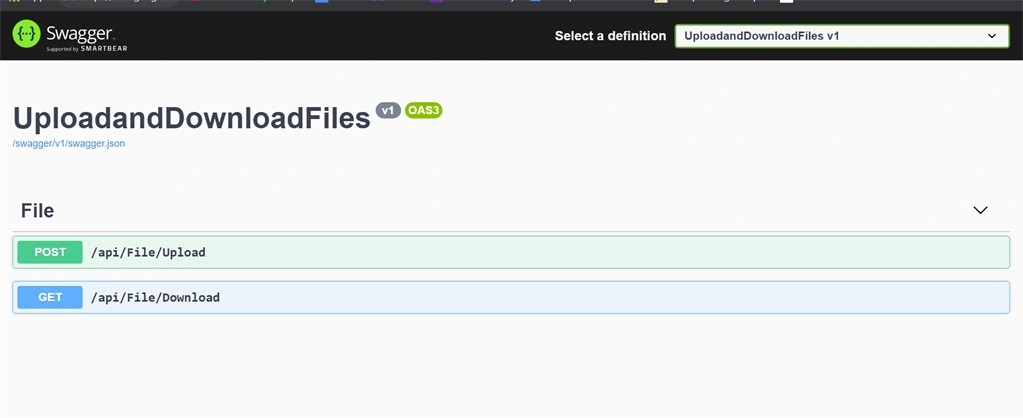
Here we see our two API's which we have created to upload and download, so let's test each of these individually.
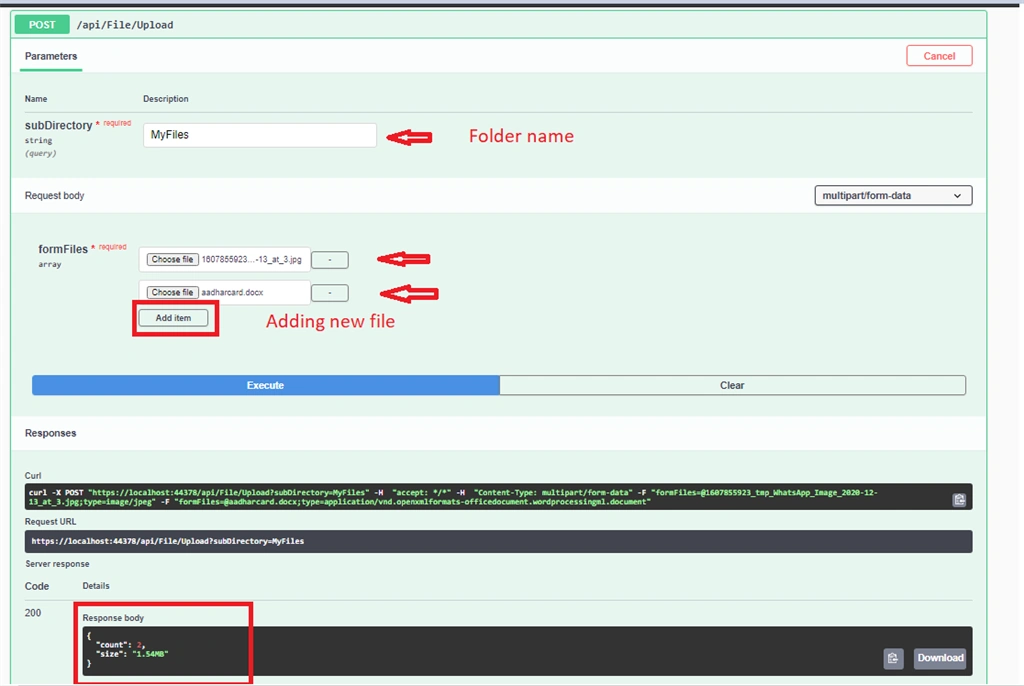
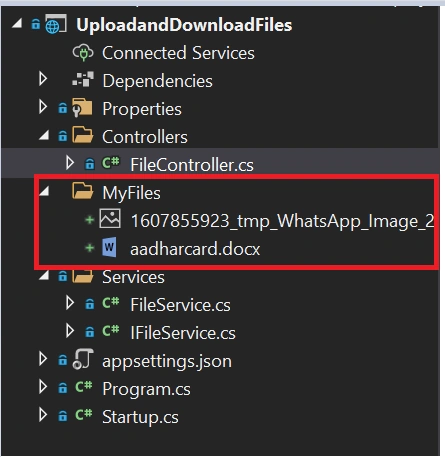
Pass the folder name inside the subDirectory and add files below to save inside the server and under the folder name. In response we see the total count of our files and the actual size of our entire files.
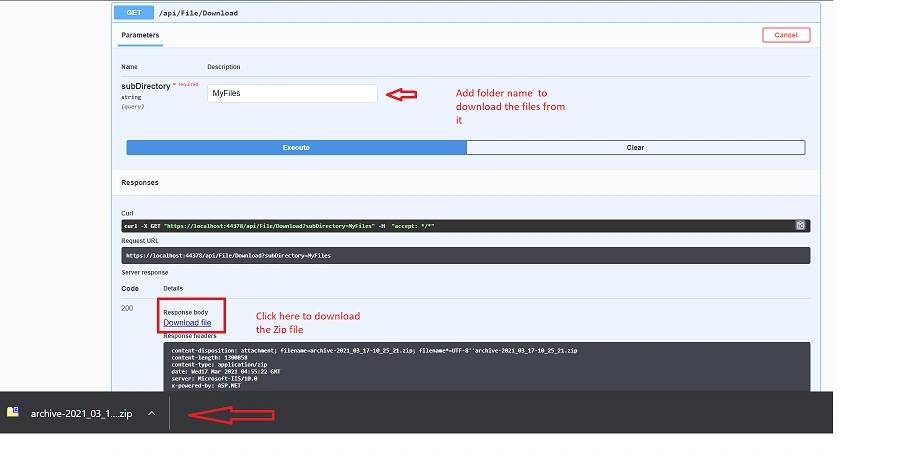
Now will check with Download API. Since we have multiple files inside of our folder it will download as a Zip file where we need to extract that to check the files.
Git Hub Repo - Download Source Code
If you found this article helpful, Please give it a 
.... keep learning !!!
RanjithPosted Sep 14, 2023, 12:10 PM
How to test using Postman can you guys update
t testerPosted May 21, 2022, 8:47 PM
Hi Jay, thank you very much for this article. is it possible to add in your code user credentials? i mean before Uploadding or Downloading a file the system will first ask you for a Username and a Password. Thank you!
Mahmoud Abdel MoniamPosted Dec 5, 2021, 9:03 PM
I can not upload more than file in swagger in one request in another application ? can u help me ?
Thành NguyễnPosted Aug 4, 2021, 4:34 AM
Thanks for your helpful article, Jay Krishna Reddy. For some reason, when I try the download function, it's only download an empty zip file, although I've already put a couple of files into the folder.
Kevin WinterPosted Jun 18, 2021, 9:33 AM
Hi Jay Krisha Reddy, the format is not supported. All binary Files aren't read able after the download. I wrote article in Germany too. I check my SourceCode before i published. But in C-SharpCorner.com i saw the effect often, that the codes arent tested.
Hoang Dinh HoaPosted Jun 8, 2021, 3:58 AM
Thank you so much !, it's helped me a lot. About the Download function, I don't know why I can't open downloaded files, they notified that: "It look like we don't support this file format". I 've tried another apps for opening, but all the same. Please, if you have any solution could you guide me ?
Venkat SatishPosted May 19, 2021, 1:54 PM
I am using Same as the above code but I got this error. System.InvalidOperationException: Unable to resolve service for type 'KPD.Services.Repository.Repositories.Implementation.FileRepository' while attempting to activate 'KPD.Services.API.Controllers.UploadDownloadFileController'.
Siddharth GajbhiyePosted Apr 5, 2021, 5:03 AM
Nice Article