

VMware Cloud Foundation (VCF) 5.1 delivers a significant leap forward in managing your private cloud environment. This upgrade offers enhanced capabilities across storage, networking, computing, and lifecycle management, empowering you to scale effectively and bolster resiliency.
This guide equips you with the knowledge to navigate the upgrade process for VCF 5.1, ensuring a smooth transition and maximizing the benefits of the new features.
Before You Begin: Planning and Preparation
A successful upgrade hinges on meticulous planning and preparation. Here are the crucial steps to take before initiating the upgrade process:
- Compatibility Check: Verify compatibility using the VMware Interoperability Matrix https://interopmatrix.vmware.com/. This ensures all components within your VCF environment (hardware, software versions) are compatible with VCF 5.1.
-
Upgrade Path Determination: The upgrade path depends on your current VCF version.
- VCF 4.4.x or Later: You can perform a sequential or skip-level upgrade directly to VCF 5.1.
- VCF Earlier Than 4.4.x: As an initial step, upgrade both the management domain and workload domains to VCF 4.5.x or above before proceeding to VCF 5.1. Refer to the official documentation for detailed upgrade procedures specific to your scenario: https://docs.vmware.com/en/VMware-Cloud-Foundation/5.0/vcf-lifecycle/GUID-B384B08D-3652-45E2-8AA9-AF53066F5F70.html.
- Backup and Snapshot Creation: It's paramount to create comprehensive backups of your VCF environment, including the management domain and workload domains. This safeguard allows you to roll back in case of unforeseen complications during the upgrade.
- Resource Allocation: Allocate sufficient resources for the upgrade process. This includes CPU, memory, and storage to ensure a smooth and efficient upgrade.
Understanding the Upgrade Process
VCF 5.1 offers two upgrade approaches
- Sequential Upgrade: This method involves upgrading each component of your VCF environment in sequential order, typically starting with the SDDC Manager and progressing through vCenter Server, NSX, and ESXi hosts.
- Skip-Level Upgrade: If you're currently on a compatible version earlier than VCF 5.0, you can directly upgrade to VCF 5.1. However, this approach might require additional validation and testing due to the larger version jump.
Key Considerations for Specific Components
- SDDC Manager: Upgrading the SDDC Manager is the initial step for most upgrade scenarios. There's a crucial point to remember: you cannot directly upgrade from VCF 4.4.x to VCF 5.1. As mentioned earlier, an intermediate upgrade to VCF 5.0.0.1 is necessary. The SDDC Manager upgrade leverages the Lifecycle Management (LCM) functionality within VCF.
- vCenter Server: The vCenter Server upgrade is typically included within the SDDC Manager upgrade process. However, in some instances, you might need to perform a separate upgrade for vCenter Server.
- NSX: The NSX upgrade in VCF 5.1 offers more granular control. You can choose to upgrade all NSX Edge clusters and host clusters, or you can selectively upgrade specific clusters based on your requirements.
- ESXi Hosts: Upgrading ESXi hosts is the final step in the VCF upgrade process. The upgrade utilizes vSphere Lifecycle Manager (vLCM) to streamline the process.
Post-Upgrade Tasks and Validation
Once the upgrade is complete, it's essential to perform post-upgrade tasks and validations to ensure everything functions as expected. Here are some key steps:
- System Verification: Run comprehensive health checks on all components within your VCF environment to confirm a successful upgrade and identify any potential issues.
- Application Testing: Thoroughly test your deployed applications to guarantee they operate seamlessly after the upgrade.
- Documentation Update: Update your VCF documentation to reflect the new version and any configuration changes implemented during the upgrade process.
Additional Resources and Best Practices
For a deeper dive into the upgrade process, refer to the following resources:
- VMware Cloud Foundation 5.1 Release Notes: https://docs.vmware.com/en/VMware-Cloud-Foundation/5.1/rn/vmware-cloud-foundation-51-release-notes/index.html
- Upgrading VMware Cloud Foundation to 5.1: https://docs.vmware.com/en/VMware-Cloud-Foundation/4.4/vcf-lifecycle/GUID-1D002991-ECBF-4F30-8C03-0ABC8A6C48B9.html
- VMware Cloud Foundation 5.1 - Technical Overview: https://docs.vmware.com/en/VMware-Cloud-Foundation/5.1/rn/vmware-cloud-foundation-51-release-notes/index.html
SDDC Manager
Upgrades will not be available until the Multi-Site Management bundles are removed. After upgrading SDDC Manager, I anticipated that NSX would be the next upgrade, but the loading for bundles was never completed.
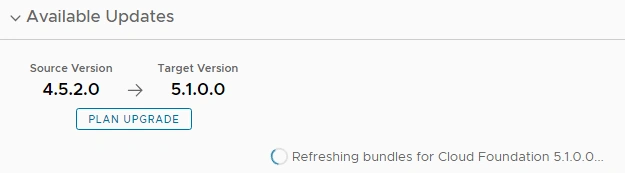
If you are using an installation that has undergone multiple upgrades, such as from version 4.2 to 4.5.2, you may encounter the following error in the update view, which refers to a bundle software type called "MULTI_SITE_SERVICE":
{
    "type": "java.lang.IllegalArgumentException",
    "message": "No enum constant com.vmware.evo.sddc.lcm.model.bundle.BundleSoftwareType.MULTI_SITE_SERVICE"
}

Initially, this message was confusing to me. I couldn't find any relevant KBs or blog posts online that explained the error.
To understand what "MULTI_SITE_SERVICE" was, I had to dig deeper, which included performing a pg_dump on the lcm database to examine the upgrade_history table.
In earlier vCF deployments, there were bundles related to "multi-site management," for example.
{
    "id" : "f0c04887-dbf3-498a-b55a-12a28e668254",
    "version" : "1.5.14-vcf4210RELEASE-533",
    "description" : "VMware vCloud Foundation Multi-Site Management",
    "name" : "MULTI_SITE_SERVICE"
}
I viewed this as a chance to tidy up my SDDC Manager.
KB 94760 describes a bundle management tool that, when used with PowerVCF, offers a simple method for removing outdated bundles.
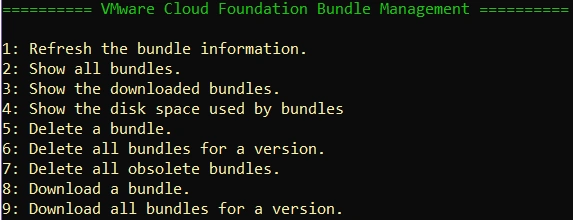
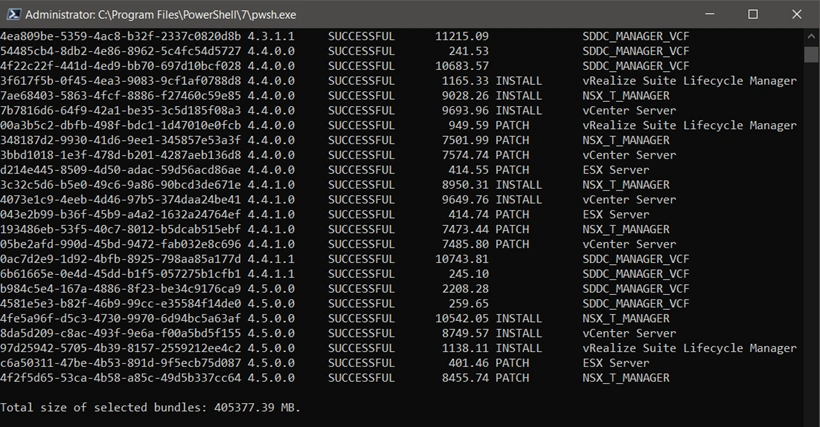
After removing many older bundles from the SDDC Manager, totaling 400GB, NSX became a viable upgrade path.
Lesson learned: It's probably a good practice to delete old bundles before every update.
Compatibility data

In VMware Cloud Foundation 4.5.x, the Compatibility Matrix Upload API call is not available. Because of this, I waited to upload it until SDDC Manager was on version 5.1.
It's worth noting that you can disable the compatibility matrix check by following KB 90074, but doing so may prevent you from upgrading NSX further.

vSAN HCL Update
I could only upload the latest vSAN HCL update after upgrading SDDC Manager to version 5.1 using the most recent lcm-bundle tools.
On my Windows jump-host, I encountered the following error when attempting the upload, so I chose to do it from SDDC Manager:
"Exception thrown when uploading vSAN HCL data: URI path begins with multiple slashes."
API Version Display
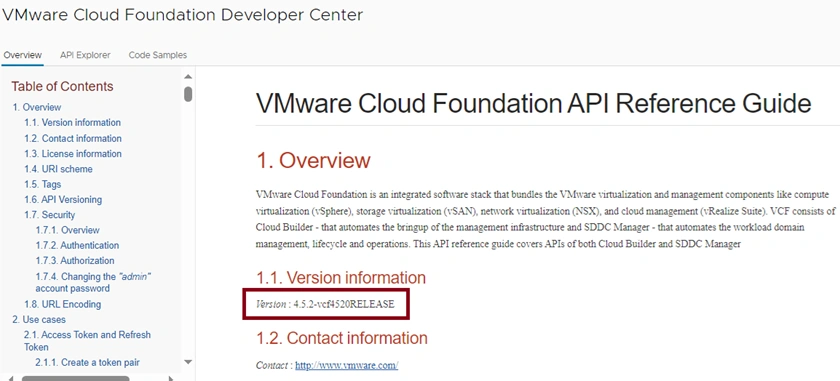
After upgrading to SDDC Manager 5.1.0, the Developer Center API will still display the 4.5.2 version. This appears to be a visual bug, as the 5.1.0 API is operational, although it cannot be accessed from the web interface.
Clearing Tasks that Never Complete
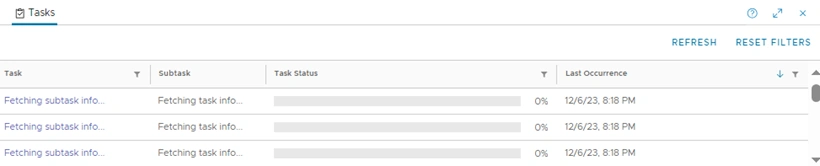
Refer to KB 89911 for instructions on how to resolve tasks that appear to never finish after upgrading to SDDC Manager 5.x.
NSX
ESXi host cannot enter maintenance mode
Generic error: Virtual machine ‘app01’ on host ‘esxi02.lab.local’ would violate a virtual machine - host affinity rule. VM cannot migrate.
During the upgrade, I encountered a virtual machine with an affinity rule that couldn't be broken. To proceed, I simply powered off that virtual machine.
Install of offline bundle failed
Unable to get FS Attrs for /vmfs/volumes/ca3e7430-4611-41ac-8fa2-127349107360
One ESXi host displayed a disconnected datastore mounted from SDDC Manager that had not been removed because it was selected for use with vSphere HA.

After removing the datastore, I had to reboot the host for the volume to disappear from /vmfs/volumes on the host.
To proceed, retry the update after taking the host out of both NSX Maintenance Mode and ESXi Maintenance Mode.
New authentication provider
The new version of VMware Validated Solutions for vCF/NSX now recommends using Active Directory for authentication instead of Identity Manager. Follow the guide below to migrate from Workspace ONE Access to LDAP Integration:
-
Prepare Active Directory
- Ensure that you have a dedicated service account in Active Directory for LDAP integration.
- Make sure the service account has the necessary permissions to read user information.
-
Configure LDAP Integration in SDDC Manager
- Log in to SDDC Manager.
- Navigate to the Administration tab.
- Select the Authentication menu option.
- Click on the "Configure" button for LDAP Integration.
- Enter the LDAP server details (server address, port, and SSL settings).
- Configure the Base DN and Bind DN settings based on your Active Directory configuration.
- Enter the username and password for the service account.
- Test the LDAP integration to ensure it's working correctly.
-
Migrate Users from Identity Manager to Active Directory
- Log in to Workspace ONE Access.
- Navigate to the Users & Groups tab.
- Export the list of users to a CSV file.
- Import the CSV file into Active Directory to create user accounts.
- Assign the appropriate permissions to the user accounts in Active Directory.
-
Update VMware Validated Solutions Configuration
- Update any references to Identity Manager in your VMware Validated Solutions configuration to use LDAP integration with Active Directory.
- Ensure that all components of the solution are configured to use Active Directory for authentication.
-
Testing and Validation
- Test the new LDAP integration to ensure that users can authenticate correctly.
- Validate that all components of the VMware Validated Solutions are functioning as expected with the new authentication method.
-
Rollback Plan
- Prepare a rollback plan in case any issues arise during or after the migration.
- Ensure that you have a backup of the previous configuration and user information.
-
Documentation and Training
- Update documentation and provide training for users and administrators on the new authentication method.
-
Post-Migration Cleanup
- Once the migration is successful, remove any references to Identity Manager and decommission the Identity Manager infrastructure.
-
Monitor and Maintain
- Monitor the new LDAP integration for any issues and perform regular maintenance tasks as needed.
-
Review and Audit
- Regularly review the LDAP integration configuration and audit user access to ensure security and compliance.
Following these steps will help you migrate from Workspace ONE Access to LDAP integration with Active Directory successfully.
Alarms for Expired or Expiring Certificates in NSX
Following the upgrade, new alarms regarding certificate expiration were observed. A solution has been released to address this issue:
- NSX alarms indicating certificates have expired or are expiring (94898)
- NSX CBM Certificates Expired After Upgrade From 3.2.x To 4.1.x (93296)
NSX Node Application Crash Alarm
If you encounter alarms indicating application crashes, refer to the instructions in KB 92493:
Potential LDAPS Disruption After NSX Upgrade
Upgrading NSX might cause LDAPS to cease functioning, which could affect the operation of the Identity Firewall and authentication.

Related KB LDAPS may stop working after upgrading NSX to version 4.1.0 (92869).
vCenter Server
Issues with ELM
- When multiple vCenter Servers are in the same SSO, the ELM may appear broken until all components are on the same major version (8.x).
Uppercase DNS Records
- During the vCenter Server upgrade, the process halted prematurely at the VCENTER UPGRADE INSTALL PRECHECK stage.
The source appliance FQDN vcsa01.lab.local must be the same as the source appliance primary network identifier vcsa01.lab.local
- My DNS records were in uppercase, while the appliance VM name and FQDN inside the OS were in lowercase.
- To resolve this, I changed all DNS records from uppercase to lowercase.
Related blog: Changing your vCenter Server’s FQDN
ESXi
Deployment Issue with vCenter LCM Plugin
The vCenter LCM plugin was not deployed correctly, possibly due to a race condition where the URL was not available in time.
DOWNLOAD_FAILED: Error downloading plugin package com.vmware.vlcm.client:8.0.2.22617221 from https://vcsa01.lab.local:9087/vci/downloads/vlcm-ui/plugin.zip. Reason: URL is unreachable. Make sure that the URL is reachable. com.vmware.vise.plugin.download.PluginDownloadException: org.apache.http.client.HttpResponseException: status code: 503, reason phrase: Service Unavailable
After a restart of the vCenter Server, the upgrade progressed further.
Error: vDS Port Not Found
- I encountered this error when a host was entering maintenance mode and was attempting to evacuate the last VM.
Resolution
- To resolve this, edit the network settings on the VM, select the same port group again, and then retry the operation.
Join the conversation! Your thoughts help the community grow.