

Introduction
In this article, we will go through how to update the list column based on requests on other lists. Here I have 2 lists, one is requests and the other is countries.
In the requests list ‘Country’ is a look up column.
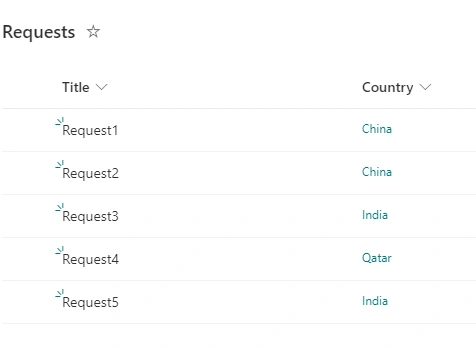
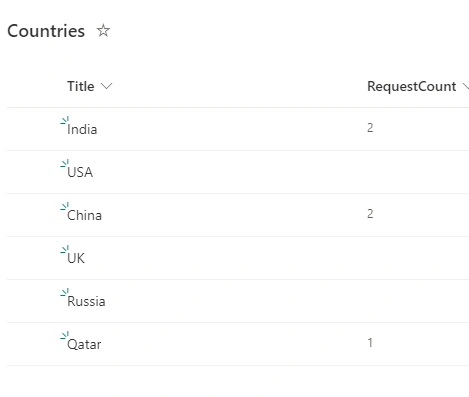
Here the property ‘RequestCount’ contains the count of requests based on ‘Requests’ list.
Flow Design
Now we will go through the steps of designing the flow.
Step 1
Login to Power Automate portal (https://make.powerautomate.com) with your organization account.
Step 2
Select the trigger point as SharePoint and select 'On item created or modified'.
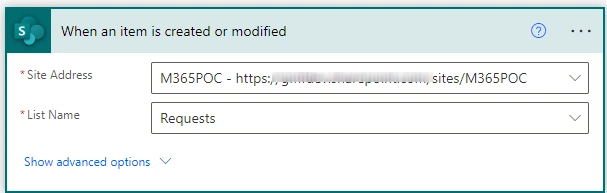
Step 3
Get items from the countries list.
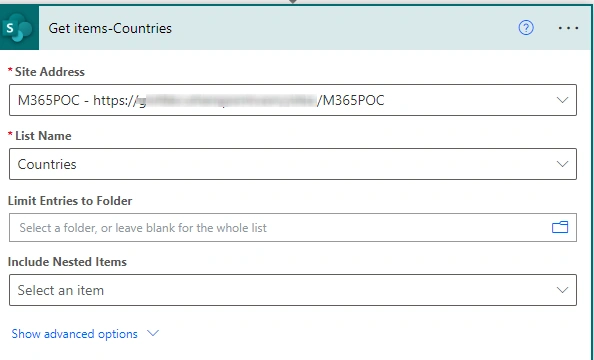
Step 4
From the countries list we need ID and the Country names. These are needed to update the list item properties. Here create the JSON object using the ‘Select’ data operation.
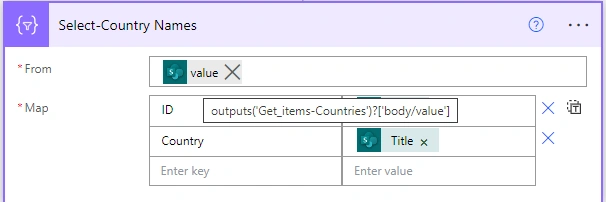
- From: property is dynamic property ‘value’ from the ‘Get items – Countries’ action.
- Map:
- Here since we need JSON object enter the first key as ID, and values as item()?[‘ID’]
- Enter the other key as ‘Country’ and the value is item()?[‘Title’]
Step 5
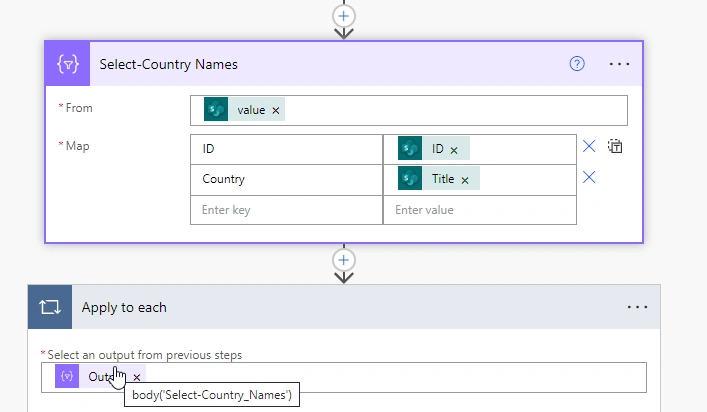
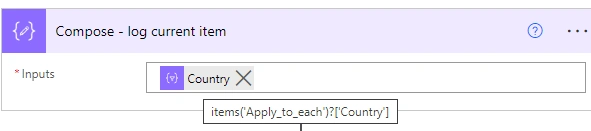
Create ‘Apply to Each’ and select outputs from previous steps which is Country Names. and inside add ‘compose’ action and log the current item. At first we will get the country value from the current JSON object.
Step 6
Now add ‘Get Items’ and configure the action to get the requests that satisfies the filter query where the current item country equals the country property of the requests.
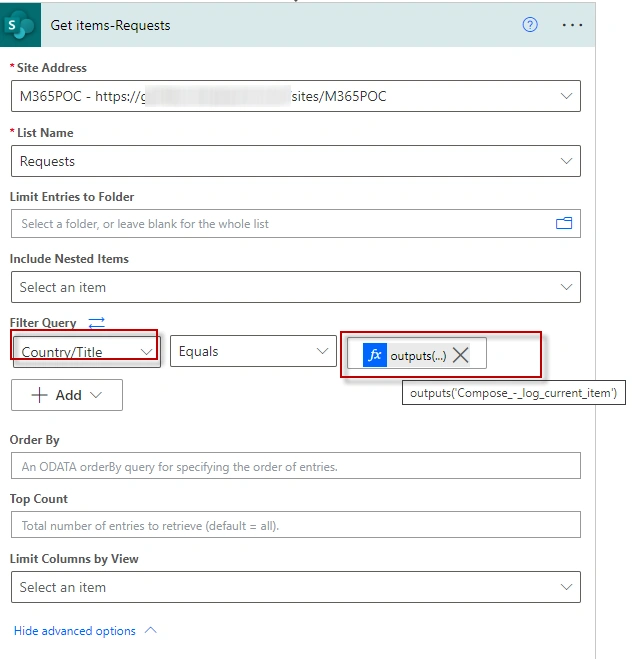
In the filter query I have updated the property as Country/Title, since country is look up column and it requires specific format to check the filter. More about OData can be found in references section.
And the value is the dynamic outputs of compose action log current item.
Step 7
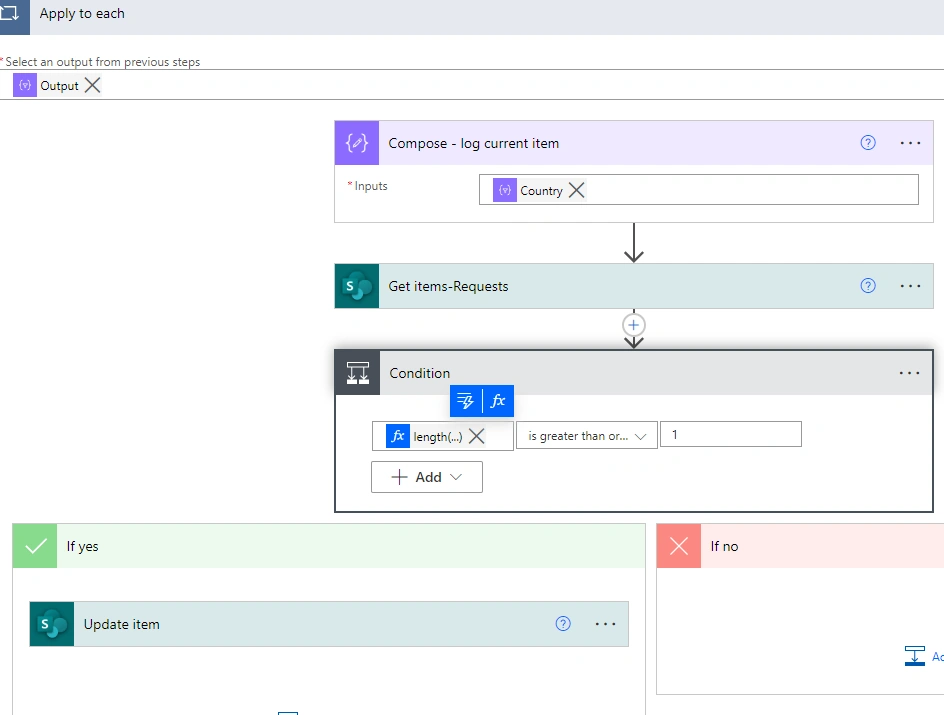
Now here I am getting the length of collection and checking if the count greater than or equal to 1.
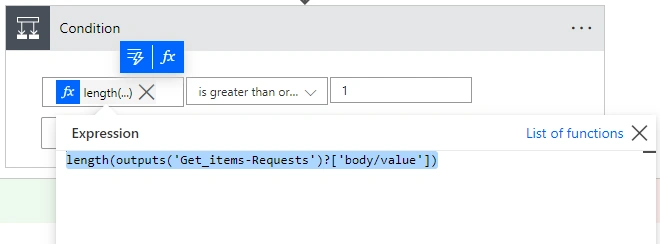
length(outputs('Get_items-Requests')?['body/value'])
Step 8
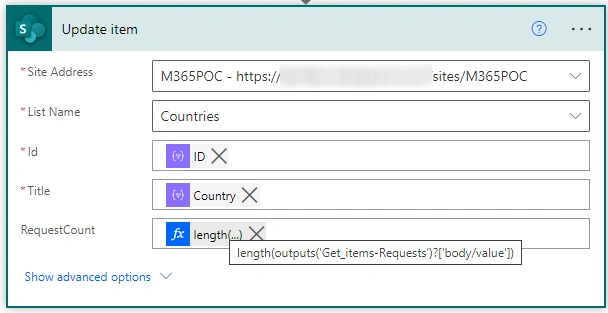
If the collection has value and go ahead update item with Request count.
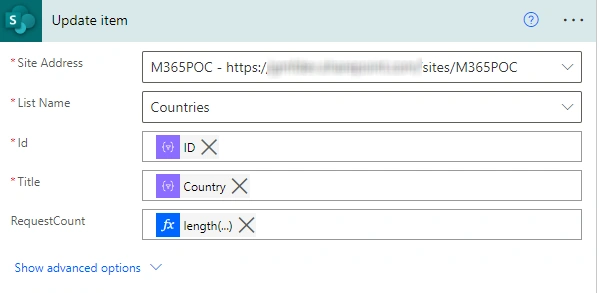
- For update item we need ID, Title properties
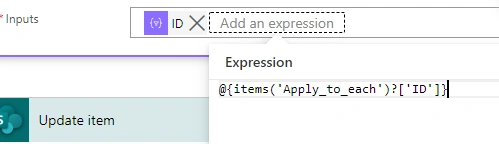
- For ID - this is an expression where you need to select ID from the current item to apply to each loop.
- Same thing applies for country.
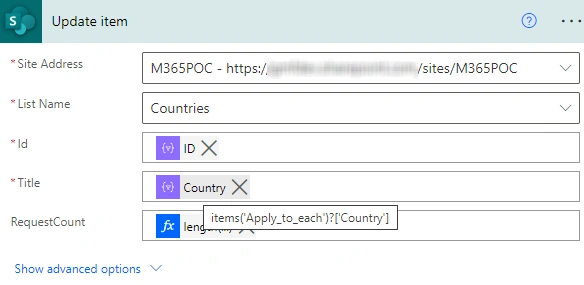
- Request Count
Update the with expression length of collection from Get items action.
Step 9
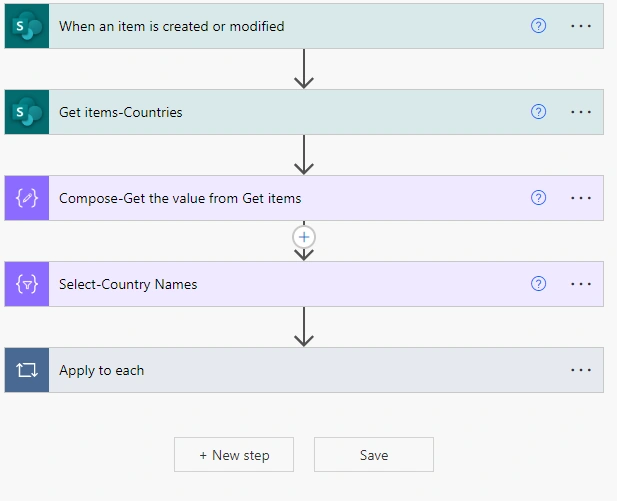
Below is the complete flow and it should similar to below.
Conclusion
We have seen how to update the requests count on the fly, based on the updates on the other list.
References
- https://www.youtube.com/watch?v=yeAnuTB85eg
- https://powerusers.microsoft.com/t5/Using-Flows/Count-total-of-items-per-country-in-one-list-then-update-total/m-p/1743995#M32918
- Stopping Infinite Loops When Updating SharePoint List Items – Scott J Shearer – M365 and Power Platform Solutions (o365scott.blog)
Join the conversation! Your thoughts help the community grow.