

Here are the steps,
Step 1: Create the basic structure of your project, View and View Model.
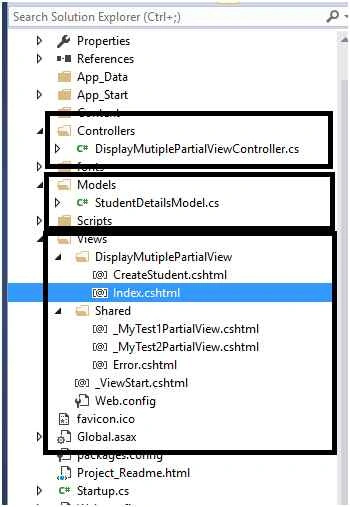
Step 2: Create Controller add Action which will return the JSON result, My Controller is as below. Note I have added action which return the JSON result.
Step 2: Create Controller add Action which will return the JSON result, My Controller is as below. Note I have added action which return the JSON result.
- using DropdownGrid.Models;
- using System;
- using System.Web.Mvc;
- namespace DropdownGrid.Controllers
- {
- public class JSONANDAJAXDemoController: Controller
- {
- public ActionResult Index()
- {
- MyMultipleUpdateViewModel obj = new MyMultipleUpdateViewModel();
- obj.myTest1ViewModel = new MyTest1ViewModel();
- obj.myTest1ViewModel.MyTestUpdate = "Test1";
- obj.myTest2ViewModel = new MyTest2ViewModel();
- obj.myTest2ViewModel.MyTestUpdate = "Test2";
- return View(obj);
- }
- public JsonResult GetJSONObject()
- {
- MyMultipleUpdateViewModel obj = new MyMultipleUpdateViewModel();
- obj.myTest1ViewModel = new MyTest1ViewModel();
- obj.myTest1ViewModel.MyTestUpdate = "Test1" + DateTime.Now.ToString();
- obj.myTest2ViewModel = new MyTest2ViewModel();
- obj.myTest2ViewModel.MyTestUpdate = "Test2" + DateTime.Now.ToString();
- return Json(obj, JsonRequestBehavior.AllowGet);
- }
- }
- }

Case 4: Give call for your JSON action as in the following way,
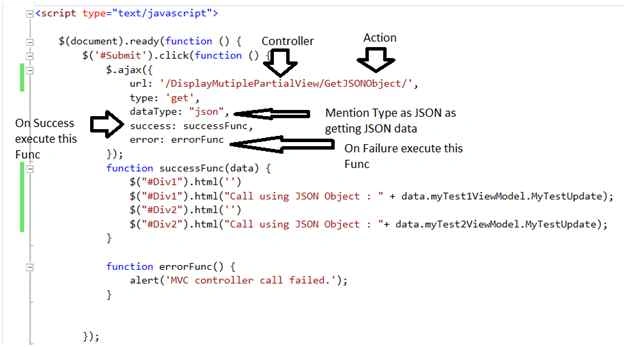
This is my AJAX call to JSON action.
- <script type="text/javascript">
- $(document)
- .ready(function ()
- {
- $('#Submit')
- .click(function ()
- {
- $.ajax(
- {
- url: '/JSONANDAJAXDemo/GetJSONObject/',
- type: 'get',
- dataType: "json",
- success: successFunc,
- error: errorFunc
- });
- function successFunc(data)
- {
- $("#Div1")
- .html('')
- $("#Div1")
- .html("Call using JSON Object : " + data.myTest1ViewModel.MyTestUpdate);
- $("#Div2")
- .html('')
- $("#Div2")
- .html("Call using JSON Object : " + data.myTest2ViewModel.MyTestUpdate);
- }
- function errorFunc()
- {
- alert('MVC controller call failed.');
- }
- });
- });
- </script>
Step 5: Include div’s in your code .
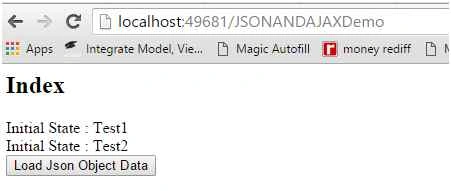
- <div id="Div1"> Initial State : @Model.myTest1ViewModel.MyTestUpdate </div>
- <div id="Div2"> Initial State : @Model.myTest2ViewModel.MyTestUpdate </div>
- <input type="submit" value="Load Json Object Data" id="Submit" />
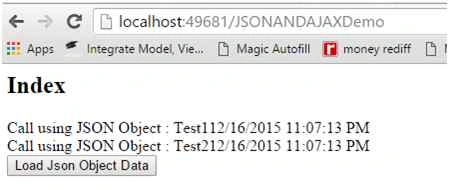
On click load button:
Malleswari GPosted Dec 26, 2017, 6:21 AM
Thanks for sharing.. Helpful for beginners..
Santhakumar MunuswamyPosted Dec 23, 2015, 3:56 PM
Thanks for nice sharing
kalu singh raoPosted Dec 17, 2015, 11:51 AM
Good one
Sanjay SabariyaPosted Dec 17, 2015, 6:20 AM
nice one.
Ankur MistryPosted Dec 16, 2015, 2:16 PM
good stuff, thanks for sharing