


This article explains how to run Unit Tests using Karma and Jasmine. This will guideyou to set up Grunt and Karma, configuring it to run Unit tests, writing some sample Jasmine unit tests and an integration test showing the browser differences in action.
Tools and Frameworks used
To run a unit test using Karma and Jasmine, we need following tools/frameworks:
- NodeJS: It is required NodeJS to be installed in the system but not necessary to be master in NodeJS.
- Grunt: Here I am using Grunt but this can be done using other task runners. More about Grunt can be learned from its official documentation or one of my previous article on Grunt Task Runner.
- Karma
- Jasmine (karma-jasmine plugin of Gruntss)
What is Unit Testing?
As stated in the official site of Microsoft “The primary goal of unit testing is to take the smallest piece of testable software in the application, isolate it from the remainder of the code, and determine whether it behaves exactly as you expect. Each unit is tested separately before integrating them into modules to test the interfaces between modules.” Please visit Microsoft site for more on Unit Testing.
Karma
Karma is a tool made on top of NodeJS to run JavaScript test cases. This is not a testing framework like Jasmine or Mocha or Chai etc. It only allows us to run JavaScript test cases written using testing frameworks like Jasmine.
Karma runs JavaScript test cases against real browsers through Command Line Interface (CLI) rather than virtual browser and DOM. Since, DOM rendering across browsers vary, so for correctness of the test report it uses real browsers. It can be configured what all browsers need to be used while running Karma.
Jasmine
Jasmine is a BDD (Behavior Driven Development) Javascript testing framework provides building blocks to write JavaScript unit test cases. It does not require any other JavaScript Framework. As stated in official documentation of jasmine 2.0.0:
“Jasmine is a behavior-driven development framework for testing JavaScript code. It does not depend on any other JavaScript frameworks. It does not require a DOM. And it has a clean, obvious syntax so that you can easily write tests.”
Here is a code snippet which describes basic structure of Jasmine Unit Test Spec:
- describe("simple test", function()
- {
- beforeEach(function(){
- });
- afterEach(function(){
- });
- it("a is a string", function(){
- })
- })
In the above sample code, there are four key keywords “describe”, “it”, “beforeEach” and “afterEach”. “describe” and “it” functions accept two parameters:
- a string: This parameter is used to define a string value which explains the purpose of suite.
- a function: This is a block of code that implements the suite
“describe” is also known as Suite of tests whereas “it” is known as Specs. Similarly, “beforeEach” is known as Setup and “afterEach” is known as Teardown.
As the function name suggests “beforeEach” and “afterEach” functions gets called once before and after each spec (“it” function) respectively within “describe” block. These functions accept a function as parameter.
Installation and Configuration
Before proceeding, make sure NodeJS and Grunt has been installed in your system.
1. Create a project folder. In my case, I have created a project with below folder structure:
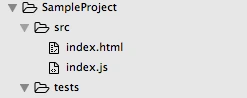
- “src” folder is to hold all source codes.
- “tests” folder is to hold test files.
2. Go to project root folder in command prompt.
3. Run below command to create package.json. This will take through the steps to create package.json. Steps can be skipped by pressing enter on every prompt.
- npm init
- npm install bower --save-dev
- bower init
- bower install grunt
- npm install grunt --save-dev
- bower search karma
- bower install karma --save-dev
- npm install grunt-karma --save-dev
Create JavaScript file in the project root folder and name it Gruntfile.js. Add below code to create basic structure of the Gruntfile.js to run karma:
- module.exports = function (grunt) {
- grunt.initConfig({
- pkg: grunt.file.readJSON('package.json'),
- karma: {
- unit: {
- configFile: "karma.conf.js"
- }
- }
- });
- grunt.loadNpmTasks('grunt-karma');
- grunt.registerTask('default', ['karma']);
- };
9. Create karma.conf.js
In Gruntfile.js, there is a property “configFile” mentioned for karma object. This is the config file to run karma. Create a JavaScript file in the project root folder, name it as karma.conf.js and add below code:
- module.exports = function(config)
- {
- config.set({
- basePath: '',
- frameworks: ['jasmine'],
- files: [
- 'tests/**/*Spec.js'
- ],
- exclude: [
- ],
- preprocessors: {},
- reporters: ['progress'],
- port: 9876,
- colors: true,
- logLevel: config.LOG_INFO,
- autoWatch: true,
- browsers: ['Chrome', 'Safari'],
- captureTimeout: 60000,
- singleRun: false
- });
- };
In karma.conf.js, I have mentioned “Chrome” and “Safari” as browsers on which test cases to be run. This would require the plugins for both “Chrome” and “Safari” to be installed before running test cases. To install plugins, run below commands synchronously:
- npm install karma-chrome-launcher --save-dev
- npm install karma-safari-launcher --save-dev
Create a “tests” folder in the root project folder and create a JavaScript file inside “tests” folder and name it “BasicSpec.js”. Add below code to the the “BasicSpec.js” file:
- describe("simple test", function(){
- beforeEach(function(){
- });
- afterEach(function(){
- });
- it("a is a string", function(){
- var a = "hello world";
- expect(a).toBe("hello world");
- })
- it("b is a number", function(){
- var b = 1;
- expect(b).toBe(1);
- })
- })
Here I have added very basic test cases. This can be modified based on the application requirement.
Show time
Run “grunt” command in Command Prompt. It will launch “Chrome” browser and “Safari” browser (only if these browsers have already installed in the system). And will show the results in the Command Prompt. It will run all test cases written in any js file inside the tests folder. Each js file name should include “…Spec.js” because the names mentioned in karma.conf.js includes this pattern for spec files.
- grunt
Thank you.
Bhavna NarulaPosted Apr 13, 2016, 12:09 AM
Great Article gives lot of Insight!
Anurag TomarPosted Apr 12, 2016, 4:55 AM
Worth Reading. Good explanation.
Jaipal ReddyPosted Apr 12, 2016, 4:44 AM
Thank you for sharing. .
Rahul ChavanPosted Apr 11, 2016, 11:56 PM
Good
Akhil MittalPosted Apr 11, 2016, 11:55 PM
Gr8
Rahul Kumar SaxenaPosted Apr 11, 2016, 10:49 PM
Good one
Mohammed IbrahimPosted Apr 11, 2016, 1:42 PM
nice
Kuppurasu NagarajPosted Apr 11, 2016, 1:12 PM
Nice Sharing
NitinPosted Apr 11, 2016, 12:18 PM
Nice