

Introduction
Managing user identities and access in a modern organization is critical yet challenging. Microsoft 365’s Lifecycle Workflows, part of Microsoft Entra ID Governance, provide an automated solution to streamline the Joiner-Mover-Leaver (JML) processes. This article explores Lifecycle Workflows, their components, benefits, and implementation, with insights drawn from Microsoft’s official documentation on Understanding Lifecycle Workflows.
What Are Lifecycle Workflows?
Lifecycle Workflows in Microsoft Entra ID Governance automate user identity management across the JML lifecycle:
- Joiner: Automates onboarding tasks, such as provisioning access for new employees.
- Mover: Manages role or department changes, updating access rights accordingly.
- Leaver: Ensures secure offboarding by revoking access when employees leave.
As outlined in Microsoft’s documentation, a workflow consists of three key components: execution conditions, tasks, and schedules. These components work together to trigger automated actions based on user attribute changes (e.g., hire date or department) detected in Microsoft Entra ID.
Key Components of Lifecycle Workflows
According to the Microsoft documentation, Lifecycle Workflows are built on the following elements:
- Execution Conditions: Rules that determine when a workflow runs, based on user attributes like employeeHireDate or department. For example, a condition might trigger a workflow for users in the “Sales” department seven days before their hire date.
- Tasks: Specific actions executed by the workflow, such as adding users to groups, generating temporary access passes (TAPs), or sending emails. Tasks can be predefined or customized via Azure Logic Apps for complex scenarios.
- Schedules: Define whether workflows run on-demand or on a recurring schedule (e.g., daily or weekly). This ensures timely execution for time-sensitive events like onboarding or offboarding.
Additional features include
- Predefined Templates: Microsoft provides templates like “Onboard new hire employee” or “Remove inactive guest accounts” to simplify setup.
- Custom Task Extensions: Integration with Logic Apps enables advanced automation, such as custom notifications or external system updates.
- Audit and Reporting: Workflow history and audit logs track task execution, ensuring compliance and troubleshooting.
Benefits of Lifecycle Workflows
Lifecycle Workflows deliver significant advantages, aligning with Microsoft’s emphasis on automation and governance:
- Efficiency: Automating repetitive tasks like provisioning or deprovisioning access reduces manual effort for IT and HR teams.
- Security: Timely access revocation for leavers minimizes unauthorized access risks, while TAPs enhance secure onboarding.
- Compliance: Consistent policy enforcement and audit logs support regulatory requirements, as noted in the documentation.
- Scalability: Workflows handle growing user bases without additional resources, ideal for large organizations.
- Error Reduction: Automation ensures accurate access management, minimizing human errors.
License requirements
Microsoft Entra ID Governance or Microsoft Entra Suite licenses
Required Roles
Lifecycle Workflows Administrator (least priviledge)
How to Create Life Cycle Workflows
- Assign License for the users
- Goto Entra Portal à Identity Governance à Lifecycle Workflows
- Choose a Template
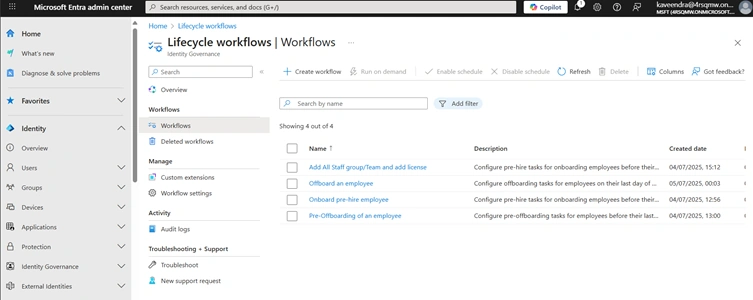
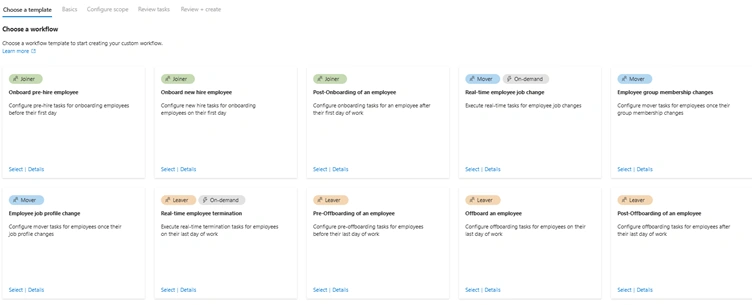
Examples
1) Offboard an Employee Template
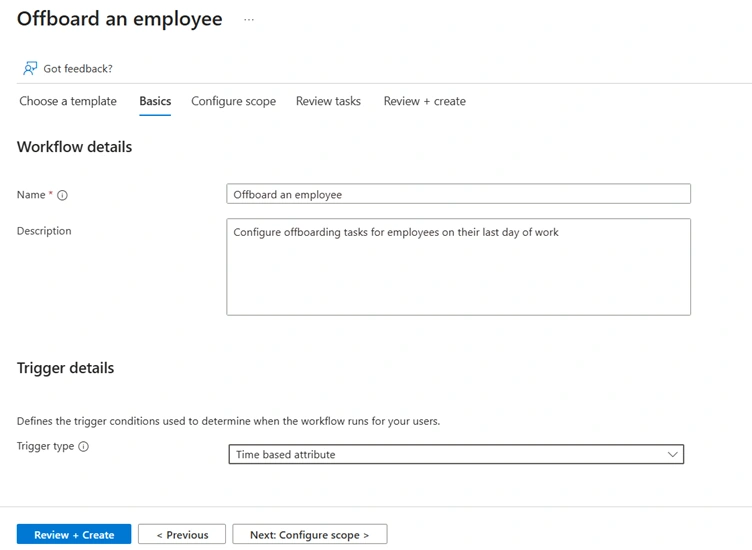
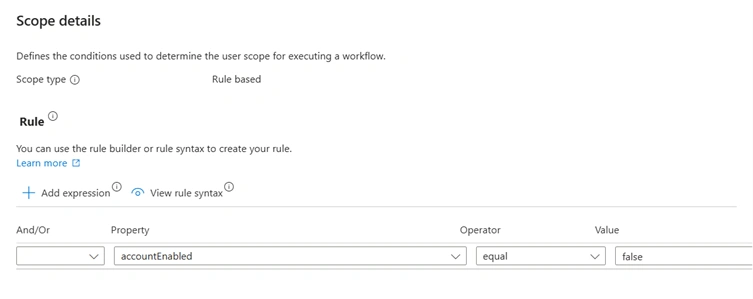
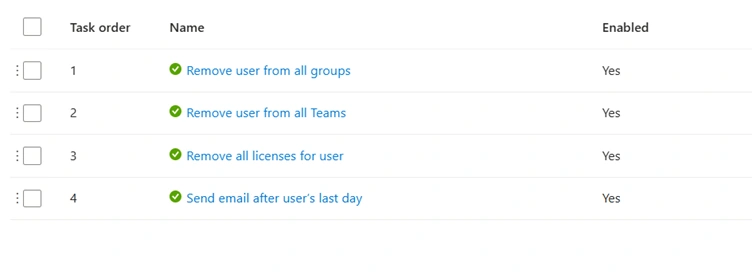
Here for the rules, it needs to be added to identify the execution rule.
In this example, I have added, if the account is not enabled (which means sign in blocked), automatically remove from all groups, all teams, all licenses and send an email. Tasks can be selected as your preference.
2) Onboard an Employee Template
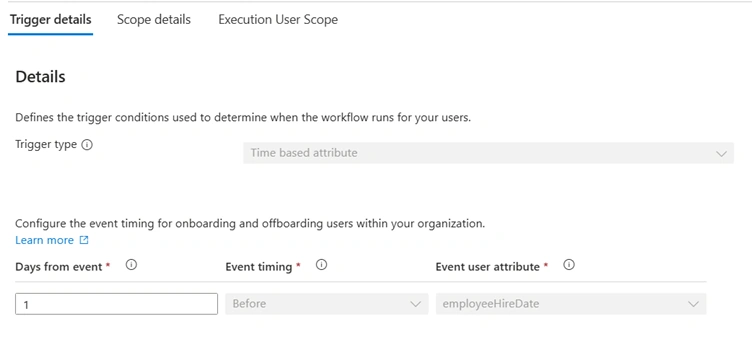
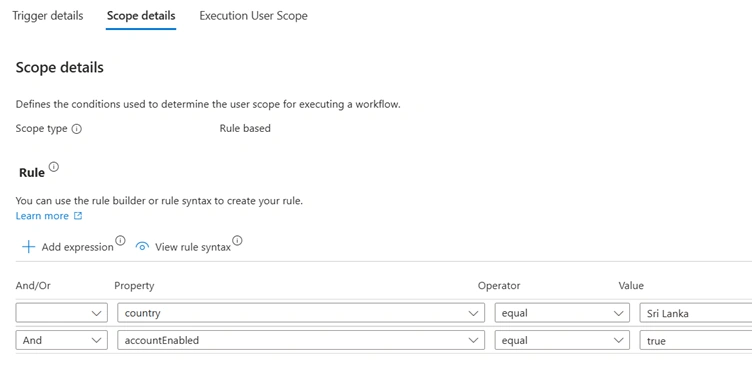
In this example, I have added if the Country = Sri Lanka & Account is enabled, add user to al staff group, selected teams and assign selected licenses.
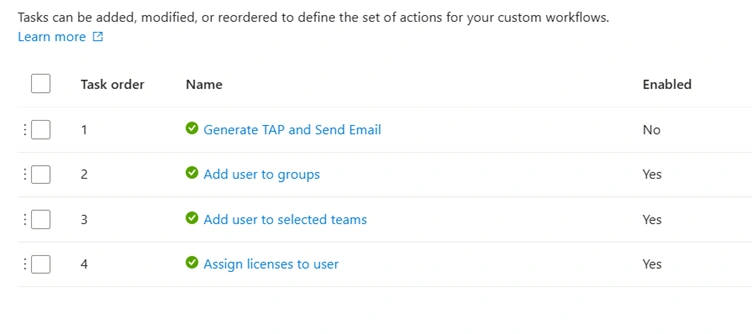
This will run in every 3 hours and if need to be run immediately, you can user “Run on demand” and ad the user so this will run immediately.
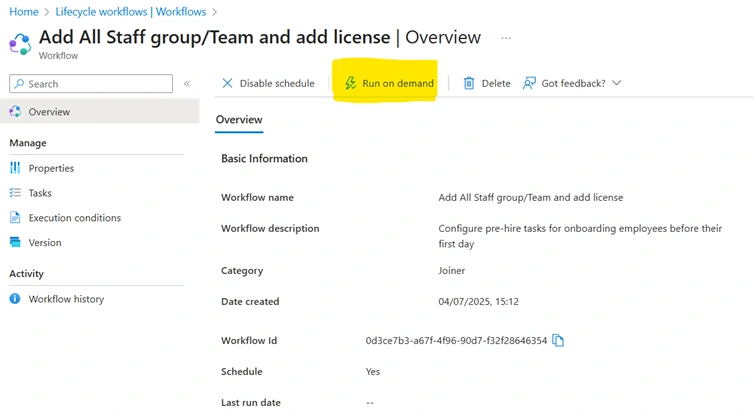
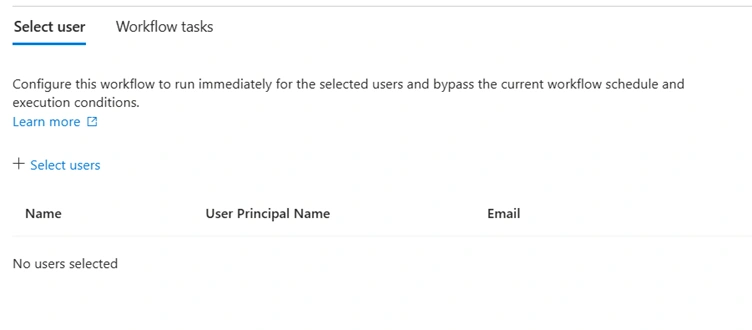
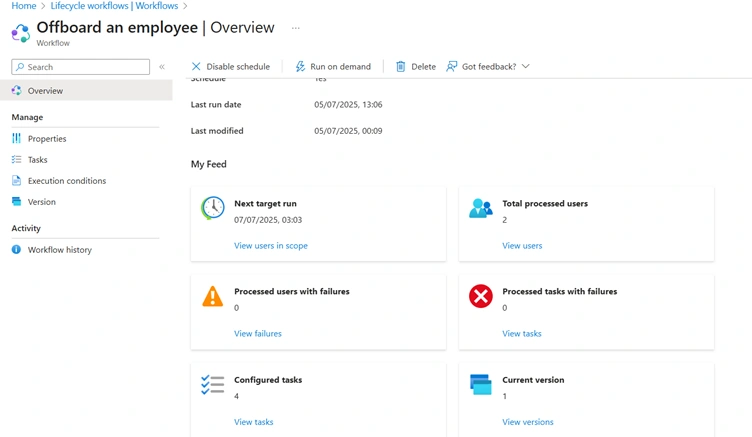
From the overview, can see the all details of the flow.
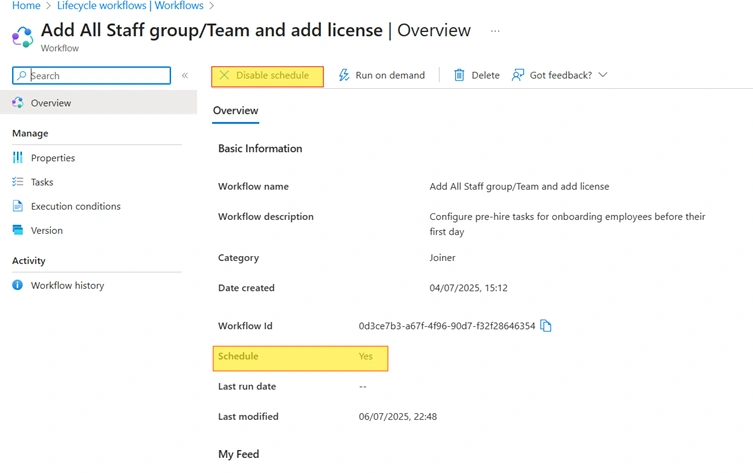
Also If need to disable the schedule, it can turn off by the overview as well.
Note. This can be used to onboard AD sync users and Cloud users both.
Join the conversation! Your thoughts help the community grow.