

In this article, we will see how to increase the availability and reliability of Virtual Machine solutions on Azure using Availability Set.
Step 1
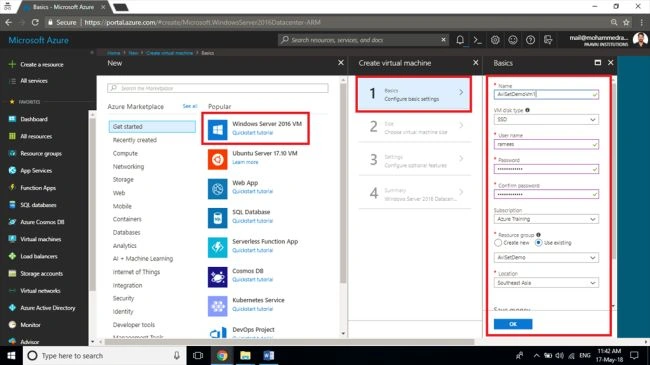
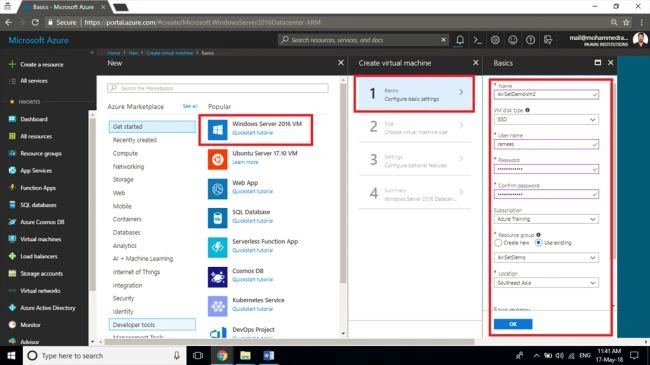
Create a new Windows Server from the compute category. Fill in the necessary details like Name, Disk Type(SSD/HDD), Username and Password for login credentials, Subscription (if you have multiple), Location and put the associated resources in a new Resource Group.
Step 2
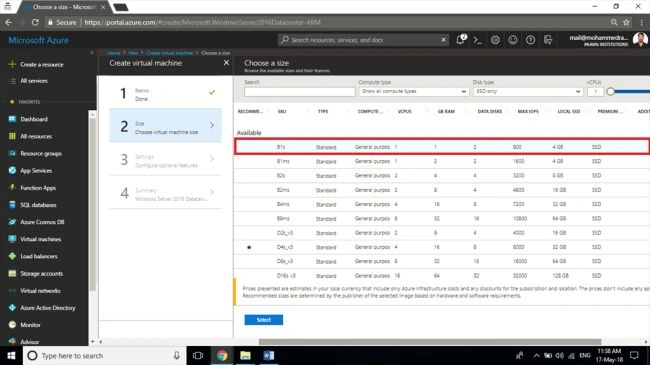
In the second step select the Size of the required VM as per your business requirements. You can see what each size offers and how much it costs per month for the same.
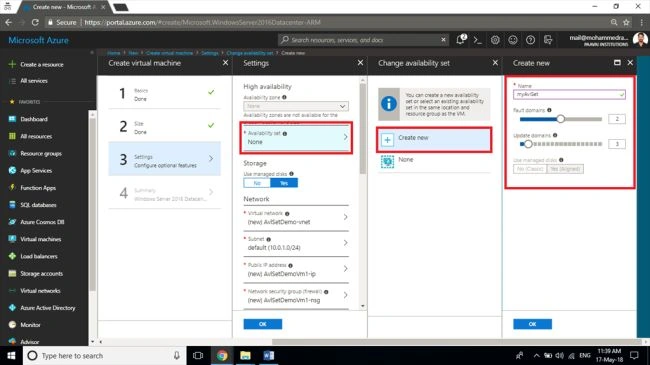
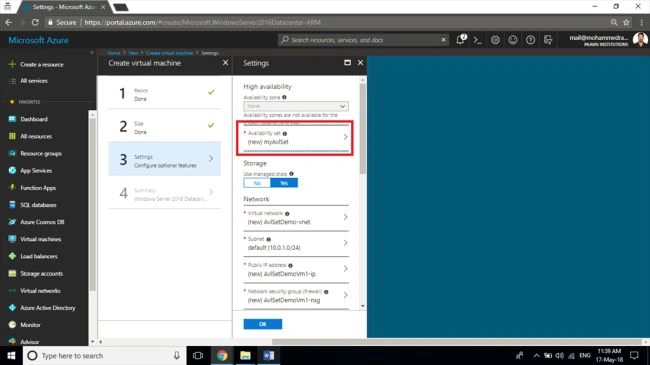
In the third step create a new Availability Set and give a name for it, also specify the number of Fault Domains and Update Domains for which I am giving two and three respectively for this demo. In this demo, we are going with the defaults for all other settings.
Step 4
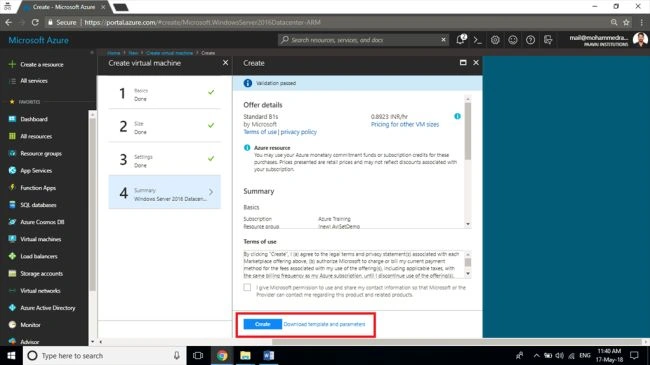
On the final step wait for the final Validation to be passed, and clicking on create will initiate the deployment of the VM. This may take a few minutes and you can check the status from the notification bar.
Step 5
Create another VM of the same configuration with a different name in the Same Region and the same Resource Group.
Step 6
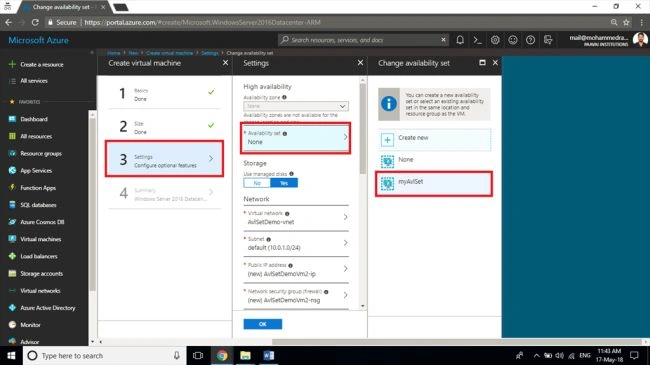
In the third step of the creation of the second VM selection, instead of creating a new Availability Set select the existing Availability Set created for the first VM. Leave all other settings as default as we did for the first VM
Step 7
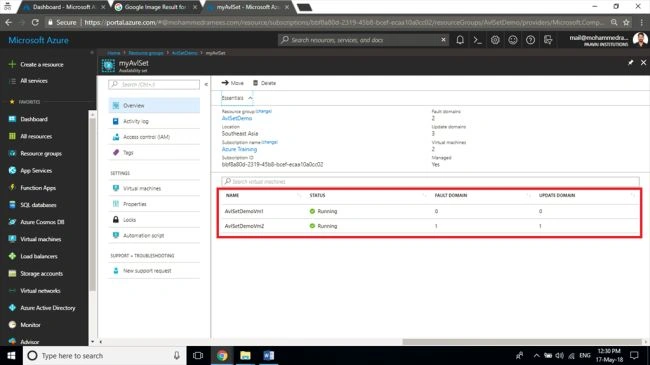
Once the VM deployment is completed, select the Availability Set from the resource and you can see our two VMs listed in the availability set with Fault and Update domain listed as 0 and 1 as we have defined 2 values for Fault domain and 3 for Update Domain
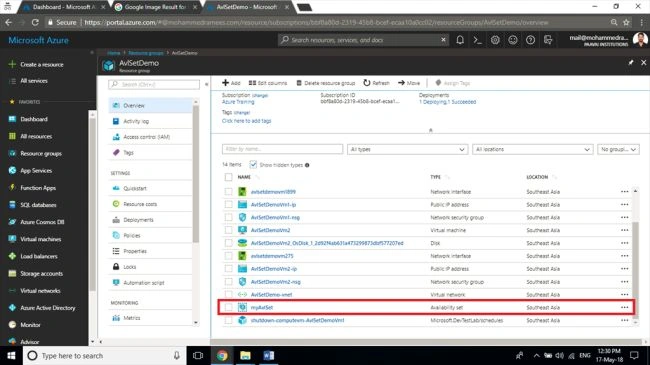
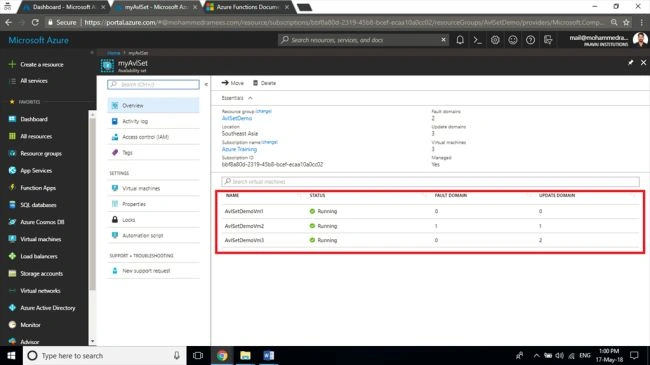
Adding one more VM in the same availability set will list O in the fault domain and 2 in the update domain.
Vesna ErgaracPosted Dec 6, 2018, 4:04 PM
It's effectively identical to the way RAID arrays are configured in SAN. I still don't think you can beat vmotion and DRS
Hadshana KamalanathanPosted Jul 17, 2018, 6:36 PM
Thank you for sharing.