

In this article, I'll explain and demonstrate how update panels work and how to use them efficiently.
This article is divided into parts. In each part I may cover one or more scenario(s). These scenarios will provide you an idea how update panels work internally and how to use them in various situations efficiently.
Before going into detail, please become familiar with the Fiddler tool if you haven't already. You can get this from: http://fiddler2.com.
First of all, create an ASP.Net project with a master page. Add a ScriptManager tag to the master file.
Scenario 1: Update part of the page only, not the entire page
Add a new aspx page NoUpdatePanels.aspx with a master file and a copy the following code in it (or grab it from the attached source code and remove updatepanels).
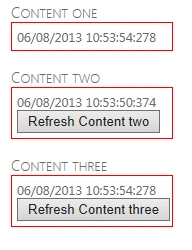
For example, we have three content panels in a page as in the following:
The actual source is as in the following:
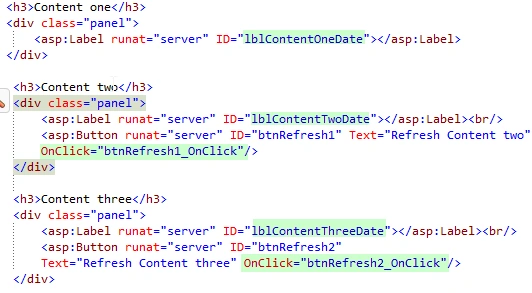
In the code above:
-
Content One displays a date time that is updated on every post-back irrespective of control triggered.
-
Content Two displays a date time and a button to update date time. Updated only when the button is pressed.
-
Content Three displays a date time and a button to update date time. Updated only when the button is pressed.
Do the following:
-
Click on the "Content Two" button, it triggers a post-back and the entire page is refreshed. Compare the date times in all the contents (Content One, Content Two and Content Three).
-
Click on the "Content Three" button, it triggers a post-back and the entire page is refreshed. Compare the date times in all the contents (Content One, Content Two and Content Three)
See the following action:

See the following; the page sizes of the requests is on two clicks:
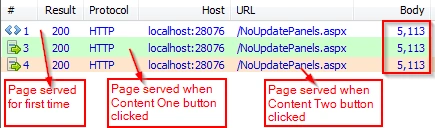
All the three requests have the same request and response size and returns the entire HTML page as in the following:

Please note that the page size in the preceding figure is the combined size of the request and response.
Now I want to update the date time of "Content Two" only when clicking on the button in "Content Two" without updating "Content One" and "Content Three" date times.
I'll wrap "Content Two" in the Update Panel with the Id "UpdatePanel1" as in the following:
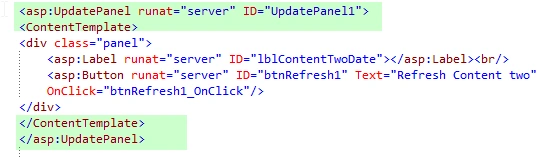
Now do the following:
-
Start the page and note the date time values.
-
Click on the button in "Content Two". Compare "Content One", "Content Two" and "Content Three" date times. The "Content Two" date time was updated whereas "Content One" and "Content Three" date times remain the same.
When the button is clicked, Update Panel updates "Content Two" only. On button post-back, the server sends only "Content Two" HTML content instead of sending the entire HTML page as we saw in the previous case.
See the action below.

See the following new page sizes of the preceding requests:

Please notice that the second page's ("Content Two" button click) request body size decreased around 75%. The "Content One" and "Content Two" sizes remain the same (there was a slight difference from the previous and current fiddler diagrams because of the newly added update panel element).
See the following response for the "Content Two" button click:
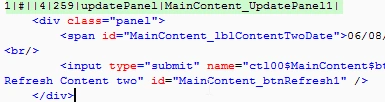
Now I want to update the "Content Three" date time only when the "Content Three" button is clicked without updating the "Content One" date time.
I'll wrap "Content Three" in the Update Panel with Id "UpdatePanel2" as in the following:
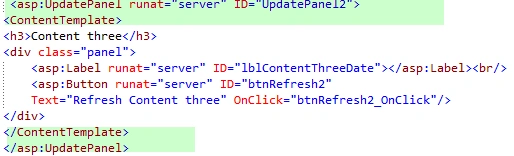
Now do the following:
- Start the page and note the date time values.
- Click on the button in "Content Three". Compare "Content One", "Content Two" and "Content Three" date times. "Content Three" and "Content Two" date times are updated whereas Content One date time remains the same.
See the action below:

See the new page sizes below:

Now you will see in the second page request ("Content Two" button click) and the third page request ("Content Three" button click) the sizes are the same. The "Content Two" button click updates "Content Two" and the "Content Three" date time whereas the "Content Three" button updates "Content Three" and "Content Two" date times.
Now see the following response for the second and third page requests:

Now the question is, why was it returning "Content Three" updates when "Content Two" button is clicked and vice versa.
The problem is with the Update Panel configuration.
Update Panel provides a property "UpdateMode" to configure your update panel updating mode.
Valid values are
-
Always: Always means it will always be updated from any Update Panel request (for both post-backs from "UpdatePanel1" and any other page control).
-
Conditional: Conditional means only the updated based on some criteria. By default, Conditional mode without any criteria restricts its update panel updates to its children post-back triggers only (by default this behaviour is turned on. We can disable this behavior but that will be explained in a future article). It means that when the "Content Two" button is clicked, only "UpdatePanel1" is updated because the "Content Two" button is the child of "UpdatePanel1".
Change "UpdatePanel1 UpdateMode" to "Conditional" as in the following:

Now do the following:
-
Start the page and note the date time values.
-
Click on the "Content Two" and "Content Three" buttons.
See the new page sizes for the preceding click requests as in the following:

But why the size of third request (Content Three button click) is decreased if we set "Content Two" update panel's UpdateMode to conditional. Let's have a look at the responses of the second and third requests.
The second request response ("Content Two" button click):
The third request response ("Content Three" button click):

The reason was that "UpdatePanel2" has no UpdateMode property, in other words its UpdateMode is "Always" by default whereas "UpdatePanel1s"' UpdateMode is set to "Conditional".
When the "Content Three" button is clicked, only "UpdatePanel2" was updated whereas "UpdatePanel1s" UpdateMode was set to Conditional.
When the "Content Two" button is clicked, "UpdatePanel1" was updated as well as "UpdatePanel2". (It has no UpdateMode so by default it was set to "Always".) .
Now change UpdatePanel2's UpdateMode to "Conditional" as in the following:

Now do the following:
-
Start the page and note the date time values.
-
Click on the "Content Two" and "Content Three" buttons.
See the action below:

See following the new page sizes for the preceding requests:
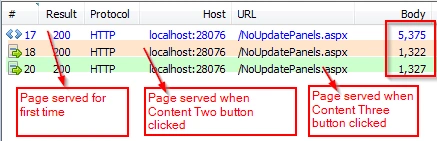
In the preceding, the second and third request's page size was reduced to 75%. The response for the "Content Two" button click was "UpdatePanel1" and for the "Content Three" button click it was "UpdatePanel2".
Advantages
-
Reduces bandwidth (size of request and response during each post-back to the server).
-
Response time decreases.
In this article, I have explained and demonstrated how update panels work internally and how it updates part of the page.
Pavan MaraPosted Feb 24, 2021, 3:17 PM
Article is helpful, but it is so much confusing to to get hold the udpatepanel numbers with button ids.
ROHAN PANDEYPosted Feb 26, 2015, 1:19 PM
Awesome super
amit sambyalPosted Aug 6, 2013, 2:13 PM
nice article