

Introduction
When working with Power Automate, you may need details such as the Environment ID, Flow Name (Flow ID), Flow Display Name, Owner, or Trigger Information for troubleshooting, automation, REST APIs, or integrating with other Microsoft Power Platform services.
This guide explains multiple ways to retrieve these hidden details quickly.
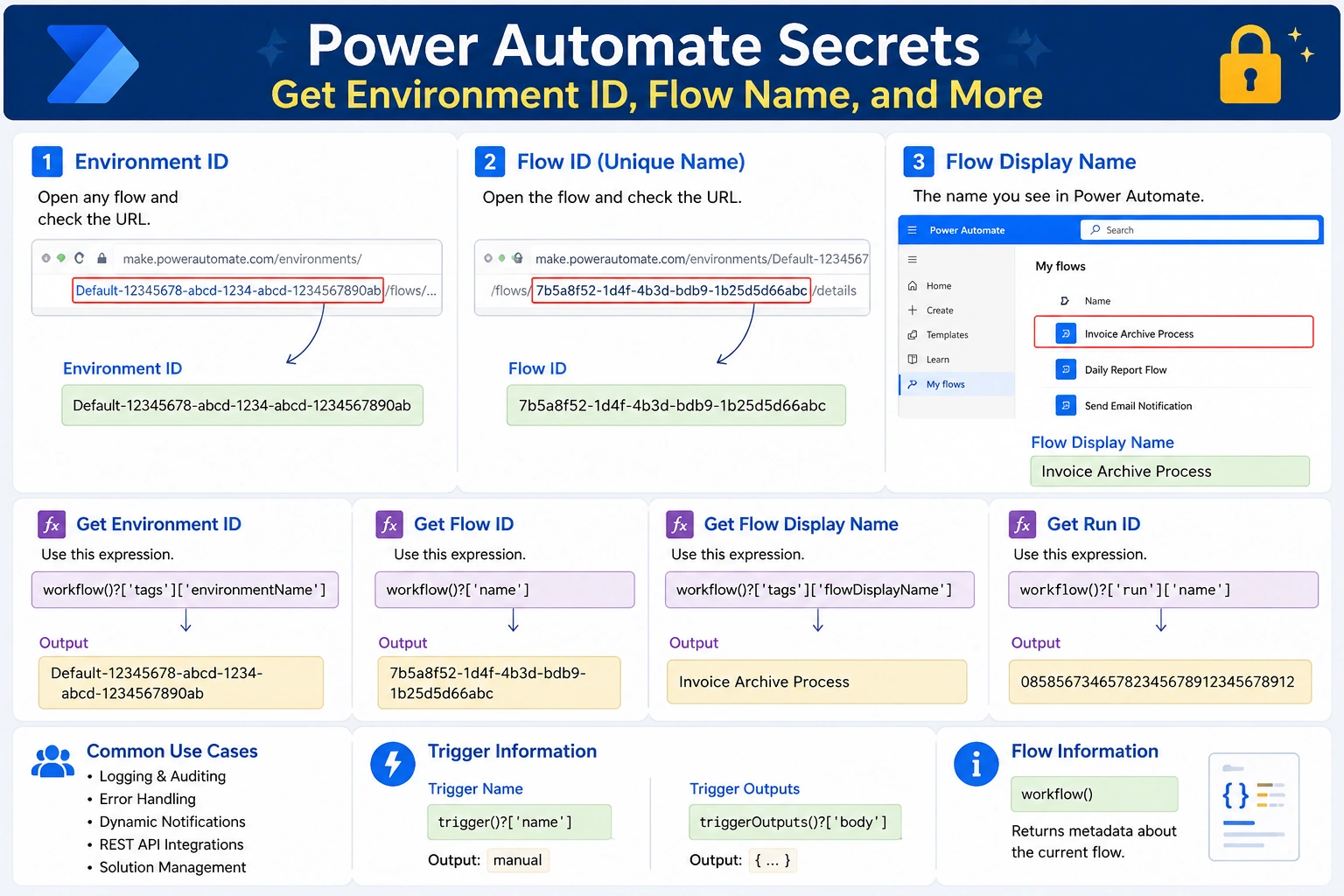
1. Get the Environment ID
The Environment ID is a unique identifier for your Power Platform environment.
Method 1: From the URL
Open Power Automate.
Select your environment.
Open any cloud flow.
Look at the browser URL.
Example:
https://make.powerautomate.com/environments/Default-12345678-abcd-1234-abcd-1234567890ab/flows/...Everything after environments/ is your Environment ID.
Example:
Default-12345678-abcd-1234-abcd-1234567890abMethod 2: Using Power Platform Admin Center
Open the Power Platform Admin Center.
Go to Environments.
Select your environment.
The Environment ID is displayed in the Details pane.
2. Get the Flow Name (Flow ID)
Every flow has two names:
Display Name
Flow ID (Unique Name)
Method 1: From the URL
Open the flow.
Example URL:
https://make.powerautomate.com/environments/Default-12345678-abcd-1234-abcd-1234567890ab/flows/7b5a8f52-1d4f-4b3d-bdb9-1b25d5d66abc/detailsFlow ID:
7b5a8f52-1d4f-4b3d-bdb9-1b25d5d66abcMethod 2: Using Power Automate Management Connector
Use the action:
List My Flowsor
List Flows as AdminThe output contains:
Flow ID
Display Name
State
Created Time
Modified Time
3. Get the Flow Display Name
The display name is simply the title shown in Power Automate.
Example:
Invoice Archive ProcessYou can also retrieve it using:
List My Flows
List Flows as Admin
Power Platform REST API
4. Get Environment Name Dynamically
Use the Power Automate expression:
workflow()?['tags']['environmentName']Example Output:
Default-12345678-abcd-1234-abcd-1234567890ab5. Get the Current Flow Name
Use:
workflow()?['name']Output:
7b5a8f52-1d4f-4b3d-bdb9-1b25d5d66abc6. Get the Flow Display Name
Use:
workflow()?['tags']['flowDisplayName']Output:
Invoice Archive Process7. Get the Current Run ID
Every execution has its own Run ID.
Expression:
workflow()?['run']['name']Example:
08585673465782345678912345678912Useful for:
Logging
Error Tracking
Audit History
8. Get Trigger Name
Expression:
trigger()?['name']Example:
manualor
When_an_item_is_created9. Get Trigger Outputs
Entire trigger payload:
triggerOutputs()Specific property:
triggerOutputs()?['body']Example:
triggerOutputs()?['body/Title']10. Get Current User Information
Many connectors expose user information.
Examples:
workflow()?['tags']['creator']or use the Office 365 Users connector:
Get my profile (V2)Retrieve:
Display Name
Email
Department
Job Title
11. Get Flow Owner
Using the Power Automate Management connector:
Get FlowReturns:
Owner
Created By
Environment
Status
Solution
Connection References
12. Get Workflow Information
The following expression returns metadata about the running flow:
workflow()Typical output:
{
  "name": "7b5a8f52-1d4f-4b3d-bdb9-1b25d5d66abc",
  "id": "/providers/Microsoft.ProcessSimple/...",
  "type": "Microsoft.Logic/workflows",
  "location": "asia",
  "tags": {
      "environmentName": "Default-12345678...",
      "flowDisplayName": "Invoice Archive Process"
  }
}
Common workflow() Expressions
| Expression | Returns |
|---|---|
workflow() | Complete workflow metadata |
workflow()?['name'] | Flow ID |
workflow()?['id'] | Workflow Resource ID |
workflow()?['type'] | Workflow Type |
workflow()?['location'] | Region |
workflow()?['tags']['environmentName'] | Environment ID |
workflow()?['tags']['flowDisplayName'] | Flow Display Name |
workflow()?['run']['name'] | Run ID |
Common trigger() Expressions
| Expression | Returns |
|---|---|
triggerOutputs() | Complete trigger output |
triggerBody() | Trigger body only |
triggerOutputs()?['headers'] | Headers |
triggerOutputs()?['body'] | Body |
trigger()?['name'] | Trigger Name |
Real-World Use Cases
Logging: Store the Flow ID, Run ID, and Environment ID in a SharePoint list or database for auditing.
Error Handling: Include the Run ID in email notifications to quickly locate failed executions.
Dynamic Notifications: Use the Flow Display Name in Teams or email alerts for better readability.
REST API Calls: Use the Environment ID and Flow ID when invoking Power Automate or Power Platform APIs.
Solution Management: Retrieve environment and flow details dynamically to avoid hardcoding values.
Best Practices
Use expressions like
workflow()instead of hardcoding Flow IDs or Environment IDs.Log the Run ID for every critical flow execution to simplify troubleshooting.
Store environment-specific values in Environment Variables when using solutions.
Use the Power Automate Management connector for administrative tasks and flow inventory.
Include flow metadata in monitoring or audit logs to improve traceability.
Conclusion
Power Automate provides built-in expressions such as workflow() and triggerOutputs() that expose valuable metadata about the current flow. By leveraging these expressions, you can dynamically retrieve the Environment ID, Flow ID, Display Name, Run ID, and Trigger Information without hardcoding values. This makes your flows more maintainable, portable across environments, and easier to monitor and troubleshoot.
Join the conversation! Your thoughts help the community grow.