

Introduction
This article will explain the two-way data binding in Angular. I would recommend you read the below articles before starting with this one.
- Interpolation data binding in angular
- Property Data binding in angular
- Class data binding in angular
- Style data Binding in angular
- Attribute data Binding in angular
- Event data binding in angular
What is two-way data binding Angular?
Using two-way binding, we can display a data property as well as update that property when the user makes changes. We can achieve it in the component element and HTML element, both. Two-way data binding uses the syntaxes of property binding and event binding together. Property binding uses the syntax as bracket [] or bind and event binding uses the syntax as parenthesis () or on and these bindings are considered as one-way bindings. Two-way binding works in both directions setting the value and fetching the value. Two-way binding uses the syntax as [()] or the bindon keyword. It also called the "banana in the box" symbol. It looks like a banana in a box.
Let us see two-way data binding with an example.
Step 1
Open the command prompt from Windows search.
Step 2
Create a new project in Angular.
ng new AngularDemo
Step 3
Open the project in Visual Studio Code. Type the following command to open it.
Code .
Step 4
Open terminal in Visual Studio Code and create a component, "employee".
ng g c example
Step 5
Open the example component in your application and change the code with the following one.
- import { Component, OnInit } from '@angular/core';
- @Component({
- selector: 'app-example',
- templateUrl: './example.component.html',
- styleUrls: ['./example.component.css']
- })
- export class ExampleComponent {
- firstName: string = "";
- lastName: string = "";
- fullname() {
- return this.firstName + " " + this.lastName;
- }
- }
Step 6
Open example.component.html in your application and change the code with the following one.
- <div class="container">
- <h3 class="text-uppercase text-center">Two Way data binding in angular</h3>
- <div class="row">
- <div class="col-md-4">
- <div class="form-group">
- <label>First Name:</label>
- <input [value]="firstName" class="form-control" (input)='firstName= $event.target.value'>
- </div>
- </div>
- <div class="col-md-4">
- <div class="form-group">
- <label>Last Name:</label>
- <input [value]="lastName" class="form-control" (input)='lastName= $event.target.value'>
- </div>
- </div>
- </div>
- <h4 class="text-uppercase ">{{fullname()}}</h4>
- </div>
Step 7
Open app.component.html in your application to take the selector name from employee.component.ts.
- < <app-example></app-example>
Step 8
Run the application by typing the following command.
ng serve –open

Another example of two-way data binding using FormsModule
Step-1 Open app.module.ts and import FormsModule as shown in the image. Change the code with the following one.

Step-2 Open example.component.ts write below code
- import { Component, OnInit } from '@angular/core';
- @Component({
- selector: 'app-example',
- templateUrl: './example.component.html',
- styleUrls: ['./example.component.css']
- })
- export class ExampleComponent {
- public firstName:string='';
- public lastName:string='';
- public position:string='';
- public salary:number;
- }
Step-3 Now open example.component.html and write below code
- <div class="container">
- <h3 class="text-uppercase text-center">Two Way data binding in angular</h3>
- <div class="row">
- <div class="col-md-4">
- <div class="form-group">
- <label>First Name:</label>
- <input type="text" class="form-control" [(ngModel)]="firstName">
- </div>
- </div>
- <div class="col-md-4">
- <div class="form-group">
- <label>Last Name:</label>
- <input type="text" class="form-control" [(ngModel)]="lastName">
- </div>
- </div>
- </div>
- <div class="row">
- <div class="col-md-4">
- <div class="form-group">
- <label>Position:</label>
- <input type="text" class="form-control" [(ngModel)]="position">
- </div>
- </div>
- <div class="col-md-4">
- <div class="form-group">
- <label>Salary:</label>
- <input type="number" class="form-control" [(ngModel)]="salary">
- </div>
- </div>
- </div>
- <p>
- First Name:<strong class="text-uppercase">{{firstName}}</strong>
- </p>
- <p>
- Last Name:<strong class="text-uppercase">{{lastName}}</strong>
- </p>
- <p>
- Position:<strong class="text-uppercase">{{position}}</strong>
- </p>
- <p>
- Salary:<strong class="text-uppercase">{{salary}}</strong>
- </p>
- </div>
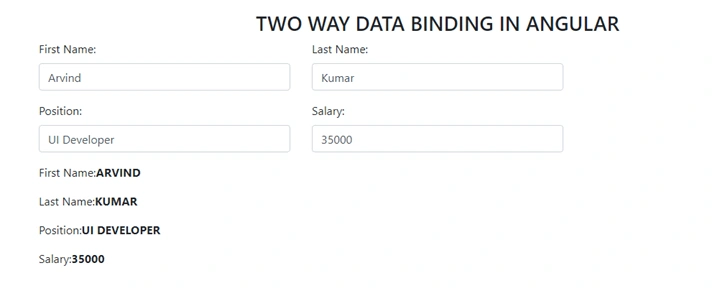
Summary
In this article, I have explained two-way data binding in an Angular application. I hope you have understood the concept of two-way data binding properly.
Join the conversation! Your thoughts help the community grow.