

Here is a simple code to get a Twitter widget. Firstly, all we need to get is the Twitter widget id.
So follow these steps to get widget id from twitter.
So follow these steps to get widget id from twitter.
Step 1: Create an account on Twitter if you don't have one and login on Twitter.
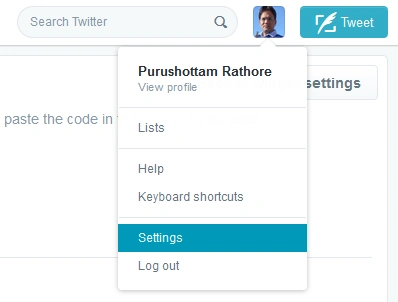
Step 2: Go to Settings
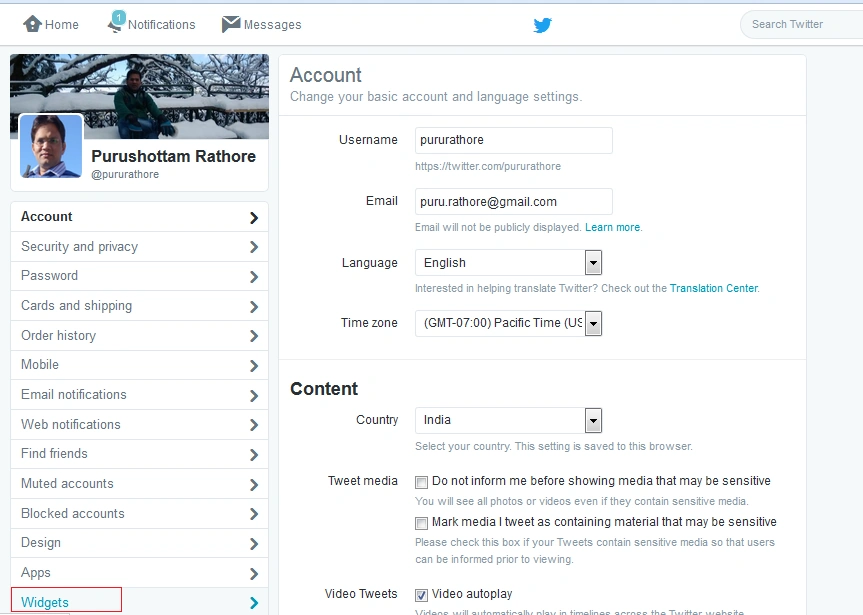
Step 3: Click on widget in left bottom.
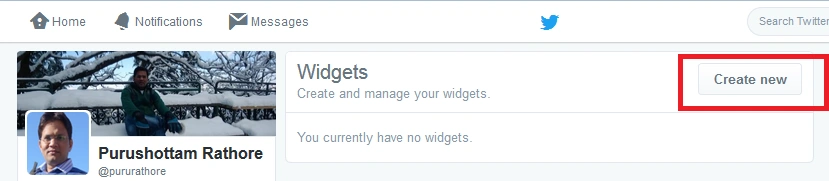
Step 4: Click on Create new button as follows:
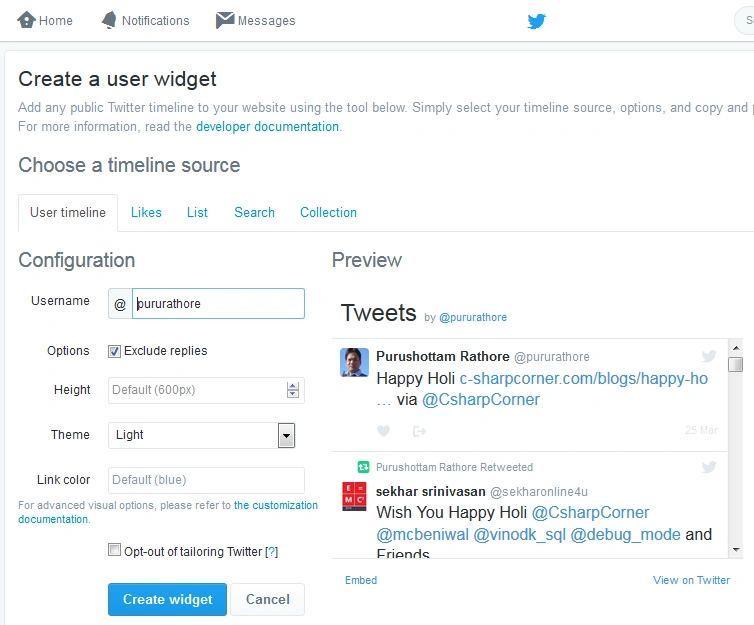
Step 5: Click on Create widget button.
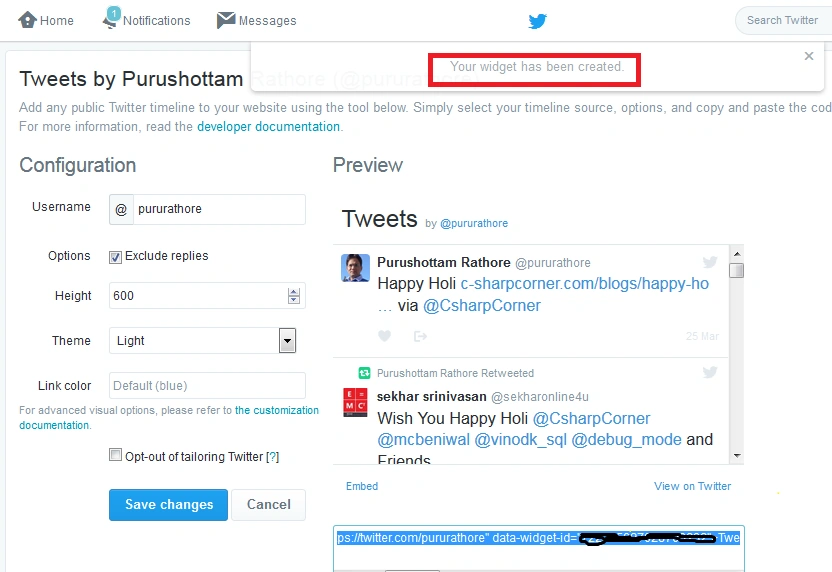
Step 6: Finally your widget has been created and you will get the widget id as follows:
- <input type="hidden" id="HiddenWidgetKey" value="your budget-id" /> <%--like xxx176400881455xxx--%>
- <span class="normalGray">Twitter handle</span>
- <asp:TextBox ID="TextBoxTwitterhandle" runat="server" Style="width: 350px;" placeholder="Enter TwitterTwitter handle"
- CssClass="textBox" TabIndex="120" ClientIDMode="Static">
- </asp:TextBox>
- <input type="button" name="save" value="Save" onclick="GetResult();" />
- <div id="tweetBtn">
- </div>
- <script src="Scripts/jquery-1.4.1.min.js" type="text/javascript"></script>
- <script src="<%= ResolveUrl("~/Scripts/Twitter/customize-twitter.js")%>" type="text/javascript"></script>
- <style>
- .HeadingPinkSummary
- {
- color: #D9509C;
- font-size: 19px;
- }
- </style>
Customize-twitter.js:
- var CustomizeTwitterWidget = function (data) {
- if (!(window.console && console.log)) {
- console = {
- log: function () { },
- debug: function () { },
- info: function () { },
- warn: function () { },
- error: function () { }
- };
- }
- var notNumeric = function (n) {
- return isNaN(parseFloat(n)) && isFinite(n);
- };
- var createCssElement = function (doc, url) {
- var link = doc.createElement("link");
- link.href = url;
- link.rel = "stylesheet";
- link.type = "text/css";
- return link;
- };
- var embedCss = function (doc, url) {
- var link = createCssElement(doc, url);
- var head = doc.getElementsByTagName("head")[0];
- head.appendChild(link);
- };
- var contains = function (haystack, needle) {
- return haystack.indexOf(needle) >= 0;
- };
- var isTwitterFrame = function (frame) {
- return frame.frameElement.id.indexOf('twitter-widget') >= 0;
- }
- /**
- * The main event loop - calls itself if we haven't found all of the frames
- * yet.
- */
- var evaluate = function (framesWithStyles, widgetCount, timeoutLength) {
- for (var i = 0; i < frames.length; i++) {
- try {
- if (isTwitterFrame(frames[i]) &&
- !contains(framesWithStyles, frames[i].name)
- ) {
- embedCss(frames[i].document, data.url);
- framesWithStyles.push(i);
- }
- } catch (e) {
- console.log("caught an error");
- console.log(e);
- }
- }
- if (framesWithStyles.length < widgetCount) {
- setTimeout(function () {
- evaluate(framesWithStyles);
- }, timeoutLength);
- }
- }
- if (data.url === undefined) {
- console.log("need to specify a link to your CSS file. quitting");
- return;
- }
- var widgetCount;
- if (data.widget_count === undefined || notNumeric(data.widget_count)) {
- widgetCount = 1;
- } else {
- widgetCount = data.widget_count;
- }
- var timeoutLength;
- if (data.timeout_length === undefined || notNumeric(data.timeout_length)) {
- timeoutLength = 300;
- } else {
- timeoutLength = data.timeout_length;
- }
- setTimeout(function () {
- evaluate([], widgetCount, timeoutLength);
- }, timeoutLength);
- }
- <script type="text/javascript">
- function GetResult() {
- GetTwitter();
- }
- window.twttr = (function (d, s, id) {
- var t, js, fjs = d.getElementsByTagName(s)[0];
- if (d.getElementById(id)) return; js = d.createElement(s); js.id = id;
- js.src = "https://platform.twitter.com/widgets.js"; fjs.parentNode.insertBefore(js, fjs);
- return window.twttr || (t = { _e: [], ready: function (f) { t._e.push(f) } });
- } (document, "script", "twitter-wjs"));
- var screenName = "";
- function GetTwitter() {
- screenName = jQuery("#TextBoxTwitterhandle").val();
- ReloadTwitterWidget();
- jQuery("#twitter-timeline").attr("data-screen-name", screenName)
- !function (d, s, id) { var js, fjs = d.getElementsByTagName(s)[0], p = /^http:/.test(d.location) ? 'http' : 'https'; if (!d.getElementById(id)) { js = d.createElement(s); js.id = id; js.src = p + "://platform.twitter.com/widgets.js"; fjs.parentNode.insertBefore(js, fjs); } } (document, "script", "twitter-wjs");
- var options = {
- "url": '<%= ResolveUrl("~/Scripts/Twitter/twitter.css")%>'
- };
- CustomizeTwitterWidget(options);
- }
- function ReloadTwitterWidget() {
- var widgetkey = jQuery("#HiddenWidgetKey").val();
- screenName = jQuery("#TextBoxTwitterhandle").val();
- jQuery('#tweetBtn iframe').remove();
- var html = " <a class='twitter-timeline' data-widget-id='" + widgetkey + "' data-screen-name='" + screenName + "' data-tweet-limit='10' id='twitter-timeline' data-text=\"REPLACEME\" ></a>"
- jQuery("#tweetBtn").append(html);
- twttr.ready(function (twttr) {
- twttr.widgets.load();
- });
- }
- </script>
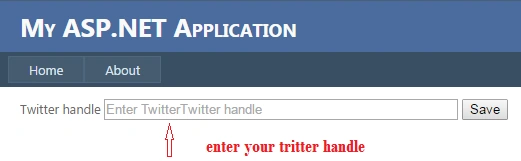
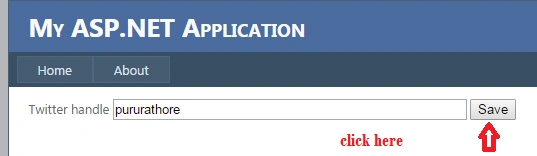
Enter your twitter handle and click on save.
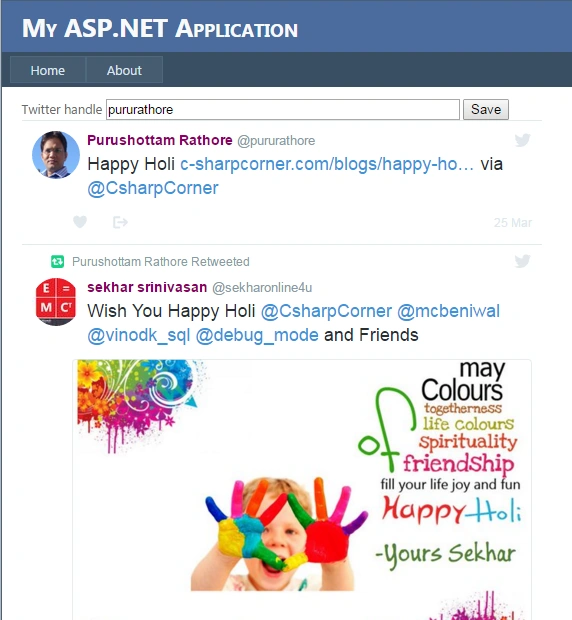
Congrats! Your widget displayed as follows:
Read more articles on jQuery:
Shekhar PanwarPosted Jan 20, 2017, 7:00 AM
good one... .
SubashPosted Sep 28, 2016, 7:52 AM
Very nice sir
Bhuvanesh MohankumarPosted May 12, 2016, 2:15 PM
Good one..
Vivek KumarPosted Apr 27, 2016, 9:30 AM
Good one
Surya KantPosted Apr 21, 2016, 6:33 AM
Nice Share..
Vignesh ManiPosted Apr 20, 2016, 3:59 PM
good one
Mohammed IbrahimPosted Apr 20, 2016, 2:51 PM
nice
Muhammad Aqib ShehzadPosted Apr 20, 2016, 12:31 PM
nice share dear
Debasis SahaPosted Apr 20, 2016, 10:24 AM
Good One..