

A key component of the Microsoft 365 ecosystem is Power Automate, a potent workflow tool. A large number of our clients incorporate Power Automate Flows with Ultimate Forms Actions as part of their solutions. To construct solutions, you can combine Ultimate Forms tools with Microsoft technologies. With the comprehensive workflow framework offered by Power Automate, you can automate tasks based on scheduled or trigger-based events for activities occurring within or outside of your SharePoint environment. Creating this capability can often be done more easily with Ultimate Forms Actions. Nevertheless, Power Automate supports integrations with a wide range of additional web-based applications and systems in addition to SharePoint. Additionally, there are certain functional variations in the workflow construction process.
One thing you may be curious about is this:
How a Power Automate Flow be started in response to a particular SharePoint form update?
In this essay, we shall discuss two approaches.
- Using an HTTP Request Flow in conjunction with an appropriate Call application or service action in Ultimate Forms is the first approach.
- In order to identify specific field changes when an item is edited, the second way uses Power Automate's Get Changes for an Item Flow block.
Flow HTTP Request Method
A new option is available in Ultimate Forms when utilizing the Call application or service action. To begin, initiate your action as demonstrated:
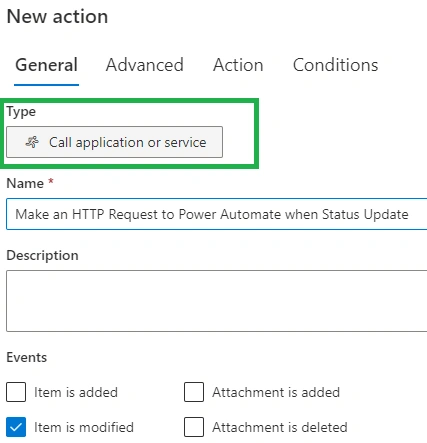
The next stages require you to use Power Automate's When an HTTP request is received method to construct a new Flow.
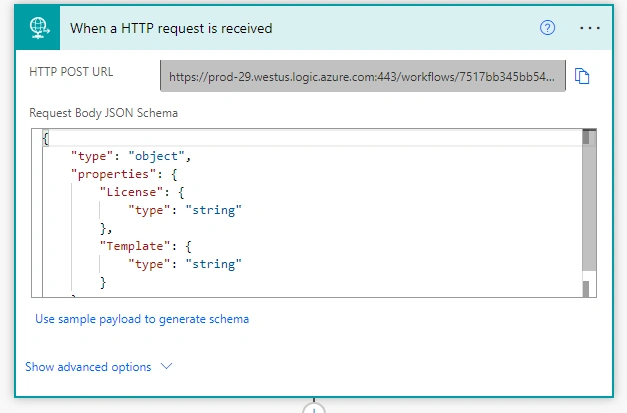
This is an example of code that passes two arguments to the "License" and "Template" text fields in our SharePoint list during flow flow.
{
    "type": "object",
    "properties": {
        "License": {
            "type": "string"
        },
        "Template": {
            "type": "string"
        }
    }
}
You should create your own JSON code using the field types and names that you have chosen.You can use the passed values in the remaining parts of your flow as follows after the flow is triggered:
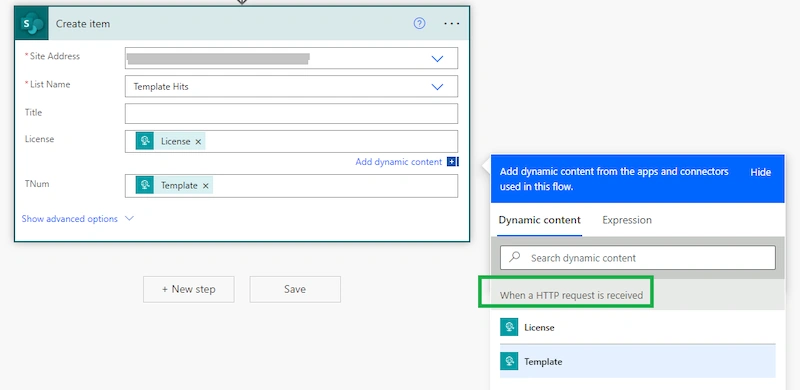
You can now enter the configuration for your action in Ultimate Forms. Choose the application type that says Power Automate.
Paste the HTTP Post URL into the action now, and provide the arguments as indicated:
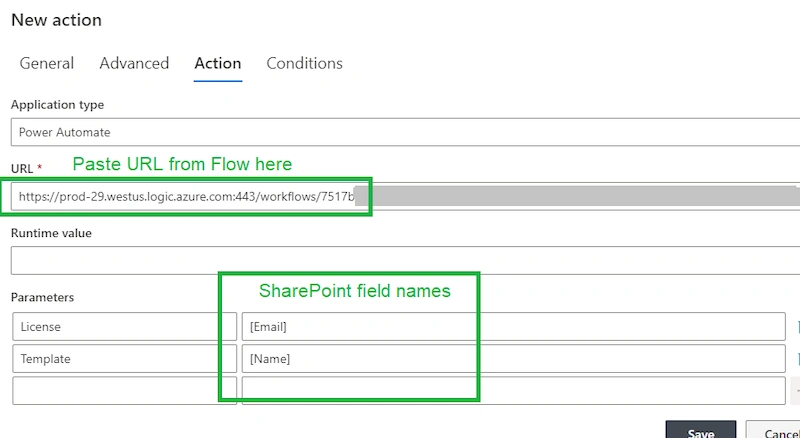
Adapt the conditions to the trigger you wish to use to start the flow.
Get Changes for Item Method
The second approach doesn't require a Power Automate Per User Plan license and is dependent on the conditions specified in your Flow.
Utilizing the "When an Item or File is Modified" trigger in Power Automate, build a flow.
Add a Get changes for an item or file flow block to the second flow block.
For the final two fields, use the Trigger Window Start and End Tokens as shown.
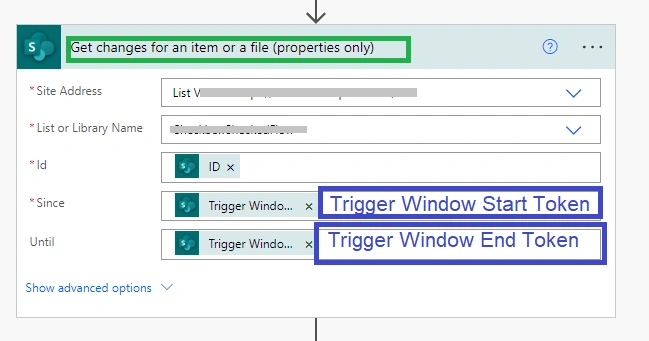
You may now verify if a certain update has been made to the form. The example presented uses the "Has changed" option to check if a Yes/No field has been updated.
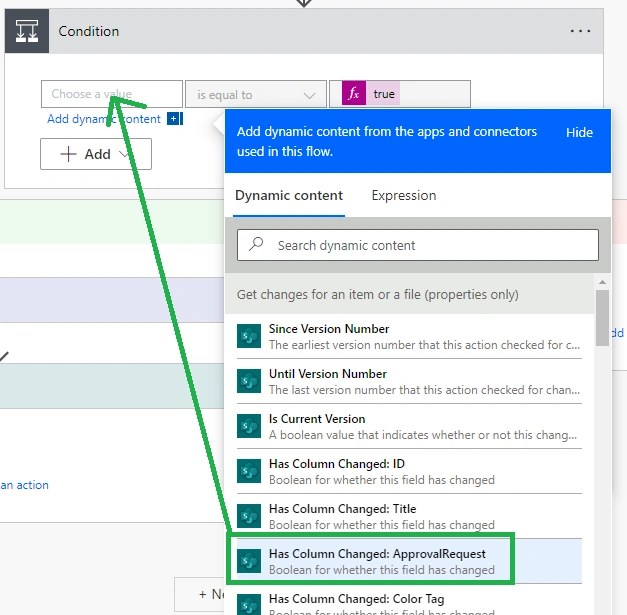
Keep in mind that you can set any conditions you choose for your Flow. One possible way to update a unique field you establish for this reason is to utilize an action in Ultimate Forms.
For instance, you might include a Yes/No column called "ApprovalRequest" that is only available in the form and is changed by a unique button you make that changes the value to yes.
The above-described approach can be used to identify such modification.
Note that utilizing a Trigger Condition, which limits the Flow to run ONLY when a field has a specified value, is advised to make this Flow more efficient.
This will prevent the Flow from running each time a change is made to a list record.
Pick the appropriate trigger
Triggers can be set to start immediately upon an external event, like the arrival of an email, or they can be initiated manually, automatically on a schedule, or both.
- Triggers for instant/manual flows- Create an instant flow if you would like to remind your team to attend the daily team meeting via a mobile device by simply tapping a button on a cloud flow. These flows can be manually initiated from any device.
- Triggers for scheduled flows- Make a scheduled flow if you would like to run a cloud flow on a schedule, such as sending a weekly project report. You can select the when (day and time) and frequency (monthly, daily, hourly, and more) for planned flows.
- Triggers for automated flows- Create an automated flow if you would like it to carry out actions automatically when a certain event takes place, such as receiving an email alert whenever someone tweets using a term you have specified.
How To Trigger A Power Automate Flow From PowerApps
We frequently encounter situations when working with PowerApps when we must use Power Automate to carry out certain tasks. This post will teach us everything there is to know about initiating a Power Automate flow, providing the flow with parameters, and getting the data back to the PowerApps. Three situations are shown below:
- How to use PowerApps to invoke a Power Automate flow
- How to send Power Automate's parameters from PowerApps
- How to use Power Automate flow to reply to PowerApps
Let's examine each of these situations individually.
How to trigger a Power Automate flow from PowerApps
Summary
- Make a canvas application and include a button.
- Make a PowerApps button the trigger for an instant flow. An email will be sent to a fixed individual using this flow.
- Press the button to summon this immediate flow.
Execution
- Establish an immediate flow
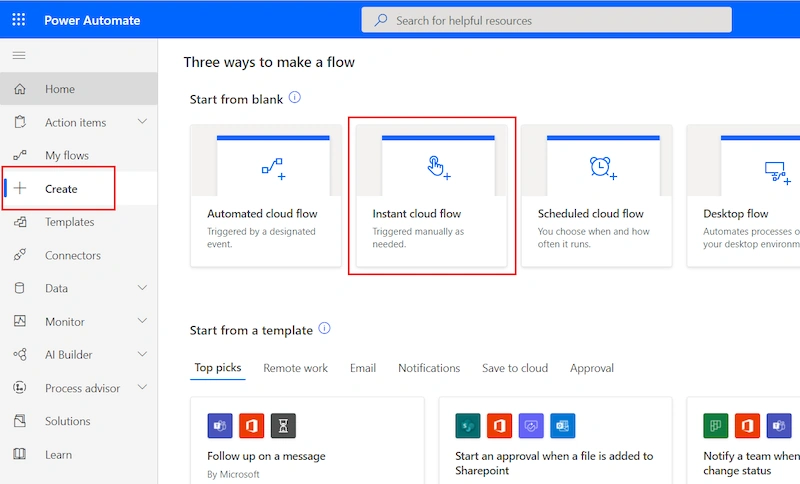
- Give some name to the flow and choose PowerApps as a trigger as shown below:
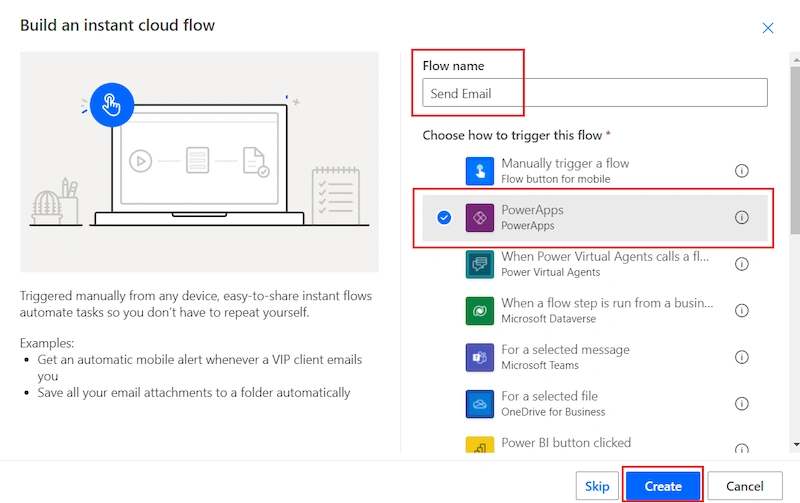
- Add the steps required as per your business logic. In this case, we have added an action which is sending an email to one of the users.
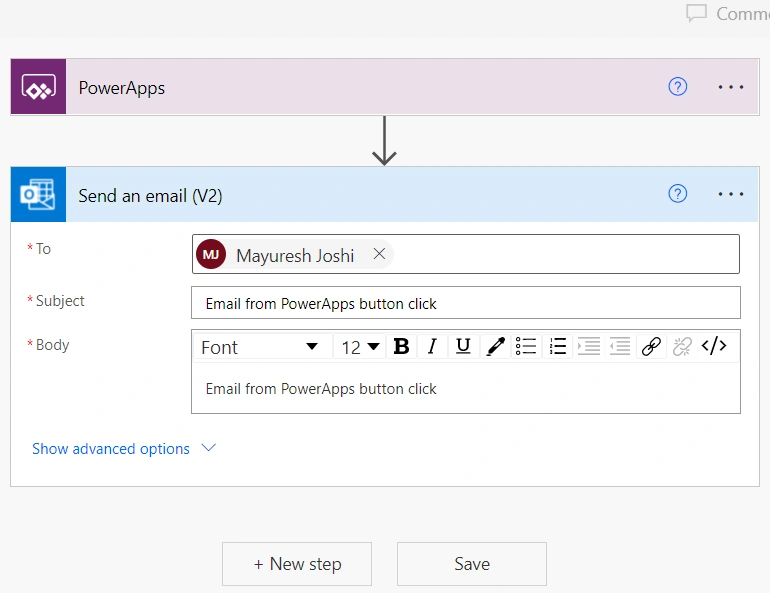
- Maintain the flow
- Make a canvas application and place an icon or button on the screen.
- You can add a Power Automate by selecting the button and going to the Action tab.
- Select the newly created "Send Email" flow from the list of instant flows that are accessible.
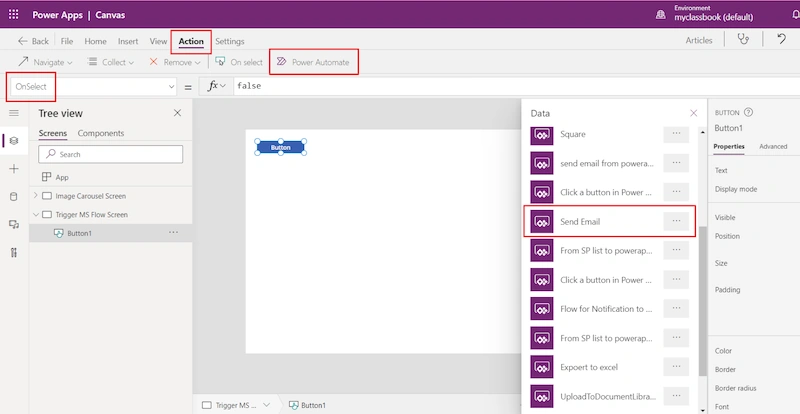
- Simply close the brackets when the flow has been applied, and we are ready to proceed.
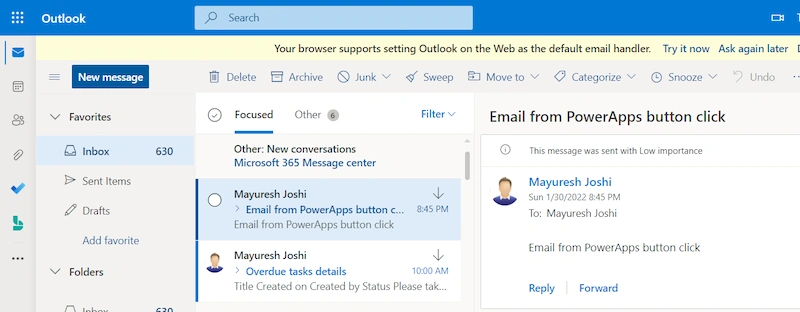
- Now, when you click on a button, a flow will start, and the designated person will receive an email as displayed below:
How to pass the parameters to Power Automate from PowerApps
Summary
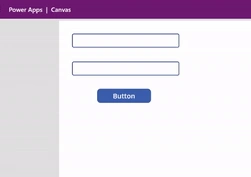
- Make a canvas application and include two text boxes and a button.
- Make a PowerApps button the trigger for an instant flow. An email will be sent by this flow to the user's addresses listed in the text boxes.
- Press the button to summon this immediate flow.
Execution
- Establish an immediate flow
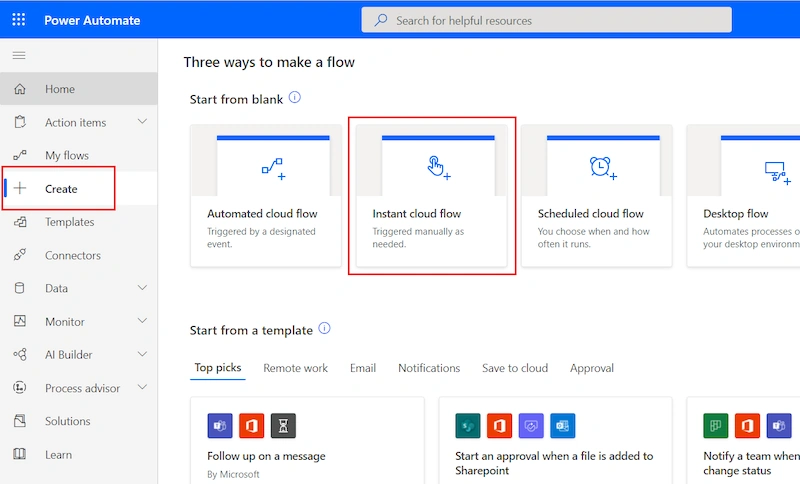
- Give some name to the flow and choose PowerApps as a trigger as shown below:
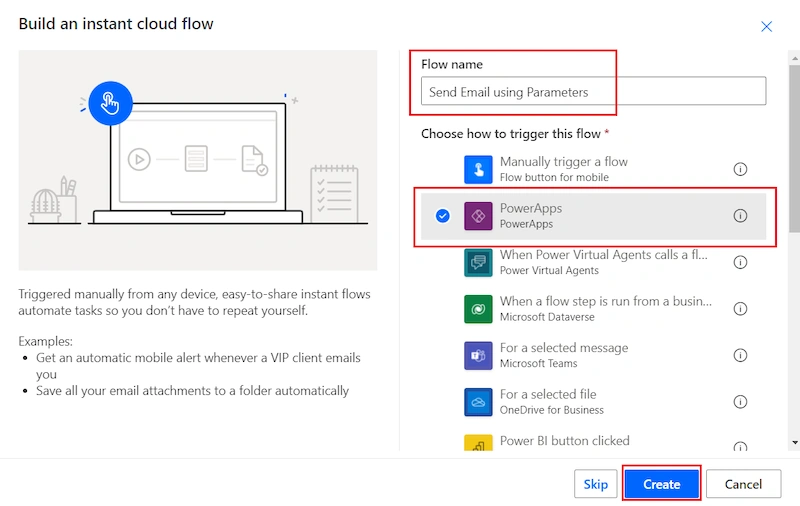
- We are going to initialize two string variables since we want two arguments from the PowerApps text boxes.
- Set the first variable's type to string and give it the name varEmail1. Change the action name to "email1" as well. A parameter with that name will be created if the action name is changed.
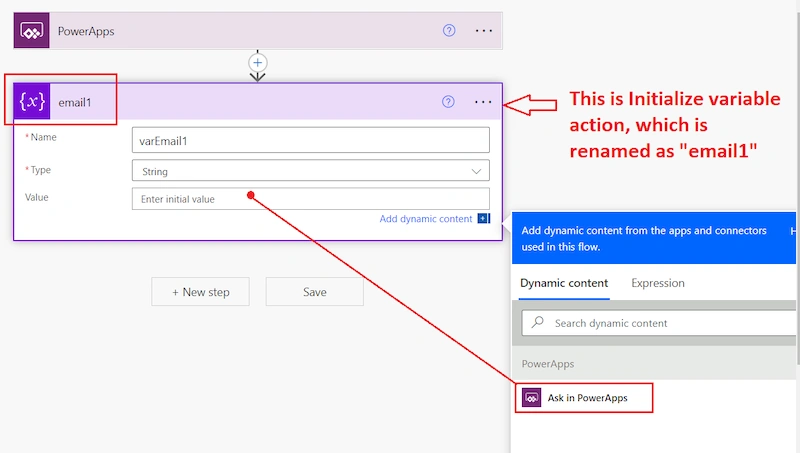
Once you click on "Ask in PowerApps", it will create a parameter with that name. See the below screenshot:
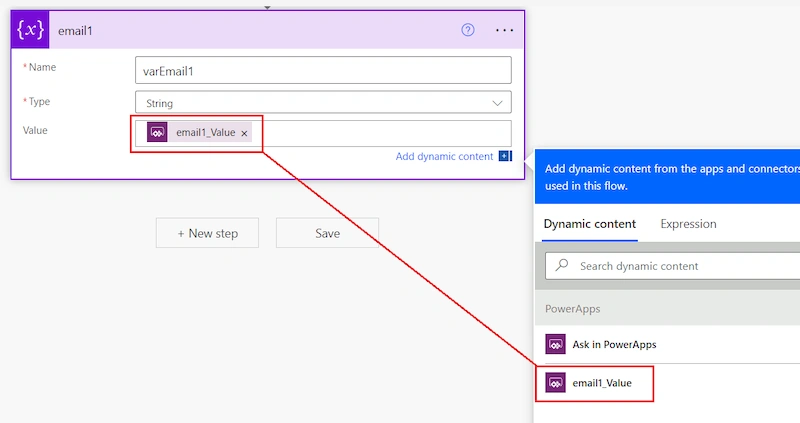
- Similarly, initialize the second variable with the name varEmail2 and choose the type as a string. Also, rename the action name to "email2".
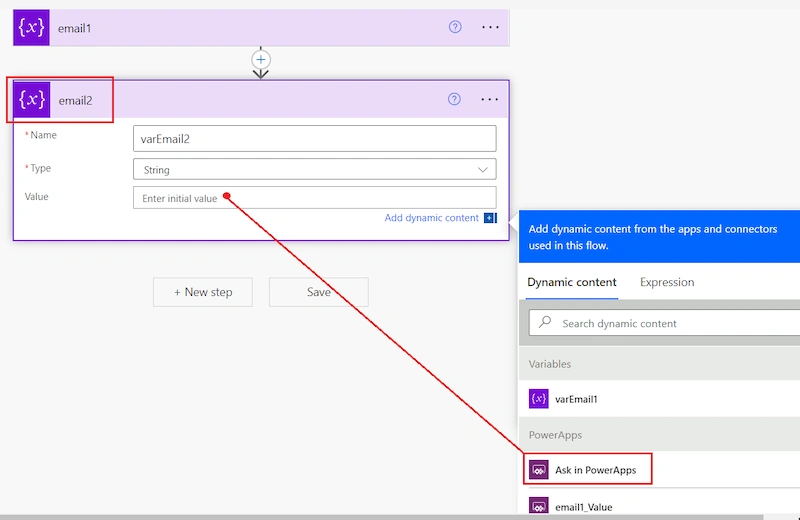
The "Ask in PowerApps" button will cause a parameter with that name to be created. View the screenshot that is below:
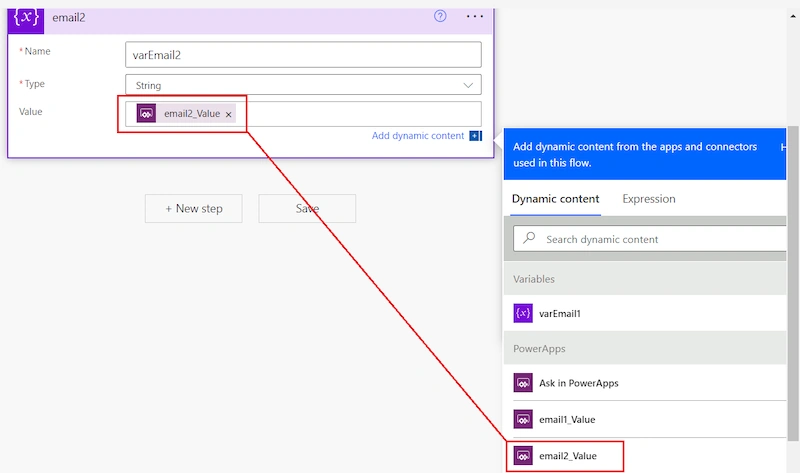
- Maintain the flow.
- Make a canvas application and include a button, two text boxes, and a screen.
- You can add a Power Automate by selecting the button and going to the Action tab.
- Select the freshly created "Send Email using Parameters" flow from the list of instant flows that are accessible.
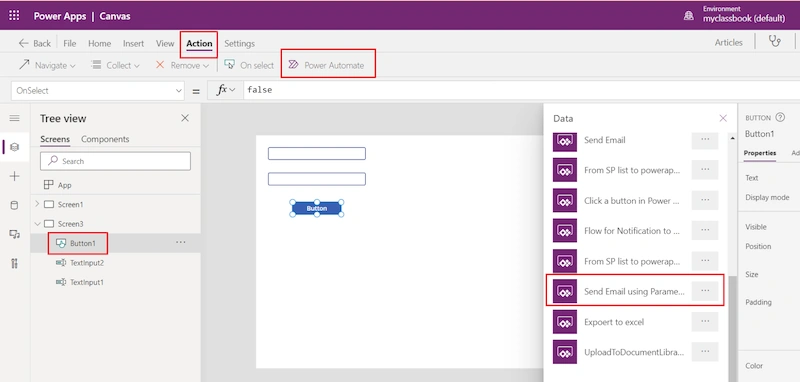
- Once the flow is added, it will ask you to pass the parameters that we created in the power automate.
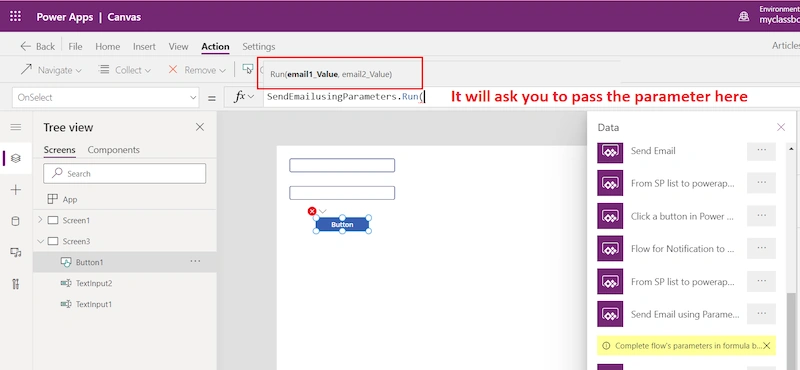
- In this instance, as indicated below, we will pass the two email addresses from the two text boxes: SendEmailusingParameters.Run(TextInput1.Text,TextInput2.Text)
- Upon clicking the button, Power Automate will get these parameters and send an email to those addresses.
How to respond to PowerApps from Power Automate flow
Summary
- Make a canvas application and include two text boxes and a button. We must use flow to multiply the values in these two text fields.
- Make a PowerApps button the trigger for an instant flow. The multiplication of these two values will be computed in this flow, and the PowerApps label will receive the result.
- Press the button to summon this immediate flow.
Execution
- Create an instant flow (I named mine "Flow to Respond PowerApps") and initialize two integer variables (varNum1, varNum2) as described in the previous section. PowerApps will provide values for these variables.
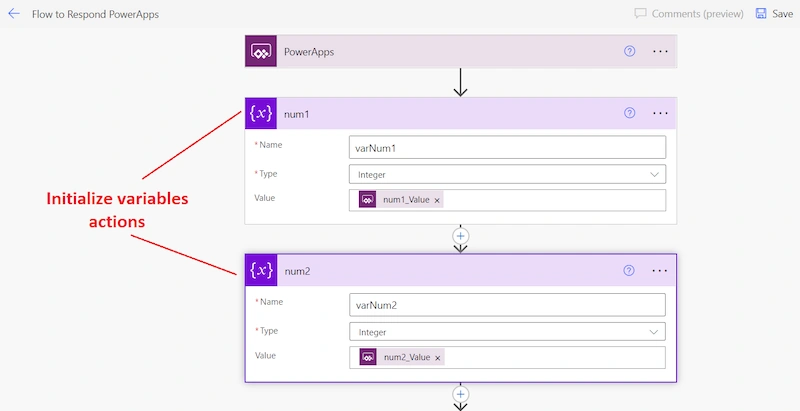
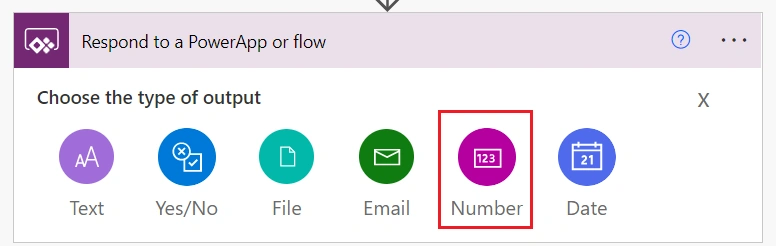
- Add an action called Respond to PowerApps, Use Type of Output as Number.
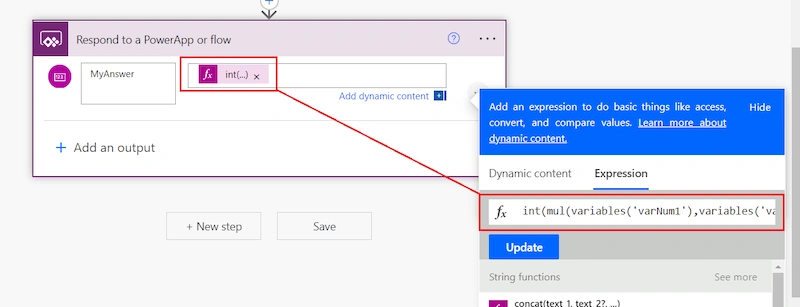
- Give some name to the output parameter (Say "MyAnswer"). Multiple the two variables as shown below:
int(mul(variables('varNum1'),variables('varNum2')))
- Maintain the flow
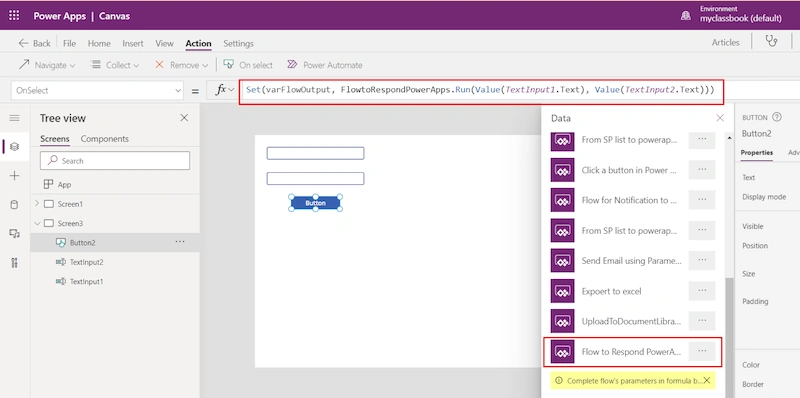
- As previously mentioned, click the button to add the newly formed flow and enter the values of the two text fields as seen below. This time, we will use a single variable to store the answer of a flow rather than calling it directly. Here, I have saved the multiplication of the integers by using a variable called varFlowOutput:
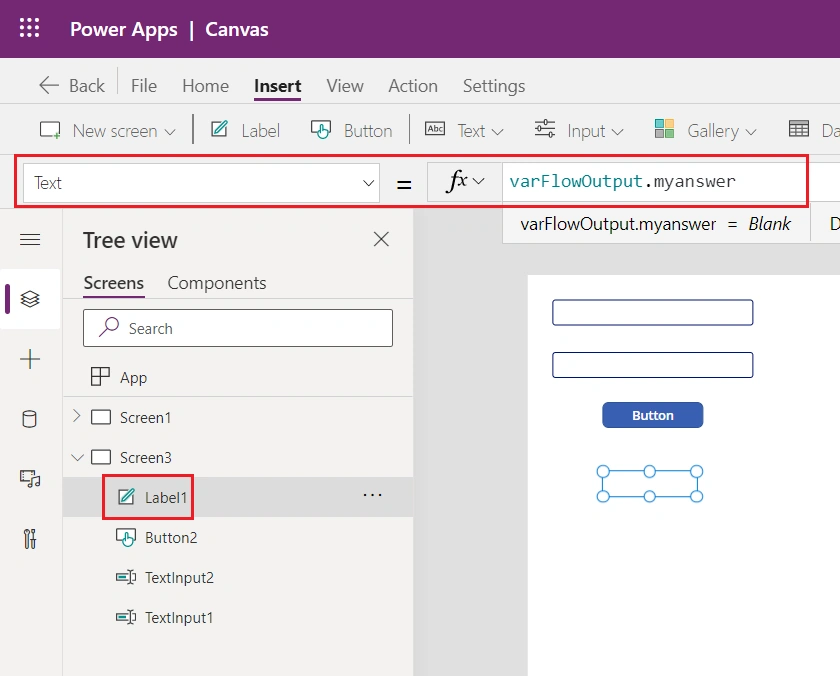
- Add one label, which will show the output of the flow. Set the text property of the label to varFlowOutput.myAnswer. myAnswer is the output parameter name that we have created in step 3.
- Now run the flow by passing the numbers. You can see below that the flow ran successfully and the label shows the answer:
Conclusion
Users may improve form capabilities and automate operations with the help of Microsoft 365 ecosystem technologies like Power Automate and Ultimate Forms.
In conclusion, combining Ultimate Forms with Power Automate provides a strong way to automate and enhance business operations. Within the Microsoft 365 environment, the integration enables the development of complex workflows and the improvement of form functionalities. Organizations can increase productivity, streamline processes, and promote easy teamwork by utilizing these technologies. To properly utilize Power Automate and Ultimate Forms in fulfilling their unique company demands, users must remain current on the newest features and best practices.
Join the conversation! Your thoughts help the community grow.