
Introduction
In this post, I will show you how to create TreeMap, using Web API2, AngularJS, and Entity Framework.
Prerequisites
As I said earlier, we are going to use the TreeMap plugin in our MVC application with AngularJS. For this, you must have Visual Studio 2015 (.NET Framework 4.5.2) and SQL Server.
SQL Database part
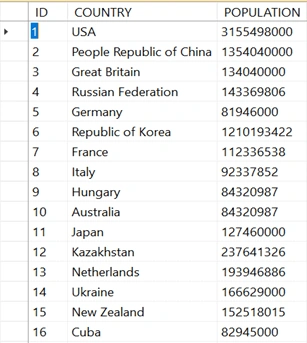
Here, you can find the scripts to create the database and table.
Create Database
- USE [master]
- GO
- /****** Object: Database [PopulationDB] Script Date: 9/12/2016 8:54:39 AM ******/
- CREATE DATABASE [PopulationDB]
- CONTAINMENT = NONE
- ON PRIMARY
- ( NAME = N'PopulationDB', FILENAME = N'c:\Program Files (x86)\Microsoft SQL Server\MSSQL11.MSSQLSERVER\MSSQL\DATA\PopulationDB.mdf' , SIZE = 3072KB , MAXSIZE = UNLIMITED, FILEGROWTH = 1024KB )
- LOG ON
- ( NAME = N'PopulationDB_log', FILENAME = N'c:\Program Files (x86)\Microsoft SQL Server\MSSQL11.MSSQLSERVER\MSSQL\DATA\PopulationDB_log.ldf' , SIZE = 1024KB , MAXSIZE = 2048GB , FILEGROWTH = 10%)
- GO
- ALTER DATABASE [PopulationDB] SET COMPATIBILITY_LEVEL = 110
- GO
- IF (1 = FULLTEXTSERVICEPROPERTY('IsFullTextInstalled'))
- begin
- EXEC [PopulationDB].[dbo].[sp_fulltext_database] @action = 'enable'
- end
- GO
- ALTER DATABASE [PopulationDB] SET ANSI_NULL_DEFAULT OFF
- GO
- ALTER DATABASE [PopulationDB] SET ANSI_NULLS OFF
- GO
- ALTER DATABASE [PopulationDB] SET ANSI_PADDING OFF
- GO
- ALTER DATABASE [PopulationDB] SET ANSI_WARNINGS OFF
- GO
- ALTER DATABASE [PopulationDB] SET ARITHABORT OFF
- GO
- ALTER DATABASE [PopulationDB] SET AUTO_CLOSE OFF
- GO
- ALTER DATABASE [PopulationDB] SET AUTO_CREATE_STATISTICS ON
- GO
- ALTER DATABASE [PopulationDB] SET AUTO_SHRINK OFF
- GO
- ALTER DATABASE [PopulationDB] SET AUTO_UPDATE_STATISTICS ON
- GO
- ALTER DATABASE [PopulationDB] SET CURSOR_CLOSE_ON_COMMIT OFF
- GO
- ALTER DATABASE [PopulationDB] SET CURSOR_DEFAULT GLOBAL
- GO
- ALTER DATABASE [PopulationDB] SET CONCAT_NULL_YIELDS_NULL OFF
- GO
- ALTER DATABASE [PopulationDB] SET NUMERIC_ROUNDABORT OFF
- GO
- ALTER DATABASE [PopulationDB] SET QUOTED_IDENTIFIER OFF
- GO
- ALTER DATABASE [PopulationDB] SET RECURSIVE_TRIGGERS OFF
- GO
- ALTER DATABASE [PopulationDB] SET DISABLE_BROKER
- GO
- ALTER DATABASE [PopulationDB] SET AUTO_UPDATE_STATISTICS_ASYNC OFF
- GO
- ALTER DATABASE [PopulationDB] SET DATE_CORRELATION_OPTIMIZATION OFF
- GO
- ALTER DATABASE [PopulationDB] SET TRUSTWORTHY OFF
- GO
- ALTER DATABASE [PopulationDB] SET ALLOW_SNAPSHOT_ISOLATION OFF
- GO
- ALTER DATABASE [PopulationDB] SET PARAMETERIZATION SIMPLE
- GO
- ALTER DATABASE [PopulationDB] SET READ_COMMITTED_SNAPSHOT OFF
- GO
- ALTER DATABASE [PopulationDB] SET HONOR_BROKER_PRIORITY OFF
- GO
- ALTER DATABASE [PopulationDB] SET RECOVERY SIMPLE
- GO
- ALTER DATABASE [PopulationDB] SET MULTI_USER
- GO
- ALTER DATABASE [PopulationDB] SET PAGE_VERIFY CHECKSUM
- GO
- ALTER DATABASE [PopulationDB] SET DB_CHAINING OFF
- GO
- ALTER DATABASE [PopulationDB] SET FILESTREAM( NON_TRANSACTED_ACCESS = OFF )
- GO
- ALTER DATABASE [PopulationDB] SET TARGET_RECOVERY_TIME = 0 SECONDS
- GO
- ALTER DATABASE [PopulationDB] SET READ_WRITE
- GO
- USE [PopulationDB]
- GO
- /****** Object: Table [dbo].[tbt_populations] Script Date: 9/13/2016 8:20:32 AM ******/
- SET ANSI_NULLS ON
- GO
- SET QUOTED_IDENTIFIER ON
- GO
- SET ANSI_PADDING ON
- GO
- CREATE TABLE [dbo].[tbt_populations](
- [ID] [int] NOT NULL,
- [COUNTRY] [varchar](50) NULL,
- [POPULATION] [bigint] NULL,
- CONSTRAINT [PK_tbt_populations] PRIMARY KEY CLUSTERED
- (
- [ID] ASC
- )WITH (PAD_INDEX = OFF, STATISTICS_NORECOMPUTE = OFF, IGNORE_DUP_KEY = OFF, ALLOW_ROW_LOCKS = ON, ALLOW_PAGE_LOCKS = ON) ON [PRIMARY]
- ) ON [PRIMARY]
- GO
- SET ANSI_PADDING OFF
- GO
Create your MVC application
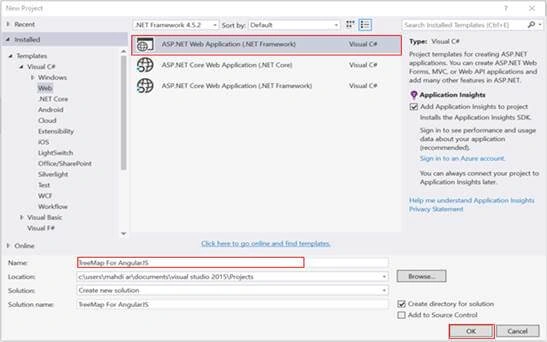
Open Visual Studio and select File >> New Project. The "New Project" window will pop up. Select ASP.NET Web Application (.NET Framework), name your project, and click OK.
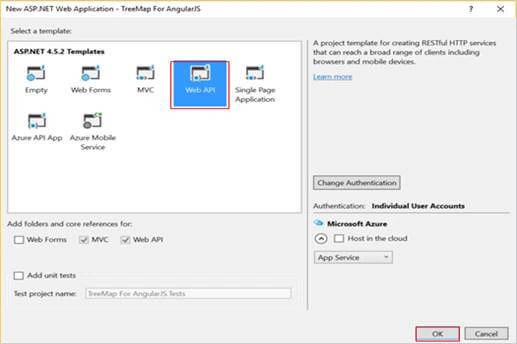
Now, a new window pops up for selecting the template. Choose Web API and click OK.
Now, we are going to add ADO.NET Entity Data Model.
Adding ADO.NET Entity Data Model
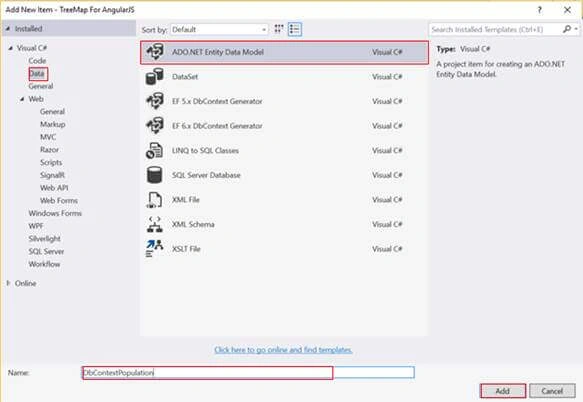
For adding ADO.NET Entity Data Model, right click on the project name and click Add > Add New Item. A new dialog box will pop up. Inside Visual C#, select Data >> ADO.NET Entity Data Model.
Now, enter the name for your Dbcontext model as DbContextPopulation and finally, click Add.
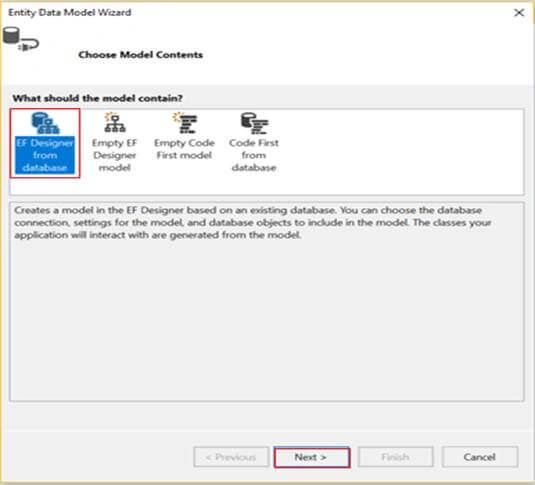
At this level, choose "EF Designer from database", as show below.
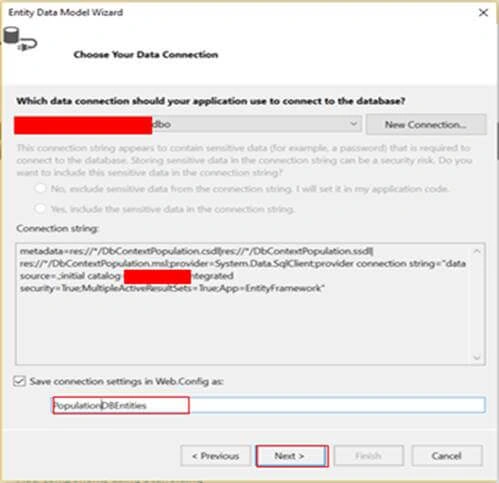
In the following window, we need to choose the data connection which should be used to connect to the database. If the connection doesn’t exist, click on the "New Connection" button for creating a new one.
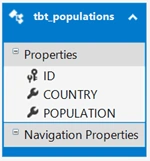
After clicking on Next button, the Entity Data Model Wizard will pop up for choosing the object which we want to use. In this example, we are going to choose tbt_populations table and click Finish. Finally, we see that EDMX model generates tbt_Populations class.
Create a Controller
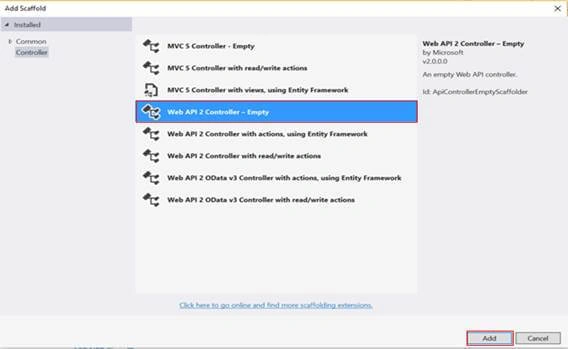
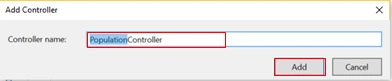
Now, we are going to create a Controller. Right click on the "Controllers" folder > Add > Controller> selecting Web API 2 Controller – Empty > click Add.
Enter Controller name (‘PopulationController’).
PopulationController.cs
- using System;
- using System.Collections;
- using System.Collections.Generic;
- using System.Linq;
- using System.Net;
- using System.Net.Http;
- using System.Web.Http;
- using TreeMap_For_AngularJS.Models;
- namespace TreeMap_For_AngularJS.Controllers
- {
- public class PopulationController : ApiController
- {
- //DbContext
- private PopulationsDBEntities context = new PopulationsDBEntities();
- [HttpGet]
- public IEnumerable<PopulationModel> GetPopulation()
- {
- var PopulationList = context.tbt_populations.Select(p => new PopulationModel { label = p.COUNTRY, value = p.POPULATION });
- return PopulationList.ToList();
- }
- }
- }
Here, you find the definition of PopulationModel class.
PopulationModel.cs
- using System;
- using System.Collections.Generic;
- using System.Linq;
- using System.Web;
- namespace TreeMap_For_AngularJS.Models
- {
- public class PopulationModel
- {
- public string label { get; set; }
- public long value { get; set; }
- }
- }
- using System;
- using System.Collections.Generic;
- using System.Linq;
- using System.Net.Http;
- using System.Web;
- using System.Web.Mvc;
- using TreeMap_For_AngularJS.Models;
- namespace TreeMap_For_AngularJS.Controllers
- {
- public class HomeController : Controller
- {
- public ActionResult Index()
- {
- return View();
- }
- IEnumerable<PopulationModel> PopulationList = Enumerable.Empty<PopulationModel>();
- [HttpGet]
- public JsonResult GetPopulationList()
- {
- HttpClient client = new HttpClient();
- client.BaseAddress = new Uri("http://localhost:56720/");
- client.DefaultRequestHeaders.Accept.Add(new System.Net.Http.Headers.MediaTypeWithQualityHeaderValue("application/json"));
- HttpResponseMessage response = client.GetAsync("api/Population").Result;
- if (response.IsSuccessStatusCode)
- {
- PopulationList = response.Content.ReadAsAsync<IEnumerable<PopulationModel>>().Result;
- }
- return Json(PopulationList, JsonRequestBehavior.AllowGet);
- }
- }
- }
For calling our API, you need to,
- Create an object from HttpClient class.
- Specify URI of our API (in this example the URI used is: http://localhost:56720/).
- Select the header of request. I’m choosing application/json, but you can choose another format, like xml, csv …
- Finally, for calling the API, we need to use GetAsyc("api/Population") as mentioned above.
Adding View
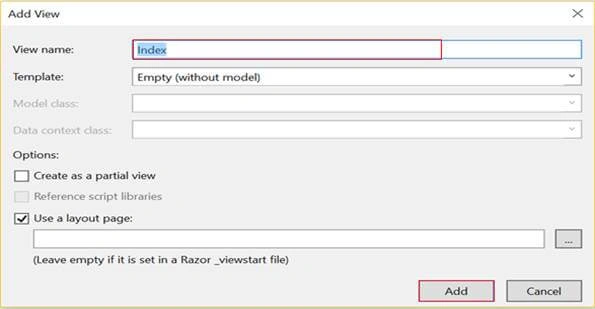
In Home Controller, just right click on Index() action and select Add View. A new dialog will pop up. Write a name for your View and finally, click Add.
Note
Don’t forget to download the following libraries from jqxwidgets.
- <!-- CSS -->
- <link href="~/Content/jqx.base.css" rel="stylesheet" />
- <!-- JS -->
- <script src="https://ajax.googleapis.com/ajax/libs/angularjs/1.4.7/angular.min.js"></script>
- <script src="~/Scripts/jquery-1.10.2.min.js"></script>
- <script src="~/Scripts/jqxcore.js"></script>
- <script src="~/Scripts/jqxdata.js"></script>
- <script src="~/Scripts/jqxtreemap.js"></script>
- <script src="~/Scripts/jqxbuttons.js"></script>
- <script src="~/Scripts/jqxangular.js"></script>
- <script src="~/Scripts/demos.js"></script>
- @{
- ViewBag.Title = "Index";
- }
- @section scripts
- {
- <!-- CSS -->
- <link href="~/Content/jqx.base.css" rel="stylesheet" />
- <!-- JS -->
- <script src="https://ajax.googleapis.com/ajax/libs/angularjs/1.4.7/angular.min.js"></script>
- <script src="~/Scripts/jquery-1.10.2.min.js"></script>
- <script src="~/Scripts/jqxcore.js"></script>
- <script src="~/Scripts/jqxdata.js"></script>
- <script src="~/Scripts/jqxtreemap.js"></script>
- <script src="~/Scripts/jqxbuttons.js"></script>
- <script src="~/Scripts/jqxangular.js"></script>
- <script src="~/Scripts/demos.js"></script>
- <script type="text/javascript">
- var myApp = angular.module('myApp', ["jqwidgets"]);
- myApp.controller('TreemapCtrl', function ($scope, $http) {
- $scope.PopulationData;
- $scope.treeMapSettings;
- $http.get("GetPopulationList").success(function (data) {
- $scope.PopulationData = data;
- }).error(function (data) {
- console.log('Something Wrong');
- });
- $scope.treeMapSettings =
- {
- width: 800,
- showLegend: false,
- height: 400,
- colorRange: 100,
- colorMode: 'autoColors',
- baseColor: '#52CBFF'
- }
- });
- </script>
- }
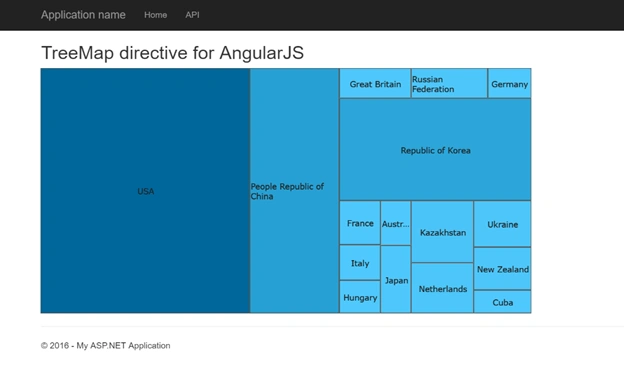
- <h2>TreeMap directive for AngularJS </h2>
- <div ng-app="myApp" ng-controller="TreemapCtrl" style="margin-top:10px;">
- <jqx-tree-map jqx-source="PopulationData" jqx-settings="treeMapSettings"></jqx-tree-map>
- </div>
Vignesh ManiPosted Sep 15, 2016, 3:25 PM
Nice