

Introduction
This article demonstrates how to move objects using C# scripts in Unity.
Prerequisites
Unity Environment version 2018.4.19f1
Create a New Project
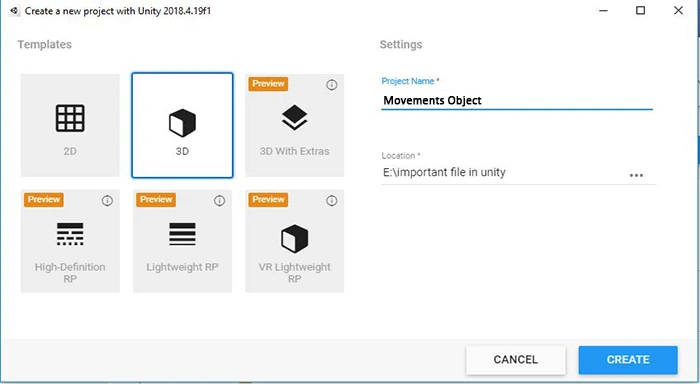
Create objects in Unity
First, you have to open the Unity project. Create the Plane for your game.
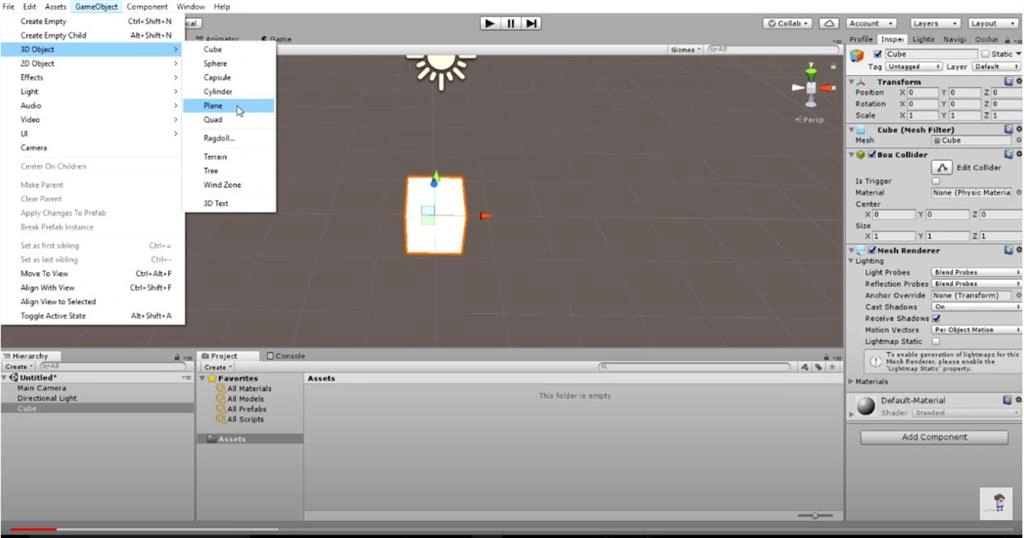
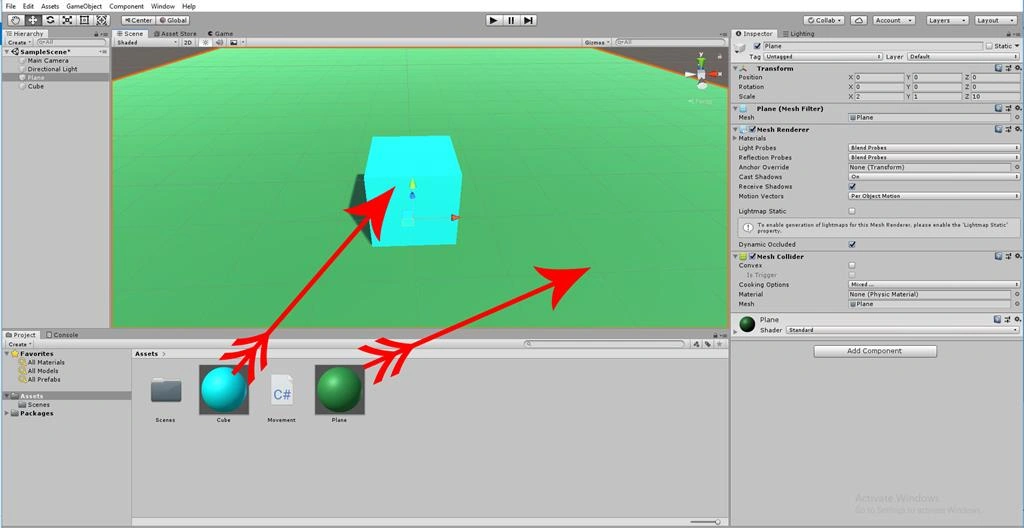
Click on the "GameObject" menu in the menu bar. Select 3D objects and pick the "Cube" option.
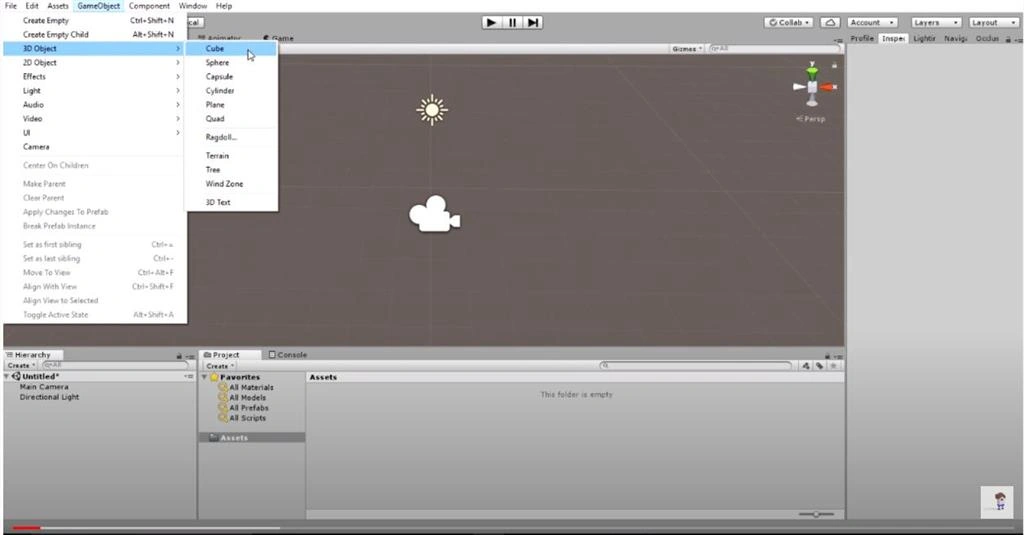
The cube will be added to the scene View.
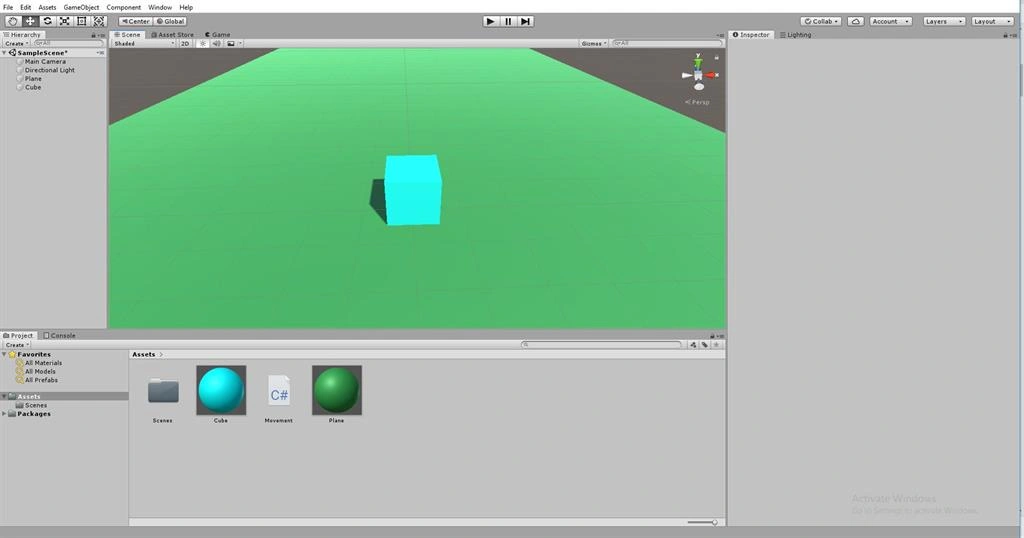
Drag and drop the Skyblue and Green material. The color of the Cube & Plane will be changed into Skyblue and Green.
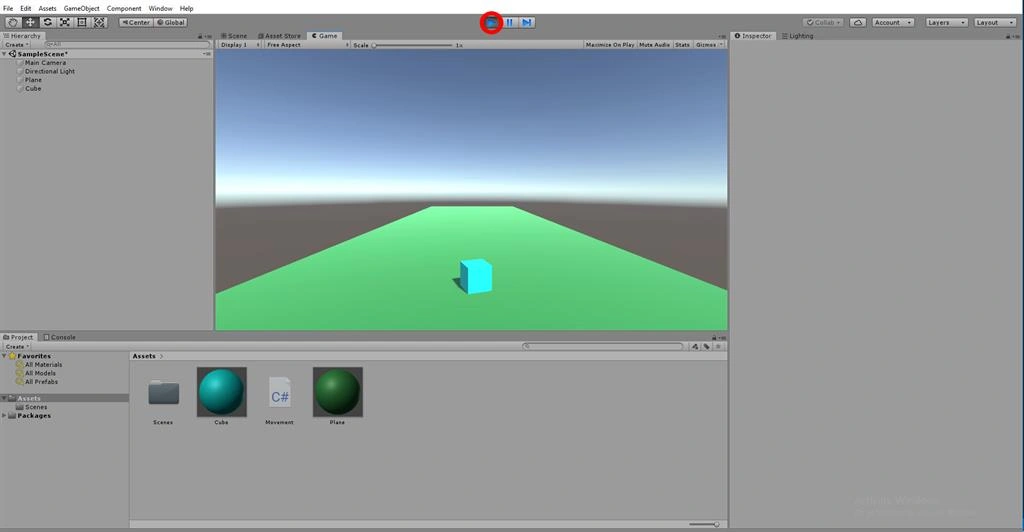
Click on the Play button. The cube will now appear in game View.
Create C# Script
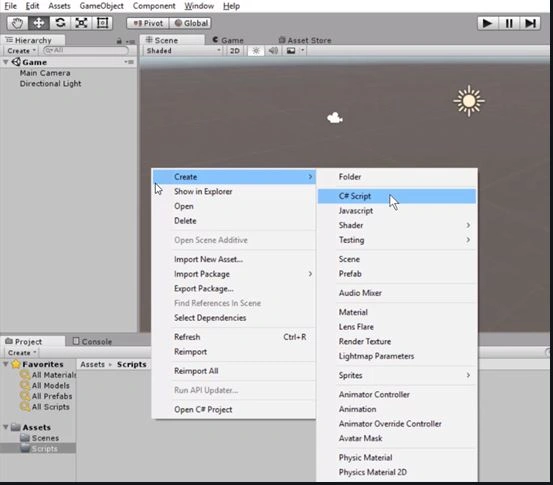
Right click on Assets. Select Create >> C# script.
Rename the script as move.
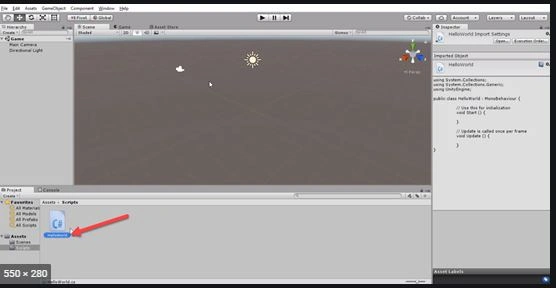
Write the predefined coding like the following,
(Jump,Horizontal,Vertical)
- using System.Collections;
- using System.Collections.Generic;
- using UnityEngine;
- public class Movement : MonoBehaviour
- {
- Vector3 Vec;
- // Start is called before the first frame update
- void Start()
- {
- }
- // Update is called once per frame
- void Update()
- {
- Vec = transform.localPosition;
- Vec.y += Input.GetAxis("Jump") * Time.deltaTime * 20;
- Vec.x += Input.GetAxis("Horizontal") * Time.deltaTime * 20;
- Vec.z += Input.GetAxis("Vertical") * Time.deltaTime * 20;
- transform.localPosition = Vec;
- }
- }
Save the program.
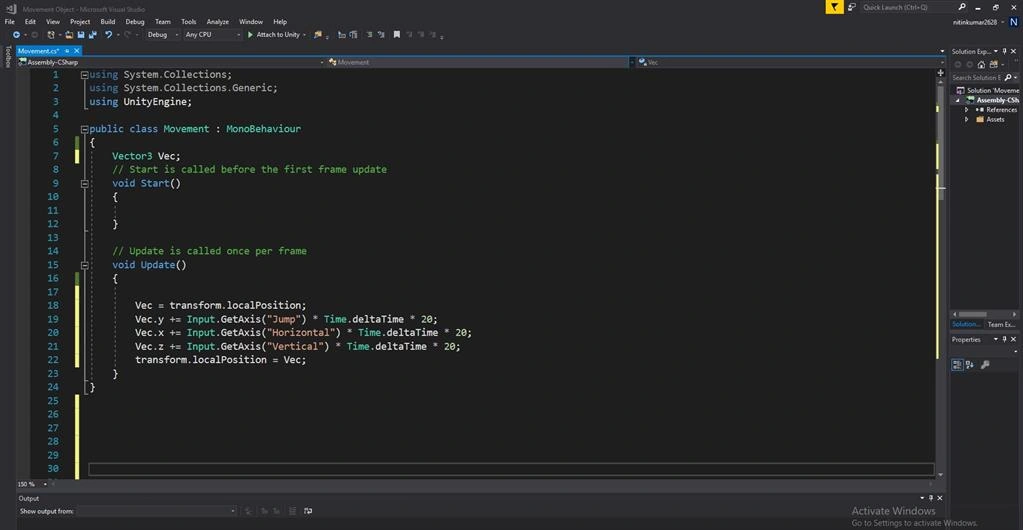
Go back to the Unity window. Drag and drop the move script onto the cube.
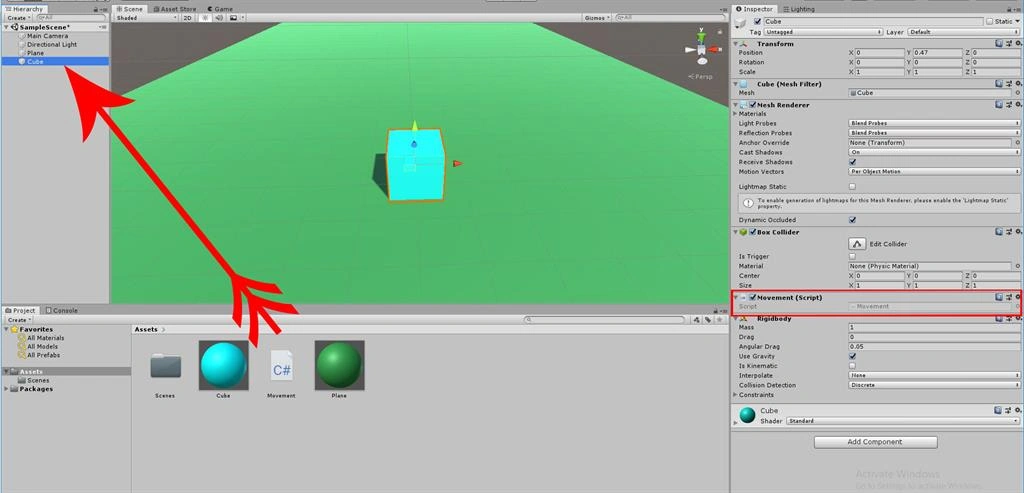
Click on the Play button. Press "Up Arrow" Key, and the Cube will move in a forward direction.
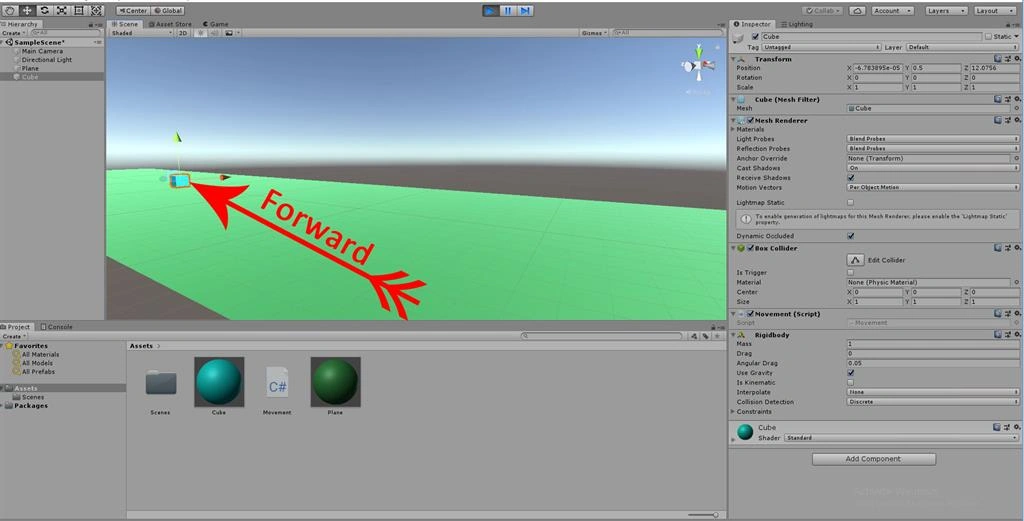
Press the "Down Arrow" Key, and the Cube will move in a backwards direction.
Press the "Left Arrow" Key, and the Cube will move to the left.
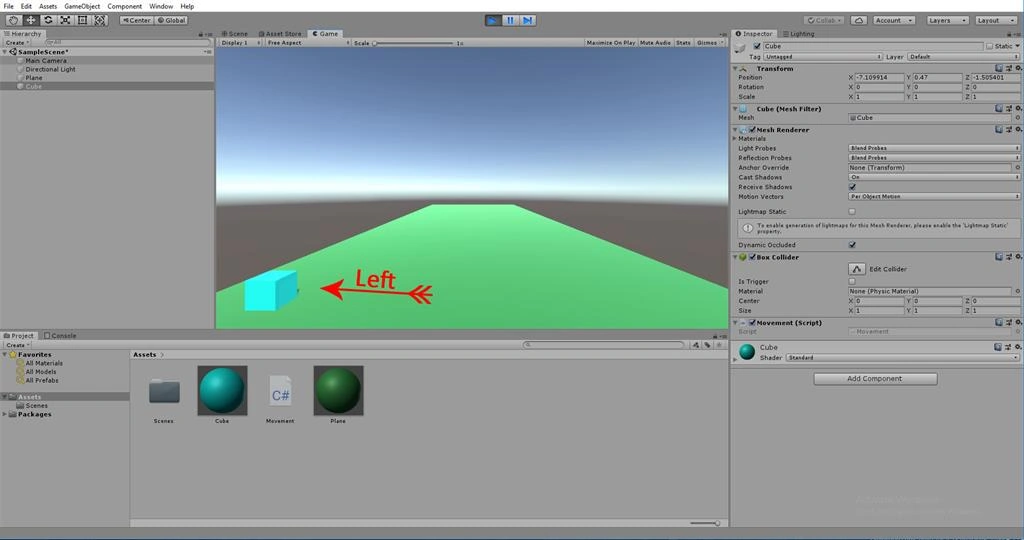
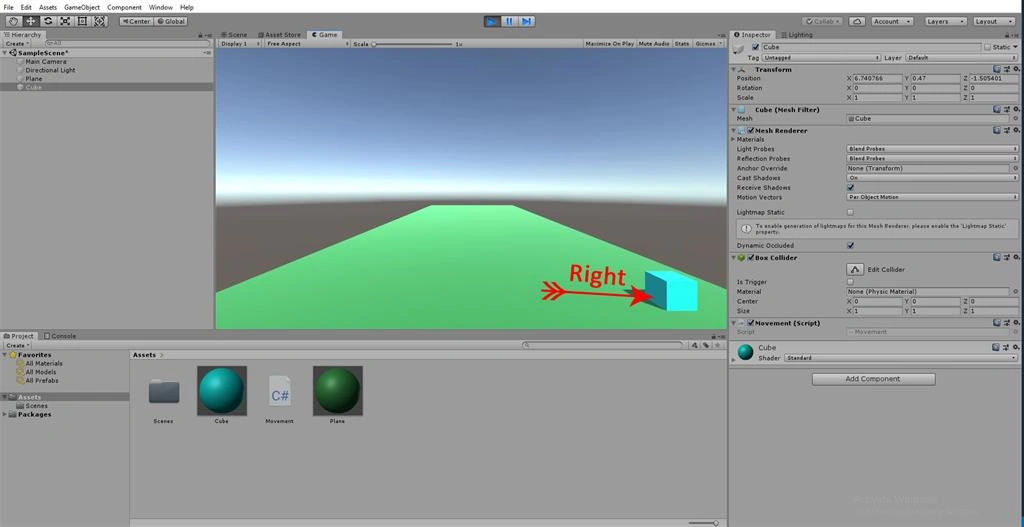
Press the "Right Arrow" Key, and the Cube will move to the right.
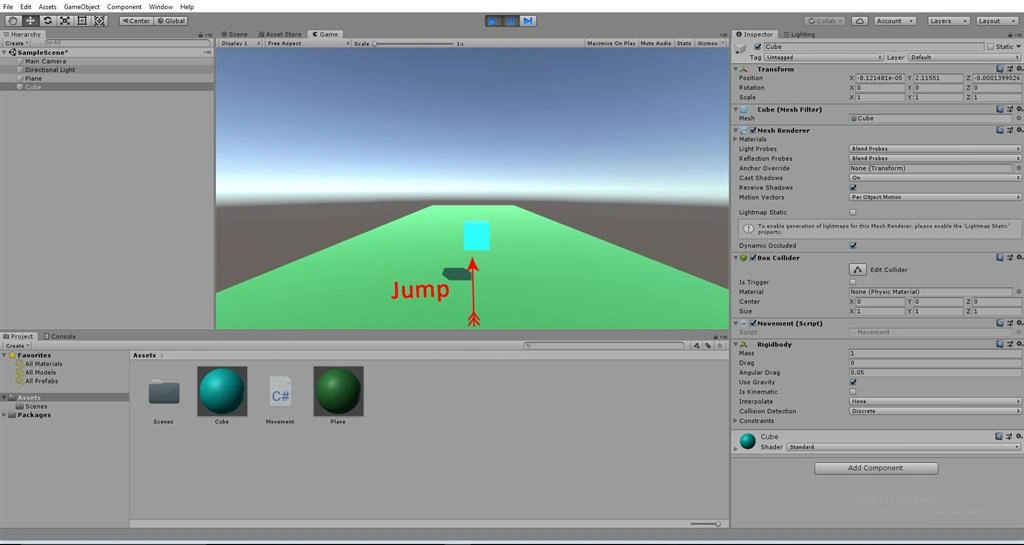
Press the "Space" Key, and the Cube will jump.
Move and Rotate the object by Arrow key press
- using System.Collections;
- using System.Collections.Generic;
- using UnityEngine;
- public class Movement : MonoBehaviour
- {
- // Start is called before the first frame update
- void Start()
- {
- }
- // Update is called once per frame
- void Update()
- {
- if (Input.GetKey(KeyCode.UpArrow))
- {
- this.transform.Translate(Vector3.forward * Time.deltaTime);
- }
- if (Input.GetKey(KeyCode.DownArrow))
- {
- this.transform.Translate(Vector3.back * Time.deltaTime);
- }
- if (Input.GetKey(KeyCode.LeftArrow))
- {
- this.transform.Rotate(Vector3.up, -10);
- }
- if (Input.GetKey(KeyCode.RightArrow))
- {
- this.transform.Rotate(Vector3.up, 10);
- }
- }
- }
Save the program.
Press "Left & Right Arrow" Key, and the Cube will Rotate to the left and right.
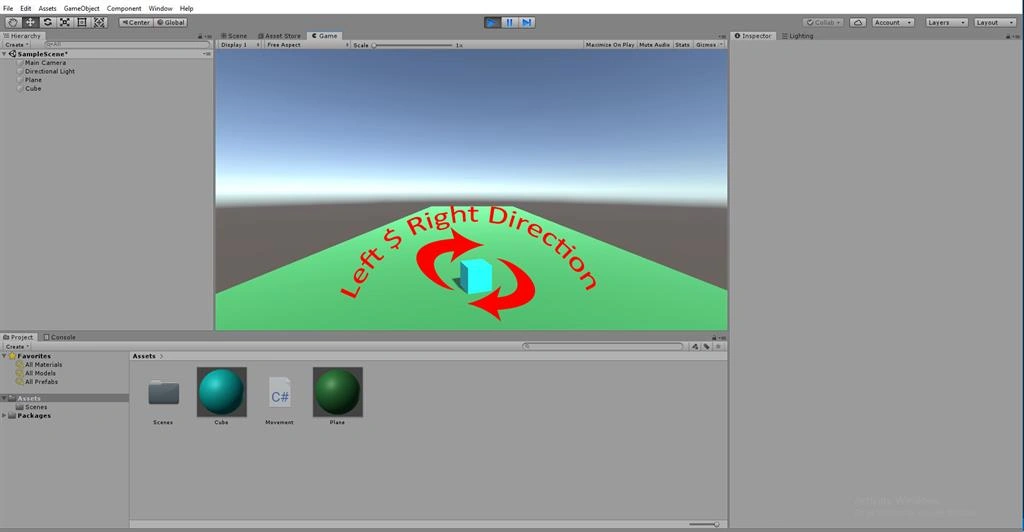
Press the "Up & Down Arrow" Key, and the Cube will move forward and backwards.
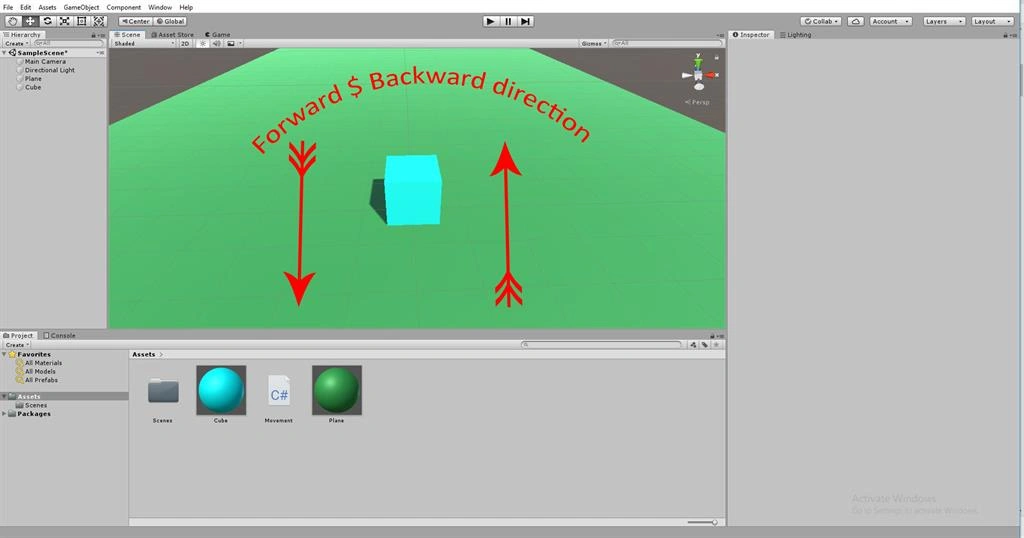
Move the object by key press.
Write the code like the following.
- using System.Collections;
- using System.Collections.Generic;
- using UnityEngine;
- public class Movement : MonoBehaviour
- {
- // Start is called before the first frame update
- void Start()
- {
- }
- // Update is called once per frame
- void Update()
- {
- if (Input.GetKey(KeyCode.A))
- {
- transform.Translate(0.1f, 0f, 0f);
- }
- if (Input.GetKey(KeyCode.D))
- {
- transform.Translate(-0.1f, 0f, 0f);
- }
- if (Input.GetKey(KeyCode.S))
- {
- transform.Translate(0.0f, 0f, -0.1f);
- }
- if (Input.GetKey(KeyCode.W))
- {
- transform.Translate(0.0f, 0f, 0.1f);
- }
- }
- }
Save the program.
Go to Unity window. Click on the Play button. Press the “W” key. The object will move forward.
Press the “S” key. The object will move backwards.
Press “D” key. The object will move to the right side.
Press the “A” key. The object will move to the left side.
Summary
I hope,you understood how to transform where objects move using C# scripts in Unity.
Join the conversation! Your thoughts help the community grow.