

Introduction
This article is in reference to various people messaging me wanting a complete summary of where you can buy Pi device, Installation of OS, Connectivity and Programming for Raspberry Pi.
Table of Contents:
- Where can we get Raspberry Pi
- Connectivity
- First Basic Program on IoT
Where can we get Raspberry Pi:
Raspberry Pi device is available at all top branded e-commerce stores like Flipkart, Amazon, etc., sensors are also available at the same point. Make sense about the Pi models before you buy the device. Click here to know about different Pi models.
Install Windows 10 IoT Core OS and Plug in with your Pi for usage:
Windows 10 IoT Core OS Installation:
Requirements:
Software needed:
- Windows 10 IoT Core Dashboard setup – 500 MB (.iso file)Can be downloaded from this URL.
- Windows 10 Pro on your laptop or PC
H/W needed:
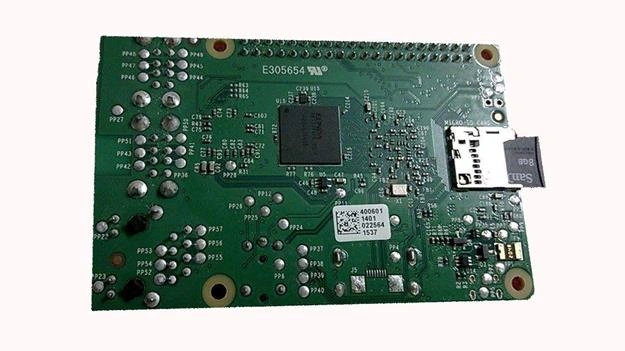
- 8 GB Micro SD card with Class 4
- SD Card reader
Step 1:
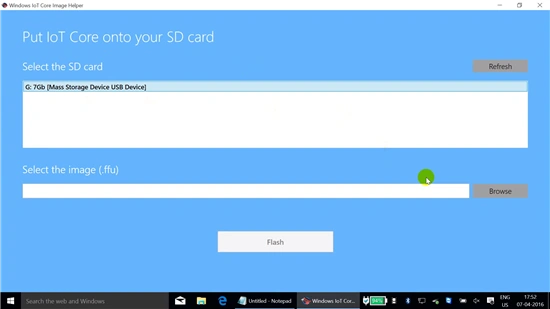
In your machine (laptop/PC) which is running with Windows 10 Pro OS download Windows 10 IoT Core dashboard and install it. Run your setup file, complete the installation.
Now you will be getting the following things on your laptop:
- WindowsIoTCoreWatcher
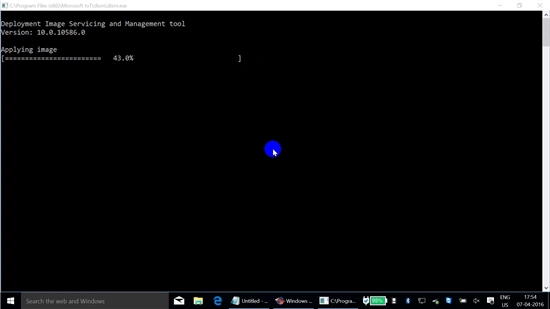
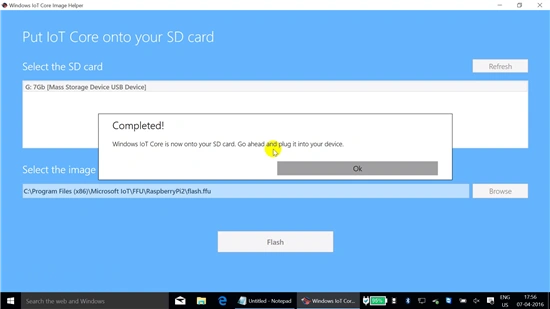
- WindowsIoTImageHelper
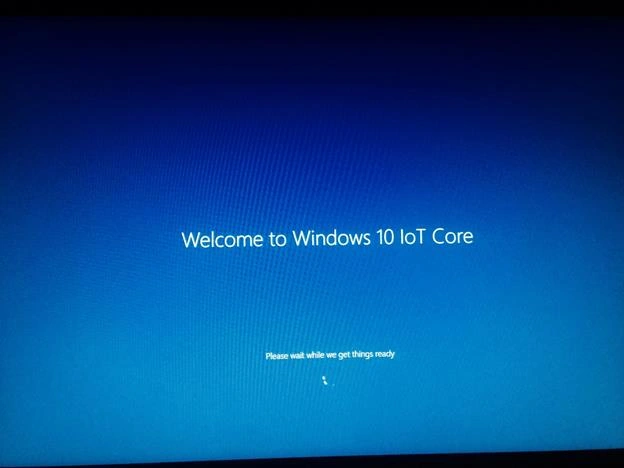
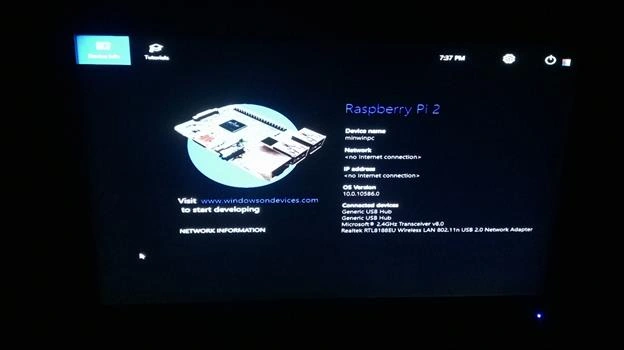
- Device Info / Home Screen
- Tutorials
- Settings
- Power
Device Info / Home Screen:
The Home Screen of Windows 10 IoT Core OS holds the Device name, Network (which shows the internet network which is connected with the device), IP address (IP address of the network which is connected with), OS Version (OS version of the Raspberry Pi device) followed by Connected devices (shows the devices connected via USB ports).
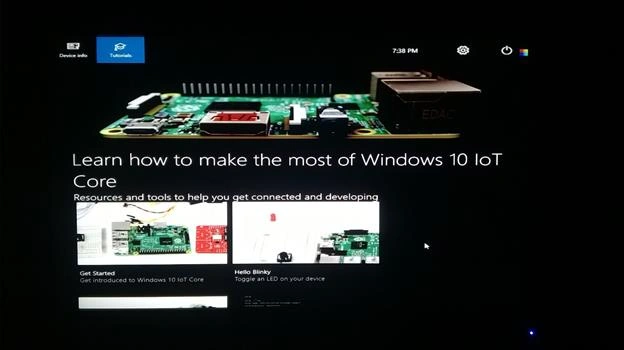
Tutorials:
Tutorials briefs about what you can do with Raspberry Pi device, how to plug in your device, a basic LED program, Hello Blinky, etc.,
 Settings:
Settings help you to connect for the network – Ethernet or Wi-Fi and languages.
Power:
Power allows you to either Shutdown the Raspberry Pi device or restarts the device.
First Basic Program on IoT:
Requirements:
Settings:
Settings help you to connect for the network – Ethernet or Wi-Fi and languages.
Power:
Power allows you to either Shutdown the Raspberry Pi device or restarts the device.
First Basic Program on IoT:
Requirements:
- Raspberry Pi 2/ 3 installed with Windows 10 IoT Core OS
- Laptop or PC with Windows 10 OS (installed with Visual Studio 2015)
- Both devices should be connected to the internet.
Click here for Windows 10 IoT Core OS installation on your Raspberry Pi device.
Click here to download Visual Studio 2015.
Follow the steps for the Hello World program:
Step 1:Run Visual Studio 2015 on your laptop/computer.
Step 2:
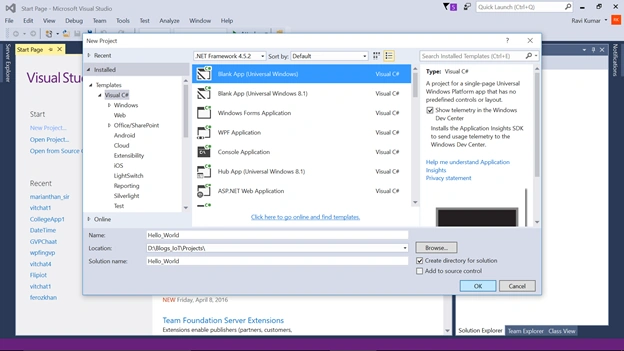
Click on File -> New -> Project -> Select Visual C# -> Windows -> Blank App (Universal Windows). Name your project with the solution name that you need and select the location where you want to save your project file.
 Step 3:
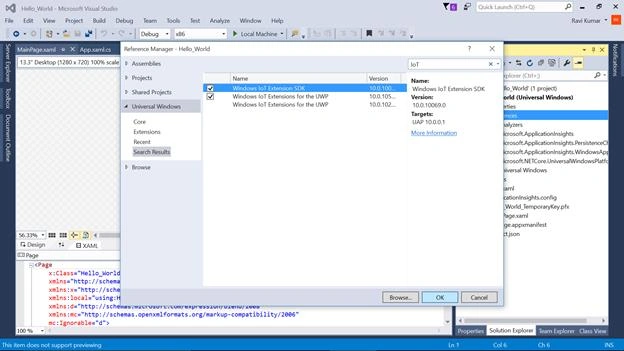
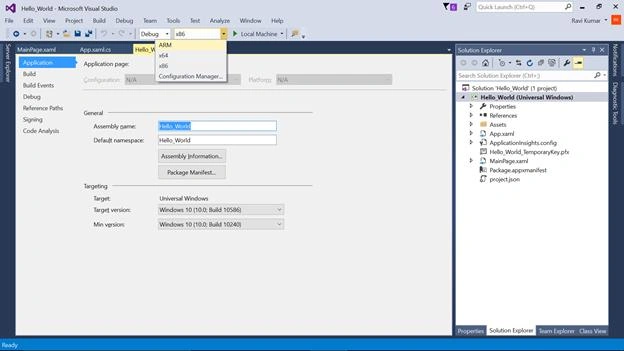
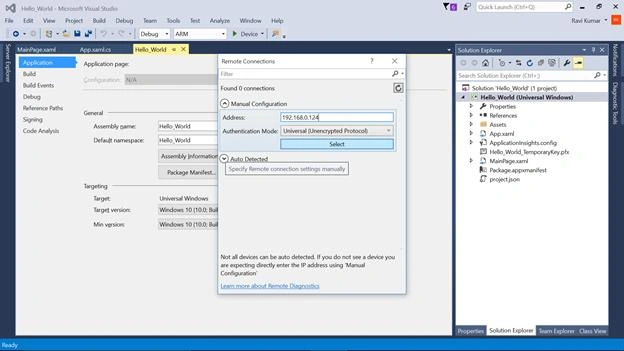
Right Click on Reference under Solution Explorer and Add Reference, Click on Universal Windows in Reference Manager Window – goto extensions – search for IoT. Add the following references.
Step 3:
Right Click on Reference under Solution Explorer and Add Reference, Click on Universal Windows in Reference Manager Window – goto extensions – search for IoT. Add the following references.
- Windows IoT Extensions SDK
- Windows IoT Extensions for the UWP
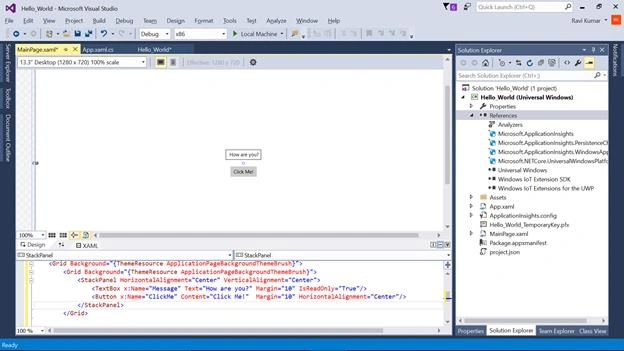
- <Grid Background="{ThemeResource ApplicationPageBackgroundThemeBrush}">
- <StackPanel HorizontalAlignment="Center" VerticalAlignment="Center">
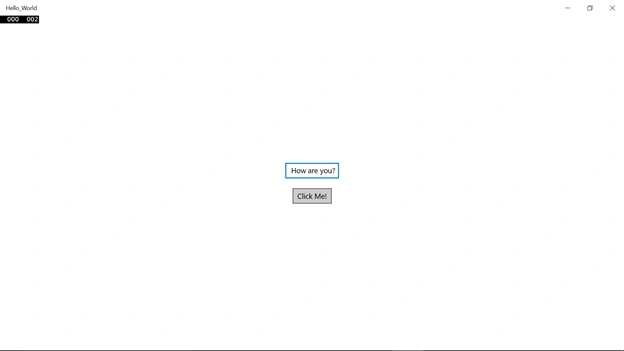
- <TextBox x:Name="Message" Text="How are you?" Margin="10" IsReadOnly="True"/>
- <Button x:Name="ClickMe" Content="Click Me!" Margin="10" HorizontalAlignment="Center"/>
- </StackPanel>
- </Grid>
Read more articles on the Internet of Things:
Santhakumar MunuswamyPosted May 21, 2016, 2:21 AM
Thank you for well written
Prasanna MuraliPosted May 20, 2016, 10:05 AM
Nice one
Sr KarthigaPosted May 2, 2016, 9:03 PM
Good one
Vignesh ManiPosted May 2, 2016, 12:08 PM
nice
Mohammed IbrahimPosted May 2, 2016, 7:59 AM
nice
Bhuvanesh MohankumarPosted May 2, 2016, 6:50 AM
Good one