

TextInput
It is a React Native component used to add user-defined text into an application. It is similar to <input /> of HTML.
- Import from “react-native”
- Properties: -style, autoCapitalize, defaultValue, keyboardType, maxLength, placeholder, placeholderTextColor, secureTextEntry
- Functional Properties: - onBlur, onChangeText,onKeyPress, onChange, onContentSizeChange
Let's see an example.
Step 1
Change the App.js code and make it simple.
App.js code
- import React, { Component } from "react";
- import { View, Text } from "react-native";
- class App extends Component {
- render() {
- return (
- <View>
- <Text> Hi React Native</Text>
- </View>
- );
- }
- }
- export default App;
Output
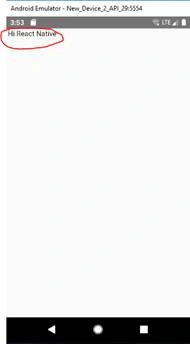
Step 2
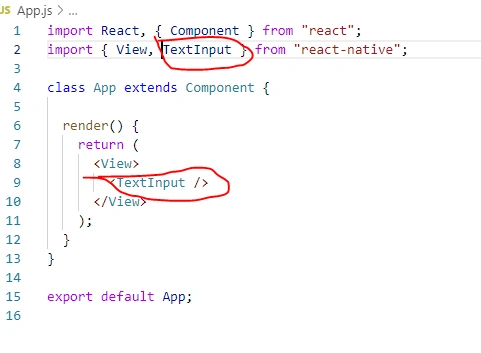
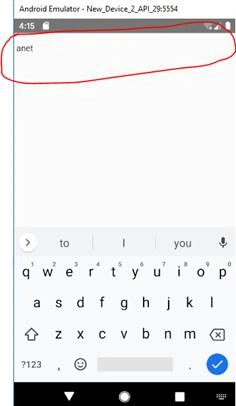
Import TextInput from "react-native" and add TextInput component in the View component of React Native like below.
Output
Step 3
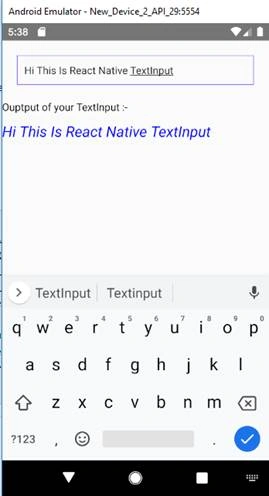
Import StyleSheet, View, Text from “react-native” for adding style in React Native component and displaying the text on the screen. The onChangeText function gets executed whenever the user types or enters text in the TextInput. So, I have added onChangeText property for setting the value of the state in the below example, and added Placeholder and PlaceHolderText color property.
Code - App.js
- import React, { Component } from "react";
- import { StyleSheet, View, TextInput, Text } from "react-native";
- class App extends Component {
- state = {
- myComment: ""
- }
- handleTextChange = (inputText) => {
- this.setState({ myComment: inputText })
- }
- render() {
- return (
- <View style={styles.container}>
- <TextInput
- style={styles.textInputStyle}
- onChangeText={this.handleTextChange}
- placeholder="Enter your comment"
- placeholderTextColor="red"
- />
- <Text>Ouptput of your TextInput :-</Text>
- <Text style={styles.textOutputStyle}>{this.state.myComment}</Text>
- </View>
- );
- }
- }
- const styles = StyleSheet.create({
- container: {
- flex: 1
- },
- textInputStyle: {
- borderColor: '#9a73ef',
- borderWidth: 1,
- height: 40,
- margin: 20,
- padding: 10,
- },
- textOutputStyle: {
- fontSize: 20
- }
- })
- export default App;
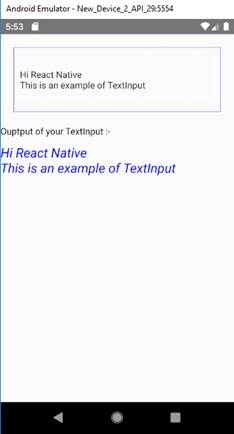
Output
Multiline TextInput
It is similar to the <textarea /> of HTML. By default, TextInput is not multiline. To make theTextInput as multiline, just assign multiline = {true}. The numberOfLines = {mention number} property help to set the number of lines in multiline TextInput.
Code
- import React, { Component } from "react";
- import { StyleSheet, View, TextInput, Text } from "react-native";
- class App extends Component {
- state = {
- myComment: ""
- }
- handleTextChange = (inputText) => {
- this.setState({ myComment: inputText })
- }
- render() {
- return (
- <View style={styles.container}>
- <TextInput
- style={styles.textInputStyle}
- onChangeText={this.handleTextChange}
- placeholder="Enter your comment"
- placeholderTextColor="red"
- multiline={true}
- numberOfLines={5}
- />
- <Text>Ouptput of your TextInput :-</Text>
- <Text style={styles.textOutputStyle}>{this.state.myComment}</Text>
- </View>
- );
- }
- }
- const styles = StyleSheet.create({
- container: {
- flex: 1
- },
- textInputStyle: {
- borderColor: '#9a73ef',
- borderWidth: 1,
- height: 100,
- margin: 20,
- padding: 10,
- },
- textOutputStyle: {
- fontSize: 20,
- fontStyle: "italic",
- paddingTop: 10,
- color: "blue"
- }
- })
- export default App;
Output
Example
User login functionality using TextInput and Button element,
In this example, we are going to create a small screen of login form like below.
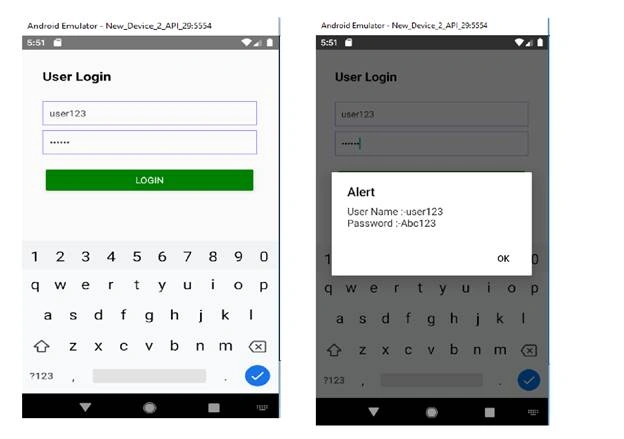
Steps for achieving the above functionality.
- Import StyleSheet, View, TextInput, Text, Button from React Native
- import { StyleSheet, View, TextInput, Text, Button } from "react-native";
- Add TextInput
- Add two TextInput element in View component one for user name and the second one for password.
- Add style, onChangeText event, placeholder, placeholderTextColor properties to TextInput component.
- Use secureTextEntry property to enter password securely.
- Add Button component with title, color and onPress event properties to create Login button for the user login screen.
Code
- import React, { Component } from "react";
- import { StyleSheet, View, TextInput, Text, Button } from "react-native";
- class App extends Component {
- state = {
- userName: "",
- userPassword: ""
- }
- uaserNameTextChange = (inputText) => {
- this.setState({ userName: inputText })
- }
- uaserPasswordTextChange = (inputText) => {
- this.setState({ userPassword: inputText })
- }
- userLogin = () => {
- alert("User Name :-" + this.state.userName + "\n"
- + "Password :-" + this.state.userPassword + "\n")
- }
- render() {
- return (
- <View style={styles.container}>
- <Text style={styles.txtLogin}>User Login</Text>
- <TextInput
- style={styles.textInputStyle}
- onChangeText={this.uaserNameTextChange}
- placeholder="Enter username"
- placeholderTextColor="red"
- />
- <TextInput
- style={styles.textInputStyle}
- onChangeText={this.uaserPasswordTextChange}
- placeholder="Enter password"
- placeholderTextColor="red"
- secureTextEntry={true}
- />
- <View style={{ margin: 25 }}>
- <Button
- title="Login"
- color="green"
- onPress={this.userLogin}
- />
- </View>
- </View>
- );
- }
- }
- const styles = StyleSheet.create({
- container: {
- flex: 1,
- justifyContent: "flex-start",
- alignContent: "center",
- margin: 10
- },
- textInputStyle: {
- borderColor: '#9a73ef',
- borderWidth: 1,
- height: 40,
- marginLeft: 20,
- marginRight: 20,
- padding: 10,
- marginTop: 8
- },
- txtLogin: {
- padding: 20,
- fontWeight: "bold",
- fontSize: 20
- }
- })
- export default App;
Output
Once you add code as mentioned above, your output should be like below.

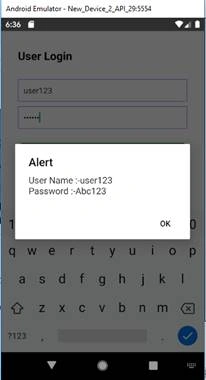
Add username and password in the text field of the user login screen and check the output. Your output should be like the below screen.
Summary
In this article, I have demonstrated the React Native TextInput component, uses, and some important properties. Hopefully, it will help.
Mageshwaran RPosted Nov 16, 2019, 8:42 AM
Super Article..