

Introduction
In my previous article, we learned to create an Azure resource group and how to add to a resource into the resource group with different approaches. But there is something missing that we have to do so that we can organize our resources logically. For example, for targeted tracking and cost calculation. Azure resource manager offers a solution for this, which is Azure Resource Tags. Azure resource tags are applied to Azure resource groups, resources, and subscriptions directly. Tags are based on Key/Value pairs which are used to select the resources or resource groups from the console, Azure portal, PowerShell, or the API. In a nutshell, tags are useful for billing or management.
For example, you can apply the name "Environment" and the value "Production" to all the resources in production.
|
Key
|
Value
|
|
Name
|
Azure-Tagging-Demo
|
|
Environment
|
Production
|
|
Project
|
Azure-Training
|
Key Points
- You can apply maximum 15 tags on resource or resource groups
- Tags can be applied to resources that support azure resource manager operations like (VM’s, Virtual Network, Storage), But all the ARM resources support tagging.
- Tags are key/value pairs, the name is limited to 512 characters, value is limited to 256 characters.
To apply Tagging on resources, perform the following steps. We are applying tagging on Azure storage account, but the same steps are applied to all other resource types in the same form.
- Sign In and Open your Azure management portal here.
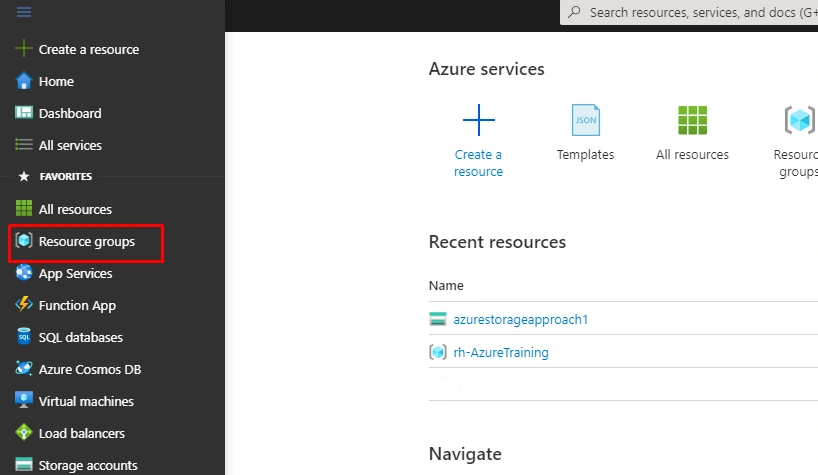
- In the Portal click on the Resource groups
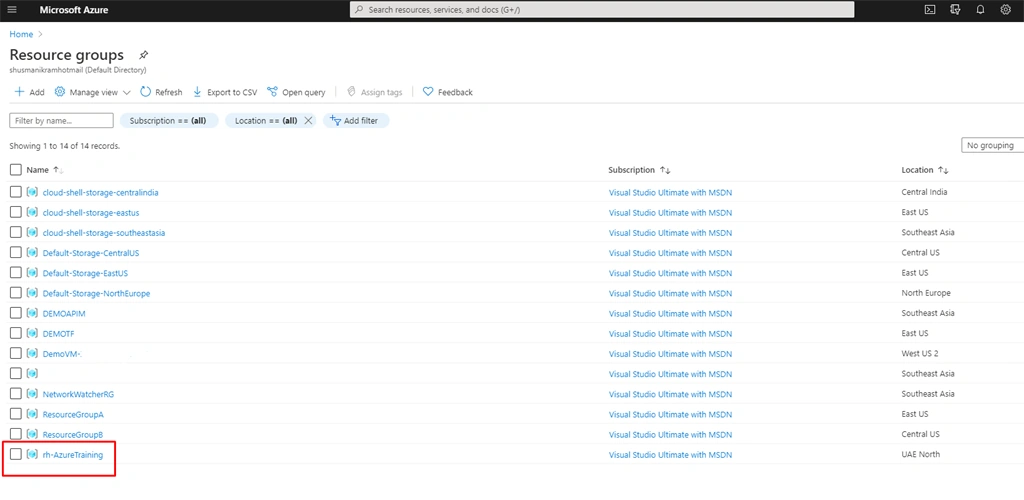
- On the Resource groups blade, click on the Resource group in my case name rh-AzureTraining field
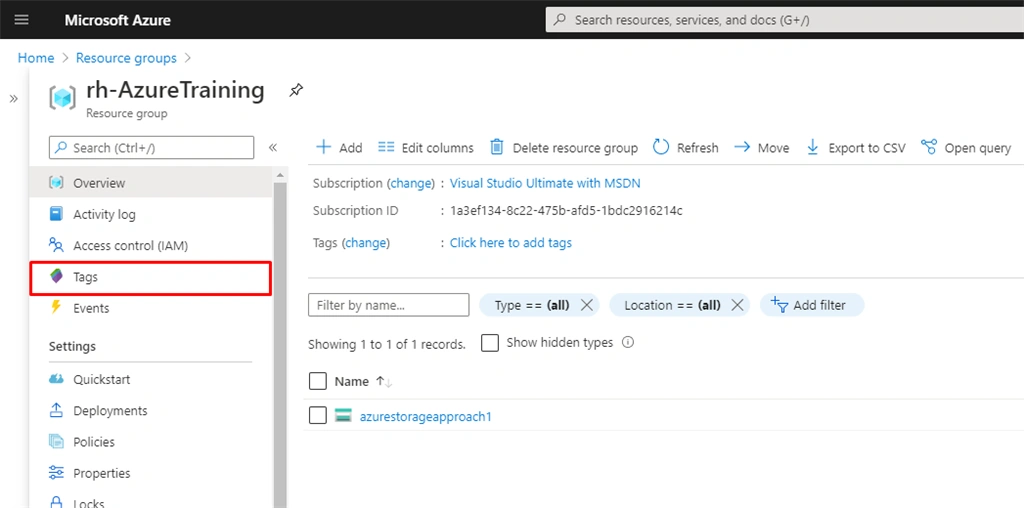
- In the navigation section on the Resource groups dashboard, click on the Tags button:
- Now open the Tags blade. In the Name(Key) textbox, type Name, and then in the Value textbox, type Azure-Tagging-Demo. After this, click on Save:

- Go back to the Resource groups dashboard. In the resource grid rh-AzureTraining, click the azurestorageapproach1 row:
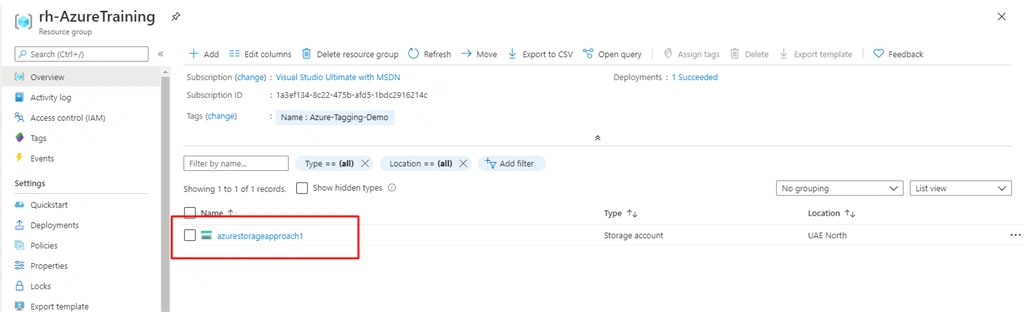
- In the navigation section of the Resources dashboard (azurestorageapproach1), click the Tags button:
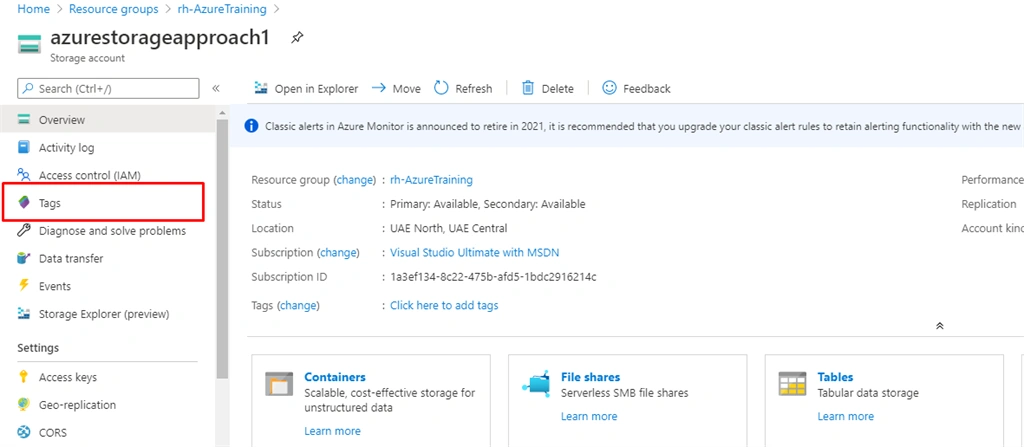
- On the Tags blade, in the Key box, type again Name, and then in the Value box, type Azure-Tagging-Demo. Click Save:

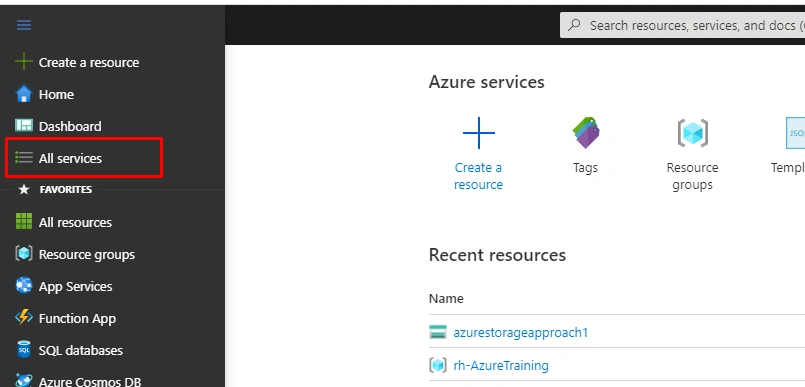
- In the portal, click on All Services
- Scroll down the list, and then click on Tags:
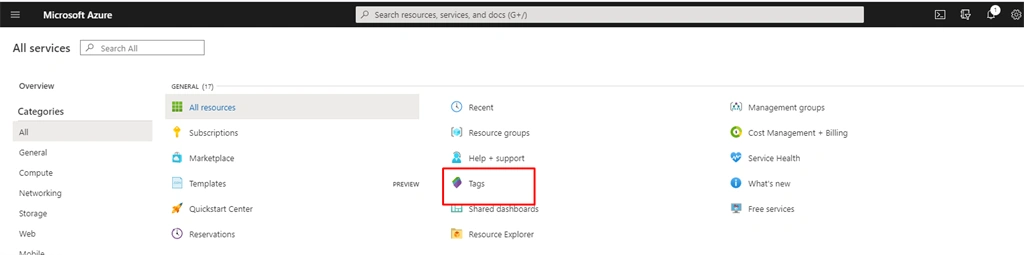
- In the Tags blade, search the row for your tag Name: Azure-Tagging-Demo:
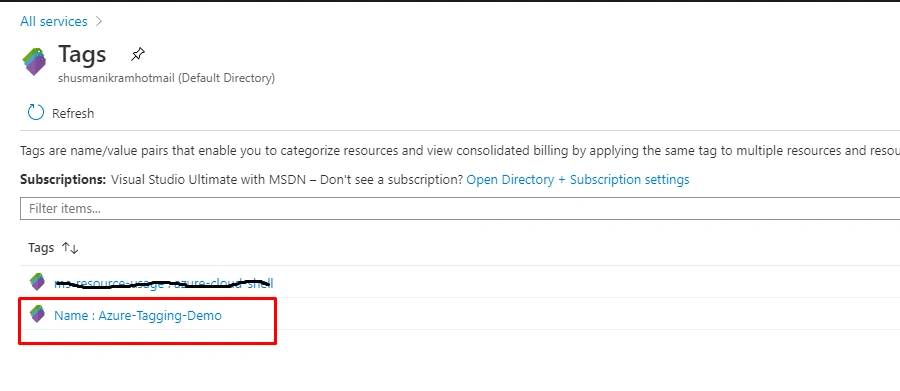
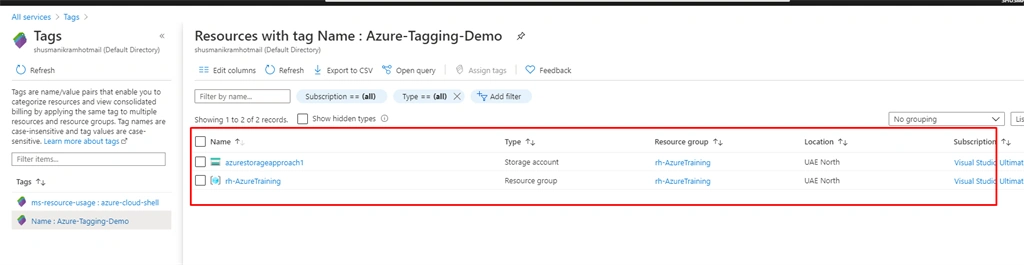
- Now you can see all the resources that are associated with the tag:
Join the conversation! Your thoughts help the community grow.