
Introduction :
Ajax (Asynchronous JavaScript and XML) is a new web development technique for interactive websites. With AJAX help we can develop web applications and retrieve small amounts of data from a web server. AJAX consists of a different type of technology.
- JavaScript
- XML
- Asynchronous Call to the server
TabContainer
The TabContainer creates a set of Tabs that can be used to save screen space and organize content. The TabContainer contains a number of TabPanel controls. We can place our controls inside each TabPanel.
Property
- ActiveTabIndex
- CssClass
- AutoPostBack
- ClientIDMode
Step 1 : Open Visual Studio 2010.
- Go to File->New->WebSite
- Select ASP.NET Empty WebSite
Step 2 : Go to Solution Explorer and right-click.
- Select Add->New Item
- Select WebForm
- Default.aspx page open
Step 3 : Go to Default.aspx page and click on the [Design] option and drag the following controls from the Toolbox:
- Drag Panel, ScriptManager, TextBox, Button
Step 4 : Now go to the Toolbox option and drag a TabContainer.
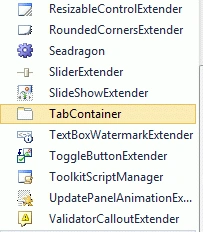
Step 5 : Now we write the code and define properties.
code
<asp:TabContainer ID="TabContainer1" runat="server" ActiveTabIndex="0" CssClass="TabHeaderCSS" BackColor="#91D5C0">
Step 6 : Go to Default.aspx[Source]option and define a Tab Panel inside the TabContainer control.
Code
<style type="text/css">
.TabHeaderCSS
{
font-family: @FangSong, Arial, "Courier New";
font-size: 50px;
background-color: Silver;
text-align:center;
cursor: pointer;
}
</style>
</head>
<body>
<form id="form1" runat="server">
<asp:ScriptManager ID="ScriptManager2" runat="server">
</asp:ScriptManager>
<div style="background-color: #8ADBD9">
<asp:TabContainer ID="TabContainer1" runat="server" ActiveTabIndex="0" CssClass="TabHeaderCSS" BackColor="#91D5C0">
<asp:TabPanel ID="TabPanel1" runat="server" HeaderText="TabPanel1">
<ContentTemplate>
<asp:TextBox ID="TextBox1" runat="server"></asp:TextBox><br />
<asp:Button ID="Button1" runat="server" Text="Button" />
</ContentTemplate>
</asp:TabPanel>
<br />
<br />
<br />
<Br />
<asp:TabPanel ID="TabPanel2" runat="server" HeaderText="TabPanel2">
<ContentTemplate>
<asp:TextBox ID="TextBox2" runat="server"></asp:TextBox><br />
<asp:Button ID="Button2" runat="server" Text="Button" />
</ContentTemplate>
</asp:TabPanel>
<br />
<asp:TabPanel ID="TabPanel3" runat="server" HeaderText="TabPanel3">
<ContentTemplate>
<asp:TextBox ID="TextBox3" runat="server" BackColor="#30CF9B"></asp:TextBox><br />
<asp:Button ID="Button3" runat="server" Text="Button" onclick="Button3_Click"
Height="25px" />
</ContentTemplate>
</asp:TabPanel>
</asp:TabContainer>
<asp:Label ID="Label1" runat="server" Text="Label"></asp:Label>
<br />
<br />
<br />
<br />
</div>
</form>
</body>
</html>
Step 7 : Go to the Default.aspx[Design] option and click on the Button control and write the following code:
Code
AjaxControlToolkit.TabContainer container = (AjaxControlToolkit.TabContainer)TabContainer1;
foreach (object obj in container.Controls)
{
if (obj is AjaxControlToolkit.TabPanel)
{
AjaxControlToolkit.TabPanel tabPanel = (AjaxControlToolkit.TabPanel)obj;
foreach (object ctrl in tabPanel.Controls)
{
if (ctrl is Control)
{
Control c = (Control)ctrl;
foreach (object innerCtrl in c.Controls)
{
if (innerCtrl is System.Web.UI.WebControls.TextBox)
Response.Write(((TextBox)innerCtrl).Text);
}
Step 8 : Go to Default.aspx.cs and write the following code.
Code
using System;
using System.Collections.Generic;
using System.Linq;
using System.Web;
using System.Web.UI;
using System.Web.UI.WebControls;
using AjaxControlToolkit;
public partial class _Default : System.Web.UI.Page
{
protected void Page_Load(object sender, EventArgs e)
{
}
protected void Button3_Click(object sender, EventArgs e)
{
AjaxControlToolkit.TabContainer container = (AjaxControlToolkit.TabContainer)TabContainer1;
foreach (object obj in container.Controls)
{
if (obj is AjaxControlToolkit.TabPanel)
{
AjaxControlToolkit.TabPanel tabPanel = (AjaxControlToolkit.TabPanel)obj;
foreach (object ctrl in tabPanel.Controls)
{
if (ctrl is Control)
{
Control c = (Control)ctrl;
foreach (object innerCtrl in c.Controls)
{
if (innerCtrl is System.Web.UI.WebControls.TextBox)
Response.Write(((TextBox)innerCtrl).Text);
}
}
}
}
}
}
}
Step 9 : The CSS code for the TabContainer control with Style tag is:
Code
<style type="text/css">
.TabHeaderCSS
{
font-family: @FangSong, Arial, "Courier New";
font-size: 50px;
background-color: Silver;
text-align:center;
cursor: pointer;
}
</style>
Step 10 : Now run the application by Pressing F5.

Step 11 : Now we define any text inside Textbox and click on the Button.

Step 12 : Click on the TabControl2 option and define the text in the TextBox show following item.
Step 13 : Again click on the TabContainer3 and write any text inside the TextBox then click on the Button then the TabContainer text will look as shown below:

Resource
Mukesh KumarPosted Oct 29, 2015, 1:56 AM
Good Job
Adil AnsariPosted Sep 27, 2012, 6:11 AM
Very nice explanation.
Laura ParkerPosted Feb 22, 2012, 11:22 PM
Very nice explanation.