

Introduction
In this article I have explained the SystemSounds object and the properties of the SystemSounds class, such as Asterisk, Beep, Exclamation, Hand and Question, in a Windows Forms application.
SystemSounds Object
The SystemSounds class is the part of the System.Media namespace. The "System.Media" namespace contains the class "SystemSounds" that allows us to play the system sounds. The SystemSounds class has the five static properties to represent key sounds that are configurable through the Control Panel. Using those properties we can play the sounds that are associated with any event. The SystemSounds object retrieves the sounds associated with the Windows operating system sound event types. The SystemSounds class is a sealed class that cannot be inherited from. The SystemSounds class has the five properties Asterisk, Beep, Exclamation, Hand and Question. These properties are played by the "play" method of the SystemSound object.
Properties of SystemSounds Class
The following are the properties of the SystemSounds class:
- Asterisk: Gets the sound associated with the asterisk program event in the current Windows sound.
- Beep: Gets the sound associated with the beep program event in the current Windows sound.
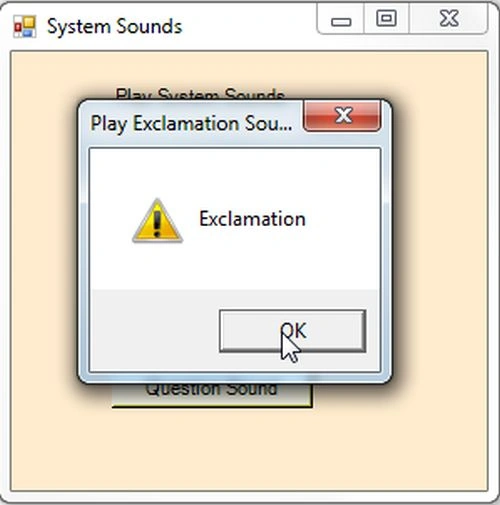
- Exclamation: Gets the sound associated with the Exclamation program event in the current Windows sound.
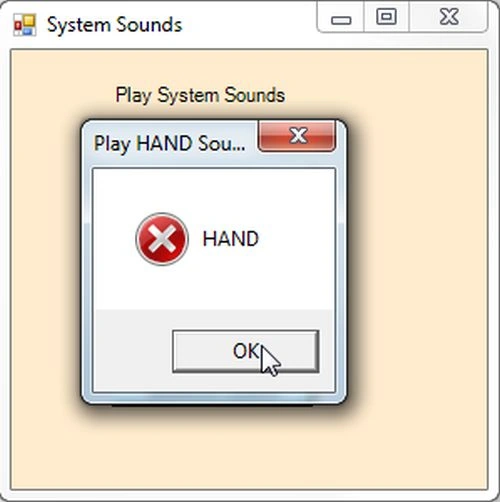
- Hand: Gets the sound associated with the Hand program event in the current Windows sound.
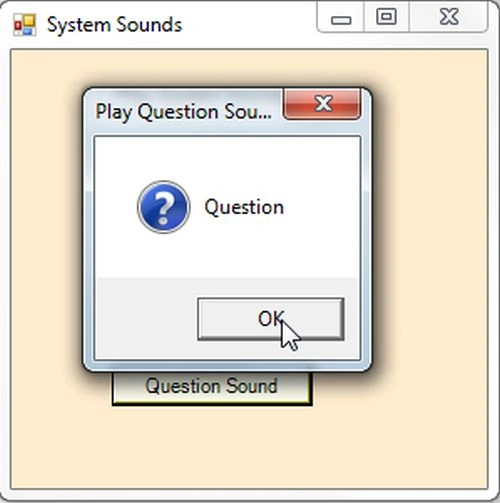
- Question: Gets the sound associated with the Question program event in the current Windows sound.
Now I will show you how to use the SystemSounds object in a Windows Forms application. Let's use the following procedure.
Step 1:
Open Visual Studio, then select "Create New Project" --> "F# Console Application".
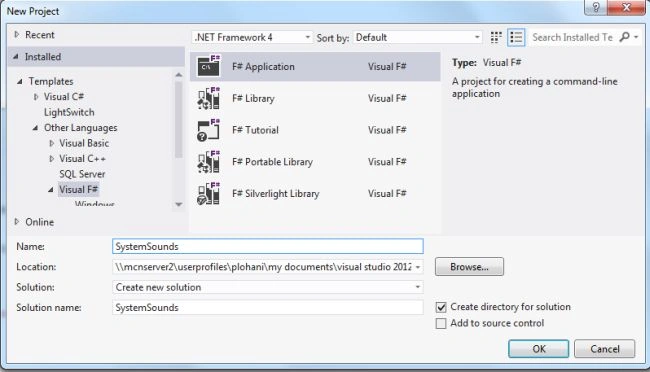
Step 2:
Now go to the Solution Explorer on the right side of the application. Right-click on "References" and select "Add references".
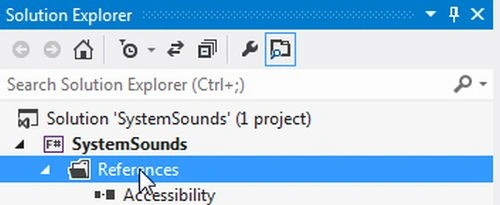
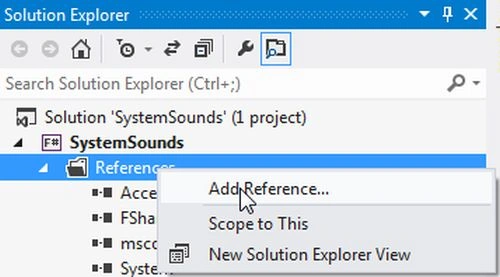
Step 3:
After selecting "Add References", in the framework template you need to select "System.Windows.Forms" and "System.Drawing" while holding down the Ctrl key and Click on "Ok".
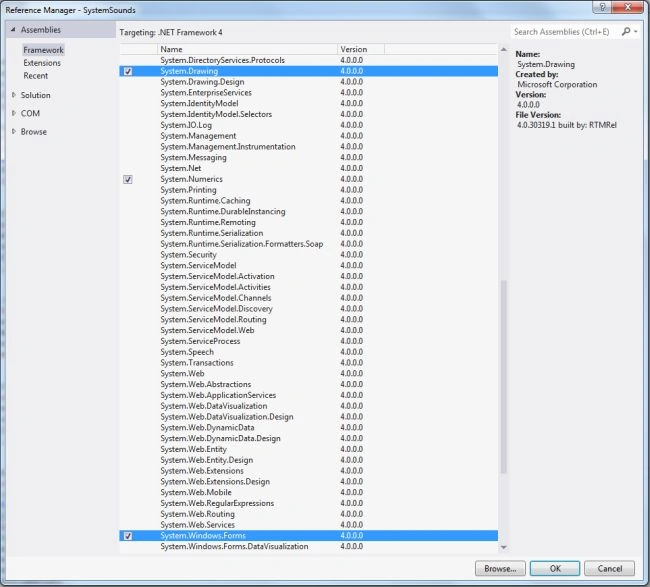
Step 4:
Write the following code to play the SystemSounds in the F# editor.
open System
open System.Media
open System.Drawing
open System.Windows.Forms
let myform=new Form(Text="System Sounds")
myform.BackColor<-Color.BlanchedAlmond
let soundlbl=new Label(Top=20,Left=60,Width=120)
soundlbl.Text<-"Play System Sounds"
//Asterik sound
let btnAsterik=new Button(Top=70,Left=60,Width=120)
btnAsterik.Text<-"Asterik Sound"
btnAsterik.BackColor<-Color.Ivory
btnAsterik.Click.Add(fun sound->
SystemSounds.Asterisk.Play()
MessageBox.Show("Asterisk", "Play Asterik Sounds", MessageBoxButtons.OK, MessageBoxIcon.Asterisk)|>ignore)
//Beep sound
let btnBeep=new Button(Top=100,Left=60,Width=120)
btnBeep.Text<-"Beep Sound"
btnBeep.BackColor<-Color.Ivory
btnBeep.Click.Add(fun sound->
SystemSounds.Beep.Play()
MessageBox.Show("Beep", "Play Beep Sounds", MessageBoxButtons.OK, MessageBoxIcon.Asterisk)|>ignore)
//Exclamation sound
let btnExclamation=new Button(Top=130,Left=60,Width=120)
btnExclamation.Text<-"Exclamation Sound"
btnExclamation.BackColor<-Color.Ivory
btnExclamation.Click.Add(fun sound->
SystemSounds.Exclamation.Play()
MessageBox.Show("Exclamation", "Play Exclamation Sounds", MessageBoxButtons.OK, MessageBoxIcon.Exclamation)|>ignore)
//Hand sound
let btnHand=new Button(Top=160,Left=60,Width=120)
btnHand.Text<-"HAND Sound"
btnHand.BackColor<-Color.Ivory
btnHand.Click.Add(fun sound->
SystemSounds.Hand.Play()
MessageBox.Show("HAND", "Play HAND Sounds", MessageBoxButtons.OK, MessageBoxIcon.Hand)|>ignore)
//Question sound
let btnQuestion=new Button(Top=190,Left=60,Width=120)
btnQuestion.Text<-"Question Sound"
btnQuestion.BackColor<-Color.Ivory
btnQuestion.Click.Add(fun sound->
SystemSounds.Hand.Play()
MessageBox.Show("Question", "Play Question Sounds", MessageBoxButtons.OK, MessageBoxIcon.Question)|>ignore)
//addind controls to the form
myform.Controls.Add(soundlbl)
myform.Controls.Add(btnAsterik)
myform.Controls.Add(btnBeep)
myform.Controls.Add(btnExclamation)
myform.Controls.Add(btnHand)
myform.Controls.Add(btnQuestion)
myform.Show()
Application.Run(myform)
Step 5 :
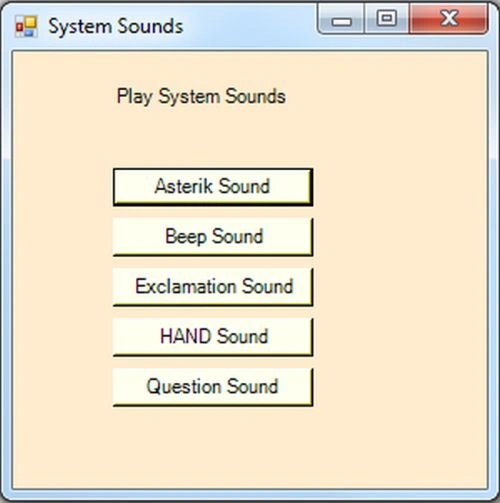
Debug the application by pressing F5 to execute the Windows Forms application. After debugging the application the output will appear as shown in the following figure.
Step 6 :
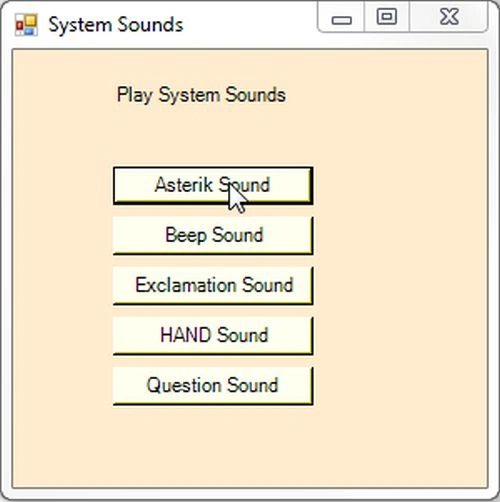
Now click on the Asterisk button. You will then get the sound of an asterisk as in the figure given below.
Step 7 :
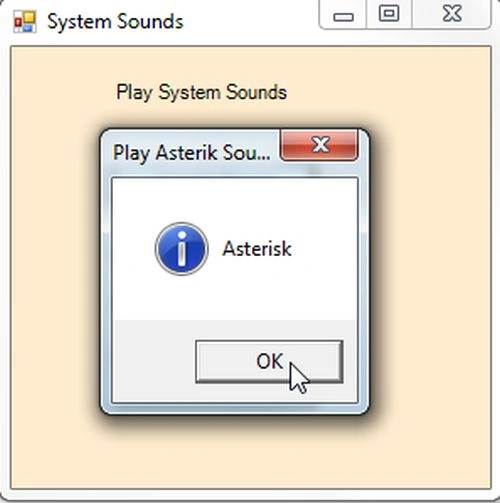
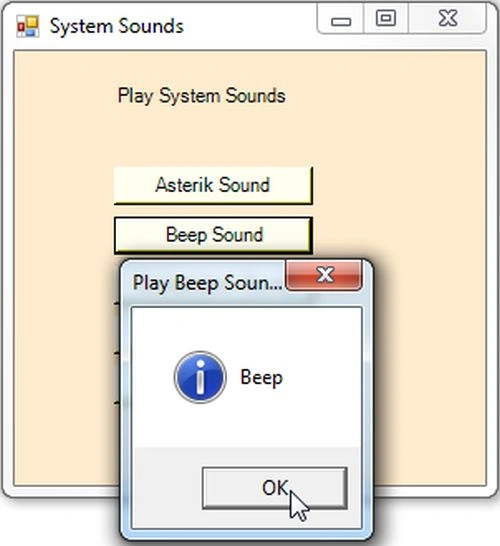
After clicking on the button you will get the system sound of an asterisk.
Step 8 :
Step 9 :
Step 8 :
Step 8 :
Summary
This article explained the SystetemSounds object and the properties of the SystemSounds class, such as Asterisk, Beep, Exclamation, Hand and Question. You then saw how to use various types of system sounds in a Windows Forms application.
Join the conversation! Your thoughts help the community grow.