

If you have worked on one project that used .NET Core version 2.1 and then you installed .NET Core 3.0 Preview, you will get an error of SDK while trying to run your .NET Core 2.1 project. This is because now your current SDK version has changed to 3.0
A big advantage of .NET Core is that it installs .NET Core SDKs separately, so the new SDK does not affect the previously installed SDK. You can see all the installed SDKs under "C:\Program Files\dotnet\sdk".
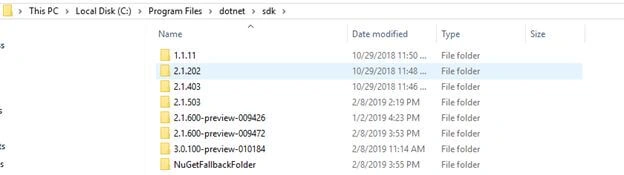
First, we are going to see how we can view our current SDK version on the machine. By default, it will be the latest installed version (the SDK you installed at last).
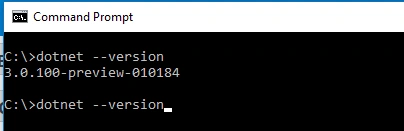
To view your current SDK version, follow the below steps.
Open the command prompt and type the below command.
dotnet --version
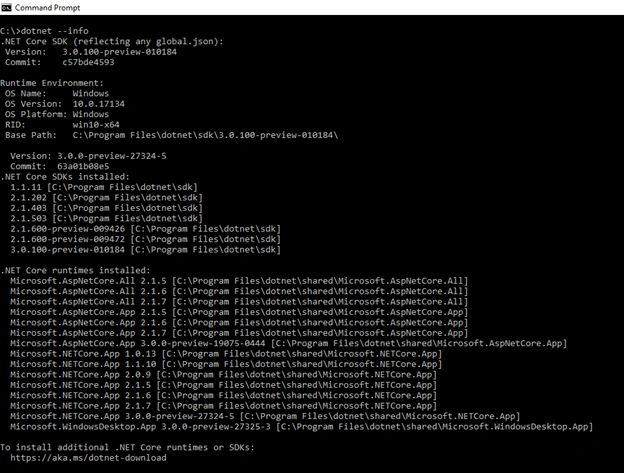
To view all installed SDKs, follow the below steps.
Open Command Prompt and execute the following command.
dotnet --info
This will show the list of all available SDKs on your system.
Checking the version of your .NET Core project
- Open your project's source folder and in the address bar, type "cmd" and press Enter. It will open the Command Prompt with the project path.

- Execute the following command.
dotnet --version

It will display your project's current SDK version, i.e., 2.1.503 in our case.
Now, we are going to change this version to Core 3.0. For that, type the below command and press Enter.
dotnet new globaljson --sdk-version 3.0.100-preview-010184 --force
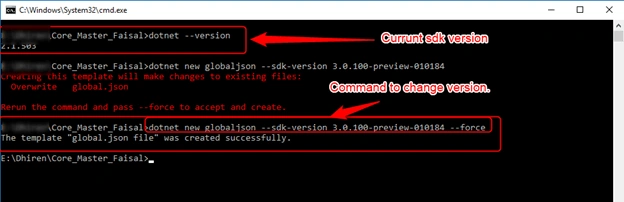

It will create a "global.json" file which is stored in the folder of the current version of your project's SDK.
- {
- "sdk": {
- "version": "3.0.100-preview-010184"
- }
- }
To create the "global.json" file in the current directory folder, you need to fire this command:
dotnet new globaljson
This will create a "global.json" file and by default, it is set to the latest version.
t nPosted Dec 25, 2020, 9:09 AM
What does this do except create the global.json file? How does it affect the nuget dependencies? What uses the global.json file and how?