

Introduction
This article demonstrates how to store sensor data on the Firebase real-time database through Raspberry Pi.
Real-Time Database
- Store and synchronize data with NoSQL cloud DB.
- Data is synced across all clients in real-time
- NoSQL databases are increasingly used in big data and real-time web applications.
- The Firebase real-time database is a cloud-hosted database.
- Data is stored as JSON
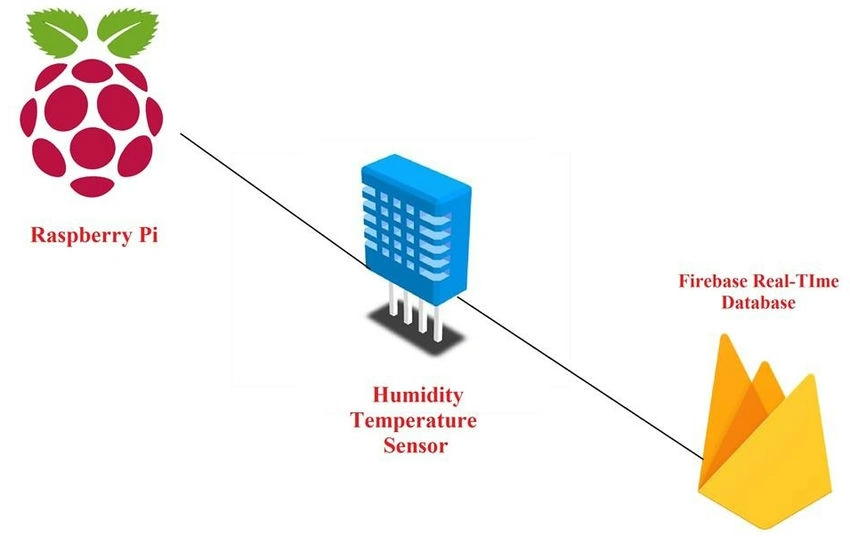
Prerequisite
- Raspberry Pi
- Firebase account (Google Account)
- DHT 11
- Putty
Step 1. Login to your Firebase account (https://firebase.google.com/), then go to the Firebase console application.

Create a new project and fill in the necessary details.
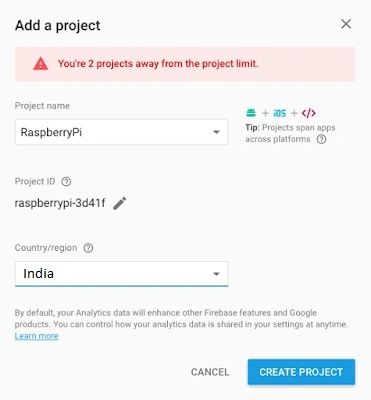
Step 2
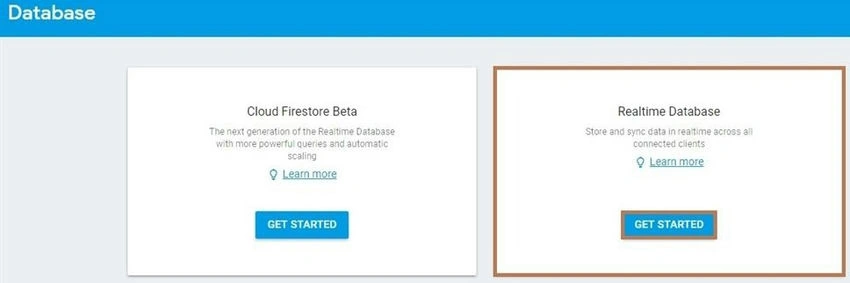
- Next, go to select Develop and then click on Database in your project.
- After that, the Database appears, and select the "Real-time Database Get Started" button.
Step 3. Next, go to rules >> change rules. Just replace that with the following code.
Default Rules
// require authentication
{
  "rules": {
    ".read": "auth != null",
    ".write": "auth != null"
  }
}
Change these rules.
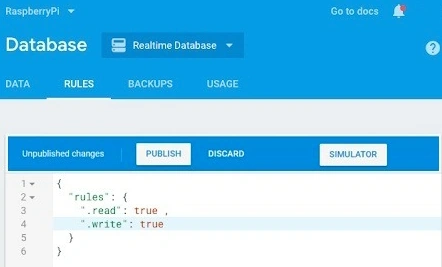
This is for the first test. Anyone can read and write your database without authentication.
// Not require authentication
{
  "rules": {
    ".read": true,
    ".write": true
  }
}
Apply the above code to the Firebase rule, then click the publish button to deploy the rules. After the rules are published anyone can read and write to your data.
Go to database >> real-time database >> data.
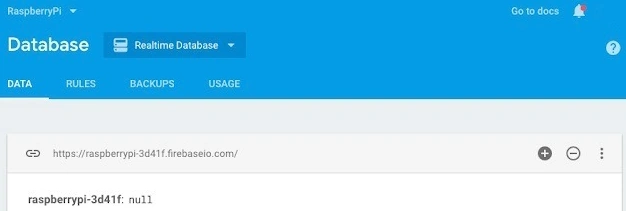
"https://raspberrypi-3d41f.firebase.com" This link is used to access our RT database. Click the add icon then you can create your own data. This link is used to communicate between Python and Firebase RT.
Step 4. We use the DHT 11 sensor. Send the temperature and humidity data to Firebase. Python code uses a putty tool to access the Raspberry Pi remote connection.
Refer to my articles.
- IoT Remote Access Pi Login Using Raspberry PI 3 Model B.
- How To Send A Captured Image Through Email Using Raspberry Pi, Pi Camera, And Python
Wiring Diagram
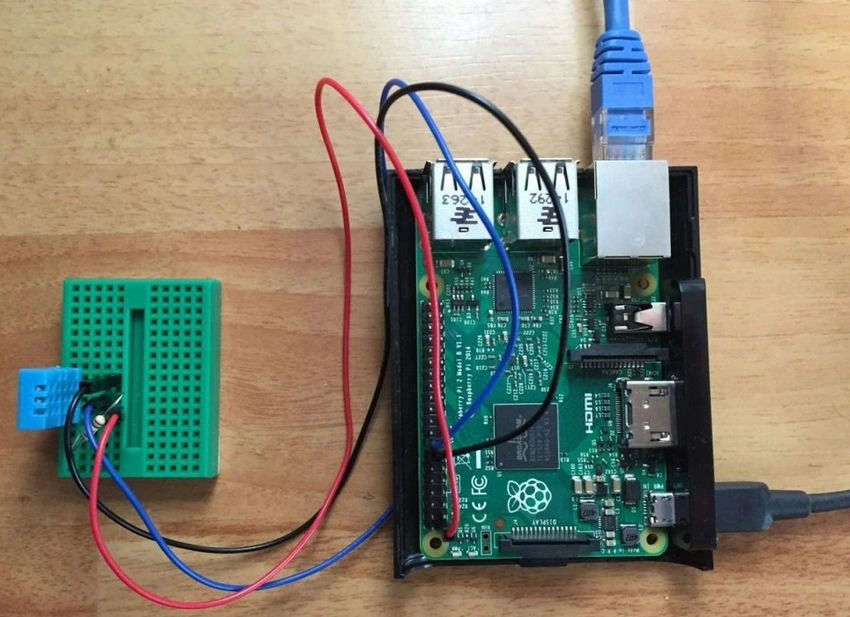
Step 5. Open the Python IDE, File >> New. Save the name as dht-firebase.py.py, then follow the given code.
import urllib2, urllib, httplib
import json
import os
from functools import partial
GPIO.setmode(GPIO.BCM)
GPIO.cleanup()
GPIO.setwarnings(False)
sensor = Adafruit_DHT.DHT11
pin = 4
humidity, temperature = Adafruit_DHT.read_retry(sensor, pin)
firebase = firebase.FirebaseApplication('https://YOUR_FIREBASE_URL.firebaseio.com/', None)
def update_firebase():
    humidity, temperature = Adafruit_DHT.read_retry(sensor, pin)
    if humidity is not None and temperature is not None:
        sleep(5)
        str_temp = ' {0:0.2f} *C '.format(temperature)
        str_hum  = ' {0:0.2f} %'.format(humidity)
        print('Temp={0:0.1f}*C  Humidity={1:0.1f}%'.format(temperature, humidity))
    else:
        print('Failed to get reading. Try again!')
        sleep(10)
    data = {"temp": temperature, "humidity": humidity}
    firebase.post('/sensor/dht', data)
while True:
    update_firebase()
    #sleepTime = int(sleepTime)
    sleep(5)
Next, we need to update the Raspberry Pi. So, install the latest packages.
sudo apt-get update
sudo apt-get upgrade
sudo apt-get install python3
Run the program.
sudo python python-fire/dht-firebase.py
Console Output
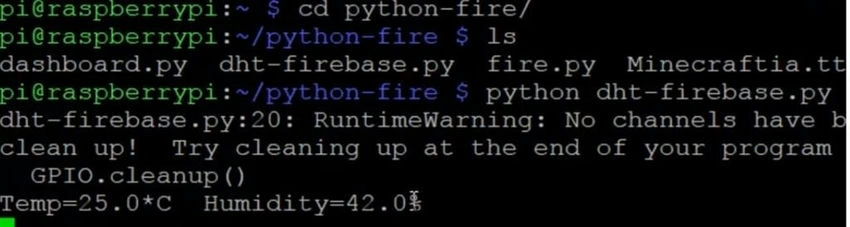
Firebase Output
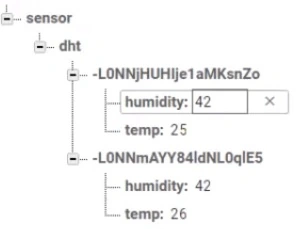
Summary
In this article, you learned how to send IOT data to Firebase.
If you have any questions/ feedback/ issues, please write in the comment box.
Naveenkumar ParamasivamPosted Mar 29, 2020, 8:48 AM
Very useful article