

Traditionally, when we schedule a job in databricks, it will trigger at the scheduled time. But if we want to process the data in real time whenever it lands in the storage container, we will trigger a storage event in ADF and the pipeline with a notebook activity. But now there is no need to go to ADF for this storage event trigger for triggering the notebook on new file arrival.
You can use file arrival triggers to trigger a run of your Azure Databricks job when new files arrive in an external location such as Azure Storage or Amazon S3. You can use this feature when a scheduled job might be inefficient because new data arrives irregularly.
File arrival triggers check for new files every minute and do not incur additional costs other than the cloud provider’s costs associated with listing files in the storage location.
The following are required to use file arrival triggers:
- The workspace must have Unity Catalog enabled.
- You must use an external location added to the Unity Catalog metastore.
- You must have READ permissions to the external location and Can Manage permissions on the job.
Add a file arrival trigger in Databricks
To add a file arrival trigger to a job:
1. Click the Jobs Icon in the sidebar.
2. In the Name column, click the job name.
3. Click Add trigger in the Job details panel on the right.

4. In the Trigger type, select File arrival.

5. In the Storage location, enter the URL of the external location or a subdirectory of the external location to monitor.
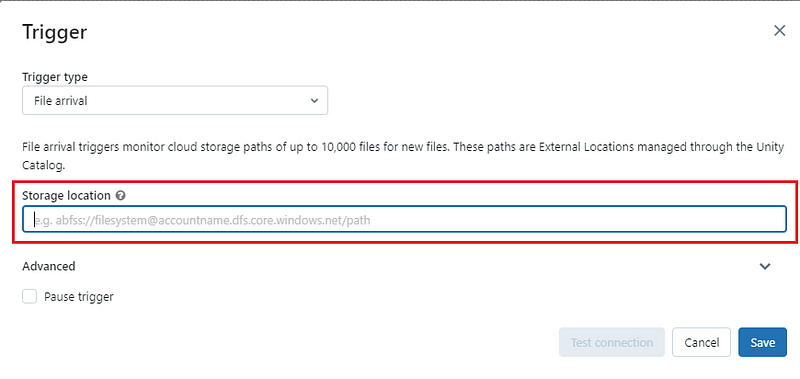
6. Optional Step (Configure advanced options)
- Minimum time between triggers in seconds: The minimum time to wait to trigger a run after a previous run completes. Files that arrive in this period trigger a run only after the waiting time expires. Use this setting to control the frequency of run creation.
- Wait after the last change in seconds: The time to wait to trigger a run after file arrival. Another file arrival within this period resets the timer. This setting can be used when files arrive in batches, and the whole batch needs to be processed after all files have arrived.
7. To validate the configuration, click Test connection.
8. Click Save.
Join the conversation! Your thoughts help the community grow.