

Introduction
In WPF, resource binding in Windows Presentation Foundation involves associating resources like styles, templates, brushes, or other objects with UI elements. These resources can be defined either statically or dynamically. Let's delve into the definitions and advantages of both static and dynamic resource binding:
Static Resource Binding
Static resource binding is the process of linking a resource with a UI element in XAML during compile-time.
Example
<Window x:Class="WPFExamples.MainWindow"
        xmlns="http://schemas.microsoft.com/winfx/2006/xaml/presentation"
        xmlns:x="http://schemas.microsoft.com/winfx/2006/xaml"
        xmlns:d="http://schemas.microsoft.com/expression/blend/2008"
        xmlns:mc="http://schemas.openxmlformats.org/markup-compatibility/2006"
        xmlns:local="clr-namespace:WPFExamples"
        mc:Ignorable="d"
        Title="MainWindow" Height="450" Width="800">

    <Window.Resources>
        <SolidColorBrush x:Key="ButtonBackgroundBrush" Color="LightBlue" />
    </Window.Resources>

    <Grid>
        <Button Background="{StaticResource ButtonBackgroundBrush}" Height="40" Content="Click Me" />
    </Grid>

</Window>
Benefits of Static Resource Binding
- Performance: Static resource binding is resolved during compile-time, leading to better performance compared to dynamic resource binding, which is resolved at runtime.
- Compile-Time Validation: Static resource binding offers compile-time validation of resource references, aiding in early error detection during development.
- Global Scope: Static resources are globally accessible within the scope they are defined, making them ideal for sharing styles, brushes, or other resources across multiple UI elements.
- XAML Clarity: Static resource definitions in XAML provide clarity and ease of understanding regarding the resources used in your UI.
Dynamic Resource Binding
Dynamic resource binding involves linking a resource with a UI element in XAML or code-behind at runtime.
Example
<Window x:Class="WPFExamples.MainWindow"
        xmlns="http://schemas.microsoft.com/winfx/2006/xaml/presentation"
        xmlns:x="http://schemas.microsoft.com/winfx/2006/xaml"
        xmlns:d="http://schemas.microsoft.com/expression/blend/2008"
        xmlns:mc="http://schemas.openxmlformats.org/markup-compatibility/2006"
        xmlns:local="clr-namespace:WPFExamples"
        mc:Ignorable="d"
        Title="MainWindow" Height="450" Width="800">

    <Grid>
        <Button Background="{DynamicResource ButtonBackgroundBrush}" Height="40" Content="Click Me" />
    </Grid>

</Window>
Code-behind
using System.Text;
using System.Windows;
using System.Windows.Controls;
using System.Windows.Data;
using System.Windows.Documents;
using System.Windows.Input;
using System.Windows.Media;
using System.Windows.Media.Imaging;
using System.Windows.Navigation;
using System.Windows.Shapes;

namespace WPFExamples
{
    /// <summary>
    /// Interaction logic for MainWindow.xaml
    /// </summary>
    public partial class MainWindow : Window
    {
        public MainWindow()
        {
            InitializeComponent();
        }

        private void Button_Click(object sender, RoutedEventArgs e)
        {
            this.Resources["ButtonBackgroundBrush"] = new SolidColorBrush(Colors.Green);
        }
    }
}
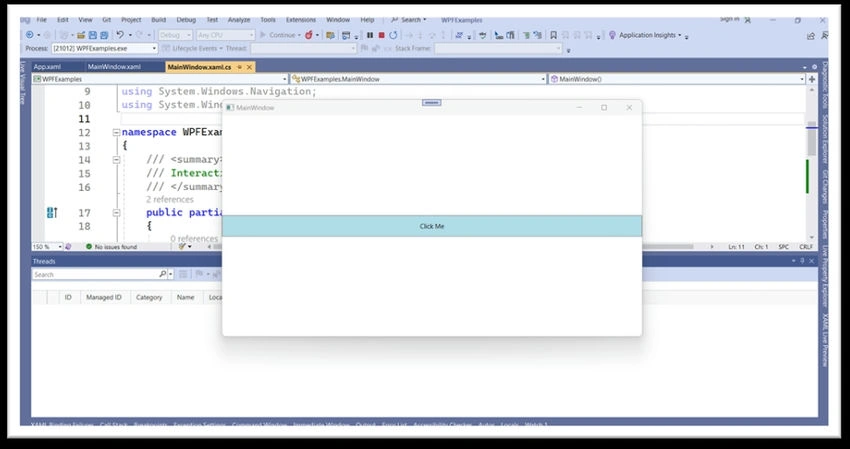
Resource implementation at runtime is not present in the initial view.
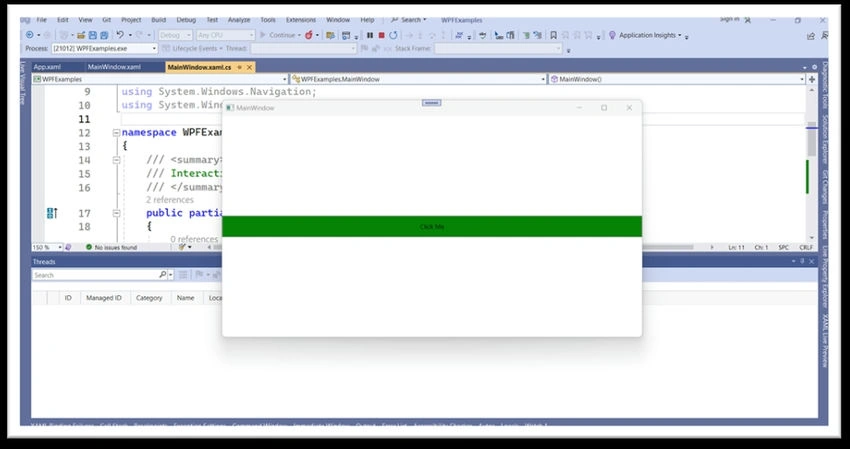
After the implementation of resources at runtime.
Benefits of Dynamic Resource Binding
- Runtime Updates: Dynamic resource binding enables updating resource values at runtime, facilitating dynamic theming or user-customizable UI elements.
- Dynamic Theming: Dynamic resource binding allows for dynamic theming.
Load a static resource globally across the entire application
In WPF, static resources can be loaded globally by defining them at an application level rather than at a specific element level. This method enables the sharing of resources across various windows, pages, or controls within the application. To accomplish this, you can define the resources in the `App.xaml` file, which acts as the starting point for the WPF application and facilitates the establishment of application-wide resources.
Define and load static resources globally in WPF
Here is the process for defining and loading static resources globally in WPF.
1. Define Resources in App.xaml
Open the `App.xaml` file in your WPF project and specify the resources within the `<Application.Resources>` section.
<Application x:Class="WPFExamples.App"
             xmlns="http://schemas.microsoft.com/winfx/2006/xaml/presentation"
             xmlns:x="http://schemas.microsoft.com/winfx/2006/xaml"
             xmlns:local="clr-namespace:WPFExamples"
             StartupUri="MainWindow.xaml">
    <Application.Resources>
        <SolidColorBrush x:Key="ButtonBackgroundBrush" Color="LightBlue" />
        <!-- Other global resources can be defined here -->
    </Application.Resources>
</Application>
2. Referencing Global Resources
Once the resources are defined in `App.xaml`, they can be referenced from any part of your application using the `StaticResource` markup extension like below
<Window x:Class="WPFExamples.MainWindow"
        xmlns="http://schemas.microsoft.com/winfx/2006/xaml/presentation"
        xmlns:x="http://schemas.microsoft.com/winfx/2006/xaml"
        xmlns:d="http://schemas.microsoft.com/expression/blend/2008"
        xmlns:mc="http://schemas.openxmlformats.org/markup-compatibility/2006"
        xmlns:local="clr-namespace:WPFExamples"
        mc:Ignorable="d"
        Title="MainWindow" Height="450" Width="800">
    <Grid>
        <Button Background="{StaticResource ButtonBackgroundBrush}" Height="40" Content="Click Me" />
    </Grid>
</Window>
By doing so, the button will have its background color set to the value specified in the global resource.
Advantages of Global Static Resources:
- Consistency: The global definition of resources ensures uniformity in the appearance and behavior of UI elements across the application.
- Simplified Maintenance: Centralizing common styles, brushes, templates, etc., through global resources streamlines the maintenance and updating process.
- Reduction of Redundancy: Global resources aid in minimizing redundancy in XAML code by enabling the reuse of styles, brushes, and other resources across multiple UI elements.
- Enhanced Performance: Utilizing global resources can contribute to improved performance as it allows for efficient resource management.
Join the conversation! Your thoughts help the community grow.