

Prerequisites
- Azure account.
Now, let's get started with the steps, given below-
Create a new Azure SQL Server-level Firewall.
Step 1- Sign in to the online Microsoft Azure Portal.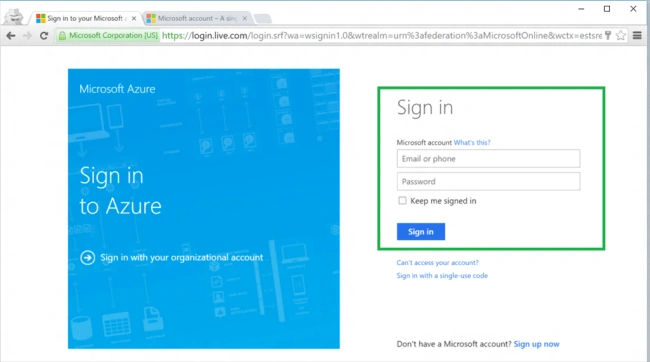
Step 2- In the dashboard, click SQL Servers.
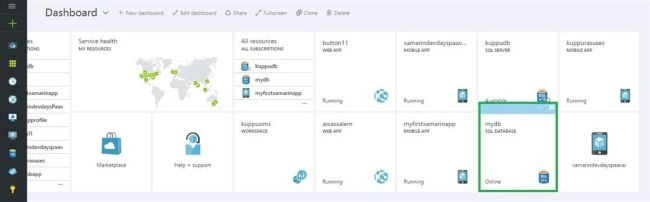
Step 3- Next, on SQL Servers blade, click the Server on which Firewall rule is to be created.
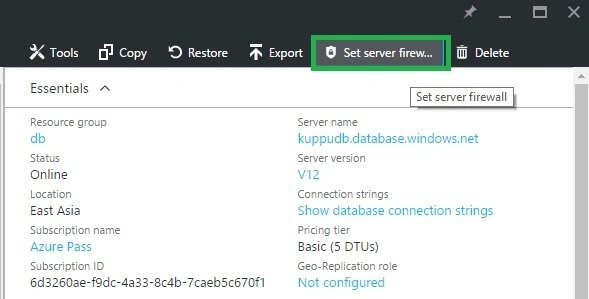
Step 4- Now, click Add client IP to have Azure create a rule for your client IP address.
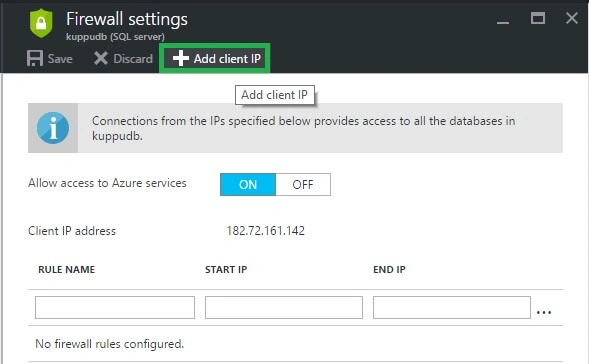
Step 5- Finally, click Save to create the Server-level Firewall rule.
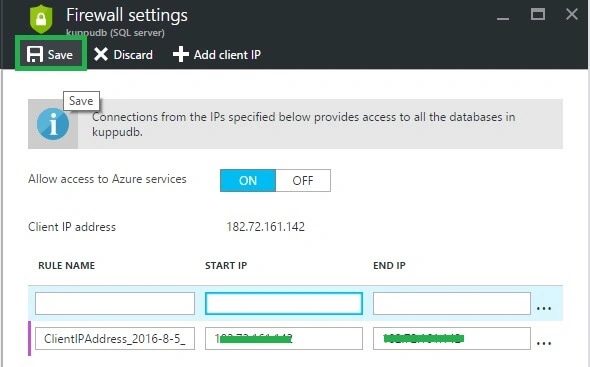
Optionally, to allow access to a range of IP addresses, click the IP address, which was added to edit Firewall address.
Summary
In this article, we discussed, how to create new Azure SQL Server-level Firewall, using Azure Portal.
Prasanna MuraliPosted Sep 13, 2016, 12:55 AM
Nice post..
Anu VPosted Sep 12, 2016, 11:45 PM
Nice...