

Introduction
SharePoint Framework is gaining popularity, being utilized by so many developers for client-side customization in SharePoint.
In this article, we will learn how to use SharePoint Online Search APIs and the use of Lazy loading to display in the SPFx web part.
Overview
Today, we are going to have a demo calling the SPO Out-Of-The-Box search APIs along with the help of 3rd party library named WayPoint to display the data as an Infinite scroll.
The source code that shipped with this article has usage of re-usable code by having a Helper file, calling Parent methods from a child component, usage of PnP search.
This targets advanced users. Therefore, for this demo, one should be familiar with the following topics:
- React JS
- Search APIs
- PnP Libraries
- Use of React libraries in SPFx web parts
Below is a sample image that you see when the web part is rendered:
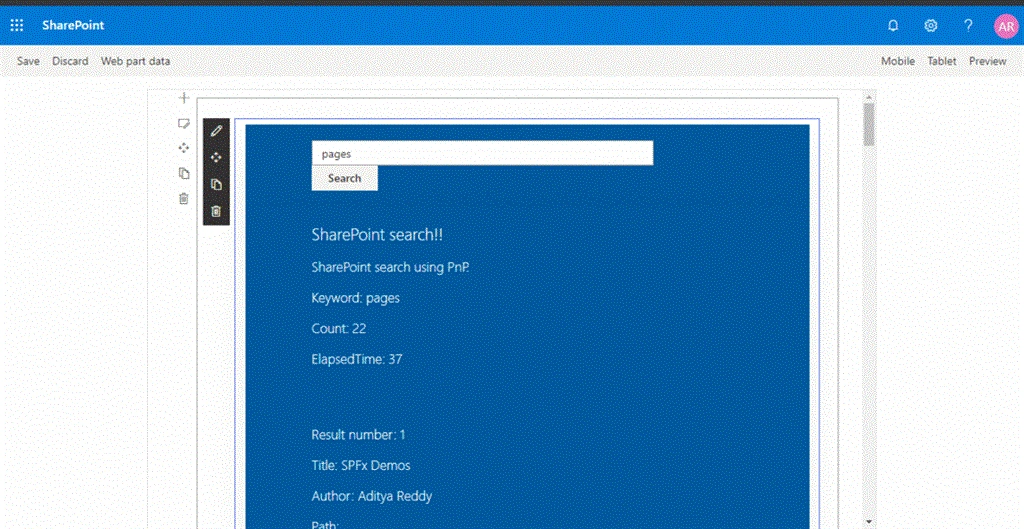
This assumes you know how to create a simple React SPFx web part. If you are first-timer, you can follow this article to get an idea of how to create a React-based web part. Please note that you can do this without a Javascript framework also.
Create WebPart
Let's jump in to technical work. Start creating a webpart with the following options:
- solution name - aadi-spfx-react-wp
- webpart name - SearchSite
- Install PnP library dependencies
To create the control as lazy loading, we need to install the third-party library WayPoint by typing the npm command:
- npm install react-waypoint --save
In the SearchSite.tsx, declare a State to hold our values:
- interface ISearchSiteState {
- txtSearch: string;
- queryText: string;
- startRow: number;
- rowLimit: number;
- searchResults: SearchResults;
- searchMainResults: ISearchMainResults[];
- }
- public constructor(props: ISearchSiteProps) {
- super(props);
- this.state = {
- txtSearch: "",
- queryText: "",
- startRow: 0,
- rowLimit: 10,
- searchResults: null,
- searchMainResults: []
- };
- }
- public render(): React.ReactElement<ISearchSiteProps> {
- return (
- <div className={styles.searchSite}>
- {this.renderSearchbox()}
- {this.state.searchResults
- ? <div className={styles.container}>
- <div className={styles.row}>
- <div className={styles.column}>
- <span className={styles.title}>SharePoint search!!</span>
- <p className={styles.subTitle}>SharePoint search using PnP.</p>
- <p className={styles.description}>Keyword: {escape(this.state.queryText)}</p>
- <p className={styles.description}>Count: {this.state.searchResults.TotalRows}</p>
- <p className={styles.description}>ElapsedTime: {this.state.searchResults.ElapsedTime}</p>
- </div>
- </div>
- <div className={styles.row}>
- {this.state.searchResults.TotalRows > 0
- ? <MainResults
- key={this.state.txtSearch}
- searchResults={this.state.searchMainResults}
- hasMoreItems={this.state.startRow < this.state.searchResults.TotalRows}
- fetchMore={() => { this.fetchMoreResults(); }}>
- </MainResults>
- : <div className={styles.column}>No rows found.</div>}
- </div>
- </div>
- : null}
- </div>
- );
- }
- private renderSearchbox(): JSX.Element {
- return (
- <div className={styles.container}>
- <div className={styles.row}>
- <div className={styles.column}>
- <TextField id="txtSearch" onChange={this.setSearchTextValue}></TextField>
- <DefaultButton onClick={this.btnSearchText}>Search</DefaultButton>
- </div>
- </div>
- </div>);
- }
- @autobind
- private setSearchTextValue(e) {
- this.setState({
- txtSearch: e.target.value
- });
- }
- @autobind
- private btnSearchText() {
- this.setState({
- searchResults: null,
- searchMainResults: [],
- startRow: 0
- }, async () => {
- await this.getSearchResults();
- });
- }
The below code is responsible for fetching the search items with the given key text. By default, we will retrieve only 10 items (startRow) at once, but you can change the count in State if you wish.
- private static getSearchItems(k: string, startRow: number, rowLimit: number): Promise<SearchResults> {
- return new Promise<SearchResults>((resolve, reject) => {
- const query: SearchQueryInit = {
- Querytext: k,
- TrimDuplicates: true,
- EnableInterleaving: true,
- StartRow: startRow,
- RowLimit: rowLimit,
- Properties: [
- {
- Name: "EnableDynamicGroups",
- Value: { QueryPropertyValueTypeIndex: QueryPropertyValueType.BooleanType, BoolVal: true }
- },
- {
- Name: "EnableMultiGeoSearch",
- Value: { QueryPropertyValueTypeIndex: QueryPropertyValueType.BooleanType, BoolVal: true }
- },
- ],
- SelectProperties: ["Title", "Author", "Path", "Description", "FileExtension", "SiteId", "WebId"],
- SortList: [
- { Property: "Author", Direction: SortDirection.Ascending }
- ]
- };
- sp.search(query)
- .then((r: SearchResults) => {
- resolve(r);
- }, e => { console.error(e); reject(e); });
- });
- }
In the child class component: MainResults, we need to have only the Props interface, since we need to load the data fetched from the parent component.
Note
When the parent's data is passed to the child (as props), and whenever there is a change of data in the parent component, only the props variable data get affected in the render method of child component, but not it's (Child) state data. That's why in the child component, I never created a State interface.
The child's component class render methd: renderSeachResults() displays the first 10 records from the parent, as shown below:
- public render(): React.ReactElement<IMainResultsProps> {
- return (<React.Fragment>
- {this.renderSearchResults()}
- {this.renderWayPoint()}
- </React.Fragment>);
- }
- private renderSearchResults = (): React.ReactElement => {
- return (<>
- {this.props.searchResults.map((r, k) => {
- return (
- <div className={styles.column}>
- <p className={styles.description}>Result number: {k + 1}</p>
- <p className={styles.description}>Title: {r.Title}</p>
- {r.Description
- ? <p className={styles.description}>Description: {r.Description}</p>
- : null}
- <p className={styles.description}>Author: {r.Author}</p>
- <p className={styles.description}>Path: {r.Path}</p>
- <p className={styles.description}>FileExtension: {r.FileExtension}</p>
- </div>
- );
- })
- }
- </>);
- }
- private renderWayPoint = (): React.ReactElement => {
- return (
- this.props.hasMoreItems
- ? <div className={styles.column}>
- <Waypoint
- onEnter={this.handleWaypointEnter}>
- <div>Loading...</div>
- </Waypoint>
- </div>
- : <React.Fragment />
- );
- }
- private handleWaypointEnter = (): void => {
- this.props.fetchMore();
- }
Run the following command, and browse to the workbench.aspx page. Start typing "Pages" in the search box and hit the Search button to view the results.
- gulp serve --nobrowser
This completes our demo. You can view the items that are loaded again. At the end of the scroll, it re-loads again.
Conclusion
In this article, we learned how to fetch the items using Search API, and render those as a Lazy load or Infinite scroll manner.
We learned how to call Parent's method from its child component.
Finally, we saw how to have a Helper class and use it across multiple web parts, if you have any.
Feel free to download the source code zip file, unzip it, and run 'npm i' to load the dependency packages.
Join the conversation! Your thoughts help the community grow.