

Note: This is a series of articles related to Source Control. If you have read my other articles in this series, you may skip the top general part and jump to INTRODUCTION for the specific topic of this article.
This is a series of articles related to Source Control or Version Control issues, from a stand-alone app, such as MS SourceSafe, to a Server app, such as MS TFS (Team Foundation Server), to web services such as GitHub, AWS, and MS Azure DevOps. We have tried to categorize this series of articles as Source Control or Version Control, but this site does not have these categories. So, we put the articles in the DevOps category, as explained in the Wiki:
DevOps is a set of practices that combines software development (Dev) and IT operations (Ops). It aims to shorten the systems development life cycle and provide continuous delivery with high software quality.[1] DevOps is complementary to Agile software development; several DevOps aspects came from the Agile methodology.
The structure of this article series will cover:
- Stand Alone App:
- MS Source Safe
- Server App
- MS TFS (Team Foundation Server)
- Online (Cloud) Centralized Service:
- MS Azure: DevOps
- Boards
- Repos
- Pipelines
- Test Plans
- Artifacts
- GitHub
- AWS GitHub Enterprise
- MS Azure: DevOps
- Distributed App:
- Git
Because these are huge topics, I will not go step by step. Instead, each section will be relatively independent and will become a reading unit.
- Source Control (1), MS Source Safe --- Stand Alone App
- Source Control (2), MS TFS --- Centralized Server App
- Source Control (2-1), TFS --- Comparison
- Source Control (2-2), TFS --- Merge
- Source Control (2-2), TFS --- Shelving
- Source Control (3), MS Azure DevOps (GitHub, Jira) --- Centralized Service
- Source Control (4), Git --- Distributed App
- Source Control (4-1), Git --- Configuration
- Source Control (4-2), Git --- Configured to Connect to DevOps and GitHub
- Source Control (4-3), Git --- Cherry Pick in Visual Studio
- Source Control (4-4), Git --- Recover Git Tree: Reflog/Reset
- Source Control (4-5), Git --- Recover Deleted Branch
- Source Control (4-6), Git --- Revert
- Source Control (4.7), Git --- Get Specific Version or Commit
- Source Control (4.8), Git --- Get Specific Version or Commit in practice
- Source Control (4-9), Git --- Merge: Fetch, Pull, Push and Sync
- Source Control (5), GitHub access (setup connection)
- Source Control (6), DevOps access (setup connection)
- Source Control (7), GitLab access (setup connection and Clone to Local)
- Source Control (8), Git, Azure Repos, and Visual Studio (Interaction)
- Source Control (9), Push into Git Hub and DevOps
- Source Control (10), Git Hub, DevOps Publish
A - Introduction
In the previous article, Source Control (5), GitHub access (setup connection), we discuss the access for GitHub (and Enterprise). We mentioned:
In certain situations, we cannot see the Connect to GitHub, probably by settings, like this:

instead, we have this, without "Connect to GitHub":
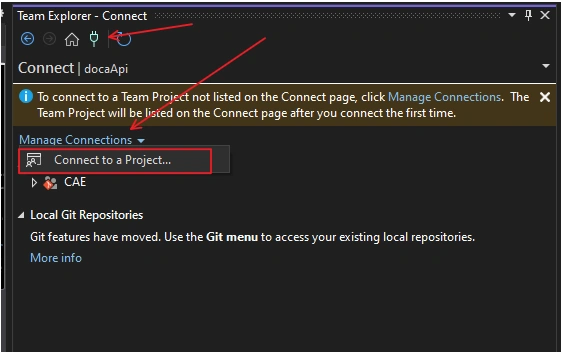
We will discuss this situation here.
- A - Introduction
- B - Alternative Way to Create a New Repository in GitHub
- C - Change Remote Origin to Create a New Repository in GitHub
B - Alternative Way to Create a New Repository in GitHub
In this situation, we can do this: Click Connect => Project and My Teams => New Repository

Open the window: Create a Git repository: for GitHub

Create and Push, or we can choose the Existing Remote choice

C - Change Remote Origin to Create a New Repository in GitHub
In this case, the source code has been within a Remote Repository, such like:
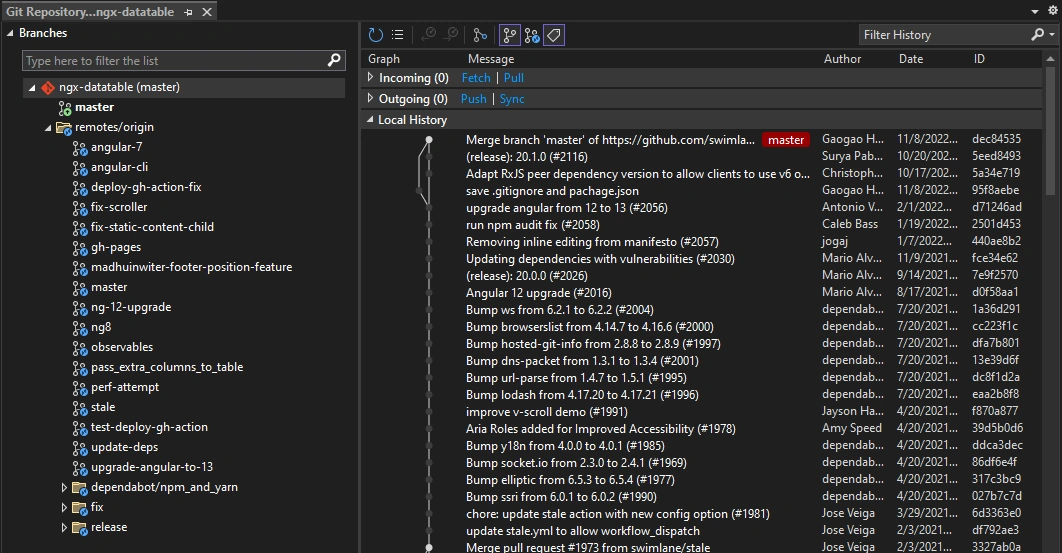
Use the method we introduced above to Create a New Repository, we got a warning message:
A local Git Repository already exists at this location.
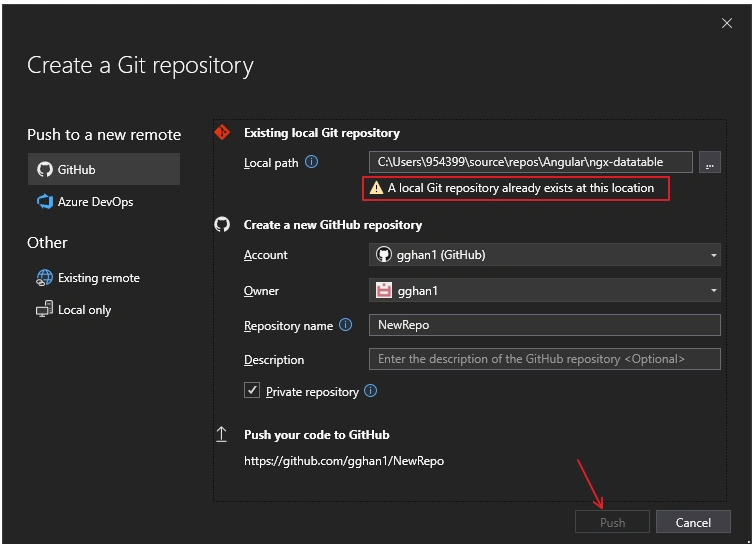
the push button is grayed out. When we choose the existing remote:
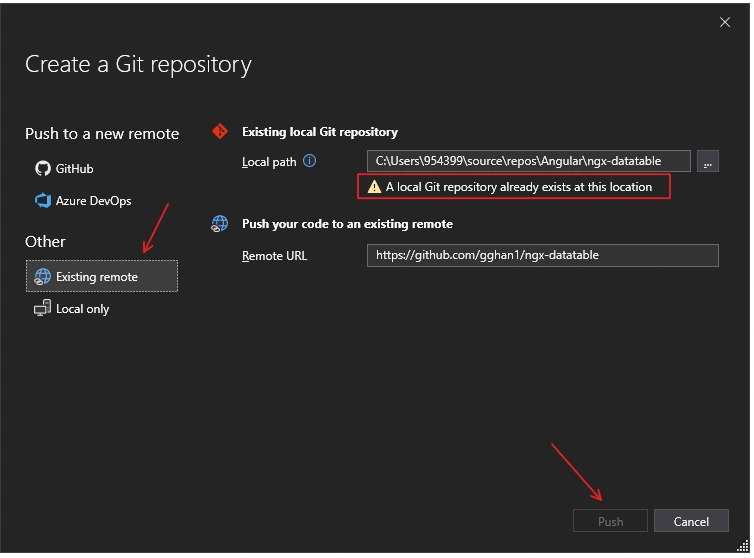
the same, the push button is grayed out.
At this point, we can go around by changing the remote origin, and make a new repository.
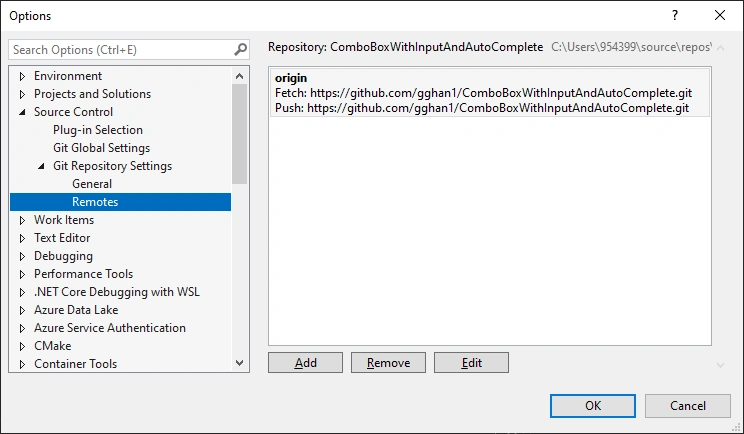
Change the Remote Origin
Click Settings
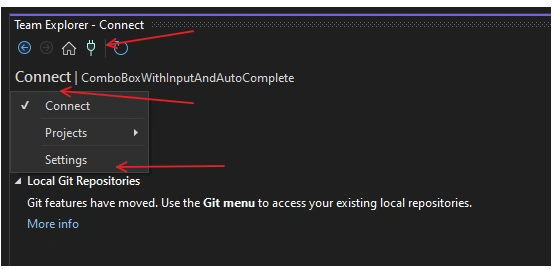
Click Repository Settings
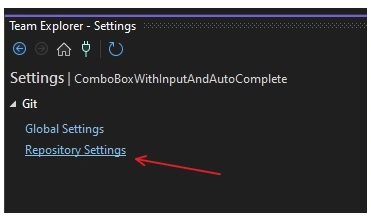
Open the window: Options
- Source Control
- Git Repository Settings
- Remotes
- Git Repository Settings
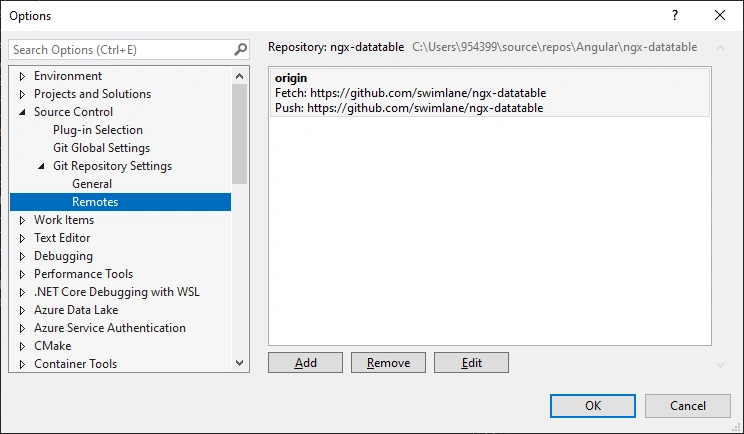
Click origin on the right panel => Edit
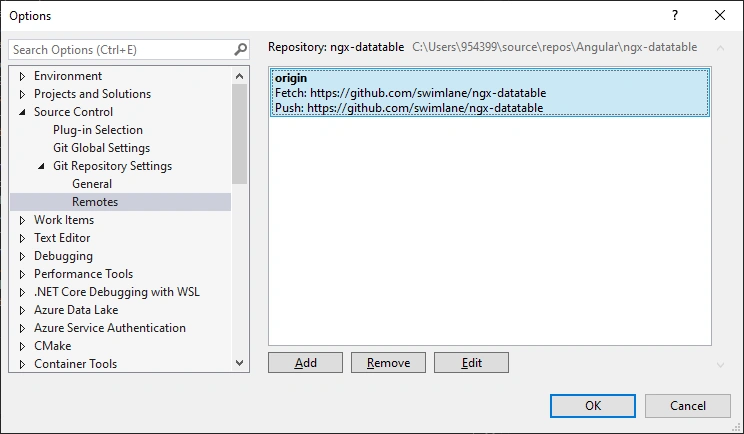
Change the origin to a new one:
Now, if we pull from the origin or push local to remote origin
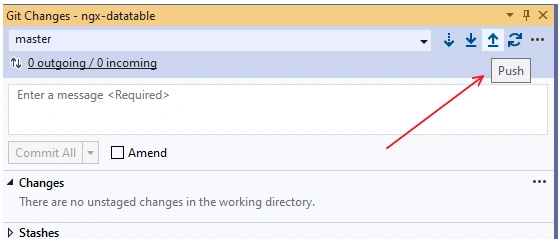
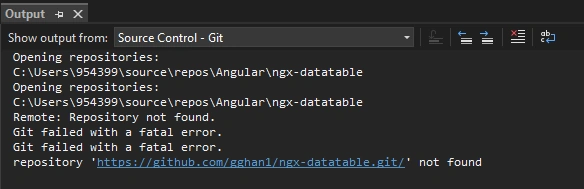
We will get error message: the repository not found, for Pull
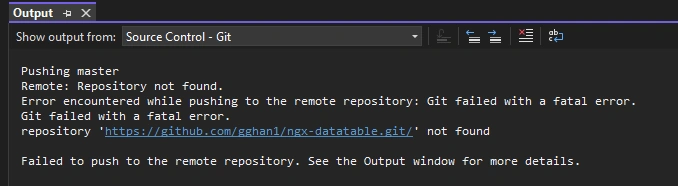
for Push
Create the Repository from GitHub
Click New button in GitHub
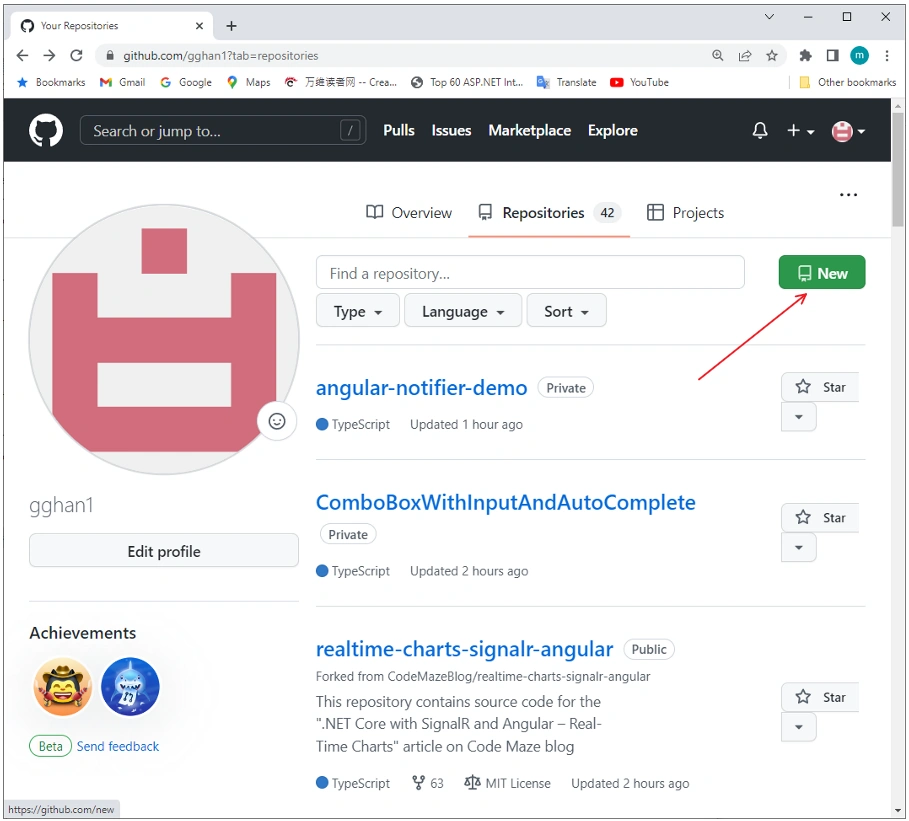
Creating a New Repository
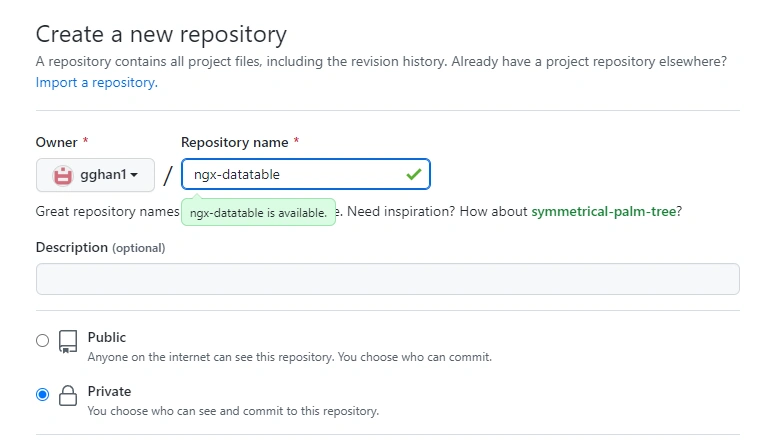
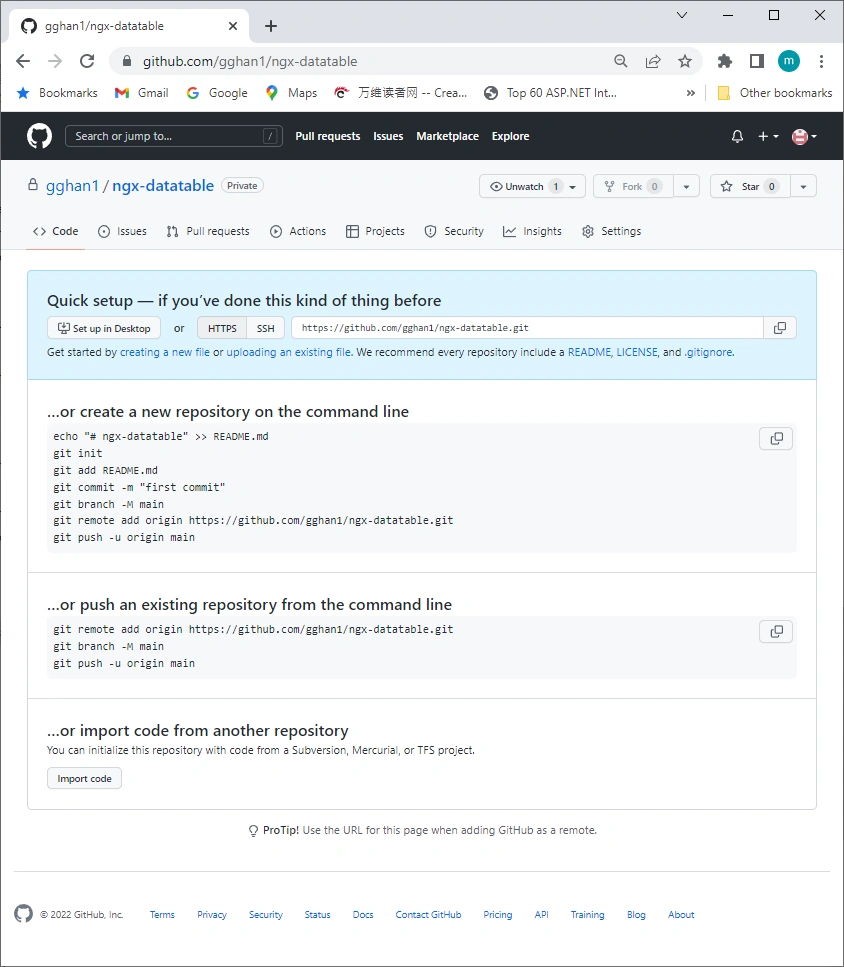
A new Repository is created
Then, Pull, we can see the error message said "Branch 'master' was not found in the remote repository
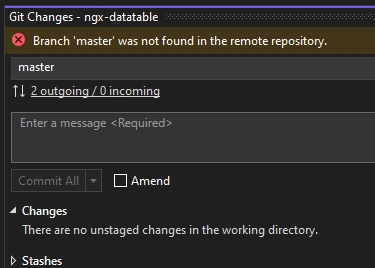
Push, the local repository will be saved into remote.
Join the conversation! Your thoughts help the community grow.