

Introduction
In this article, I am going to explain some important and useful formula to develop an app in PowerApp.
To fetch the user’s manager properties, first, we need to connect to the Office365Users to PowerApp.
Syntaxes
Mail - Office365Users.Manager(User().Email).Mail
(Where the User().Email is current login user’s email. You can use any other user’s email to get the one’s respected Manager)
Department - Office365Users.MyProfile().Department
Let’s say as an example, I want to show a setting button to only admins, not to the remaining users.
To achieve this, create a SharePoint list for admins, then set a condition on the visibility of a button to check if the user is available in the list to show the button.
Look at the below screenshot to understand better,
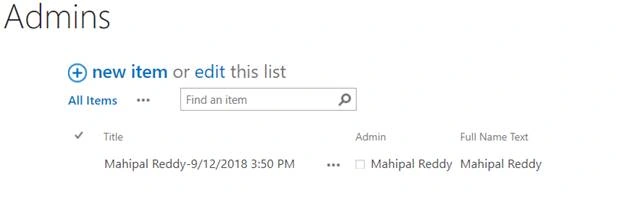


Visible - If(User().FullName in Admins.FullNameText, true, false)
onVisible of the screen,
For Current user,
- UpdateContext({
- CurrentUser: {
- '@odata.type': "#Microsoft.Azure.Connectors.SharePoint.SPListExpandedUser",
- Claims: "i:0#.f|membership|" & Lower(User().Email),
- Department: "",
- DisplayName: User().Email,
- Email: User().Email,
- JobTitle: ".",
- Picture: "."
- }
- });
For Manager,
UpdateContext({managerProfile - Office365Users.Manager(Office365Users.MyProfile().Id)})
On button click post the manager column as below,
onSelect
- Patch('MyList', Defaults('MyList'), {
- Manager: {
- '@odata.type': "#Microsoft.Azure.Connectors.SharePoint.SPListExpandedUser",
- Claims: "i:0#.f|membership|" & Lower(managerProfile.Mail),
- Department: managerProfile.Department,
- DisplayName: managerProfile.DisplayName,
- Email: managerProfile.Mail,
- JobTitle: managerProfile.JobTitle,
- Picture: User().Image
- },
- });
Update a particular record using Patch
Property - OnSelect,
Syntax
Patch('MyList', {ID:IDNum}, {Title: "My new title"})
Explanation
- Patch is a method to update a SharePoint list item, will be trigger onSelect or onChange of button
- ‘MyList’ is a list name
- ID is the SharePoint item’s Id where you want to update
- ‘Title’ is the columns internal name, which you want to update
- "My new title" is user input
To enable/disable a button based on selection:
Property - Display mode,
Syntax
If(IsBlank('MyList Box'.Selected.Value),DisplayMode.View,DisplayMode.Edit)
Explanation
- If Selection is Blank (No Selection), the button will be in disable mode (DisplayMode.View)
- If you select something from dropdown/list box, the button will become enabled (DisplayMode.Edit)
- Where the 'MyList Box' is the selection box
Whenever you are navigated from one screen to another screen based on selection of an item, the below syntax will be used to display the selected item’s property.
Syntax
someGallery.Selected.DisplayName (These are just to get some idea to implement in your applications)
Explanation
- Where the ‘someGallery’ is a gallery with full of list items
- ‘DisplayName’ is one of the properties of the selected item from the ‘someGallery’
Case - When you wish to navigate to a particular named screen from the current screen by clicking a button/Icon, put the below syntax on button’s onSelect property.
Property - onSelect,
Syntax
Navigate(SomeScreenName, ScreenTransition.None)
Explanation
- Where the ‘Navigate’ is an inbuilt function which will use to navigate the screen.
- ‘SomeScreenName’ is the destination screen where you wished to navigate.
- ‘ScreenTransition.None’ is one of the screens to navigate the motion style out of ‘Cover’ and ‘Fade’.
Case - When you want to post input form’s data to a SharePoint list on a particular button click.
Button’s Property - OnSelect,
Syntax
SubmitForm(AddedEditForm);NewForm(AddedEditForm)
Explanation
- Where the ‘SubmitForm’ and ‘NewForm’ are in-built functions which are useful to post data and reset to an empty form after submitting the data respectively.
- ‘AddedEditForm’ is a name of the input edit form, which is the user-defined name.
Case - When you want to delete a selected item from a list box by clicking on a button.
Button’s Property - OnSelect,
Syntax
Remove(MyList, First(Filter(MyList,EmpName=ListBox.Selected.EmpName)))
Explanation
- Where the ‘Remove’ is an inbuilt function which is useful to delete a selected item from the SharePoint list
- ‘MyList’ is a name of the SharePoint list.
- ‘EmpName’ is one of the column’s names and ‘ListBox.Selected.EmpName’ is one of the properties of the selected item from List Box which contains the list of items.
- Where ‘First(Filter(MyList, EmpName=ListBox.Selected.EmpName))’ is filtering the matched records from MyList to the selected item from the List Box. So that it helps to remove the particular item from the list
Button’s Property - OnSelect,
Syntax
Remove(MyList, First(Filter(MyList,ID=Gallery.Selected.ID)))
Explanation
- This is just similar to the above case, except, where we are removing the item by passing a particular ID.
Case - When you want to perform deletion on bulk records by clicking a button.
Button’s Property - OnSelect,
Syntax
ForAll(CollectionForRemove,Remove(MyList, First(Filter(MyList,ID= CollectionForRemove [@ID]))));
- ‘ForAll’ is an inbuilt method as similar to for loop in the JavaScript
- ‘CollectionForRemove’ is a collection of items which you want to delete
- ‘MyList’ is list name where you want to remove the collection of items from
- Where if Collections each record’s ID matched to ‘MyList’ item’s Id, then it will perform the deletion on the respected item.
Case - When you want to display particular categorized items in a gallery.
Gallery’s Property - Items,
Syntax
Filter(MyList,EmployeeName.DisplayName =User().DisplayName) (Where I’m filtering current user’s items)
Explanation
- ‘Filter’ is an inbuilt method used for filtering
- ‘MyList’ is a list name and ‘EmployeeName’ is a columns name, the ‘DisplayName’ is one of the properties of column ‘EmployeeName’
- ‘User().DisplayName’ is the name of the login user
- Where the gallery display only the records if the EmployeeName.DisplayName is matching with current login user’s name.
Case - When you wish to show only unique items on a Gallery/ListBox
Gallery’s Property - Items,
Syntax
Distinct(Filter(MyList,EmployeeName.DisplayName =User().DisplayName),EmployeeName.DisplayName)
Explanation
- ‘Distinct’ is an inbuilt method used for remove duplicate values
- ‘MyList’ is a list name and ‘EmployeeName’ is a columns name, the ‘DisplayName’ is one of the properties of column ‘EmployeeName’
- ‘User().DisplayName’ is the name of the login user
- As per syntax, it will check the unique names in the ‘EmployeeName.DisplayName’ column.
Case - When you want to display Current Date and Time on a label/text field
Label’s Property - Text,
Syntax
Now()
(Ex: DataCardAdminUserValue.Selected.DisplayName & "-" &Now())
Show the only Year,
Text(Now(), "[$-en-US]yyyy")
Set selected item Background colorCase - When you want to highlight selected item from a gallery
Gallery’s Property -TemplateFill,
Syntax
If(Year=SomeGallary.Selected.Year,
RGBA(255, 255, 255, 1),
RGBA(0,0,0,0)
)
Explanation
- ‘Year’ is a column of SharePoint list
- Where it gets highlighted when the list column Year and selected Year from the gallery are matched, else it will show the white color only (this means no fill).
Case - When you want to perform updating on bulk records by clicking a button
Button’s Property -OnSelect,
Syntax
ForAll(CheckedItems,Patch(ChecklistItemsSource,LookUp(ChecklistItemsSource, Id = CheckedItems[@Id]),{Status:"Done"}))
Explanation
- ‘ForAll’ is an inbuilt method similar to for loop in JavaScript
- ‘CheckedItems’ is a collection of items which you want to update
- ‘ChecklistItemsSource’ is list name where you want to update the collection of items from
- If each Collection record’s ID is matched to ‘ChecklistItemsSource’ item’s Id, then it will perform the update action on ‘Status’ column of the respective item with user input ‘Done’.
Case - When you want to perform update on a particular record by clicking a button
Button’s Property - OnSelect,
Syntax
Patch(MyList, {ID:SelectedId}, {Status: "Submitted"});
Explanation
This is just similar to the above case, except, where we are updating the item with user input ‘Submitted’ to Status column by passing a particular ID.
Case - When you want to get a particular item’s property from the collection using an index.
Property - any text/label,
Syntax
Last(FirstN(MyCollection, IndexValue)).ColumnName
(Ex: Last(FirstN(SomeCollection, 1)).ID
Last(FirstN(MyCollectionForEmployeeInfo, 3)).Employee.DisplayName
)
Explanation
- Where I’m getting ID of collection’s item where its index is 1
- Similarly , getting Employee’s display name from collection where its index is 3
Case - When you want to create a collection/Array with filtered items on a button click
Button’s Property:OnSelect/onChange,
Syntax
ClearCollect(UserDefinedCollectionName,Filter(‘ListName’,EmpName=Gallery.Selected.EmpName))
(Ex: ClearCollect(CollectionForselectedQuarter,Filter('Key Initiatives Quarters', YearsFromHeaders_3.Selected.Result = Year&&hrlw=AllAdmins.Selected.Result&&Quarter=Value(Dropdown2.Selected.Value))))
Explanation
- ‘ClearCollect’ is an in built method which will clear an array first then push items
- ‘CollectionForselectedQuarter’ is user defined collection Name
- Where the filtered items are pushing into the respected collection on a button click
Case - When you want to set condition with array length
Edit in advance mode
Syntax
For:Array length greater than 0,
@greater(length(body('Filter_array_1')), 0)
For:Array length is equals to 0,
@equals(length(body('Filter_array_2')), 0)
Expand/Collapse
Case - When you want to hide and show two icons, set variable and use as following:
- Icon1
onselect
UpdateContext({ExpandColapse: !ExpandColapse})visible
ExpandColapse
- icon2
onselect
UpdateContext({ExpandColapse: !ExpandColapse})
visible
Not(ExpandColapse)
- Item
Not(ExpandColapse&&thisItem.selected )
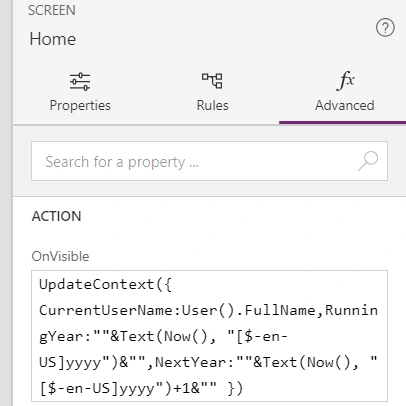
Case - Filter from entire list on page load
Property - Text,
Syntax
IsBlank(LookUp(MyList,EmployeeName=CurrentUserName&&Year=RunningYear,Employee.DisplayName))
Case: Set variable on an action
OnSelect/onChange
Set(ForUnique,"New Initiative"& "-" &Now());
Explanation
Case - When you want to reset form while using submission with patch methods
Property1: OnSelect,
Syntax
UpdateContext({ResetVar: true});UpdateContext({ResetVar: false})
Property2:Default,
ResetVar
This article will help us to develop any kind of customized applications with the help of the above formula. I hope we can achieve almost any kind of issues or required things with the help of those formulas. This will be helpful to those who want to start with PowerApp. Expect many more things related to Microsoft Flows in my coming articles.
Thank you.
Vinay AyinapurapuPosted Aug 7, 2020, 5:24 PM
Nice article and good reference