
Introduction: In this article we are going to explore how to animate all inputs which would appear as a form using jQuery. Here we are create some textbox as an input and some headers that will animate by clicking on the div element all the element will be considered hidden by applying css on them. We will display that inputs element at the clicking on the div element. In this article we are using css which will show an effective GUI for the displayed element. It shows that whenever you click on the div element it will animate like as something is down below which is known as sliding down of all input element, further let we explain it in broad that how we can build such type of application then you will have to follow the steps given below:
Step 1: Firstly we have to create a Web Application
- Go to Visual Studio 2010
- Open the Web Application
- Click OK.
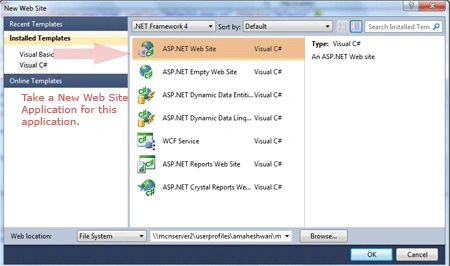
Step 2: Secondly you have to add a new page to the website
- Go to the Solution Explorer.
- Right Click o Project name.
- Select add new item.
- Add new web page and give it a name.
- Click OK.
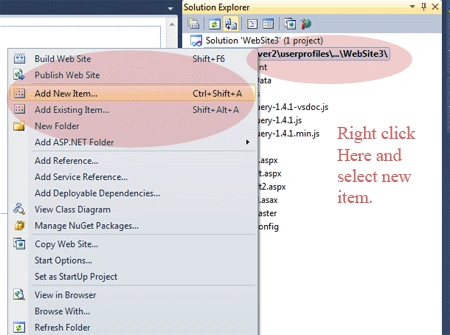
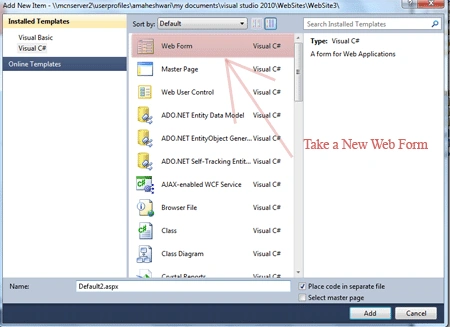
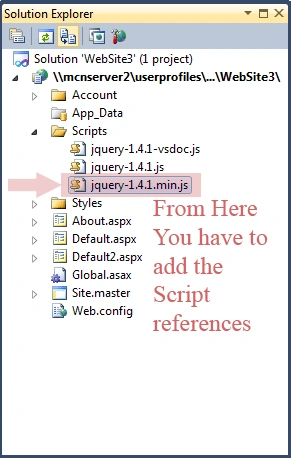
Step 3: In this step we are going to see that see from where the js reference will be added to the source page of the default2.aspx page.
Step 4: Now we are going to write the script code which will be inside either on the head section or in the body section it will depend upon you which way you like most to placed it.

Step 5: In this step we are going to write the style sheet code which will be placed inside the <head></head> section and should be written inside the <style></style> tags.
Code:
<style
type="text/css">
Div
{
background:#cfd;
margin:3px;
width:132px;
text-align:center;
float:left;
cursor:pointer;
border:2px
outset black;
font-weight:bolder;
}
input
{
display:none;
width:120px;
float:left;
margin:10px;
}
h1
{
display:none;
}
</style>
Step 6: Here in this step we will write the jQuery code
Code:
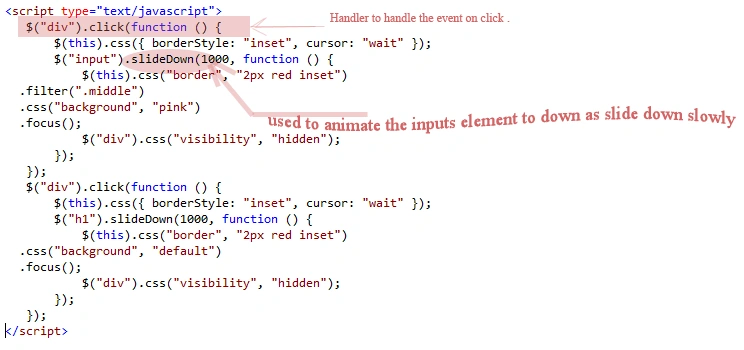
Code Description: In this jQuery code we are
taking a click handler by which we will handle all the events to slide down the
all inputs. The
.slideDown()
method animates the height of the matched elements. In this code we are using
the css utility that will be used to set the default and textbox color changed
to pink. $(this).css("border",
"2px red inset") is used to set the border of
the textbox as red with 2px width.This
causes lower parts of the page to slide down, making way for the revealed items.
Durations are given in milliseconds; higher values indicate slower animations,
not faster ones. The strings
'fast' and
'slow' can be supplied to indicate durations
of 200 and
600
milliseconds, respectively. If any other string is supplied, or if the
duration parameter
is omitted, the default duration of 400
milliseconds is used. The code
$("div").css("visibility",
"hidden"); which is used to invisible the div
element after clicking on that and will display all the inputs element.
Step 7: In this step we are going to write the complete code for the application let's see the code given below:
Code:
<%@
Page Language="C#"
AutoEventWireup="true"
CodeFile="Default2.aspx.cs"
Inherits="Default2"
%>
<!DOCTYPE
html PUBLIC
"-//W3C//DTD XHTML 1.0 Transitional//EN"
"http://www.w3.org/TR/xhtml1/DTD/xhtml1-transitional.dtd">
<html
xmlns="http://www.w3.org/1999/xhtml">
<head
runat="server">
<title>Input
form</title>
<style
type="text/css">
div {
background:#cfd;
margin:3px; width:132px;
text-align:center;
float:left;
cursor:pointer;
border:2px
outset black;
font-weight:bolder;
}
input {
display:none;
width:120px;
float:left;
margin:10px;
}
h1{display:none;}
</style>
<script
type="text/javascript"
src="Scripts/jquery-1.4.1.min.js"></script>
</head>
<body>
<div
style="font-family:
'Comic Sans MS'; font-size:
large; color:
#0000FF; background-color:
#FF6666">Click Me to open!</div>
<br
/>
<br
/>
<br
/>
<h1
style="font-family:
'Comic Sans MS'; font-size:
large; color:
#800000; background-color:
#C0C0C0">Enter first Name</h1>
<input
type="text"
/>
<br
/>
<br
/>
<br
/>
<h1
style="font-family:
'Comic Sans MS'; font-size:
larger; color:
#808000; background-color:
#FFCCFF">Enter Last Name</h1>
<input
type="text"
class="middle"
/>
<br
/>
<br
/>
<br
/>
<h1
style="font-family:
'Comic Sans MS'; font-size:
larger; color:
#FFFF00; background-color:
#0000FF">Enter User Id</h1>
<input
type="text"
/>
<br
/>
<br
/>
<br
/>
<h1
style="font-family:
'Comic Sans MS'; font-size:
larger; color:
#00FFFF; background-color:
#008080">Enter Password</h1>
<input
type="text"
/>
<script
type="text/javascript">
$("div").click(function
() {
$(this).css({ borderStyle:
"inset", cursor:
"wait" });
$("input").slideDown(1000,
function () {
$(this).css("border",
"2px red inset")
.filter(".middle")
.css("background",
"pink")
.focus();
$("div").css("visibility",
"hidden");
});
});
$("div").click(function
() {
$(this).css({ borderStyle:
"inset", cursor:
"wait" });
$("h1").slideDown(1000,
function () {
$(this).css("border",
"2px red inset")
.css("background",
"default")
.focus();
$("div").css("visibility",
"hidden");
});
});
</script>
</body>
</html>
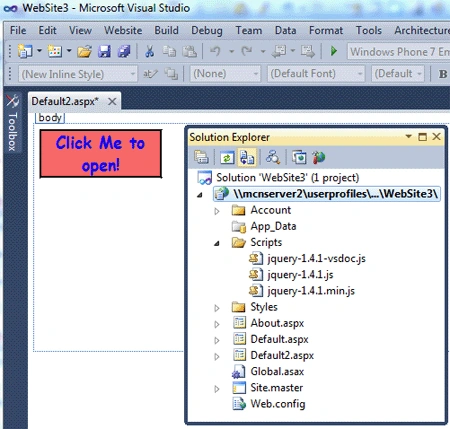
Step 8: In this step we are going to see the design window of the application as we know that we want to display all the input element a5t clicking on the div so because of that we have to hide all the element by using Style sheet properties, Let see how it looks like which is given below:
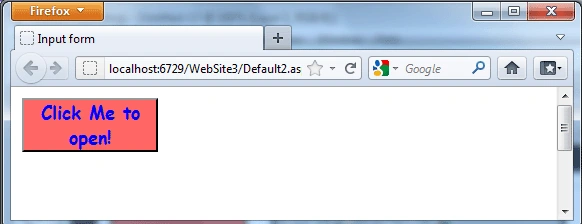
Step 9: In this step we are going to run the application by pressing F5 let see how it will appear after run tyhe application:
Output1: Before clicking of the div element
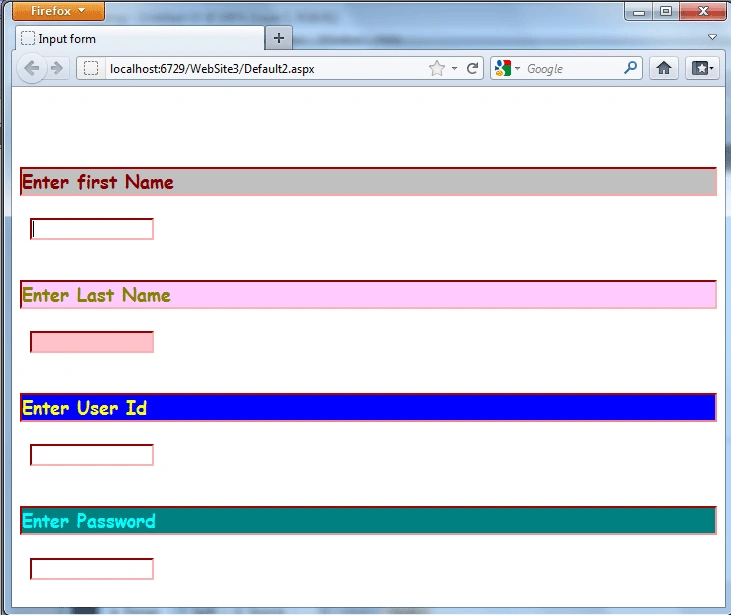
Output2: All the input element has been displayed after clicking on the div element
Gowtham RajamanickamPosted Apr 1, 2015, 4:34 AM
good