

SharePoint 2016 RTM, released by Microsoft, is another exciting version of SharePoint with a lot of improvements. The installation and configuration process is still the same as saw in SharePoint 2013 /2010 with the slight difference of the MinRole.
The MinRole v2 feature in SharePoint Server 2016 lets SharePoint Farm administrators assign each server’s role in a farm topology. The role of a server is specified when you create a new farm or join a server to an existing farm.
Before You Start
Before you start deploying SharePoint, I want to remind you about the the hardware and software requirement of SharePoint. We want to make sure that our servers meet the minimum requirement set by Microsoft. We are talking about the supported deployment scenarios.
Hardware Requirements.
As per Microsoft, you need a 64bit processor with 4 cores. Please see the table given below for the minimum hardware requirement for SharePoint Server 2016.
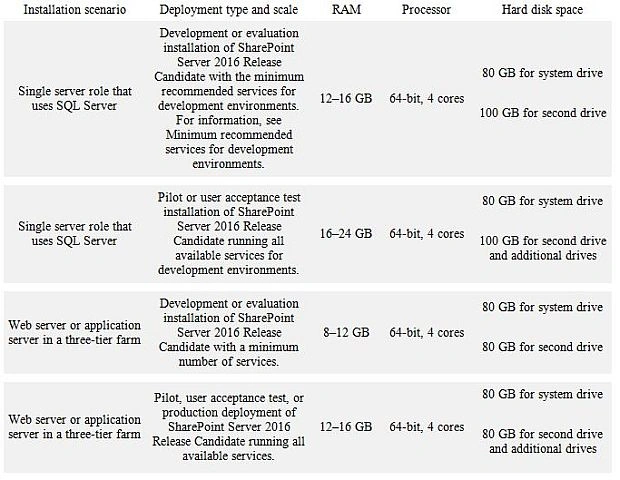
Software Requirements
Operating system for SharePoint Servers
- The 64-bit edition of Windows Server 2012 R2 Standard or Datacenter.
- Windows Server 2016 Technical Preview 4.
SQL Server
- The 64-bit edition of Microsoft SQL Server 2014 Service Pack 1 (SP1).
- The 64-bit edition of Windows Server 2012 R2 Standard or Datacenter.
Note
SQL Server Express is not supported anymore.
Prerequisites
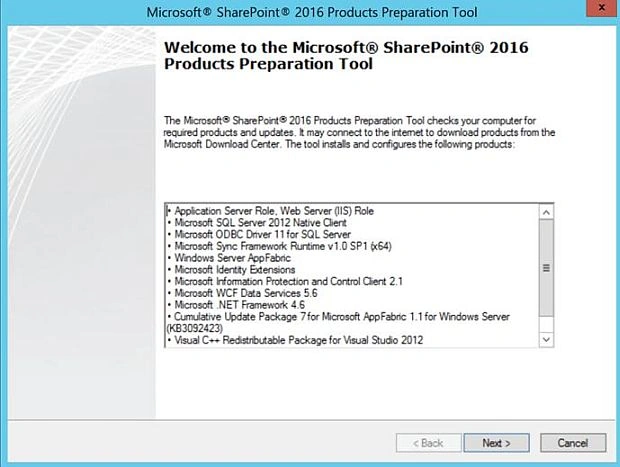
SharePoint Server 2016 prerequisite installer (prerequisiteinstaller.exe) installs the software given below, if it has not already been installed on the target server, in the order given below.
- Application Server Role, Web Server (IIS) Role
- Microsoft SQL Server 2012 SP1 Native Client
- Microsoft ODBC Driver 11 for SQL Server
- Microsoft Sync Framework Runtime v1.0 SP1 (x64)
- Windows Server AppFabric 1.1
- Windows Identity Foundation (KB974405)
- Microsoft Information Protection and Control Client 2.1
- Microsoft WCF Data Services 5.6
- Microsoft .NET Framework 4.6
- Cumulative Update Package 7 for Microsoft AppFabric 1.1 for Windows Server (KB 3092423)
- Visual C++ Redistributable Package for Visual Studio 2012
- Visual C++ Redistributable Package for Visual Studio 2015
Service Accounts
It is highly recommended to use the different service accounts with the least-privilege to install and configure SharePoint. This will enhance the security of the farm. As we are going to install a Single-Server Farm, we need at least 3 accounts (SQL, Setup A/C, FarmAdmin A/c).
| Account | Purpose | Requirements |
| SQL Server service account | SQL Server Service account is used to run SQL Server. It is the Service account for SQL Server services given below.
| Use domain user account. (Krossfarm\KF-SQL). |
| Setup user account (Install Account) | The Setup user account is used to run the following:
|
|
| Server farm account ( Farm Admin Account) | The Server farm account is used to perform the tasks given below.
|
|
Supported Scenario
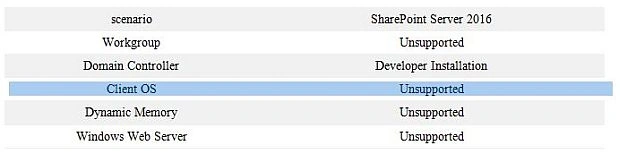
This type of installation is usually used for the developers. You can have SQL on the same server as well as using the separate SQL Server if this will be used in the production. I will go with the separate SQL Server approach (1 SharePoint server, 1 SQL Server) because it will give me more flexibility in the future if I want to add more SharePoint servers in the farm.
- Install the prerequisites.
- Install the SharePoint.
- Run the PSconfig wizard to setup the Farm.
- Post-Installation work.
Before processing the installation, please make sure that:
- SQL Server is installed (SQL server 2014 SP1 x64).
- Windows Server 2012 R2 x64.
- It is a clean installation (fresh OS).
- You have the installation media ready (downloaded on the one of Server’s drive or CD/DVD).
- Product Key for the SharePoint Server 2016.
- The account which will be used during the installation should have the proper permission.
- Disk drive space meets the minimum requirement
- Max degree of parallelism is set to 1 on the SQL Server.
- Server has access to the internet.
- You have disabled the antivirus during the installation and configuration.
- Make sure that Firewall is not blocking
- If Server is connected to the internet, you can use the prerequisite.exe and let the wizard install it.
- If your Server is not connected to the internet, then you can download all the prerequisites and install it, using the command line.
I will install it using the EXE.
- Browse to the media location and click on the ISO / Img file and select Mount.
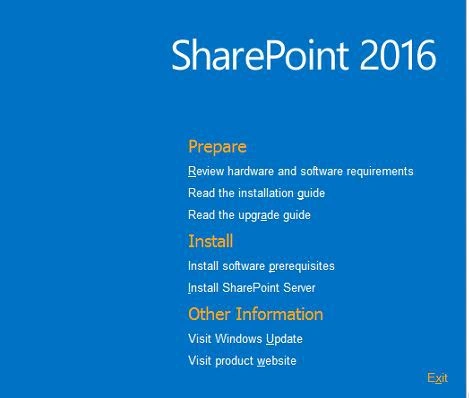
- It will autorun and a splash screen will appear, as shown below. Sometimes Autorun fails; if so click on the Splash.hta file on mounted drive’s folder
- On this page, click on Install Prerequisites.
- Click Next.
- Accept the License agreement and click Next.
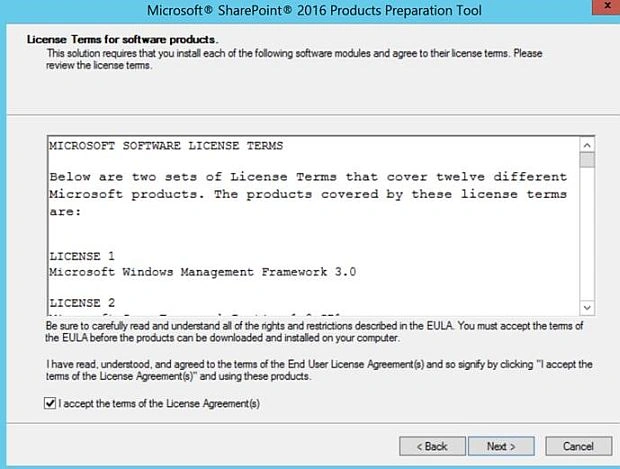
- Now, the installation of prerequisites starts. During this installation process, the server will ask for a restart.
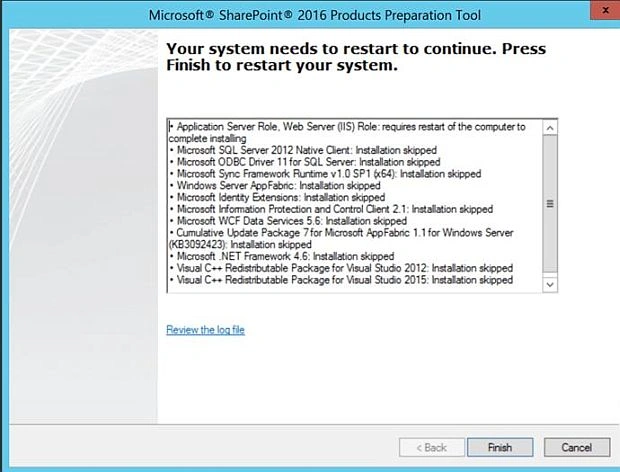
- Once the server reboots, sometimes the drive dismounts and you have to mount the drive again. On the splash screen, rerun the prerequisites.
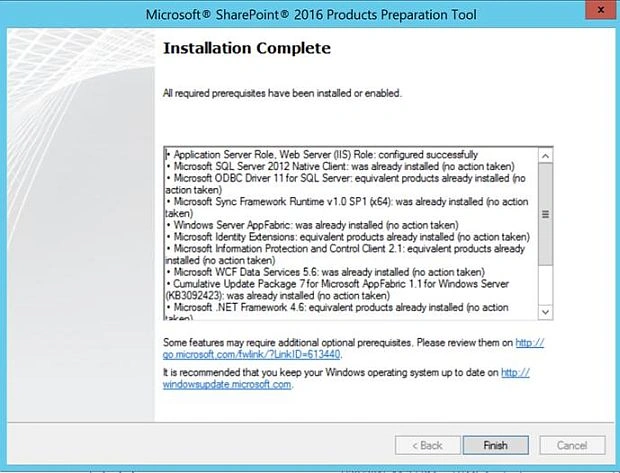
- Once all the prerequisites are installed, you will get an Installation Complete message. Click Finish.
- On the splash screen, click on Install SharePoint Server.
- Now, enter the SharePoint Server 2016 Key (the key shown below is the Trial Key.). Click continue.
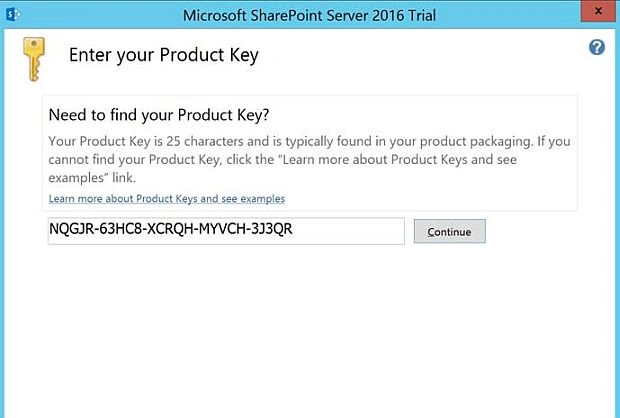
- Now, accept the Software Terms and click continue.
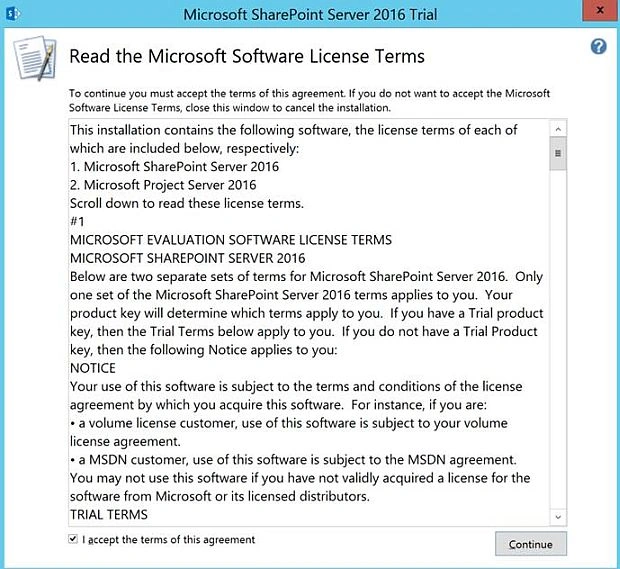
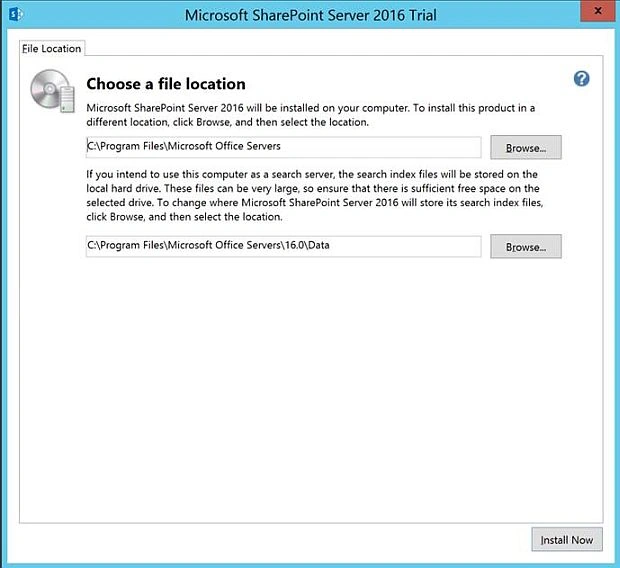
- On this screen, you can mention the location of SharePoint Installation. Click Install now.
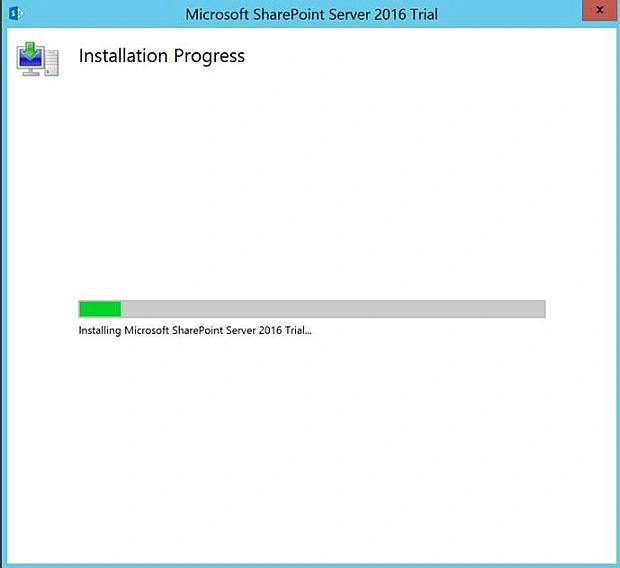
- This will start the installation of SharePoint.
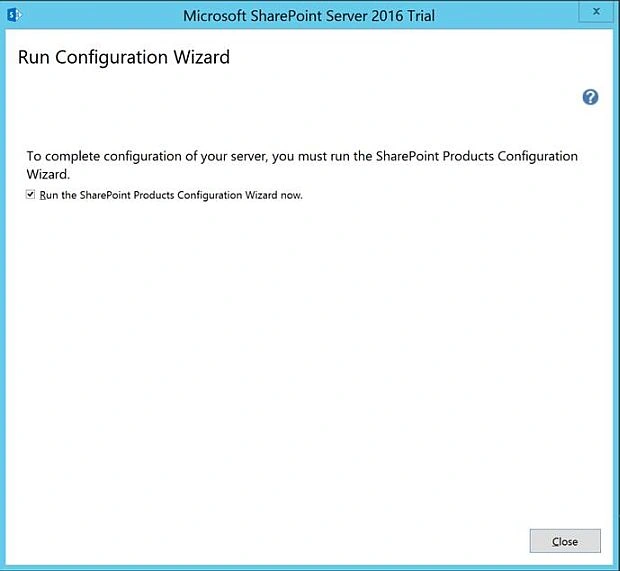
- Once it's installed successfully, you will get the screenshot given below.
Configure the SharePoint Server
- Click on SharePoint Products Configuration Wizard.
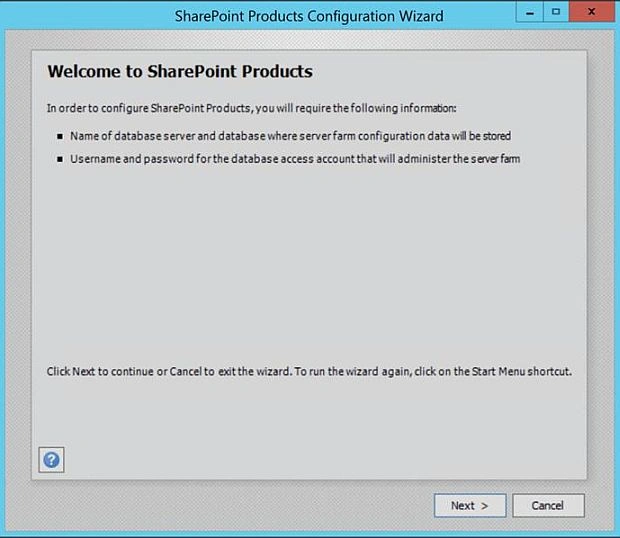
- On the Welcome to SharePoint Products Page, click Next.
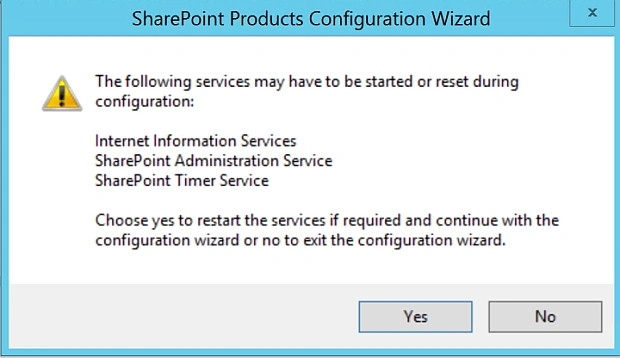
- Click Yes on the warning page ( I am not telling you about this warning).
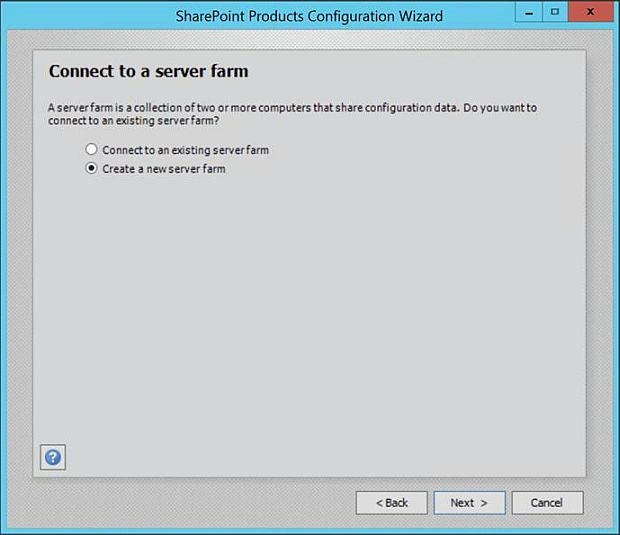
- Connect to Server Farm Screen. Please click Create a new Server Farm Radio Button and click Next.
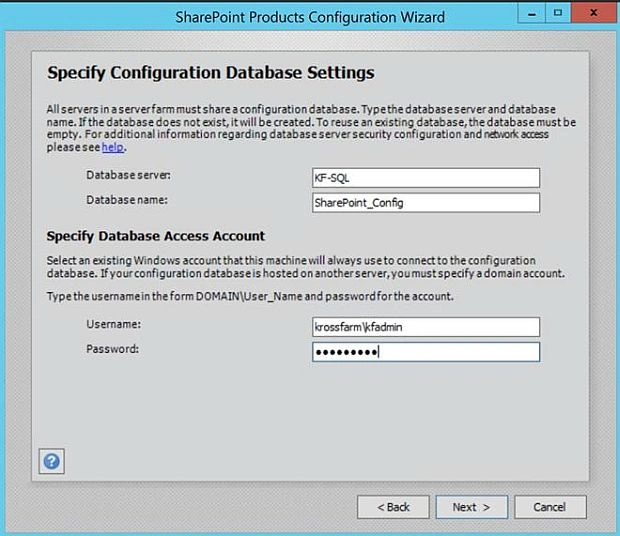
- On Configuration Database Windows, please provide the details given below.
- Database Server name.
- Database name (name of the Configuration database).
- UserName In the following format: domain\UserName( this should your farm admin account).
- Password for the account.
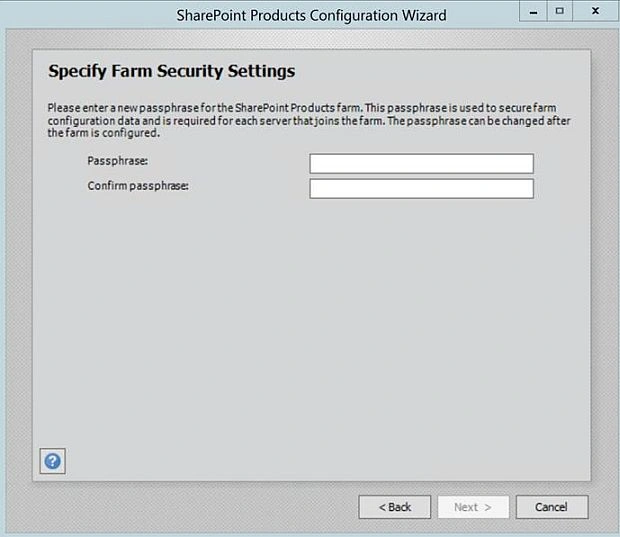
- Please specify the PassPhase ( write it down in some safe place, you need it if the new Server joins the farm). Click next.
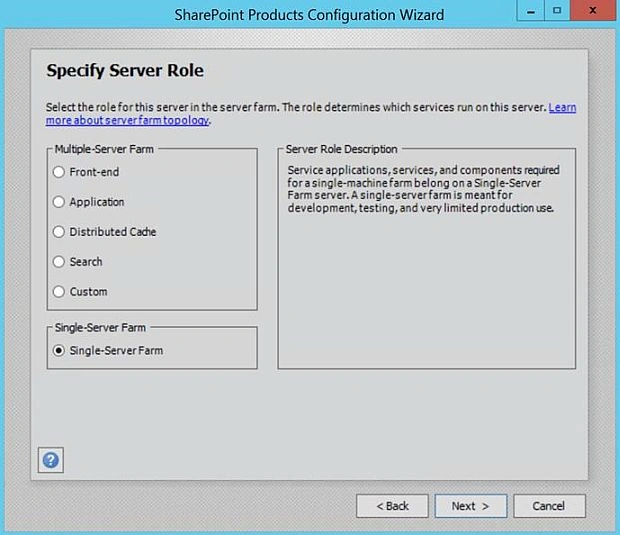
- As this is a Single Server Farm Configuration, please select Single Server Farm and click Next.
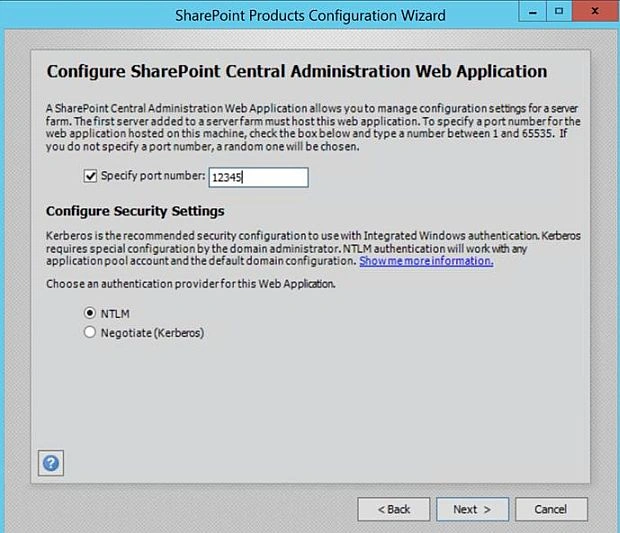
- Please specify the port number for Central Admin Website and click next.
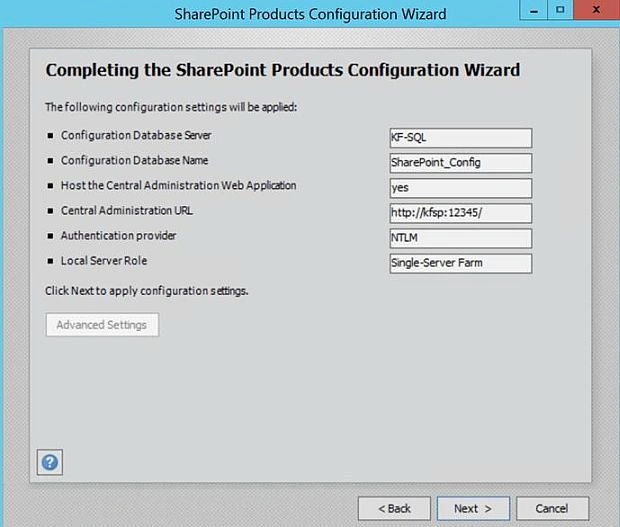
- On this page, please review the configuration and click next.
- Now, it will start configuring SharePoint.
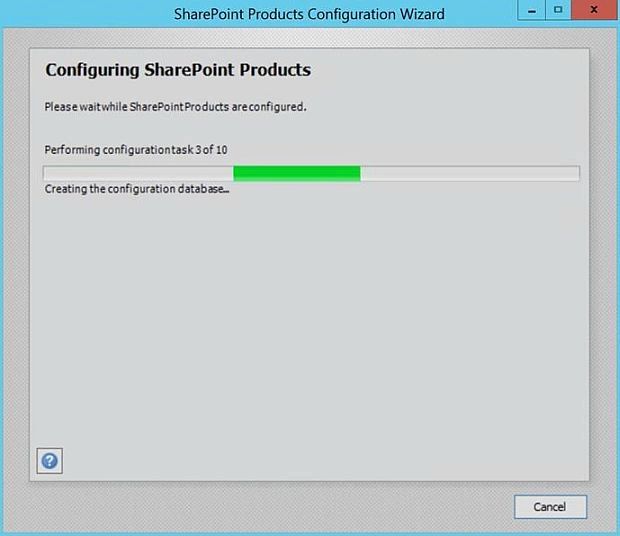
- Finally, you will get a successful screen.
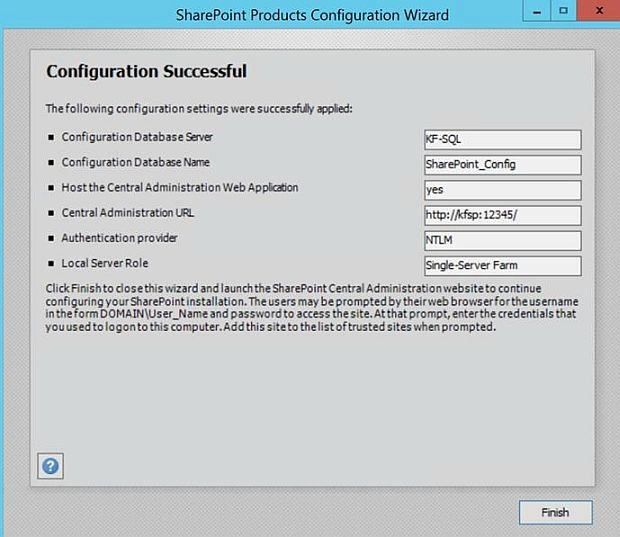
- Click Finish.
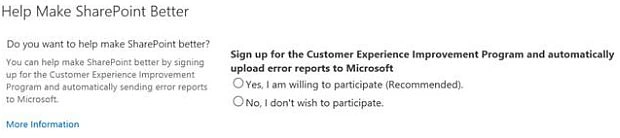
- Please select the appropriate options. I selected No and clicked OK.
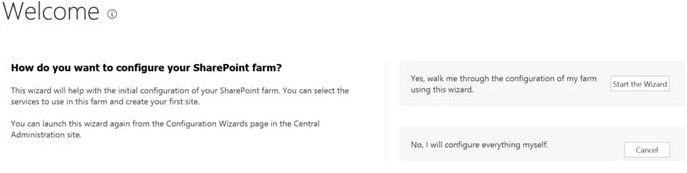
- On the Welcome screen, you have two options; i.e., either use the wizard and configure the Service Application or say No (Cancel) and do everything later. I will launch the wizard and only provision the StateService.Click on the Start of the wizard.
- Use the existing account, uncheck everything except the state Service and click Next.
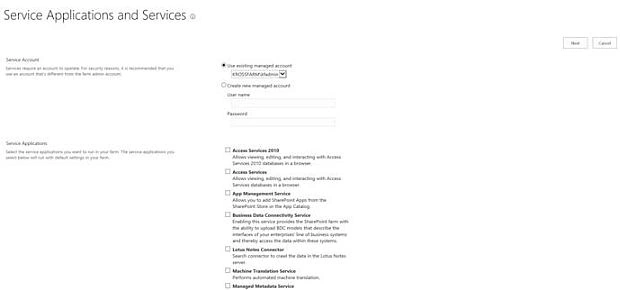
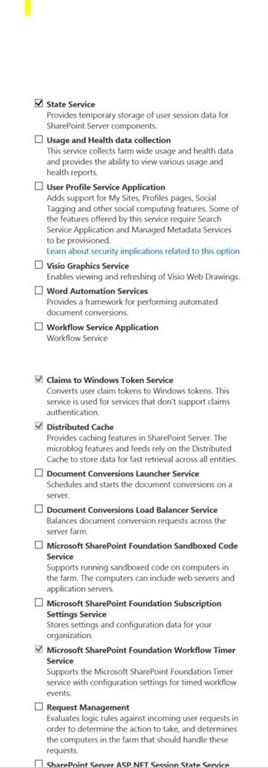
- It will take time as Config wizard will provision the Default Services as well as State Services (as we selected).
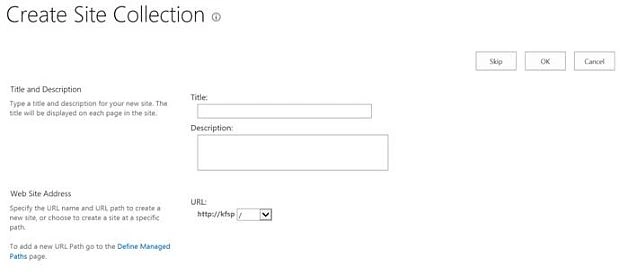
- During this process, it will create a new web application on the port and ask you to create the root site collection. You can skip this and complete the initial setup.
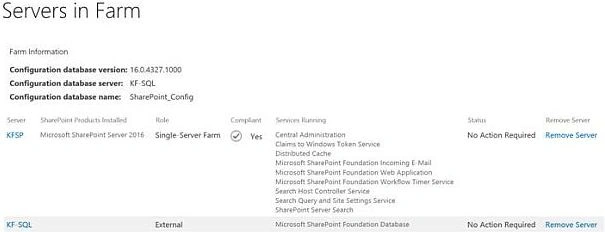
- Configure incoming E-mail.
- Configure diagnostic logging.
- Configure usage and health data collection.
- Configure Search settings.
- Configure the Workflow Manager.
- Exclude SharePoint folders from the antivirus.
Humayun Kabir MamunPosted Jan 5, 2017, 12:56 AM
Thanks you very much for this Installation help...