

Power Apps Overview
Power Apps is a suite of apps, services, connectors, and data platforms that provides a rapid application development environment to build custom apps for your business needs. More Details https://docs.microsoft.com/en-us/powerapps/powerapps-overview.
Power Fx is the low-code language that will be used across the Microsoft Power Platform. It's a general-purpose, strong-typed, declarative, and functional programming language.
The Sin function returns the sine of its argument, an angle specified in radians. The General syntax is Sin(Radians).
Reading this article, you can learn how to perform the Sin function from Power Fx using Microsoft Power Apps. Also, you will be able to learn Button control, Label control, and text input control in the Power Apps environment.
Step 1. Getting Started with Power Apps
Open the URL https://powerapps.microsoft.com/en-us/ in the browser for Power Apps, Create an account with your Organisation Mail ID, and log in, After login your Power Apps account.
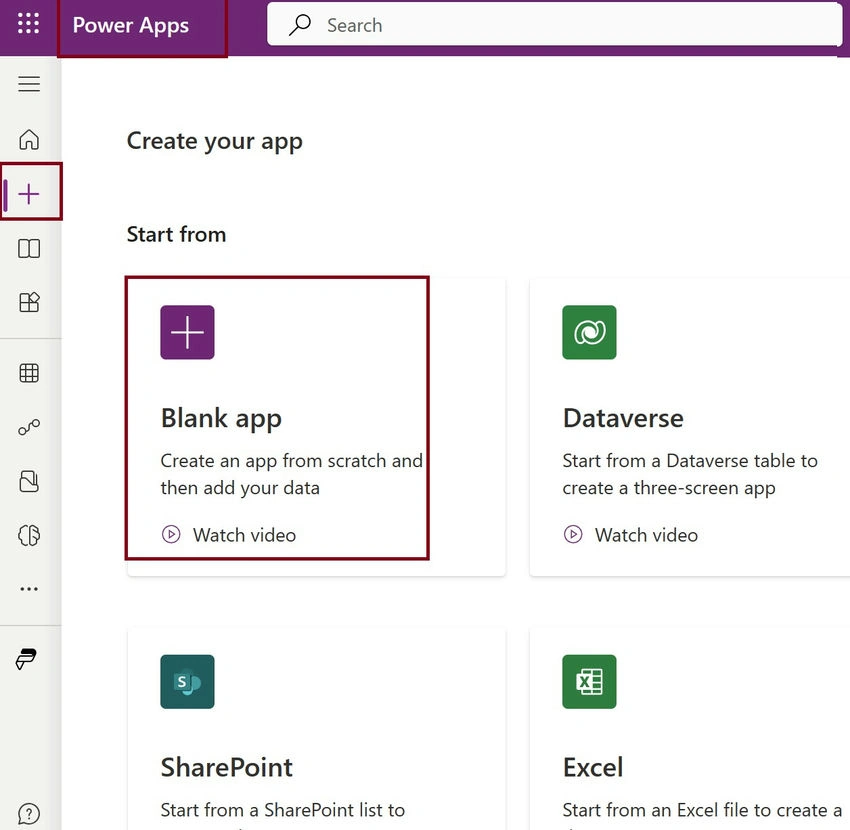
Step 2. Creating a Canvas App
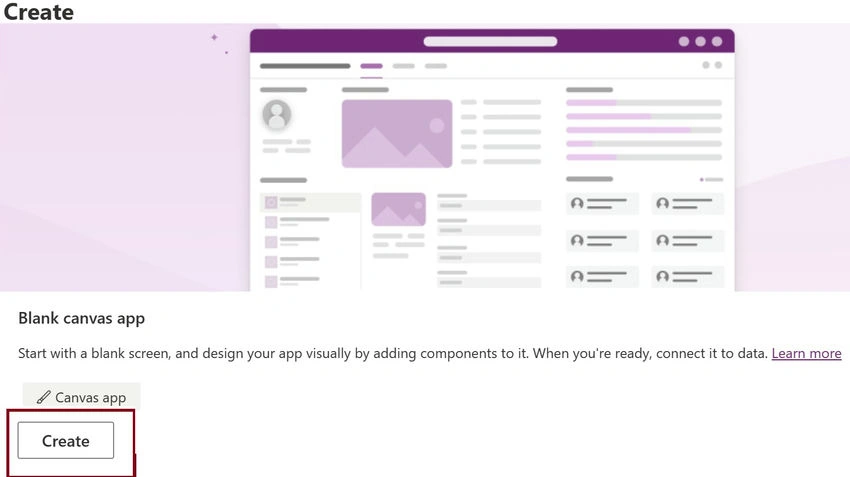
- First, Click Create (+ ) and Select the Canvas app from blank
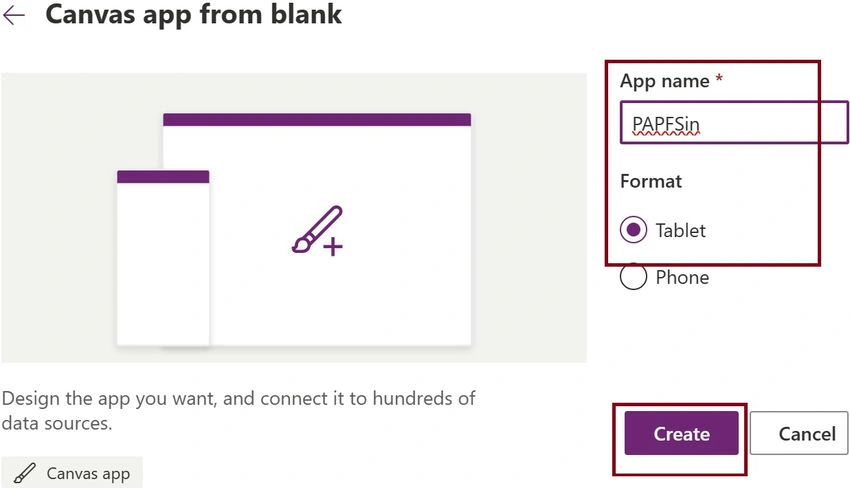
- Next, Give the App name as PAPFSin and the Format as Tablet
- Now, In the Power Apps studio environment, Select the Create a Form option.
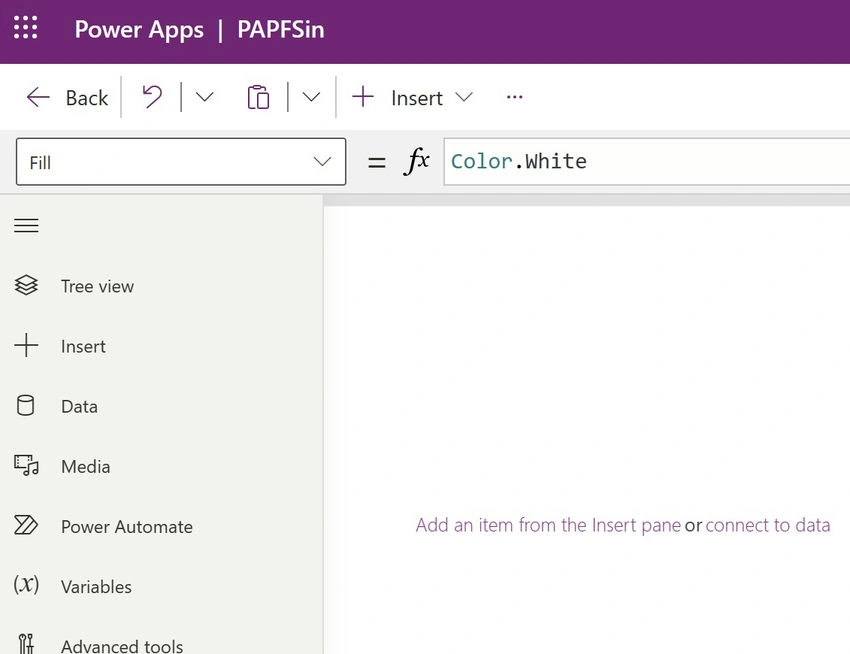
Step 3. Test the Power function
- To test the Power function, First Rename the Screen name as SCRPFx
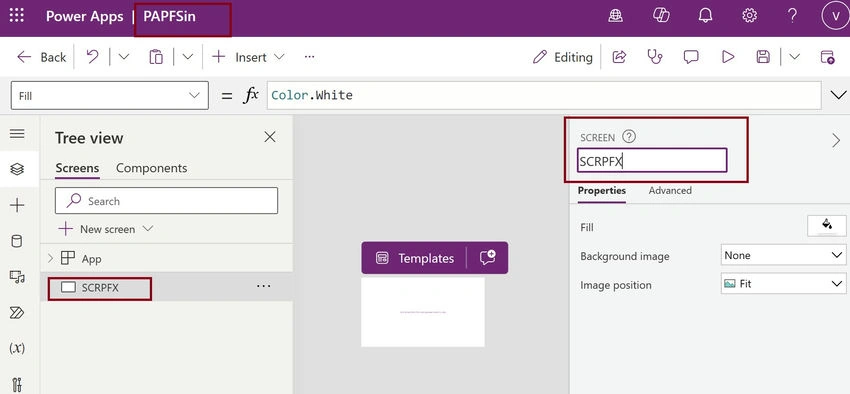
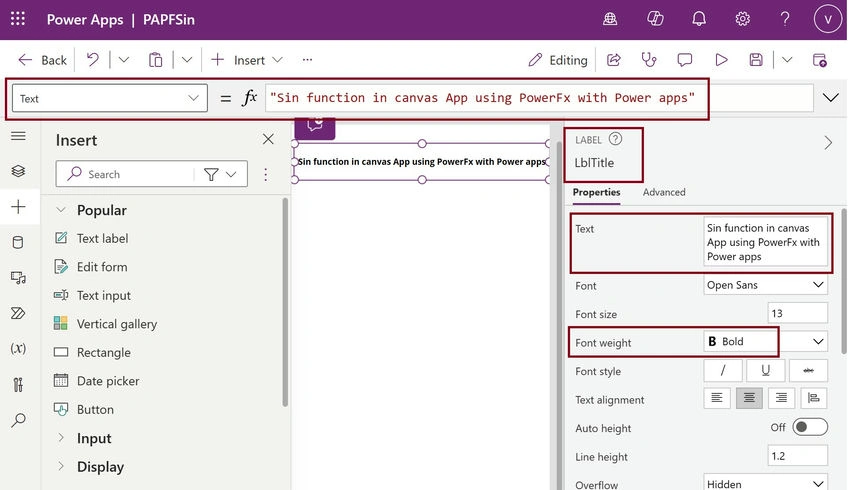
- Next, Insert a Label control and set the Name and Text property as LblTitle and Sin function in canvas App using PowerFx with Power apps
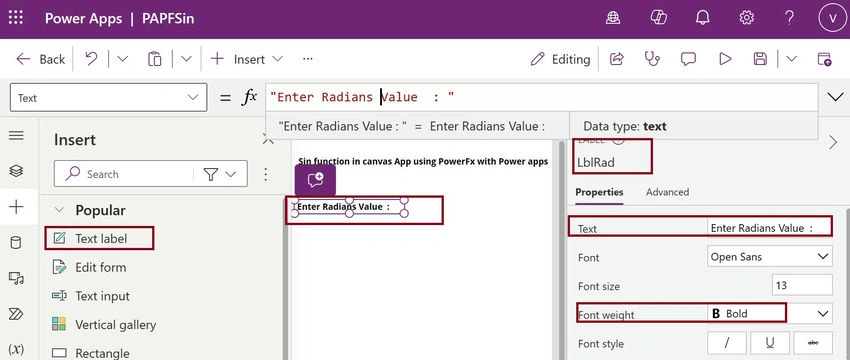
- Next, Insert a Label control and set the Name and Text property as LblRad and " Enter the Radians Value:"
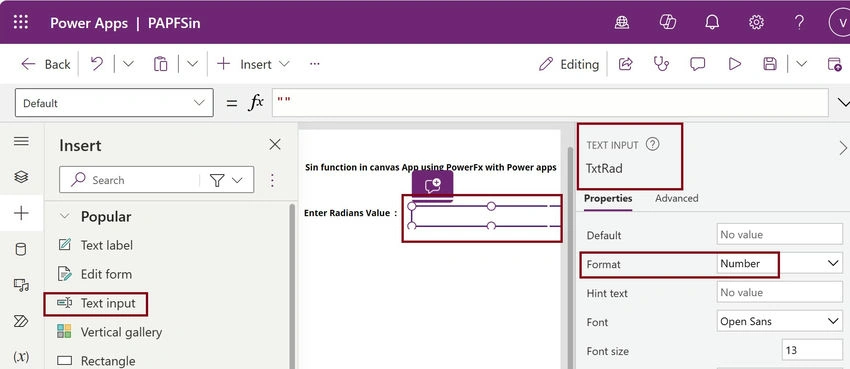
- Insert a TextInput control and set the Name property as TxtRad and Format property as Number.
- Insert a Button control and set the Name property as BtnCal and Text property as Calculate and set OnSelect action as UpdateContext({RES:(TxtRad)}); for testing Sin function in Power Fx
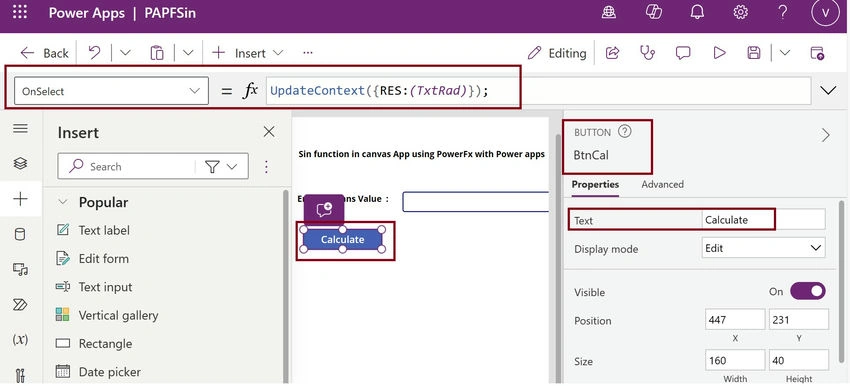
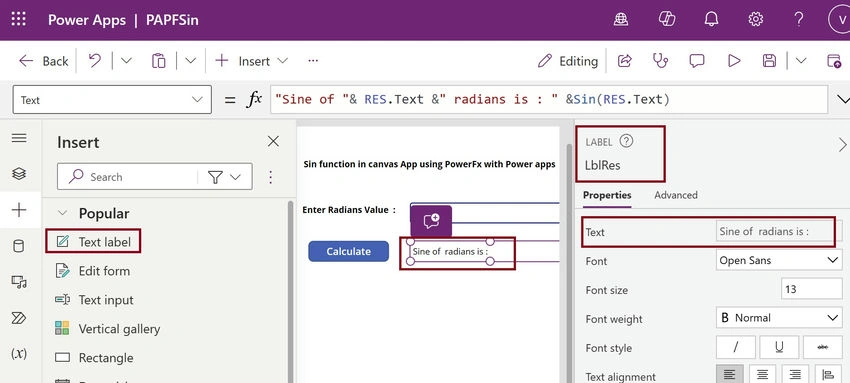
- Insert Label control and set the Name property as LblRes and Text property as "Sine of "& RES.Text &" radians is : " &Sin(RES.Text) for displaying Results
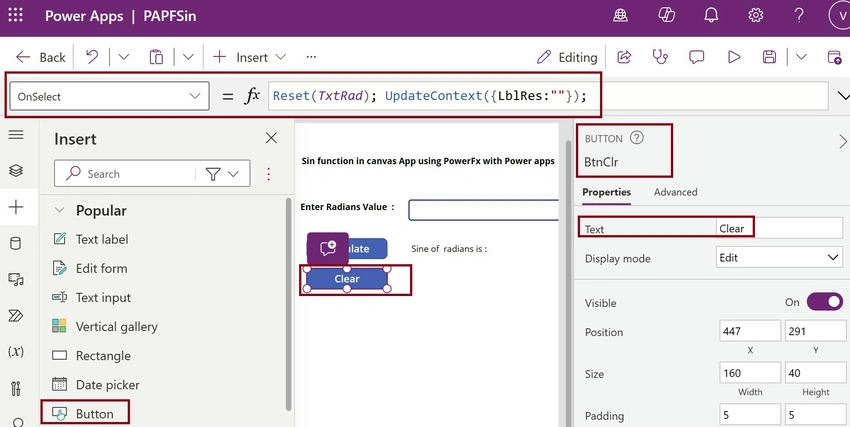
- Insert a Button control and set the Name property as BtnClr, Text property as Clear, and OnSelect Property in Action as Reset(TxtRad); UpdateContext({LblRes:"}); for reset the Textboxes and Result
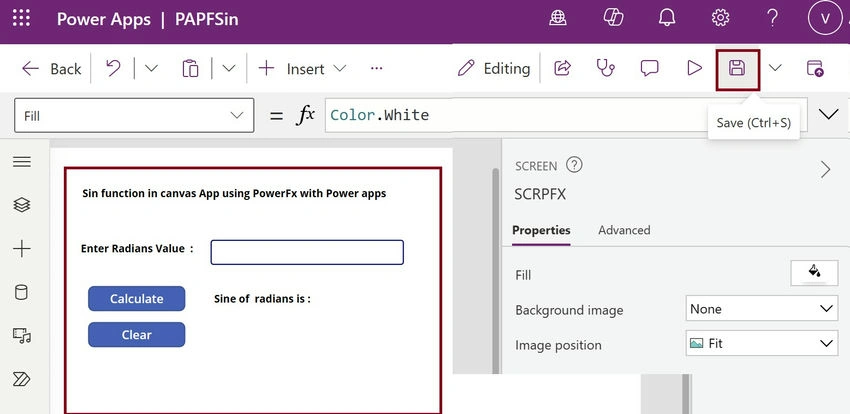
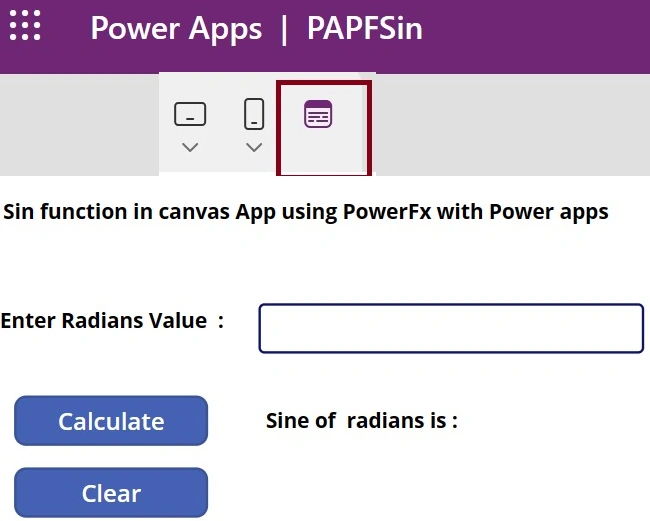
- Finally, the form design looks like this.
Step 4. Output of the PAPFSin
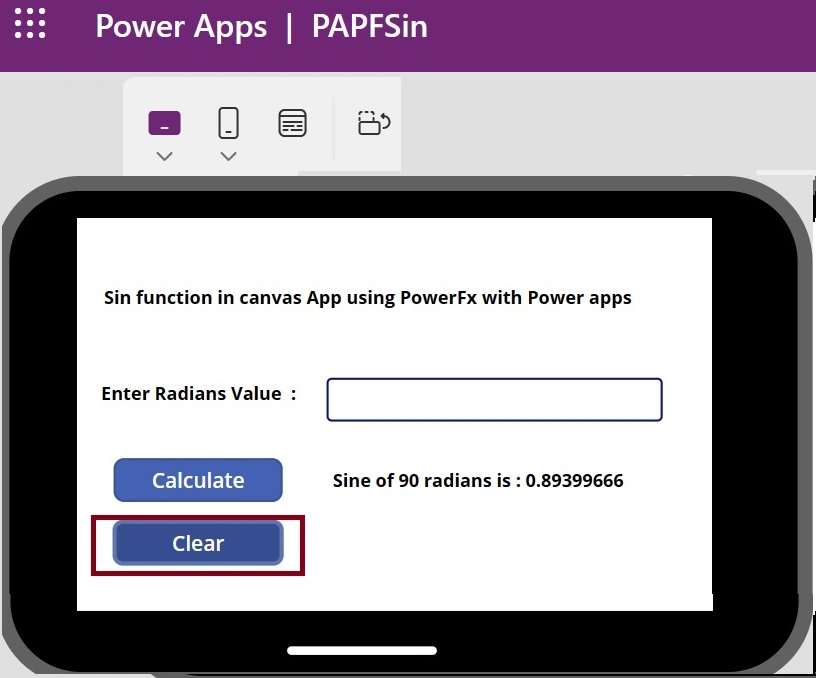
- Now we can see the preview of your App in Power Apps Studio, and The output of the PAPFSin is
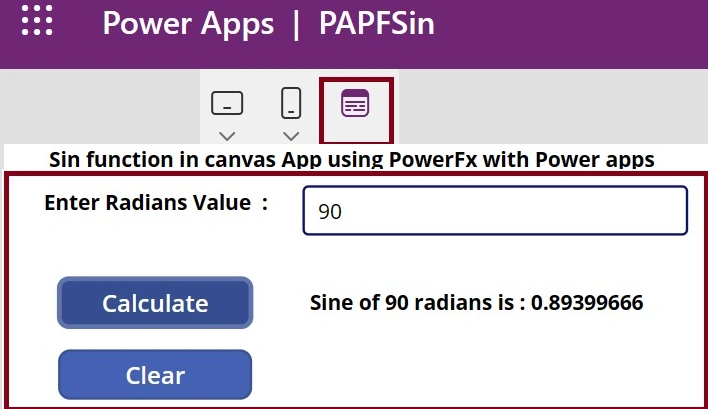
- After clicking the Calculate Button
- The Browser Display is
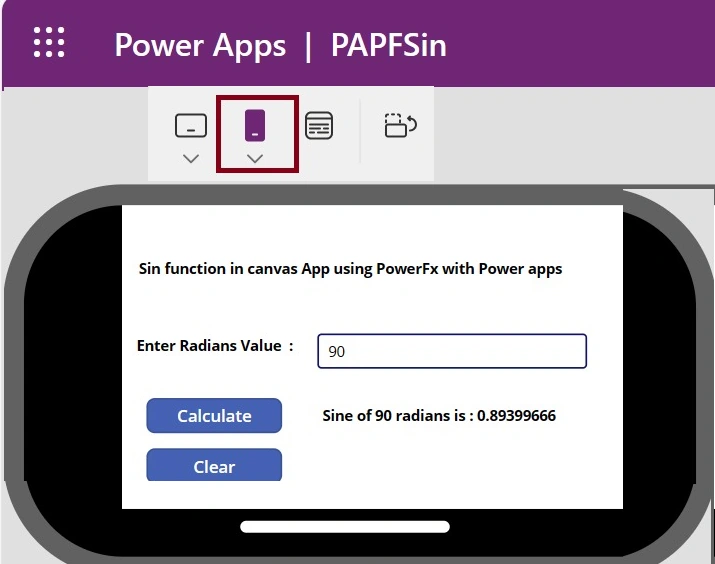
- The Apple iPhone Display is
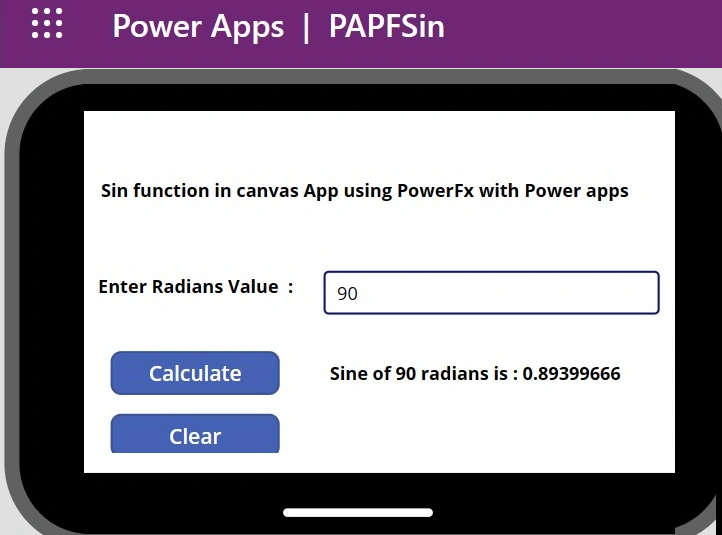
- The Tablet Display is
- After clicking the Clear Button
Summary
Now, you have successfully tested the Power Fx – Sin function in the Power Apps Studio environment.
Join the conversation! Your thoughts help the community grow.