

Here in this article you will learn how to create a simple calculator application using Mono for Android The calculator will have the following functionality:
- Addition
- Subtraction
- Division
- Multiplication
If you want to see how the XML is going to be built step by step you need to use DroidDraw it is a great tool for rapid prototyping of Google Android user interfaces, learn more and download DroidDraw from here (http://www.c-sharpcorner.com/Blogs/6006/droiddraw-for-android-applications.aspx).
Steps to create UI for Calculator
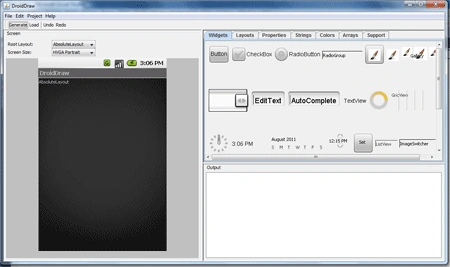
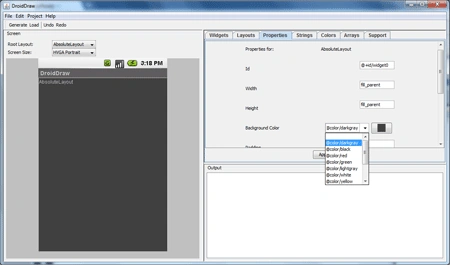
Step 2: By default it have AbsoluteLayout and we also using AbsoluteLayout here because AbsoluteLayout is using when we want to place each object in an absolute position on the screen. As per your requirement, if you want change the background color as I do here.
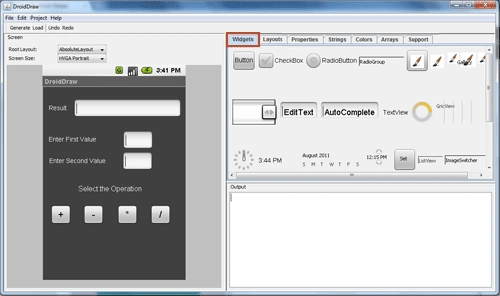
Step 3: Drag the TextView, EditView and Button Widget from the right panel and drop it in the left panel. We repeat this as many times as we need.
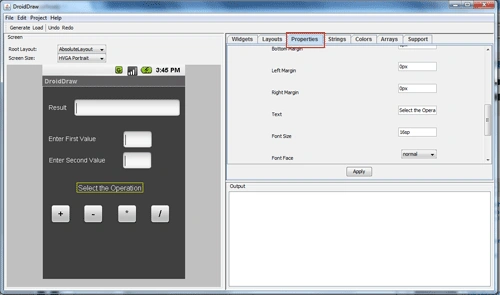
Step 4: Go to properties button and set the all required properties.
Step 5: Now generate the XML code of this UI by just pressing the "Generate" button in the "Output" panel. At this point the XML code will be shown.
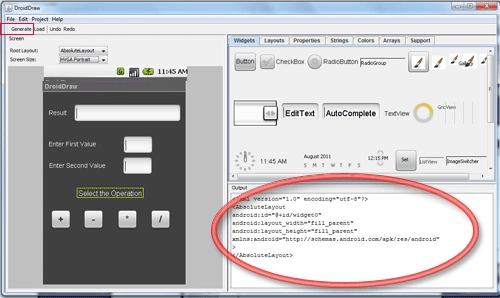
Step 6: Now copy this code and use it in our project.
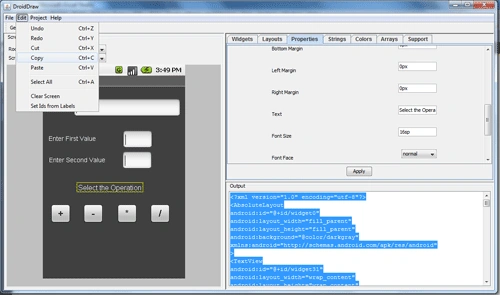
Steps to create Calculator in Mono for Android
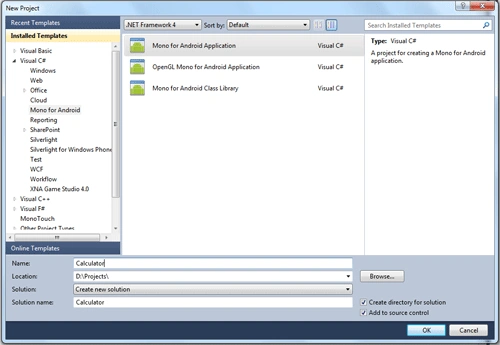
- Create a new Mono for Android application named "Calculator".
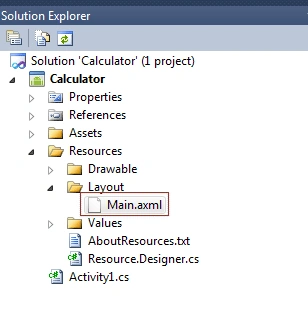
- Go to main.xml file inside Resources/Layout and overwrite all existing code by pasting the DroidDraw copied code.
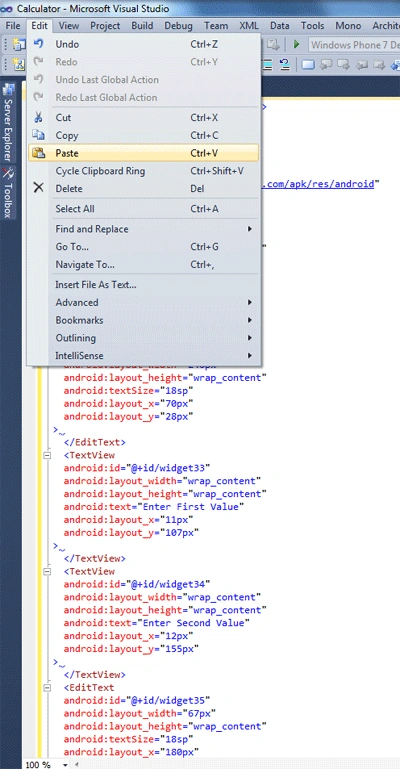
- Here is the complete code of main.xml file.
<?xml version="1.0" encoding="utf-8"?>
<AbsoluteLayout
android:id="@+id/widget0"
android:layout_width="fill_parent"
android:layout_height="fill_parent"
android:background="#808080ff"
xmlns:android="http://schemas.android.com/apk/res/android"
>
<TextView
android:id="@+id/Rlable"
android:layout_width="wrap_content"
android:layout_height="wrap_content"
android:textColor="#ffffffff"
android:text="Result"
android:layout_x="11px"
android:layout_y="37px"
/>
<EditText
android:id="@+id/Redittbox"
android:layout_width="240px"
android:layout_height="wrap_content"
android:textSize="18sp"
android:layout_x="70px"
android:layout_y="28px"
/>
<TextView
android:id="@+id/Fvalue"
android:layout_width="wrap_content"
android:layout_height="wrap_content"
android:text="Enter First Value"
android:layout_x="11px"
android:layout_y="107px"
/>
<TextView
android:id="@+id/Svalue"
android:layout_width="wrap_content"
android:layout_height="wrap_content"
android:text="Enter Second Value"
android:layout_x="12px"
android:layout_y="155px"
/>
<EditText
android:id="@+id/FVeditbox"
android:layout_width="67px"
android:layout_height="wrap_content"
android:textSize="18sp"
android:layout_x="180px"
android:layout_y="99px"
/>
<EditText
android:id="@+id/SVeditbox"
android:layout_width="67px"
android:layout_height="wrap_content"
android:textSize="18sp"
android:layout_x="179px"
android:layout_y="146px"
/>
<TextView
android:id="@+id/OPlable"
android:layout_width="wrap_content"
android:layout_height="wrap_content"
android:text="Select the Operation"
android:textSize="16sp"
android:layout_x="77px"
android:layout_y="216px"
/>
<Button
android:id="@+id/addition"
android:layout_width="46px"
android:layout_height="wrap_content"
android:text="+"
android:textSize="20sp"
android:layout_x="18px"
android:layout_y="266px"
/>
<Button
android:id="@+id/subtraction"
android:layout_width="46px"
android:layout_height="wrap_content"
android:text="-"
android:textSize="20sp"
android:layout_x="91px"
android:layout_y="266px"
/>
<Button
android:id="@+id/multiplication"
android:layout_width="46px"
android:layout_height="wrap_content"
android:text="*"
android:textSize="20sp"
android:layout_x="167px"
android:layout_y="266px"
/>
<Button
android:id="@+id/division"
android:layout_width="46px"
android:layout_height="wrap_content"
android:text="/"
android:textSize="20sp"
android:layout_x="241px"
android:layout_y="266px"
/>
<TextView
android:id="@+id/error"
android:layout_width="wrap_content"
android:layout_height="wrap_content"
/>
</AbsoluteLayout> - Now go to Activity1.cs file and inside the OnCreate() method we will creating and initialize all variables and create function for all theclick's.
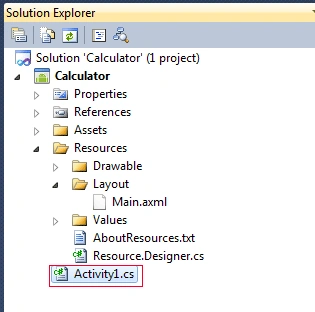
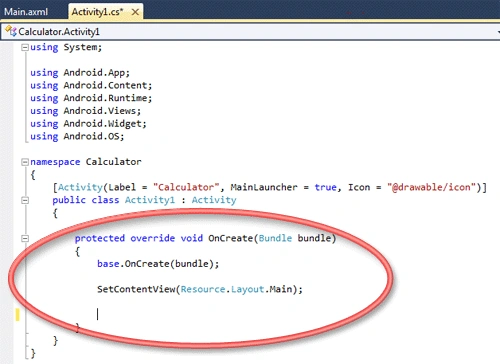
- First associate with all widget which we create in the XML code.
Button btnadd = FindViewById<Button>(Resource.Id.addition);
Button btnsub = FindViewById<Button>(Resource.Id.subtraction);
Button btnmult = FindViewById<Button>(Resource.Id.multiplication);
Button btndiv = FindViewById<Button>(Resource.Id.division);
EditText firstvalue = FindViewById<EditText>(Resource.Id.FVeditbox);
EditText secondvalue = FindViewById<EditText>(Resource.Id.SVeditbox);
EditText result = FindViewById<EditText>(Resource.Id.Redittbox);
TextView errormsg = FindViewById<TextView>(Resource.Id.error);
Here we create variable for all the widget's and associate this variable to the widget by using FindViewById<widget_type>(Resource.Id.widget_name).
- Now we create three variable for the operation's and create click event for all the buttons. Like the example below:
double a, b, c;
Button_name.Click += delegate
{
try
{
// To Do....
}
catch (Exception ex)
{
// To Do....
}
};
- Here is the complete code of Activity1.cs file.
using System;
using Android.App;
using Android.Content;
using Android.Runtime;
using Android.Views;
using Android.Widget;
using Android.OS;
namespace Calculator
{
[Activity(Label ="Calculator", MainLauncher =true, Icon = "@drawable/icon")]
public classActivity1 : Activity
{
protected override void OnCreate(Bundle bundle)
{
base.OnCreate(bundle);
SetContentView(Resource.Layout.Main);
Button btnadd = FindViewById<Button>(Resource.Id.addition);
Button btnsub = FindViewById<Button>(Resource.Id.subtraction);
Button btnmult = FindViewById<Button>(Resource.Id.multiplication);
Button btndiv = FindViewById<Button>(Resource.Id.division);
EditText firstvalue = FindViewById<EditText>(Resource.Id.FVeditbox);
EditText secondvalue = FindViewById<EditText>(Resource.Id.SVeditbox);
EditText result = FindViewById<EditText>(Resource.Id.Redittbox);
TextView errormsg = FindViewById<TextView>(Resource.Id.error);
double a, b, c;
btnadd.Click += delegate
{
try
{
a = double.Parse(firstvalue.Text);
b = double.Parse(secondvalue.Text);
c = a + b;
result.Text = c.ToString();
}
catch (Exception ex)
{
errormsg.Text = ex.Message;
}
};
btnsub.Click += delegate
{
try
{
a = double.Parse(firstvalue.Text);
b = double.Parse(secondvalue.Text);
c = a - b;
result.Text = c.ToString();
}
catch (Exception ex)
{
errormsg.Text = ex.Message;
}
};
btnmult.Click += delegate
{
try
{
a = double.Parse(firstvalue.Text);
b = double.Parse(secondvalue.Text);
c = a * b;
result.Text = c.ToString();
}
catch (Exception ex)
{
errormsg.Text = ex.Message;
}
};
btndiv.Click += delegate
{
try
{
a = double.Parse(firstvalue.Text);
b = double.Parse(secondvalue.Text);
c = a / b;
result.Text = c.ToString();
}
catch (Exception ex)
{
errormsg.Text = ex.Message;
}
};
}
}
}
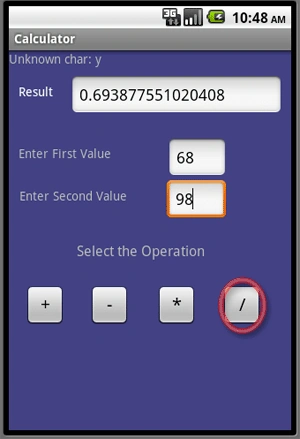
- Now Build and compile the application, the output looks like the below picture.
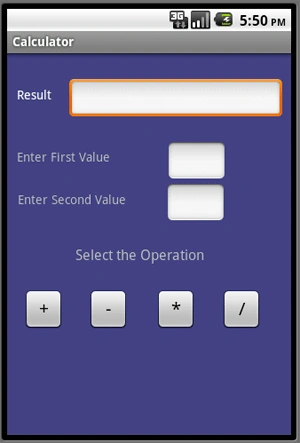
Now enter the both values
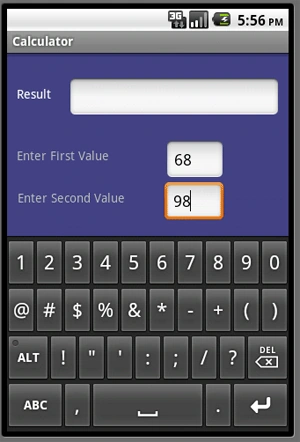
Now select operation
which you want to perform, like I select Addition first and the result will come
out in the Result EditBox
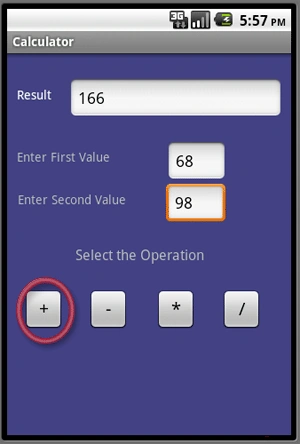
Now select Subtraction and result will change
to subtracted result
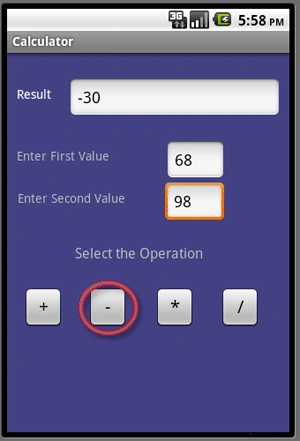
Now select Multiplication the multiplication of
both values will shows
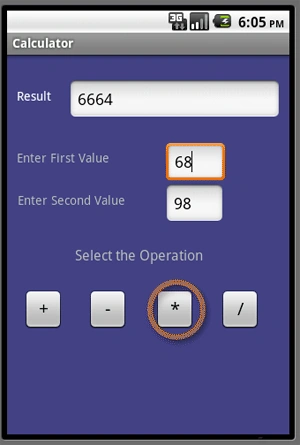
Now click on Division sign the output will
comes in result box
Hope you like this article. Post your
inspirational comments and feedback so that I can improve myself.
Thank You,
Muhammad Azeem RanaPosted Feb 16, 2013, 8:28 AM
Hi...i need MONO FOR ANDROID.plz mail me.i will be very thankful to u.if any one of you have any idea how get this plz mail me on this ID: [email protected]
arosak arashPosted Oct 13, 2012, 5:57 PM
hi i am amator pleaze help for create app keybord for android tnx
Kapil MotiyaniPosted Jun 19, 2012, 3:13 PM
hey manish i hv read ur article n made calculator bt wen i build d soln i got d error "Could not locate Android SDK."... So, how 2 locate android SDK cn u help me out??? my email id is [email protected].
mahesh kumar B MPosted Oct 10, 2011, 9:02 AM
hey manish, definitely its a nice article for a beginer..tell me one thing how to deploy this application after developed using vs2010 to our android mobile.
Hemant BohraeditedPosted Aug 13, 2011, 1:10 AMEdited Aug 13, 2011, 1:13 AM
heyy..manish..i liked ur article very much..it gives me inspiration to develop apps..thanx.. i want to know more about developing and also can u mail me some reference ebooks from which u hav studied.. My email id is [email protected]
KayleighPosted Aug 2, 2011, 11:28 AM
Hi, Manish it looks so interesting to work on Android after reading article. Plz keep going...