

In my previous article, we learned how to bind a combobox directly with the enum. However, while binding a combobox with enum, one can face a common problem that enum values are not user-friendly for display. So here, we will learn a way to show user-friendly enum names to end users.
Please note that here, I have considered the implementation mentioned in the previous article, so please check that first before going further.
Step1
Update “EnumClass” as mentioned below.
- using System.ComponentModel;
- public static class EnumClass
- {
- public enum Positions
- {
- Fresher = 1,
- [Description("Entry Level")]
- EntryLevel = 2,
- Junior = 3,
- [Description("Mid Level")]
- MidLevel = 4,
- Senior = 5,
- [Description("Team Lead")]
- TeamLead = 6,
- [Description("Project Manager")]
- ProjectManager = 7
- };
- }
As you can see here, we have added user-friendly description text for some of the enum values.
For Example, “EntryLevel” text is less user-Friendly then “Entry Level” for display.
Here, we have to add reference of “System.ComponentModel” namespace into the EnumClass File to define “Description” attribute above enum value.
Step 2
Now, we will implement IValueConverter to display enum description instead of enum value. For that, create a class called EnumDescriptionConverter as mentioned below.
- using System;
- using System.ComponentModel;
- using System.Globalization;
- using System.Reflection;
- using System.Windows.Data;
- public class EnumDescriptionConverter : IValueConverter
- {
- private string GetEnumDescription(Enum enumObj)
- {
- if (enumObj == null)
- {
- return string.Empty;
- }
- FieldInfo fieldInfo = enumObj.GetType().GetField(enumObj.ToString());
- object[] attribArray = fieldInfo.GetCustomAttributes(false);
- if (attribArray.Length == 0)
- {
- return enumObj.ToString();
- }
- else
- {
- DescriptionAttribute attrib = attribArray[0] as DescriptionAttribute;
- return attrib.Description;
- }
- }
- object IValueConverter.Convert(object value, Type targetType, object parameter, CultureInfo culture)
- {
- Enum myEnum = (Enum)value;
- if (myEnum == null)
- {
- return null;
- }
- string description = GetEnumDescription(myEnum);
- if (!string.IsNullOrEmpty(description))
- {
- return description;
- }
- return myEnum.ToString();
- }
- object IValueConverter.ConvertBack(object value, Type targetType, object parameter, CultureInfo culture)
- {
- return string.Empty;
- }
- }
We are going to use this converter with binding. In addition, this converter will return description string to bound control instead of original enum value if defined.
Step 3
Now, we will move to XAML part to apply this converter with binding to display description instead of original enum value. First, we will add reference of implemented IValueConverter as a resource as mentioned below to use it in XAML file.
- <Window.Resources>
- <local:EnumDescriptionConverter x:Key="descConverter"></local:EnumDescriptionConverter>
- </Window.Resources>
Then as per the previous article, we have bound combobox with enum values as mentioned below.
- <ComboBox Height="25" ItemsSource="{Binding Source={StaticResource enmPositions}}" Margin="10,2,10,0"></ComboBox>
Now, we will add converter with ItemSource as mentioned below,
- <ComboBox Height="25" ItemsSource="{Binding Source={StaticResource enmPositions}}" Margin="10,2,10,0">
- <ComboBox.ItemTemplate>
- <DataTemplate>
- <TextBlock Text="{Binding Converter={StaticResource descConverter}}"></TextBlock>
- </DataTemplate>
- </ComboBox.ItemTemplate>
- </ComboBox>
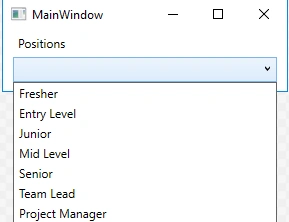
That is it; we are done with the implementation. Run the project and see the result. It should be as mentioned in the below screenshot.
maha lakshmiPosted Aug 8, 2018, 1:40 PM
Nice ...liked it