

Introduction
In this article I will explore:
- How to enable a RSS feed for a Site Collection
- How to enable a RSS feed for a Site
- Configure RSS feed setting to the List / Library
How to enable RSS feed for Site Collection
To enable the RSS feed available for an entire site collection a Site Collection Administrator permission is required.
This can be enabled at the root site of each site collection.
To navigate to RSS Settings page:
- Click Settings icon > Site Settings
If you are in a sub-site, click “Go to top level Site Settings” under Site Collection Administration page.
- Click RSS link under “Site Administration”.
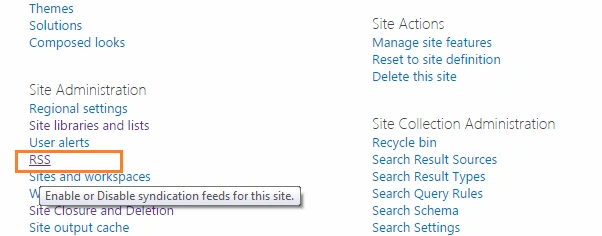
- This will redirect the user to the RSS Settings page (siterss.aspx).
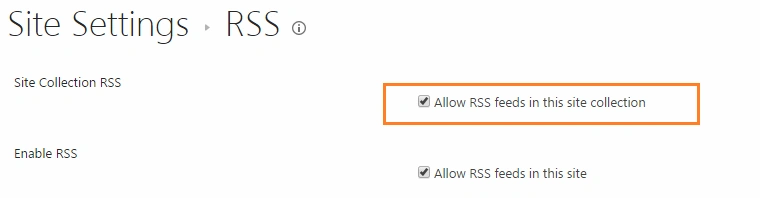
- Enable the “Allow RSS feeds in this site collection” check box.
- Click OK to enable the RSS option for the entire site collection.
How to enable the RSS feed for Site
To enable a RSS feed for the site, the user must have Site Owner permission. This can be enabled from any site / sub site.
Navigate to the Site Settings Page then:
- Click the Settings Icon then select Site Settings
- Click RSS link under Site Administration
- In the RSS settings page, enable the “Allow RSS feeds in this site” check box

- Click OK to apply the RSS feed for the specific site. This option will enable the RSS Configuration for a list / library for the site.
Configure RSS feed for List / Library
We can manage the following items for a RSS feed for a library / list.
- List RSS
- RSS Channel Information
- Document Options (available only for Library types)
- Columns
- Item Limit
List RSS - Enable RSS to the list
- Select the “Yes” radio button for “Allow RSS for this list?”
- Click OK to enable the RSS feed for the list

RSS Channel Information – Title and Description for the RSS feed
- Enter the following information.
Field Description Truncate multi-line fields to 256 character? Yes – Limit the maximum character should be under 265 for the RSS description
No – Show the full textTitle Title for the RSS Feed Description Description for the RSS Feed Image URL Image URL Image to be available for RSS feed 
- Click OK to apply the RSS Channel settings
Document Options: Configure links and enclosure documents
A library has this additional configuration to apply the settings for links and enclosed documents. A list doesn't have these settings.
- Select “Yes” in “Include file enclosures for items in the feed” to show the enclosed documents in the feed. The default option is No.
- Select “Yes” to “Link RSS items directly to their files?” to have a link in item title to redirect directly to the file. The default option is No.

- Click OK to apply the setting to the RSS feed.
Columns – Fields to display in RSS
- Choose the include check box of the respective field to show that field value in RSS.
- Select the number from the “Display Order” dropdown to show the fields the respective order.

- Click OK to apply the Column Settings
Item Limit – Items Configurations
- Enter the number to show ma1ximum number of items in the RSS feed in 1“Maximum item to include” TextBox .
- Enter the number to show how long the items can be visible in the field based on the modified date.
- Click Ok to apply the Item limit settings to the RSS Feed.

If the RSS feeds are enabled for the site, the user can have the RSS feed button enabled in the ribbon under Library / List Tab. This button redirects the user to the RSS feed page (listfeed.aspx).
Output

- Clicking on the Title link redirects the user to the display of the file.
- Clicking the “Subscribe to this RSS feed” link to subscribe to the Document Library. To subscribe, the user must have read permission to read the items.
Dinesh GabhanePosted Nov 18, 2019, 3:58 AM
Very Good one
Rupali ShindePosted Dec 28, 2015, 11:23 PM
nice
SriramPosted Jul 6, 2015, 1:48 AM
Excellent..............
Karthik Muthu KaruppanPosted Apr 23, 2015, 11:30 AM
good
Shantha Kumar TPosted Apr 18, 2015, 6:00 AM
Thanks Gowtham
Gowtham RajamanickamPosted Apr 18, 2015, 3:40 AM
good one
Santhakumar MunuswamyPosted Apr 17, 2015, 10:25 PM
Thanks for nice article
Rahul Kumar SaxenaPosted Apr 17, 2015, 9:59 PM
Good Work Shantha Kumar T...