

Introduction
In this article, we will explore No Code Column Formatting in SharePoint Online. SharePoint Online Column formatting is easier to use and an OOTB resolution to the problem statement. However, it is less flexible because it does not allow custom code solutions, it only allows for certain predefined elements, classes, and attributes.
In SharePoint online Column formatting users can easily find list item value to change styling based on conditions, such as applying different colors on item value, placing indicator icon, formatting data in a bar chart, etc.
Column formatting works with JSON structure, below are the common nodes in JSON used to change styling and branding of list item values.
Common Nodes in JSON
- elmType – Specifies the element type like DIV, span, A
- debugMode - An optional property that is meant for debugging
- attributes - An optional property that specifies additional attributes to add to the element
- class – Specifies the predefined class for style and action
- operator - Specify the type of operation to perform like =, -, +, <, >, <=, etc…
- operands - Specifies the parameters or operands for an expression
Scenario
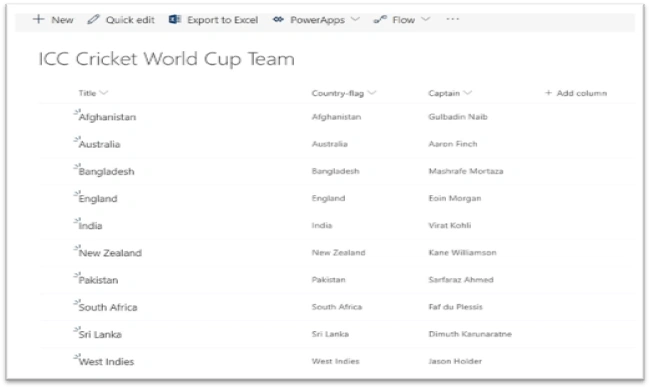
User has created the "ICC world cup Team Modern SharePoint List “. In the list, an item of specific column value is showing the Country-wise flag icon without code formatting the column content.
Objective
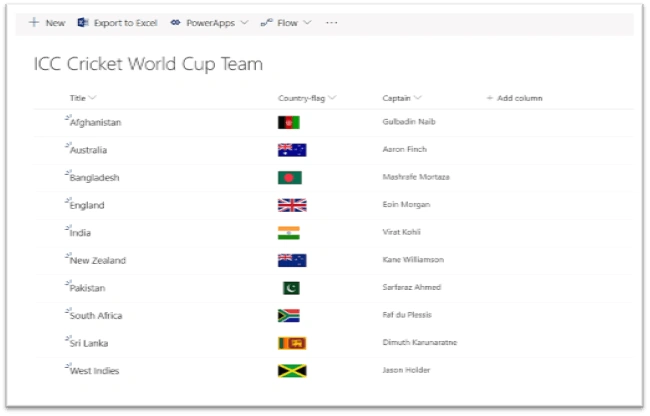
We achieve the expected result using SharePoint online new feature Column formatting list item value of specific Column Using JSON.
How to Apply Column Formatting in a Specific Column?
Navigate to your SharePoint 2013 site -> open SharePoint list -> Follow the numerical point as shown in the below screenshot.
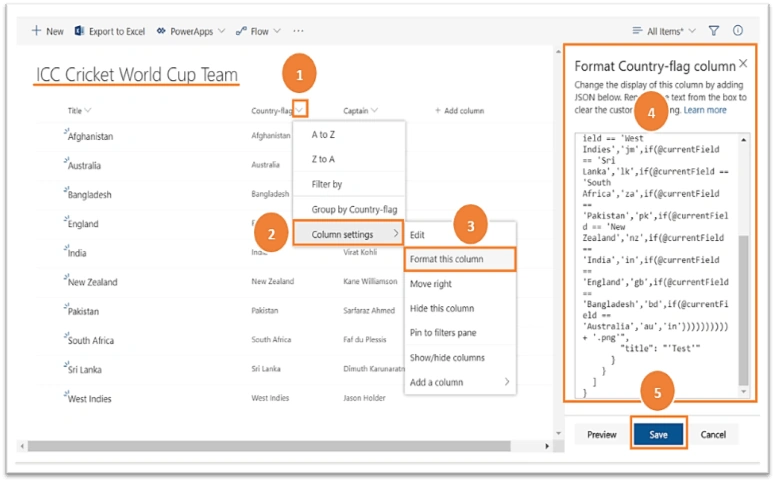
JSON Code
- {
- "$schema": "https://developer.microsoft.com/json-schemas/sp/column-formatting.schema.json",
- "elmType": "div",
- "children": [
- {
- "elmType": "img",
- "attributes": {
- "src": "='https://flagpedia.net/data/flags/h20/'+if(@currentField == 'Afghanistan','af',if(@currentField == 'West Indies','jm',if(@currentField == 'Sri Lanka','lk',if(@currentField == 'South Africa','za',if(@currentField == 'Pakistan','pk',if(@currentField == 'New Zealand','nz',if(@currentField == 'India','in',if(@currentField == 'England','gb',if(@currentField == 'Bangladesh','bd',if(@currentField == 'Australia','au','in'))))))))))+ '.png'",
- "title": "=if(@currentField == 'Afghanistan','Afghanistan',if(@currentField == 'West Indies','West Indies',if(@currentField == 'Sri Lanka','Sri Lanka',if(@currentField == 'South Africa','South Africa',if(@currentField == 'Pakistan','Pakistan',if(@currentField == 'New Zealand','New Zealand',if(@currentField == 'India','India',if(@currentField == 'England','England',if(@currentField == 'Bangladesh','Bangladesh',if(@currentField == 'Australia','Australia','India'))))))))))"
- }
- }
- ]
- }
After adding the JSON and clicking the save button then we see the preview output of the result.
Get the flag codes table. To do so, copy & paste this whole table with the flag codes from Github.
Final Output
Before applying the column formatting Screen
After applying the column formatting Screen
Limitations and Predefined OOTB Classes
Supported column types
|
Sr.No
|
Supported Column Format List
|
Un- Supported Column Format List
|
|
1.
|
Single line of text
|
Managed Metadata
|
|
2.
|
Number
|
Filename (in Document Libraries)
|
|
3.
|
Choice
|
Calculated
|
|
4.
|
Person or Group
|
Retention Label
|
|
5.
|
Yes/No
|
Currency
|
|
6.
|
Hyperlink
|
Managed Metadata
|
|
7.
|
Picture
|
Filename (in Document Libraries)
|
|
8.
|
Date/Time
|
|
|
9.
|
Lookup
|
|
|
10.
|
Title (in Lists)
|
Currently Available OOTB Predefined classes
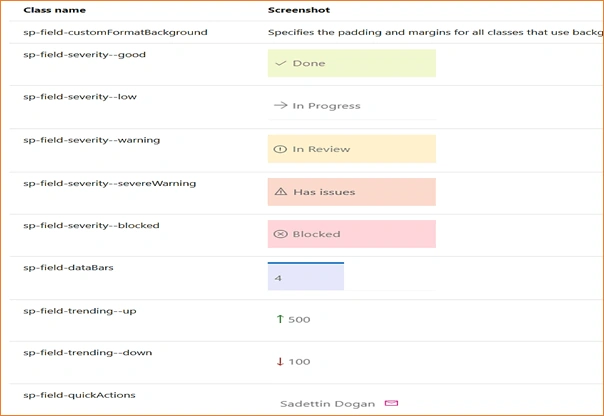
For more details, please refer to this link.
Saani HaquePosted Jul 19, 2020, 5:38 PM
Hi I am trying to have a read more option like i want to show two like then a read more option people clicks on it and it expand to show the more data is it possible in the JSON formation of a column
Shel DonPosted Aug 9, 2019, 8:55 PM
Good Beginners guide
Former memberPosted Aug 9, 2019, 9:38 AM
Very helpful