

Overview
Search has been an integral part of SharePoint over the years. Search helps us to get the security trimmed results across the tenant. Unfortunately, modern SharePoint sites do not provide the search related web parts by default.
In this article, we will explore to query the Search REST API and get the results. We will use React JS in this example.
Create SPFx Solution
Open the command prompt. Create a directory for SPFx solution.
Create SPFx Solution
Open the command prompt. Create a directory for SPFx solution.
- md spfx-react-search
Navigate the above-created directory.
- cd spfx-react-search
Run Yeoman SharePoint Generator to create the solution.
- yo @microsoft/sharepoint
Yeoman generator will present you with the wizard by asking questions about the solution to be created.
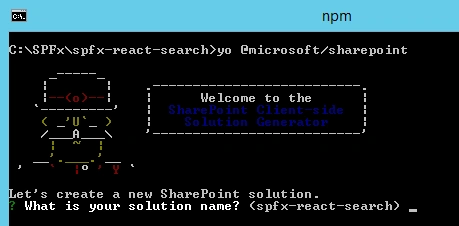
Solution Name
Hit enter to have the default name (spfx-react-search in this case) or type in any other name for your solution.
Hit enter to have the default name (spfx-react-search in this case) or type in any other name for your solution.
Selected choice - Hit enter
Target for component
Here, we can select the target environment where we are planning to deploy the client web part i.e. SharePoint Online or SharePoint OnPremise (SharePoint 2016 onwards).
Here, we can select the target environment where we are planning to deploy the client web part i.e. SharePoint Online or SharePoint OnPremise (SharePoint 2016 onwards).
Selected choice - SharePoint Online only (latest)
Place of files
We may choose to use the same folder or create a subfolder for our solution.
We may choose to use the same folder or create a subfolder for our solution.
Selected choice - Same folder
Deployment option
Selecting Y will allow the app to deployed instantly to all sites and will be accessible everywhere.
Selecting Y will allow the app to deployed instantly to all sites and will be accessible everywhere.
Selected choice - N (install on each site explicitly)
Type of client-side component to create
We can choose to create client-side webpart or an extension. Choose the webpart option.
We can choose to create client-side webpart or an extension. Choose the webpart option.
Selected choice - WebPart
Web part name
Hit enter to select the default name or type in any other name.
Hit enter to select the default name or type in any other name.
Selected choice - SearchResultsViewer
Web part description
Hit enter to select the default description or type in any other value.
Hit enter to select the default description or type in any other value.
Selected choice - Retrieve search results using the REST API.
Framework to use
Select any JavaScript framework to develop the component. Available choices are (No JavaScript Framework, React, and Knockout)
Selected choice - React
Select any JavaScript framework to develop the component. Available choices are (No JavaScript Framework, React, and Knockout)
Selected choice - React
Model for Search Results
We will define an interface for representing the SharePoint search results.
Add an interface (ISPSearchResult.ts) representing the SharePoint search result.
- export interface ISPSearchResult
- {
- Title: string;
- Description: string;
- Url: string
- }
- import {ISPSearchResult} from './ISPSearchResult';
- export interface ISearchResultsViewerState {
- status: string;
- searchText: string;
- items: ISPSearchResult[];
- }
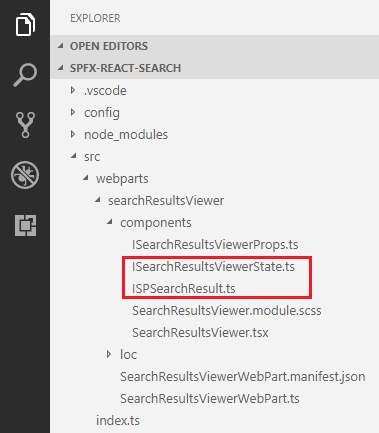
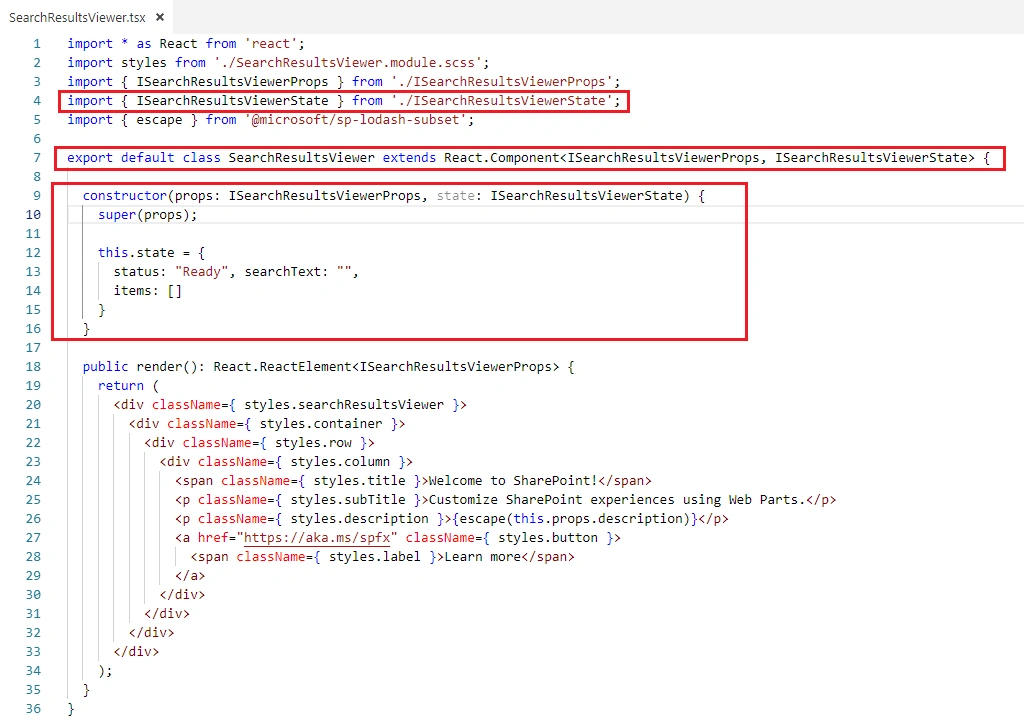
Add Controls to WebPart
Open SearchResultsViewer.tsx under “\src\webparts\searchResultsViewer\components\” folder.
Modify the Render method to include the required controls.
Text field
- // Import Textfield component
- import { TextField } from 'office-ui-fabric-react/lib/TextField';
- import './TextField.Examples.scss';
- <TextField
- required={true}
- name="txtSearchText"
- placeholder="Search..."
- value={this.state.searchText}
- onChanged={e => this.setState({ searchText: e })}
- />
Button
- // Import Button component
- import { IButtonProps, DefaultButton } from 'office-ui-fabric-react/lib/Button';
- <DefaultButton
- data-automation-id="search"
- target="_blank"
- title="Search"
- onClick={this._searchClicked}
- >
- Search
- </DefaultButton>
- private _searchClicked(): void {
- }
List
- // Import List component
- import { FocusZone, FocusZoneDirection } from 'office-ui-fabric-react/lib/FocusZone';
- import { List } from 'office-ui-fabric-react/lib/List';
- // Import Link component
- import { Link } from 'office-ui-fabric-react/lib/Link';
- <FocusZone direction={FocusZoneDirection.vertical}>
- <div className="ms-ListGhostingExample-container" data-is-scrollable={true}>
- <List items={this.state.items} onRenderCell={this._onRenderCell} />
- </div>
- </FocusZone>
- private _onRenderCell(item: ISPSearchResult, index: number, isScrolling: boolean): JSX.Element {
- return (
- <div className="ms-ListGhostingExample-itemCell" data-is-focusable={true}>
- <div className="ms-ListGhostingExample-itemContent">
- <div className="ms-ListGhostingExample-itemName">
- <Link href={item.Url}>{item.Title}</Link>
- </div>
- <div className="ms-ListGhostingExample-itemName">{item.Description}</div>
- <p></p>
- </div>
- </div>
- );
- }
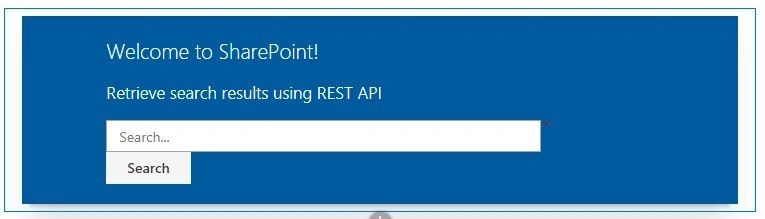
In the command prompt type “gulp serve” to see the controls on webpart.
Implement service to retrieve search results
- Add a folder “services” to the solution.
- To the “services” folder, add a file SearchService.ts
- We will use the REST API to get the search results.
- import { SPHttpClient, SPHttpClientResponse } from '@microsoft/sp-http';
- import { IWebPartContext } from '@microsoft/sp-webpart-base';
- import { ISPSearchResult } from '../components/ISPSearchResult';
- import { ISearchResults, ICells, ICellValue, ISearchResponse } from './ISearchService';
- import { escape } from '@microsoft/sp-lodash-subset';
- export default class SearchService {
- constructor(private _context: IWebPartContext) {
- }
- public getSearchResults(query: string): Promise<ISPSearchResult[]> {
- let url: string = this._context.pageContext.web.absoluteUrl + "/_api/search/query?querytext='" + query + "'";
- return new Promise<ISPSearchResult[]>((resolve, reject) => {
- // Do an Ajax call to receive the search results
- this._getSearchData(url).then((res: ISearchResults) => {
- let searchResp: ISPSearchResult[] = [];
- // Check if there was an error
- if (typeof res["odata.error"] !== "undefined") {
- if (typeof res["odata.error"]["message"] !== "undefined") {
- Promise.reject(res["odata.error"]["message"].value);
- return;
- }
- }
- if (!this._isNull(res)) {
- const fields: string = "Title,Path,Description";
- // Retrieve all the table rows
- if (typeof res.PrimaryQueryResult.RelevantResults.Table !== 'undefined') {
- if (typeof res.PrimaryQueryResult.RelevantResults.Table.Rows !== 'undefined') {
- searchResp = this._setSearchResults(res.PrimaryQueryResult.RelevantResults.Table.Rows, fields);
- }
- }
- }
- // Return the retrieved result set
- resolve(searchResp);
- });
- });
- }
- /**
- * Retrieve the results from the search API
- *
- * @param url
- */
- private _getSearchData(url: string): Promise<ISearchResults> {
- return this._context.spHttpClient.get(url, SPHttpClient.configurations.v1, {
- headers: {
- 'odata-version': '3.0'
- }
- }).then((res: SPHttpClientResponse) => {
- return res.json();
- }).catch(error => {
- return Promise.reject(JSON.stringify(error));
- });
- }
- /**
- * Set the current set of search results
- *
- * @param crntResults
- * @param fields
- */
- private _setSearchResults(crntResults: ICells[], fields: string): any[] {
- const temp: any[] = [];
- if (crntResults.length > 0) {
- const flds: string[] = fields.toLowerCase().split(',');
- crntResults.forEach((result) => {
- // Create a temp value
- var val: Object = {}
- result.Cells.forEach((cell: ICellValue) => {
- if (flds.indexOf(cell.Key.toLowerCase()) !== -1) {
- // Add key and value to temp value
- val[cell.Key] = cell.Value;
- }
- });
- // Push this to the temp array
- temp.push(val);
- });
- }
- return temp;
- }
- /**
- * Check if the value is null or undefined
- *
- * @param value
- */
- private _isNull(value: any): boolean {
- return value === null || typeof value === "undefined";
- }
- }
Test the WebPart
- On the command prompt, type “gulp serve”
- Open SharePoint site
- Navigate to /_layouts/15/workbench.aspx
- Add the webpart to page.
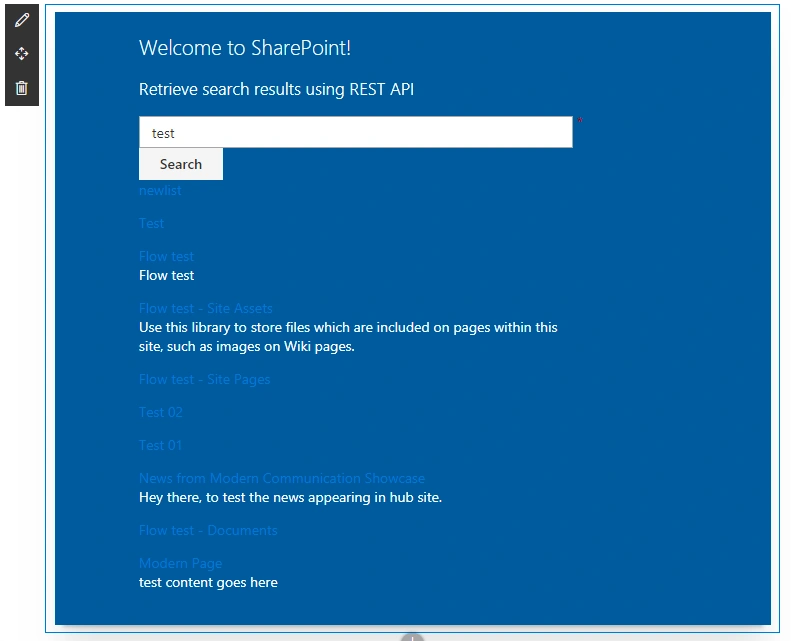
- Type the search text and verify the search results.
Troubleshooting
In some cases, SharePoint workbench (https://[tenant].sharepoint.com/_layouts/15/workbench.aspx) shows below error although “gulp serve” is running.
In some cases, SharePoint workbench (https://[tenant].sharepoint.com/_layouts/15/workbench.aspx) shows below error although “gulp serve” is running.
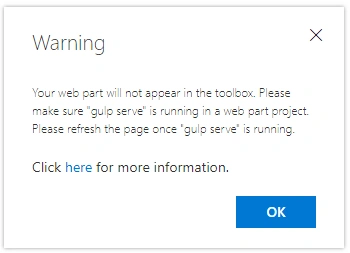
Open below URL in the next tab of the browser. Accept the warning message.
https://localhost:4321/temp/manifests.js
Summary
Modern SharePoint does not have web part for displaying search results. However, using the search REST API the results can be achieved.
Manoj VashistPosted Jul 2, 2023, 7:37 AM
Thanks, Nanddeep, for this beautiful article. It was beneficial.
AdityaPosted Jan 24, 2020, 11:40 AM
Hi Nandeep i run the code and it is running correctly but when we type something in textbox it is not searching anything.
vinod kumarPosted Jan 3, 2020, 2:18 AM
Nice Article !!!
Abenet BeyenePosted Dec 6, 2019, 12:23 PM
Item.Url is not clickable,
Abenet BeyenePosted Dec 4, 2019, 11:14 AM
What is the best way to implement filter items after the data render?
avi dhallPosted Nov 18, 2019, 5:21 PM
I'm getting this error. Error - [webpack] 'dist':./lib/webparts/searchResultsViewer/components/SearchResultsViewer.jsModule not found: Error: Can't resolve './TextField.Examples.scss' in 'C:\Users\avi\Desktop\SPFX\searchListFunctionality\lib\webparts\searchResultsViewer\components' resolve './TextField.Examples.scss' in 'C:\Users\avi\Desktop\SPFX\searchListFunctionality\lib\webparts\searchResultsViewer\components' using description file: C:\Users\avi\Desktop\SPFX\searchListFunctionality\package.json (relative path: ./lib/webparts/searchResultsViewer/components) Field 'browser' doesn't contain a valid alias configuration using description file: C:\Users\avi\Desktop\SPFX\searchListFunctionality\package.json (relative path: ./lib/webparts/searchResultsViewer/components/TextField.Examples.scss) no extension Field 'browser' doesn't contain a valid alias configuration C:\Users\avi\Desktop\SPFX\searchListFunctionality\lib\webparts\searchResultsViewer\components\TextField.Examples.scss doesn't exist .wasm Field 'browser' doesn't contain a valid alias configuration C:\Users\avi\Desktop\SPFX\searchListFunctionality\lib\webparts\searchResultsViewer\components\TextField.Examples.scss.wasm doesn't exist .mjs Field 'browser' doesn't contain a valid alias configuration C:\Users\avi\Desktop\SPFX\searchListFunctionality\lib\webparts\searchResultsViewer\components\TextField.Examples.scss.mjs doesn't exist .js Field 'browser' doesn't contain a valid alias configuration C:\Users\avi\Desktop\SPFX\searchListFunctionality\lib\webparts\searchResultsViewer\components\TextField.Examples.scss.js doesn't exist .json Field 'browser' doesn't contain a valid alias configuration C:\Users\avi\Desktop\SPFX\searchListFunctionality\lib\webparts\searchResultsViewer\components\TextField.Examples.scss.json doesn't exist as directory C:\Users\avi\Desktop\SPFX\searchListFunctionality\lib\webparts\searchResultsViewer\components\TextField.Examples.scss doesn't exist [C:\Users\avi\Desktop\SPFX\searchListFunctionality\lib\webparts\searchResultsViewer\components\TextField.Examples.scss] [C:\Users\avi\Desktop\SPFX\searchListFunctionality\lib\webparts\searchResultsViewer\components\TextField.Examples.scss.wasm] [C:\Users\avi\Desktop\SPFX\searchListFunctionality\lib\webparts\searchResultsViewer\components\TextField.Examples.scss.mjs] [C:\Users\avi\Desktop\SPFX\searchListFunctionality\lib\webparts\searchResultsViewer\components\TextField.Examples.scss.js] [C:\Users\avi\Desktop\SPFX\searchListFunctionality\lib\webparts\searchResultsViewer\components\TextField.Examples.scss.json] @ ./lib/webparts/searchResultsViewer/components/SearchResultsViewer.js 14:0-35 @ ./lib/webparts/searchResultsViewer/SearchResultsViewerWebPart.js
Ankit SinghPosted Oct 3, 2019, 4:21 AM
Hi Nanddeep I want to use your services(Search) in my project, I have created services folder and added both the files(SearchService and ISearchService). when I am doing gulp serve its giving build error saying: src/webparts/kendoReactSpfx/services/ISearchService.ts' is not a module.
Ankit SinghPosted Sep 29, 2019, 11:10 AM
Hi Nandeep Thanks for this web part I am stuck at one point, need your guidance. My requirement is fetch all the items(using search) and their properties, but when i am using search API its returning only by default columns only which share point provides.(ex. Title, Author, Last Modified...). I am not getting columns and their values which i have created. My Search Query is https://sitesURL/_api/search/query?querytext='ContentTypeId:0x0100F70355365FB2A14FA519B9E02FFF7F67'
krishnakanth dasiPosted Sep 25, 2019, 3:55 AM
I did not see any file with name ISearchService.Can you please explain about that
Md Tahmidul AbedinPosted Oct 10, 2018, 11:02 PM
Nice One. :)