

Overview
SharePoint has supported localization in each of its versions to help build better content for users worldwide. SharePoint Framework is also not an exception to it. SPFx offers multilingual support with the help of localized resource files as a part of an SPFx solution.
In this article, we will explore the localization options with SPFx. We will use ReactJS to develop the example.
Create SPFx Solution
Open the command prompt. Create a directory for SPFx solution.
- md spfx-react-localization
Navigate to the above-created directory.
- cd spfx-react-localization
Run Yeoman SharePoint Generator to create the solution.
- yo @microsoft/sharepoint
Yeoman generator will present you with the wizard by asking questions about the solution to be created.
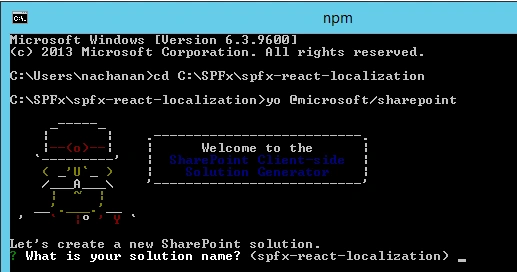
Solution Name
Hit Enter to have a default name (spfx-react- localization in this case) or type in any other name for your solution.
Selected choice - Hit Enter.
Target for component
Here, we can select the target environment where we are planning to deploy the client web part, i.e., SharePoint Online or SharePoint OnPremise (SharePoint 2016 onwards).
Selected choice - SharePoint Online only (latest)
Place of files
We may choose to use the same folder or create a subfolder for our solution.
Selected choice - Same folder
Deployment option
Selecting Y will allow the app to deployed instantly to all sites and will be accessible everywhere.
Selected choice - N (install on each site explicitly)
Type of client-side component to create
We can choose to create a client-side web part or an extension. Choose the webpart option.
Selected choice - WebPart
Web part name
Hit Enter to select the default name or type in any other name.
Selected choice - LocalizeText
Web part description
Hit Enter to select the default description or type in any other value.
Selected choice - Localize SPFx web part
Framework to use
Select any JavaScript framework to develop the component. Available choices are (No JavaScript Framework, React, and Knockout).
Selected choice - React
Yeoman generator will perform scaffolding process to generate the solution. The scaffolding process will take a significant amount of time.
Once the scaffolding process is completed, lock down the version of project dependencies by running the below command.
- npm shrinkwrap
In the command prompt, type the below command to open the solution in a code editor of your choice.
- code .
Localization Support
SPFx solution holds localized texts in "loc" folder. The "mystrings.d.ts" file declares an interface for strings.
- declare interface ILocalizeTextWebPartStrings {
- PropertyPaneDescription: string;
- BasicGroupName: string;
- DescriptionFieldLabel: string;
- }
- declare module 'LocalizeTextWebPartStrings' {
- const strings: ILocalizeTextWebPartStrings;
- export = strings;
- }
By default, the en-us.js file has localized texts in English. The default locale used by the SharePoint Framework is en-US. To support localization for any language, we need to add js file for each supported language.
Add file fi-fi.js under “\src\webparts\localizeText\loc\” with localization for Finnish language.
- define([], function() {
- return {
- "PropertyPaneDescription": "Kuvaus",
- "BasicGroupName": "Ryhmän nimi",
- "DescriptionFieldLabel": "Kuvauskenttä"
- }
- });
Localize web part content
The content inside the web part can be localized in the same way as of web part property pane. For each of the strings to be localized, add a key to the localization TypeScript definition file and localized values in each of the locale JS files.
We will localize the button text of the web part.
Step 1 - Add key in localization TypeScript definition file
Open mystrings.d.ts under “\src\webparts\localizeText\loc\”.
Add a key for the button text.
- declare interface ILocalizeTextWebPartStrings {
- PropertyPaneDescription: string;
- BasicGroupName: string;
- DescriptionFieldLabel: string;
- LearnMoreButtonLabel: string;
- }
- declare module 'LocalizeTextWebPartStrings' {
- const strings: ILocalizeTextWebPartStrings;
- export = strings;
- }
Step 2 - Add localized values in each of the locale JS files
\src\webparts\localizeText\loc\en-us.js
- define([], function() {
- return {
- "PropertyPaneDescription": "Description",
- "BasicGroupName": "Group Name",
- "DescriptionFieldLabel": "Description Field",
- "LearnMoreButtonLabel": "Learn more"
- }
- });
- define([], function() {
- return {
- "PropertyPaneDescription": "Kuvaus",
- "BasicGroupName": "Ryhmän nimi",
- "DescriptionFieldLabel": "Kuvauskenttä",
- "LearnMoreButtonLabel": "Lisätietoja"
- }
- });
Step 3 - Globalization of web part
Open \src\webparts\localizeText\components\LocalizeText.tsx and add reference to the localized strings.
- import * as strings from 'LocalizeTextWebPartStrings';
- export default class LocalizeText extends React.Component<ILocalizeTextProps, {}> {
- public render(): React.ReactElement<ILocalizeTextProps> {
- return (
- <div className={ styles.localizeText }>
- <div className={ styles.container }>
- <div className={ styles.row }>
- <div className={ styles.column }>
- <span className={ styles.title }>Welcome to SharePoint!</span>
- <p className={ styles.subTitle }>Customize SharePoint experiences using Web Parts.</p>
- <p className={ styles.description }>{escape(this.props.description)}</p>
- <a href="https://aka.ms/spfx" className={ styles.button }>
- <span className={ styles.label }>{strings.LearnMoreButtonLabel}</span>
- </a>
- </div>
- </div>
- </div>
- </div>
- );
- }
- }
Test web part content and property pane
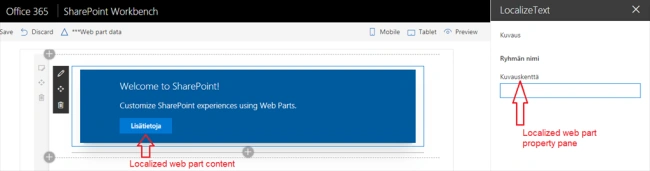
The locale value of spPageContextInfo.currentUICultureName is being used as default locale. On SharePoint local workbench, the default locale used is en-US.
Run gulp serve by specifying local parameter:
- gulp serve --locale=fi-fi
Summary
Localization helps to build better content for users worldwide. SharePoint Framework supports localization by maintaining localized values in separate Javascript files per language.
Sweta PatelPosted Jan 25, 2023, 10:59 AM
I want to use multi lingual user interface in SPFx, i try to use this.context.pageContext.cultureInfo.currentUICultureName in Web part but after that what to do?, I want to to choose language using dropdown style
Ano MepaniPosted Aug 27, 2019, 6:09 AM
Nanddeep Nachan How to get current locale in Spfx webpart and how to update using click event or dropdown change? If you could give insight on this it will be very helpful
Ano MepaniPosted Aug 27, 2019, 6:07 AM
Nanddeep Nachan Currently as per your demo multi lingual support by passing locale in gulp serve. Let's say I have provided dropdown to choose a language then How Multilingual works in spfx?
Md Tahmidul AbedinPosted Oct 25, 2018, 1:37 AM
Nice Writing. :)
Rushi MehtaPosted Oct 24, 2018, 10:32 PM
Nice One. Thanks ofr sharing
Muthu KumarPosted Oct 24, 2018, 12:57 PM
Nice one. Thanks for sharing.
Abhishek MishraPosted Oct 24, 2018, 10:22 AM
A very important concept explained very well.