

Overview
SharePoint web parts follow their own lifecycle while executing the user requests. Everything looks normal when requests go well and web part performs the user interactions (without any error). The awkward moment comes when any of the user requests fail and the web part starts displaying an error message.
SharePoint supports logging by default. If the verbose logging is enabled, SharePoint tracks each of the activity and obviously, it creates loads of logs. In these situations, going through huge logs and finding related information about our error is cumbersome. It is always advisable to have our own logging mechanism implemented.
SharePoint Framework (SPFx) also has no exception to it and supports logging APIs which can be used during the lifecycle of the web part.
Logging Overview
SharePoint Framework (SPFx) also has no exception to it and supports logging APIs which can be used during the lifecycle of the web part.
Logging Overview
The logging levels are pre-defined.
| Logging Level | Definition |
| Verbose | Corresponds to lengthy events. Logs almost everything. |
| Information | Does not require any attention. However, they provide valuable data for monitoring the state of solution. |
| Warning | Indicates potential problem or issue that might need attention. We should monitor the pattern over time. If ignored, warning may result in sever error. |
| Error | Requires urgent attention. All error events should be investigated. |
| Critical | Indicates serious error that has caused major failure in the solution |
| None | No logging occurs |
Verbose is least important followed by information, warning and error.
Create SPFx Solution
Open the command prompt. Create a directory for SPFx solution.
- md spfx-logging
Navigate to the above created directory.
- cd spfx-logging
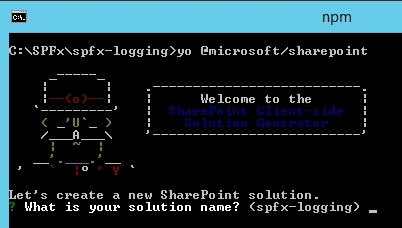
Run Yeoman SharePoint Generator to create the solution.
- yo @microsoft/sharepoint
Yeoman generator will present you with the wizard by asking questions about the solution to be created.
Solution Name
Hit Enter to have a default name (spfx-logging in this case) or type in any other name for your solution.
Hit Enter to have a default name (spfx-logging in this case) or type in any other name for your solution.
Selected choice - Hit Enter.
Target for component
Here, we can select the target environment where we are planning to deploy the client webpart, i.e., SharePoint Online or SharePoint OnPremise (SharePoint 2016 onwards).
Here, we can select the target environment where we are planning to deploy the client webpart, i.e., SharePoint Online or SharePoint OnPremise (SharePoint 2016 onwards).
Selected choice - SharePoint Online only (latest)
Place of files
We may choose to use the same folder or create a subfolder for our solution.
We may choose to use the same folder or create a subfolder for our solution.
Selected choice - Same folder
Deployment option
Selecting Y will allow the app to be deployed instantly to all sites and will be accessible everywhere.
Selecting Y will allow the app to be deployed instantly to all sites and will be accessible everywhere.
Selected choice - N (install on each site explicitly)
Type of client-side component to create
We can choose to create client side webpart or an extension. Choose the webpart option.
We can choose to create client side webpart or an extension. Choose the webpart option.
Selected choice - WebPart
Web part name
Hit Enter to select the default name or type in any other name.
Hit Enter to select the default name or type in any other name.
Selected choice - SPFxLogger
Web part description
Hit enter to select the default description or type in any other value.
Hit enter to select the default description or type in any other value.
Selected choice - Logging with SPFx
Framework to use
Select any JavaScript framework to develop the component. Available choices are - No JavaScript Framework, React, and Knockout.
Select any JavaScript framework to develop the component. Available choices are - No JavaScript Framework, React, and Knockout.
Selected choice - No JavaScript Framework
Yeoman generator will perform scaffolding process to generate the solution. The scaffolding process will take a significant amount of time. Once the scaffolding process is completed, lock down the version of project dependencies by running the below command.
- npm shrinkwrap
In the command prompt, type the below command to open the solution in code editor of your choice.
- code .
Working with Logging API
SharePoint Framework supports logging out of the box. Use the below import for logs.
- import { Log } from '@microsoft/sp-core-library';
Define our log source.
- const LOG_SOURCE: string = 'SPFxLogger';
Log the messages from web part.
- @override
- public onInit(): Promise<void> {
- Log.info(LOG_SOURCE, 'Hello world from SPFx Logger');
- Log.info(LOG_SOURCE, JSON.stringify(this.properties, undefined, 2));
- Log.info(LOG_SOURCE, `Access the strings as "${strings.BasicGroupName}"`);
- return Promise.resolve<void>();
- }
The Log class offers 4 methods to log the information, each of which represents corresponding log level – verbose, info, warn, and error.
The first parameter is logging location. By default, it is the name of the web part but can be overridden. The next parameter is the message to be logged. Optionally, we can specify the service scope.
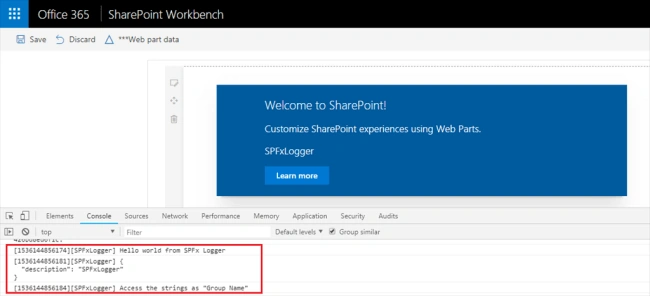
While debugging the SPFx web part, the log message should appear in the console window of the browser.
The first parameter is logging location. By default, it is the name of the web part but can be overridden. The next parameter is the message to be logged. Optionally, we can specify the service scope.
While debugging the SPFx web part, the log message should appear in the console window of the browser.
Summary
SharePoint Framework out of the box provides an API to log information in your solutions. Use the logs effectively to get the benefits out of it at the time of investigating the cause of the error.
Join the conversation! Your thoughts help the community grow.
Sign in to leave a comment
It is the same account you read, post and publish with — and you will come straight back to this page.
Rayees KuniyilPosted Sep 26, 2018, 5:38 AM
Thanks for sharing...
Prasham SabadraPosted Sep 7, 2018, 11:08 PM
Also we can have retention policy or flow to list to archive /delete old errors
Prasham SabadraPosted Sep 7, 2018, 11:07 PM
Thanks for sharing Nanddeep. One good option I also look is having SharePoint list and logging important message in it. Filtering in a list very easy.
Hadshana KamalanathanPosted Sep 7, 2018, 10:53 AM
Thanks for sharing...