

In the article Develop First Client-Side Web Part, we developed a basic SharePoint client web part which can run independently without any interaction with SharePoint.
In this article, we will explore how to consume the Microsoft Graph in SharePoint Framework client-side web parts.
Brief information about Microsoft Graph
MS Graph is a rich and fast-growing set of REST APIs provided by Microsoft to access the content and services provided by Office 365. For example, using Microsoft Graph, we can access the mailbox, calendar, and One Drive for Business (OD4B) of a user. We can also access the Site Collection, sites, and lists in SharePoint Online. Also, we can access Office 365 Groups, Teams etc. using MS Graph.
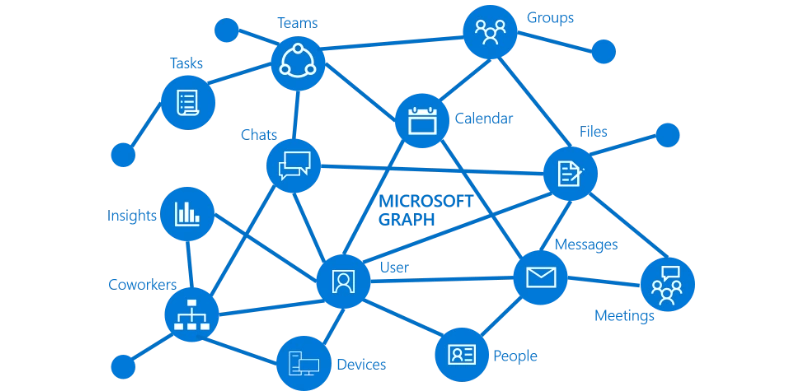
Read more about MS Graph here.
Create SPFx Solution
Open the command prompt. Create a directory for SPFx solution.
- md spfx-consume-msgraph
Navigate to the above-created directory.
- cd spfx-consume-msgraph
Run Yeoman SharePoint Generator to create the solution.
- yo @microsoft/sharepoint
Yeoman Generator will present you with the wizard by asking questions about the solution to be created.
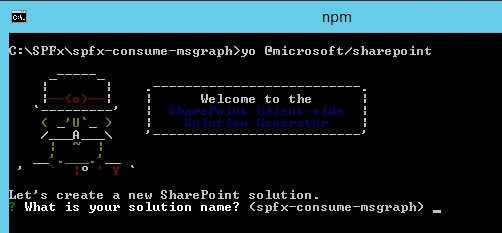
Solution Name
Hit Enter to have the default name (spfx-consume-msgraph in this case) or type in any other name for your solution.
Solution Name
Hit Enter to have the default name (spfx-consume-msgraph in this case) or type in any other name for your solution.
Selected choice - Hit Enter
Target for component
Here, we can select the target environment where we are planning to deploy the client webpart, i.e., SharePoint Online or SharePoint OnPremise (SharePoint 2016 onwards).
Here, we can select the target environment where we are planning to deploy the client webpart, i.e., SharePoint Online or SharePoint OnPremise (SharePoint 2016 onwards).
Selected choice - SharePoint Online only (latest)
Place of files
We may choose to use the same folder or create a subfolder for our solution.
We may choose to use the same folder or create a subfolder for our solution.
Selected choice - Same folder
Deployment option
Selecting Y will allow the app to be deployed instantly to all sites and will be accessible everywhere.
Selecting Y will allow the app to be deployed instantly to all sites and will be accessible everywhere.
Selected choice - N (install on each site explicitly)
Type of client-side component to create
We can choose to create client side webpart or an extension. Choose the webpart option.
We can choose to create client side webpart or an extension. Choose the webpart option.
Selected choice - WebPart
Web part name
Hit Enter to select the default name or type in any other name.
Hit Enter to select the default name or type in any other name.
Selected choice - ConsumeMSGraph
Web part description
Hit Enter to select the default description or type in any other value.
Hit Enter to select the default description or type in any other value.
Selected choice - Consume MS Graph with SPFx
Framework to use
Select any JavaScript framework to develop the component. Available choices are (No JavaScript Framework, React, and Knockout)
Select any JavaScript framework to develop the component. Available choices are (No JavaScript Framework, React, and Knockout)
Selected choice - React
Yeoman generator will perform the scaffolding process to generate the solution. The scaffolding process will take a significant amount of time.
Once the scaffolding process is completed, lock down the version of project dependencies by running the below command.
- npm shrinkwrap
In the command prompt, type the below command to open the solution in code editor of your choice.
- code .
Microsoft Graph can be accessed by either native graph client (MSGraphClient) or low-level type used to access Azure AD secured REST API (AadHttpClient)
In the ConsumeMsGraph.tsx file, under “\src\webparts\consumeMsGraph\components\” folder, add the below import statement
- import { MSGraphClient } from '@microsoft/sp-client-preview';
Microsoft Graph TypeScript Types enable IntelliSense on Microsoft Graph objects including users, messages, and groups.
On the command prompt, run the below command to include typings.
- npm install @microsoft/microsoft-graph-types --save-dev
This command will install the types and save in package.json as a development dependency.
In the ConsumeMsGraph.tsx file, under “\src\webparts\consumeMsGraph\components\” folder, add the following import statement.
- import * as MicrosoftGraph from '@microsoft/microsoft-graph-types';
In order to consume MS Graph or any third party REST APIs, we need to explicitly specify the permissions in the manifest of the solution.
In the package-solution.json file, under “config” folder, configure webApiPermissionRequests property to specify User.ReadBasic.All permission.
- {
- "$schema": "https://developer.microsoft.com/json-schemas/spfx-build/package-solution.schema.json",
- "solution": {
- "name": "spfx-consume-msgraph-client-side-solution",
- "id": "f95e77e7-842b-4ac9-b3f7-f5c421efdb0d",
- "version": "1.0.0.0",
- "includeClientSideAssets": true,
- "webApiPermissionRequests": [
- {
- "resource": "Microsoft Graph",
- "scope": "User.ReadBasic.All"
- }
- ]
- },
- "paths": {
- "zippedPackage": "solution/spfx-consume-msgraph.sppkg"
- }
- }
The webApiPermissionRequests is an array of webApiPermissionRequest items where each item is defined as below.
- resource - name or the ObjectId (in Azure AD). E.g. Microsoft Graph
- scope - name or unique ID of the permission
Please refer to the permission API documentation at - https://developer.microsoft.com/en-us/graph/docs/concepts/permissions_reference
Configure Props
Define the context property in IConsumeMsGraphProps.ts under “\src\webparts\consumeMsGraph\components\”.
Configure Props
Define the context property in IConsumeMsGraphProps.ts under “\src\webparts\consumeMsGraph\components\”.
- import { WebPartContext } from '@microsoft/sp-webpart-base';
- export interface IConsumeMsGraphProps {
- description: string;
- context: WebPartContext;
- }
We will define the state for our React component. To define the interface to represent user, add file IUserItem.ts under “\src\webparts\consumeMsGraph\components\”.
- export interface IUserItem {
- displayName: string;
- mail: string;
- userPrincipalName: string;
- }
- import { IUserItem } from './IUserItem';
- export interface IConsumeMsGraphState {
- users: Array<IUserItem>;
- }
Implement the below method to get the user details from your tenant.
- private getUserDetails(): void {
- const graphClient: MSGraphClient = this.props.context.serviceScope.consume(
- MSGraphClient.serviceKey
- );
- graphClient
- .api("users")
- .version("v1.0")
- .select("displayName,mail,userPrincipalName")
- .get((err, res) => {
- if (err) {
- console.error(err);
- return;
- }
- // Prepare the output array
- var users: Array<IUserItem> = new Array<IUserItem>();
- // Map the JSON response to the output array
- res.value.map((item: any) => {
- users.push( {
- displayName: item.displayName,
- mail: item.mail,
- userPrincipalName: item.userPrincipalName,
- });
- });
- // Update the component state accordingly to the result
- this.setState(
- {
- users: users,
- }
- );
- });
- }
Enable Targeted Release on your Tenant
The MS Graph operation is part of an experimental feature and is only available in the targeted release (first release) tenants,
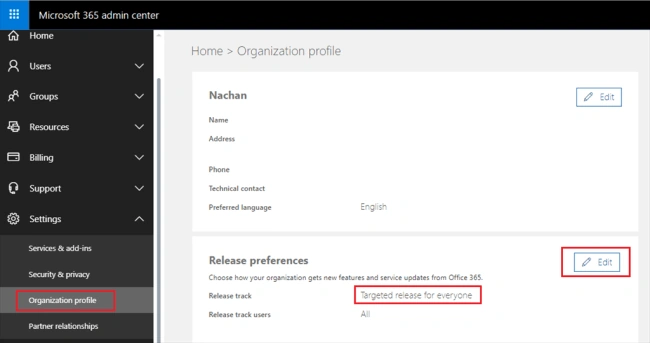
The MS Graph operation is part of an experimental feature and is only available in the targeted release (first release) tenants,
- Open Office 365 Admin Center.
- Click Settings > Organization profile.
- Click Edit against “Release preferences”.
- Select the preference.
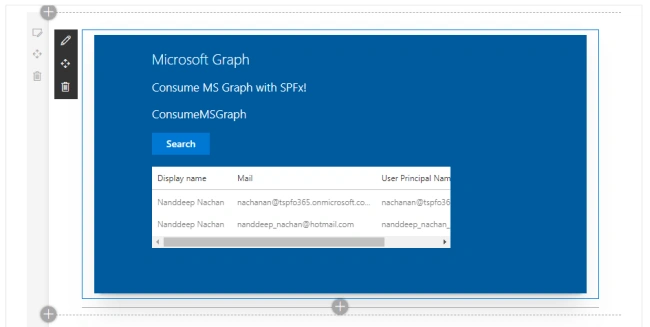
Test the WebPart
- On the command prompt, type “gulp serve”.
- Open SharePoint site.
- Navigate to /_layouts/15/workbench.aspx.
- Add the webpart to the page.
API Management
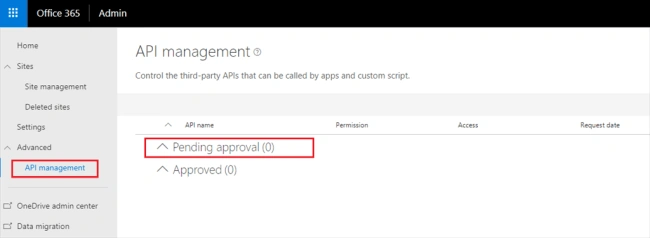
In the Production environment, after deploying the web part, follow the below steps to approve API requests.
In the Production environment, after deploying the web part, follow the below steps to approve API requests.
- Open SharePoint Admin Center (https://[tenant]-admin.sharepoint.com).
- Click “Try the preview”.

- From left navigation, click “API Management”.
- Approve the pending requests.
Summary
Microsoft Graph offers a wide range of REST APIs to access the content and services provided by Office 365. The MS Graph operation is a part of an experimental feature and is only available in the targeted release (first release) tenants only.
Microsoft Graph offers a wide range of REST APIs to access the content and services provided by Office 365. The MS Graph operation is a part of an experimental feature and is only available in the targeted release (first release) tenants only.
Kamesh MPosted Oct 29, 2019, 8:39 AM
I am also Facing the CORS issue when access the azure AD for fetch the Groups with using MSGraphclient.Is there anyway to stop the cors Issue..?
Himanshu ChuriwalaPosted Jul 8, 2019, 3:54 AM
Did u face any CORS issue with MS Graphclient api ?