

Introduction
In this article I would like to explain about SharePoint 2016 Server Installation on Windows Server 2012.
SharePoint is a Powerful content management tool and Microsoft has spent more investing on this to improve further. Everyone knows SharePoint has got a new version to help developers. Yes! Developers don’t want to investigate more things on that.
Here I would like to remember SharePoint's Previous Versions,
- SharePoint 2007 - Every one remember as MOSS07
- SharePoint 2010 -This is the Most successful Version from our Microsoft.
- SharePoint 2013 -This is the game changer for all Content Management .
- SharePoint 2016 -This is the New Version and most expected one to recover complexity in SharePoint 2013.
Every one knows SharePoint 2016 is a server but it is not supporting our Windows 8 orWindows 10. Please don’t worry, I came here to help you..Truly you will love this way.
In this article, I will cover the below major theory.
- Virtual Machine Installation
- Windows Server 2012 installation
- Sql installation
- SharePoint 2016 Server Instalaltion
Step 1: Oracle Virtual Machine installation (VM Box)
Here I will explain about to install the Oracle VM ware Sotware instllation -- Hey guys you don’t worry this is the free version from oracle.
This is the path to download:https://www.virtualbox.org/wiki/Downloads
Follow my instructions with screenshot.
After you install the VM ware, Click New menu in the box
Give names you like and allocate the RAM for your server(Rec 5 gb and above),
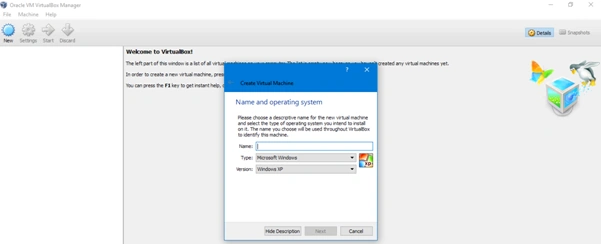
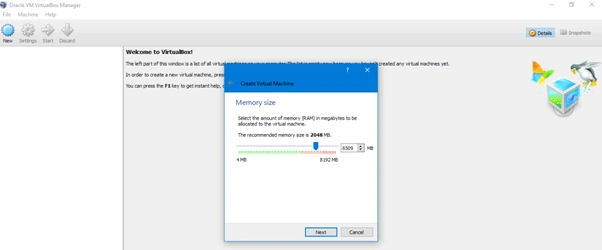
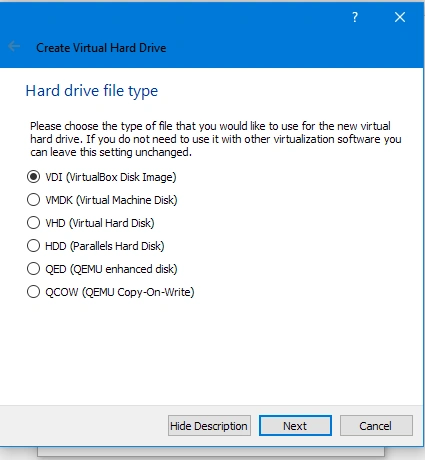
Create a New Virtual Hard Now,
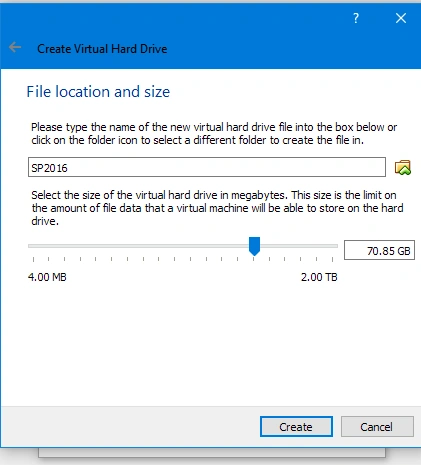
Allocate Separate Space for our Server recommended above 70 gb.
Then Start your server name and select your windows server image file.
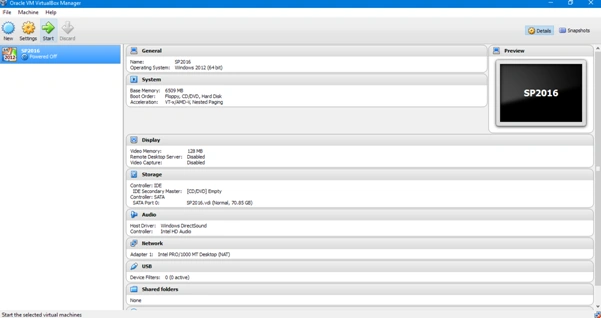
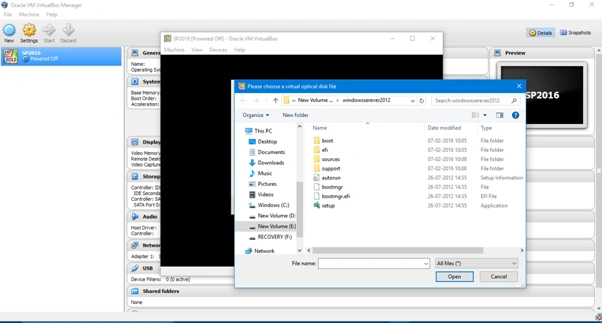
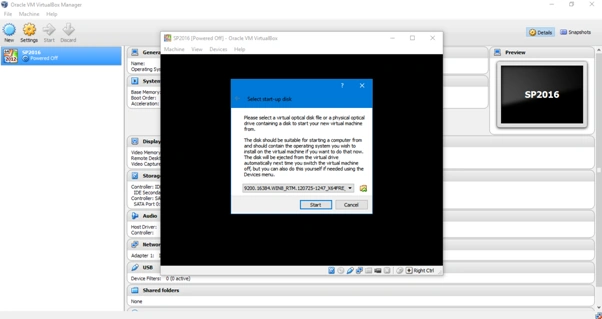
Click Start:
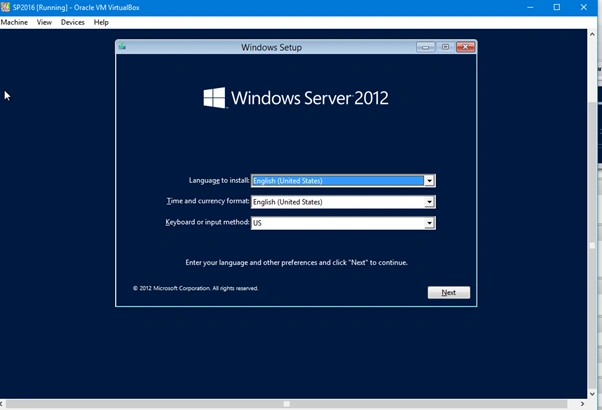
Step 2: Windows Server 2012 R2 installation
Install your Windows Server 2012 R2,
Step 3 : SQL Instalaltion
Follow the below instructions to install the SQL Server 2012.
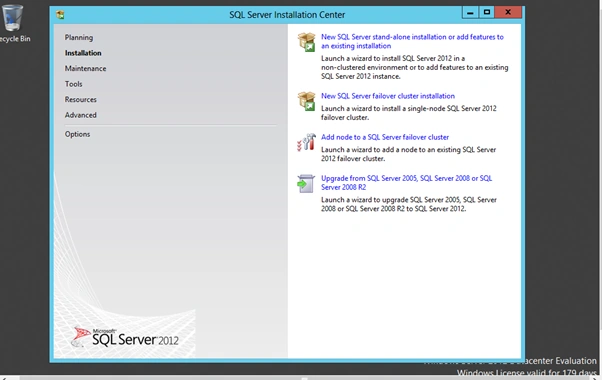
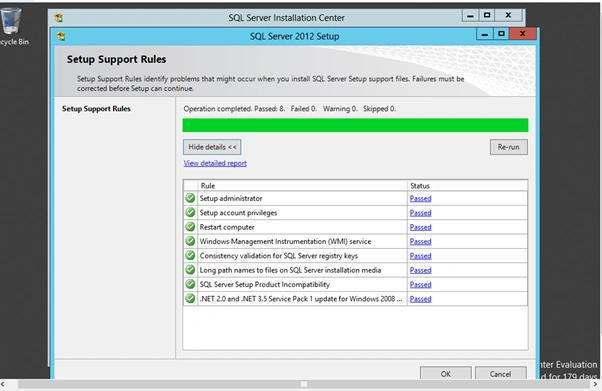
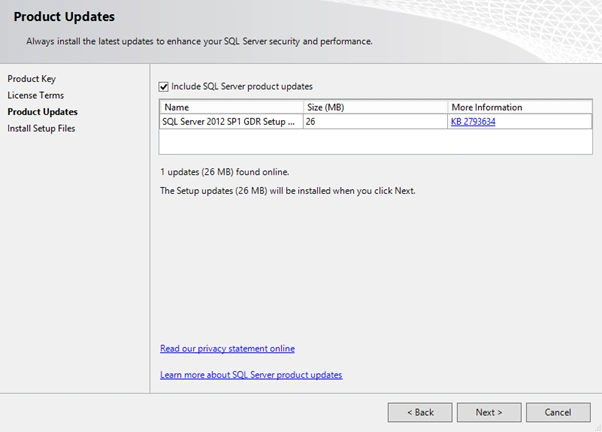
Check all the required files are installed successfully.
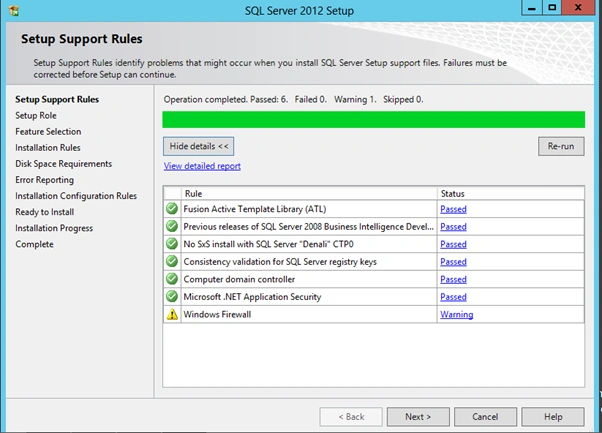
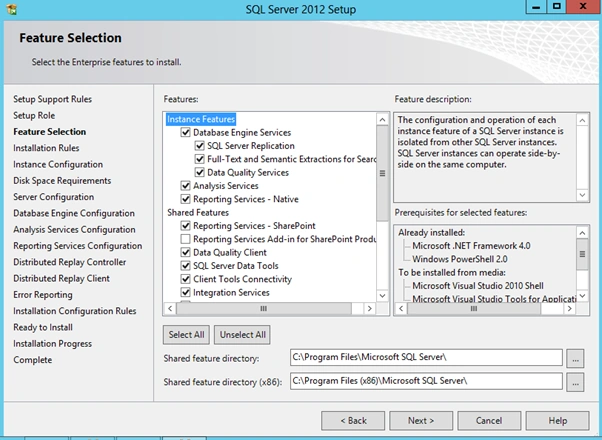
Select all features in the Features Selection,
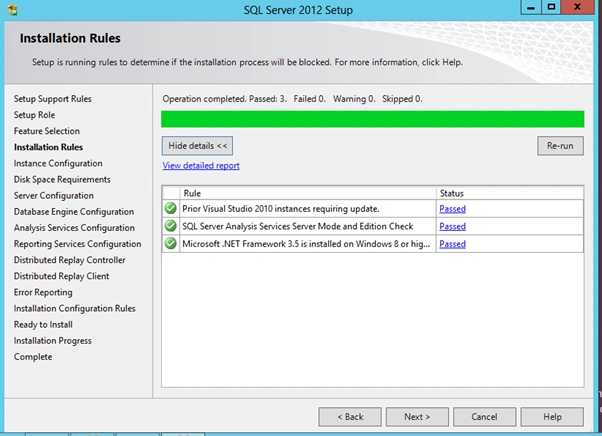
Check all the Rules are configured successfully,
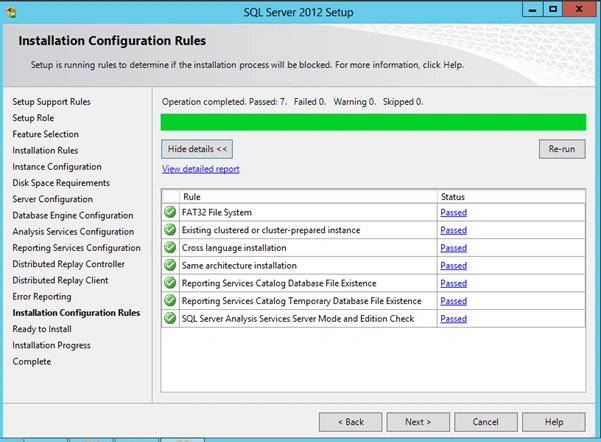
Please be patient to complete the SQL Installation ,it will take more then 15 mins to complete.
Step 4: SharePoint Server 2016 Installation
Download Your SharePoint 2016 Server in the below path,
SharePoint Server 2016 has been designed, developed, and tested with the Microsoft Software as a Service (SaaS) strategy at its core.
https://www.microsoft.com/en-us/download/details.aspx?id=51493
It is a 180 day trial version so you can use as the original like we can with do all updates. I think you will love it.
Click the Setup.exe file in sharepoint server 2016,
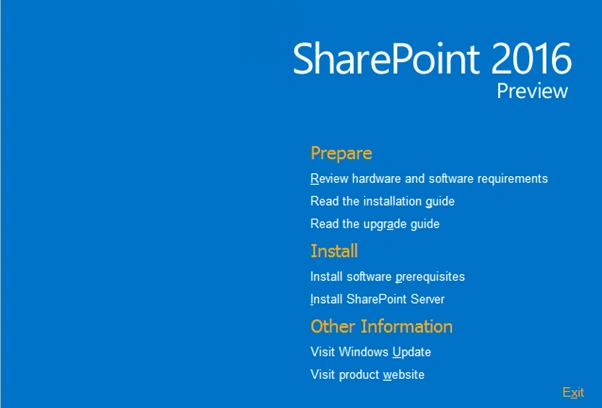
Before running the Install Options Check the other prerequisites and click the Install SharePoint Server ,
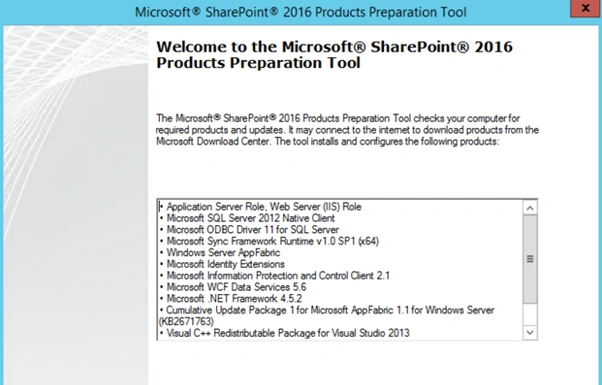
Click the Next Button,
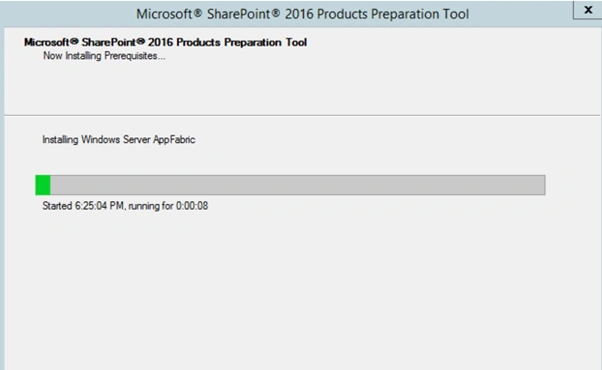
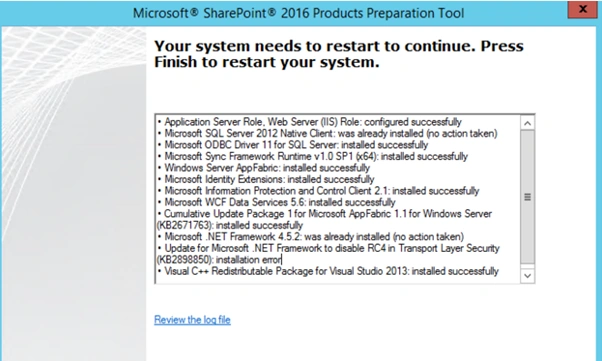
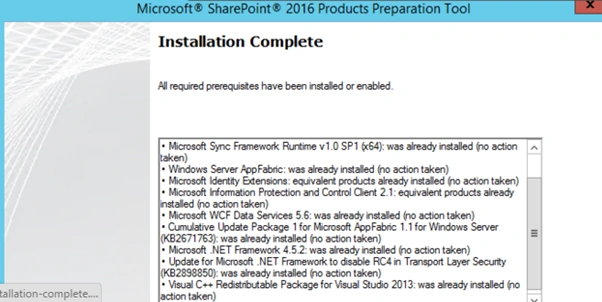
Click Next after restart then download the security patch from Microsoft Download Center through this
URLhttp://www.microsoft.com/en-us/download/details.aspx?id=42883
Then Enter the Key/180 trial period to Proceed the next level,
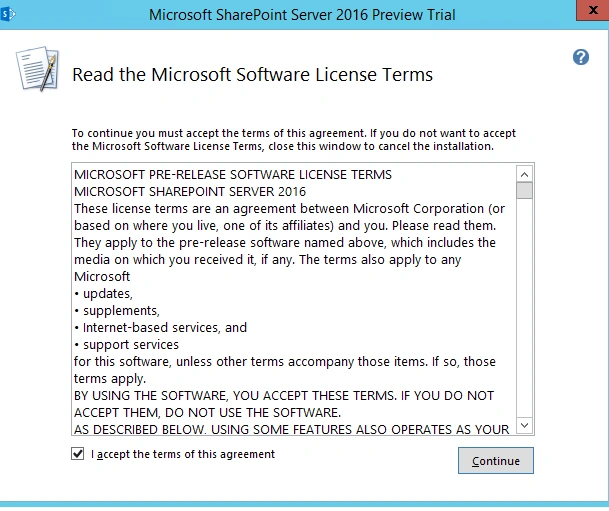
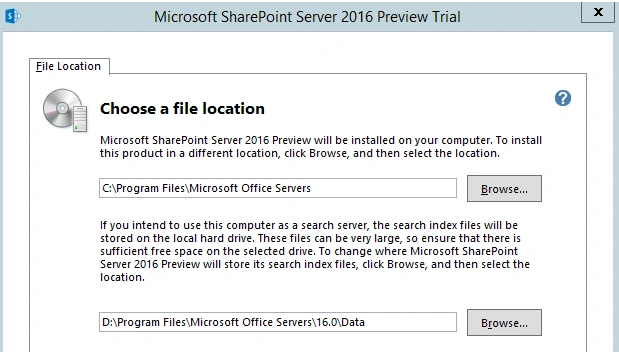
Then Click the Install Now Button,
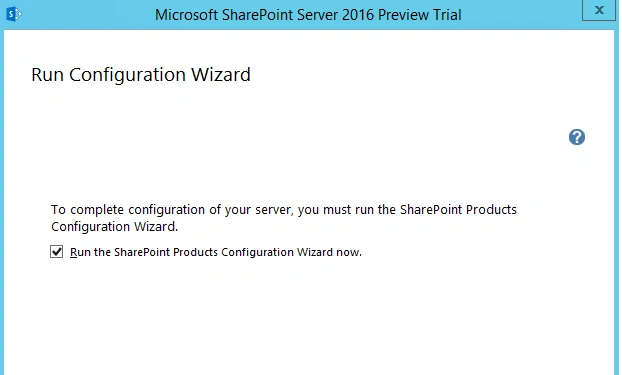
Then Click the SharePoint Installation wizard,
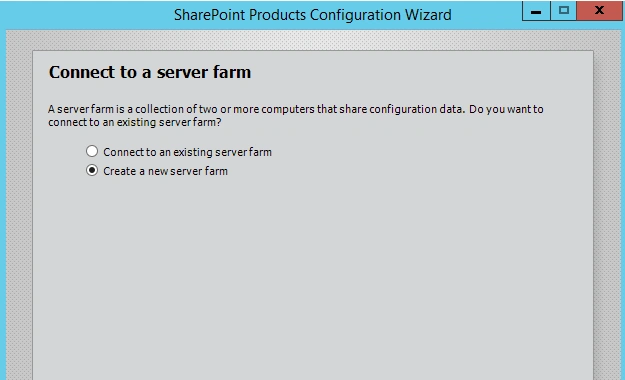
Click next button,
Enter the Database Server /Database Name,
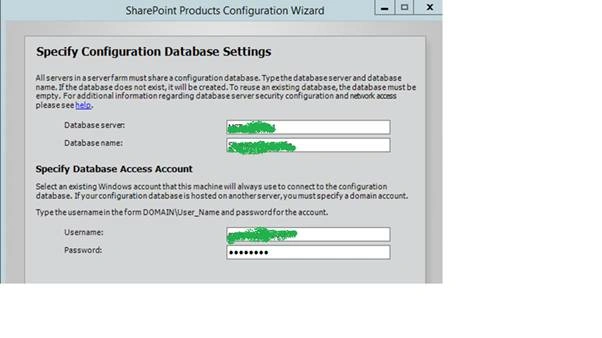
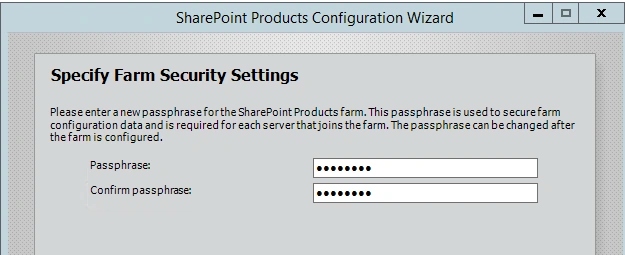
Once you have completed the Database settings click next then enter the FARM settings page as mentioned in the below screenshot,
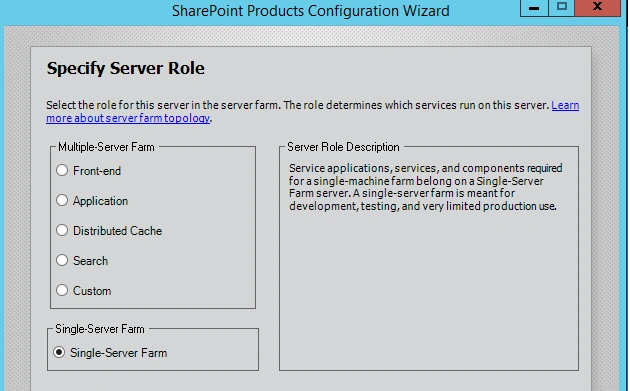
Then Choose the SharePoint 2016 Server role like standalone /Multiserver
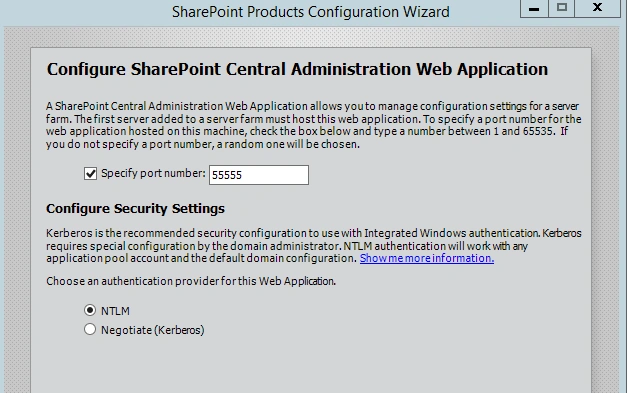
Then you are almost done
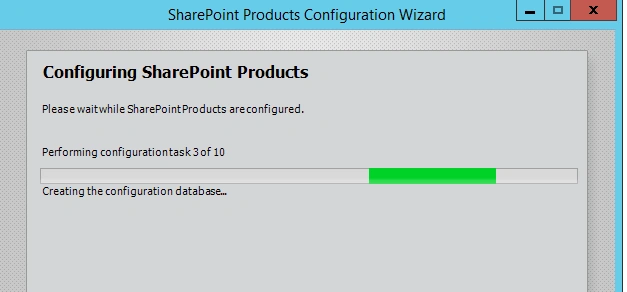
Completing the SharePoint Configuration wizard,
Click Next,
Conclusion:
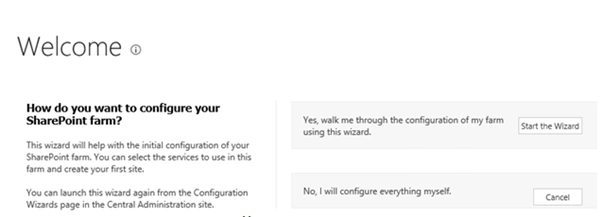
Click Configure Wizard you will be redirecting the SharePoint page then enter the all admin related credentials and everything.
Alfredo GarciaPosted May 22, 2019, 11:21 AM
Thanks a bunch.
Gowtham RajamanickamPosted Apr 29, 2016, 7:37 AM
THANK U BHUVANESH
Bhuvanesh MohankumarPosted Apr 29, 2016, 7:34 AM
Clearly explained
Gowtham RajamanickamPosted Apr 21, 2016, 4:06 AM
happy to see you after long time...
Gowtham RajamanickamPosted Apr 21, 2016, 4:06 AM
Thanks Vijay S
Gowtham RajamanickamPosted Apr 21, 2016, 4:05 AM
THANK U ANO
Vijay SPosted Apr 21, 2016, 3:51 AM
Thanks for sharing this bro. Hope this will be very helpful
Ano MepaniPosted Apr 21, 2016, 2:53 AM
Very helpful article for setting up share point server, Thank you for sharing
Gowtham RajamanickamPosted Apr 18, 2016, 7:30 AM
thank u ..any doubt reach out me
Mohammad KhalidPosted Apr 18, 2016, 5:17 AM
Thank you so much for sharing this content. Today only I will try to make the machine...
Gowtham RajamanickamPosted Apr 18, 2016, 1:13 AM
thank u thank u so much alll
Vinodh NarayananPosted Apr 18, 2016, 12:35 AM
Thanks for sharing
Gowtham RajamanickamPosted Apr 17, 2016, 6:00 AM
Thanks kuppuraj nagarajan
Gowtham RajamanickamPosted Apr 17, 2016, 5:59 AM
Thanks Vignesh Mani
Kuppurasu NagarajPosted Apr 17, 2016, 4:13 AM
Nice Sharing..
Vignesh ManiPosted Apr 17, 2016, 3:18 AM
Nice
Gowtham RajamanickamPosted Apr 17, 2016, 2:22 AM
Thank u all
Gowtham RajamanickamPosted Apr 17, 2016, 2:22 AM
thank u u humayun
Gowtham RajamanickamPosted Apr 17, 2016, 2:22 AM
Thank u BkG
Humayun Kabir MamunPosted Apr 17, 2016, 1:45 AM
Nice...
BK GPosted Apr 16, 2016, 11:27 AM
Make it as a featured one....very helpful to all
BK GPosted Apr 16, 2016, 11:27 AM
This article should be in the Featured article section....
BK GPosted Apr 16, 2016, 11:26 AM
Yes...This kinda article I was searching.... Really useful and u made my.work simpl
Gowtham RajamanickamPosted Apr 16, 2016, 11:18 AM
Hi guys,please make a note of it...when you install windows server2012 R2 ...sorry for the inconvenience ...I made wrong screenshot... So kindly install WI does server2012 R2 version....