

Here are the steps,
Step 1:
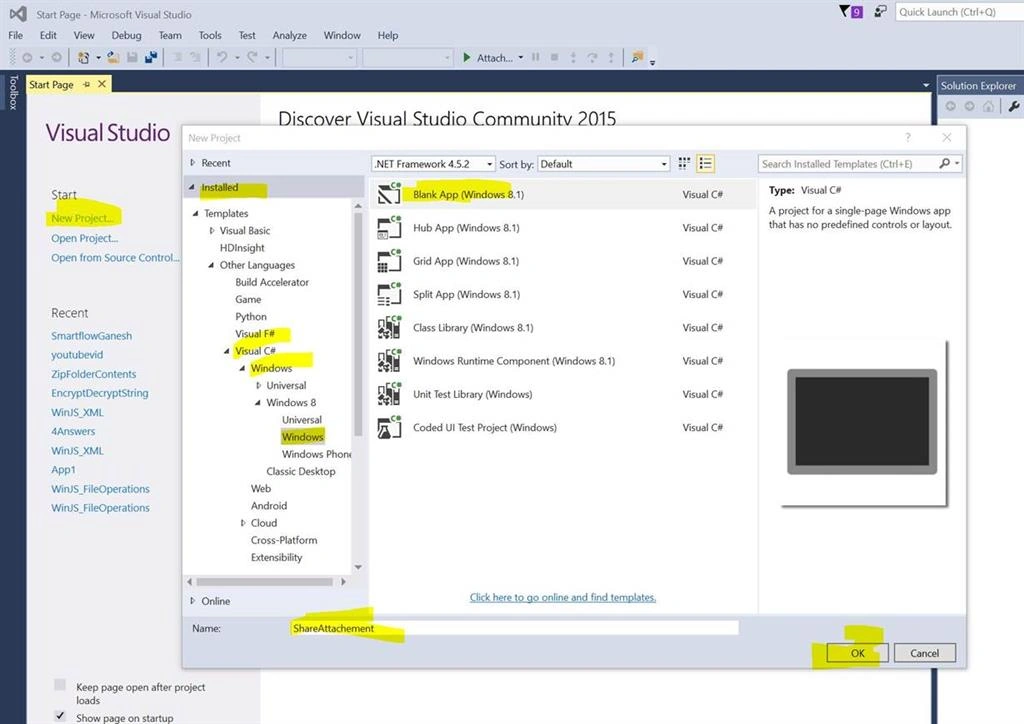
Create a simple Windows Project. Click New Project, Visual C#, Windows 8, Windows, then click Blank App (Windows 8.1).
Step 2:
Lets add a button in MainPage.xaml:
Create a simple Windows Project. Click New Project, Visual C#, Windows 8, Windows, then click Blank App (Windows 8.1).
Step 2:
Lets add a button in MainPage.xaml:
- A button with the Click event.
Complete XAML code is:
- <Page
- x:Class="ShareAttachment.MainPage"
- xmlns="http://schemas.microsoft.com/winfx/2006/xaml/presentation"
- xmlns:x="http://schemas.microsoft.com/winfx/2006/xaml"
- xmlns:local="using:ShareAttachment"
- xmlns:d="http://schemas.microsoft.com/expression/blend/2008"
- xmlns:mc="http://schemas.openxmlformats.org/markup-compatibility/2006"
- mc:Ignorable="d">
- <Grid Background="{ThemeResource ApplicationPageBackgroundThemeBrush}">
- <Button x:Name="btn_Share" Content="Share Attachment" HorizontalAlignment="Left" Margin="377,231,0,0" VerticalAlignment="Top" Click="btn_Share_Click"/>
- </Grid>
- </Page>
Step 3:
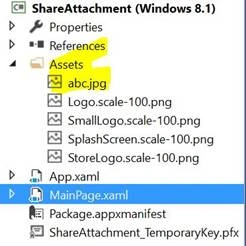
We put an image file ‘abc.jpg’ in Assets folder of solution explorer so that it can be used as an attachment in the mail.
Step 4:
In the code behind: MainPage.xaml.cs,
Update your code with this:
- using System;
- using System.Collections.Generic;
- using System.IO;
- using System.Linq;
- using System.Runtime.InteropServices.WindowsRuntime;
- using Windows.ApplicationModel.DataTransfer;
- using Windows.Foundation;
- using Windows.Foundation.Collections;
- using Windows.UI.Xaml;
- using Windows.UI.Xaml.Controls;
- using Windows.UI.Xaml.Controls.Primitives;
- using Windows.UI.Xaml.Data;
- using Windows.UI.Xaml.Input;
- using Windows.UI.Xaml.Media;
- using Windows.UI.Xaml.Navigation;
- namespace ShareAttachment
- {
- public sealed partial class MainPage : Page
- {
- public MainPage()
- {
- this.InitializeComponent();
- var dtm = Windows.ApplicationModel.DataTransfer.DataTransferManager.GetForCurrentView();
- dtm.DataRequested += Dtm_DataRequested;
- }
- private async void Dtm_DataRequested(Windows.ApplicationModel.DataTransfer.DataTransferManager sender, Windows.ApplicationModel.DataTransfer.DataRequestedEventArgs args)
- {
- DataPackage dataToShare = args.Request.Data;
- dataToShare.Properties.Title = "Attachment Sharing Application";
- dataToShare.Properties.Description = "Attachment Sharing Application that share images";
- var storageFile = await Windows.ApplicationModel.Package.Current.InstalledLocation.GetFileAsync("Assets\\abc.jpg");
- var imageStream = Windows.Storage.Streams.RandomAccessStreamReference.CreateFromFile(storageFile);
- dataToShare.SetBitmap(imageStream);
- }
- private void btn_Share_Click(object sender, RoutedEventArgs e)
- {
- Windows.ApplicationModel.DataTransfer.DataTransferManager.ShowShareUI();
- }
- }
- }
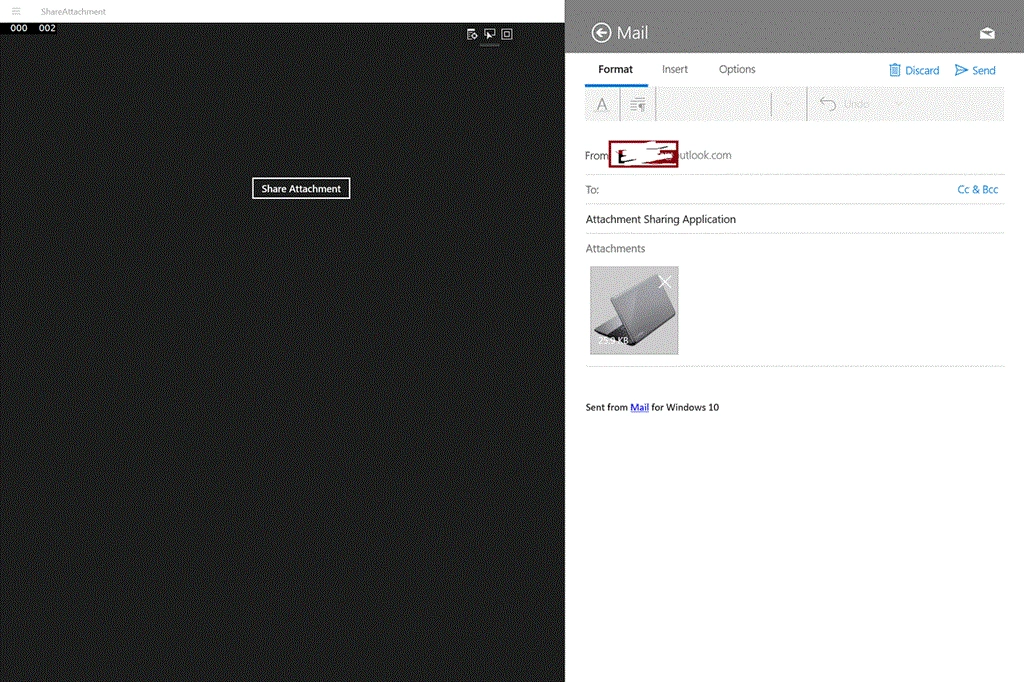
Run the application, click the Share Attachment button and you see a Share UI open in the right side of app.
Click on Mail and you see an email compose with an image attached.
That’s it.
Thanks, Happy Coding!
Read more articles on Windows Runtime Apps:
Raja TPosted May 4, 2016, 5:24 AM
Nice,Thanks for sharing
Amit DavePosted May 3, 2016, 10:29 AM
Keep up the Good work!
Sonu ChaudharyPosted May 2, 2016, 5:53 AM
Thanks for sharing
Kuppurasu NagarajPosted May 1, 2016, 12:50 PM
Nice Sharing..
Vignesh ManiPosted May 1, 2016, 9:14 AM
Nice